
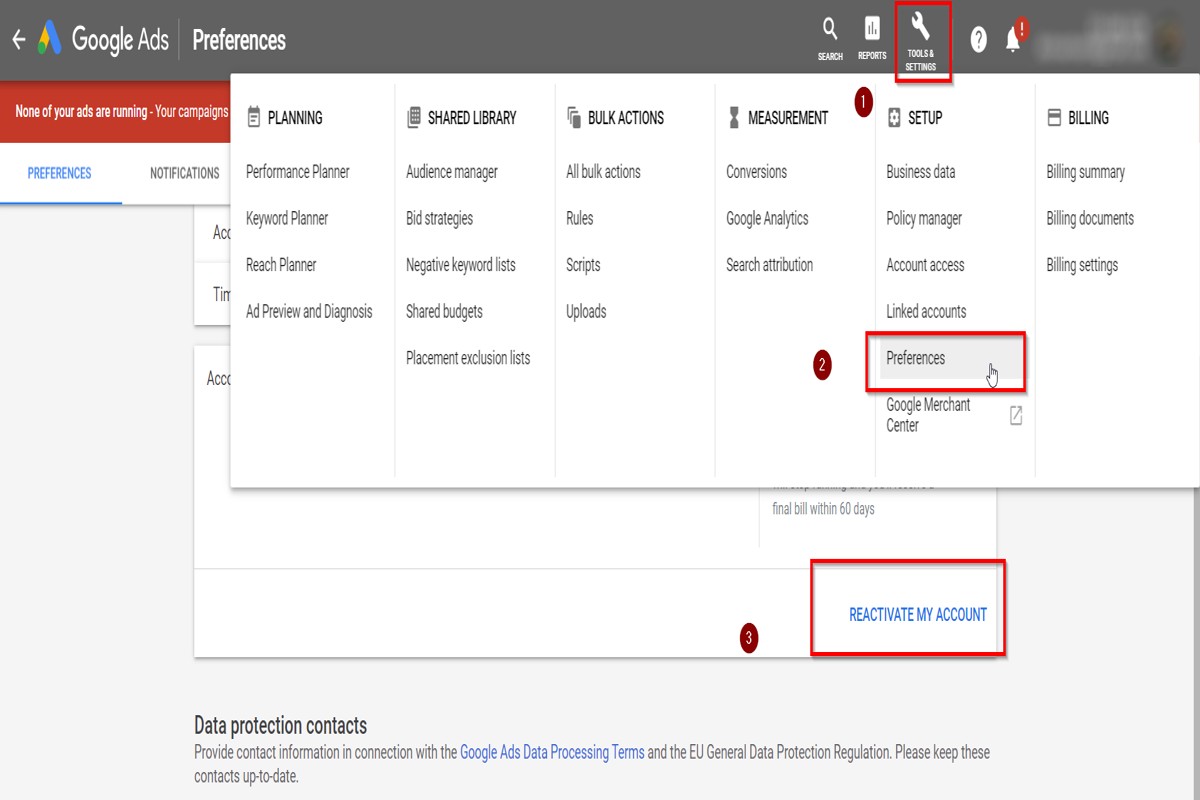
How to cancel Google Ads involves a straightforward process: sign in to your Google Ads account, click on ‘Tools and Settings’, select ‘Billing’, and then choose ‘Cancel Account’. Follow the prompts to complete the cancellation.
Understanding how to cancel Google Ads is crucial for businesses managing their online advertising budgets. Incorrectly handling account cancellations can lead to unintended charges or disruptions in marketing strategies, impacting overall business performance.
This guide provides a detailed, step-by-step approach to canceling your Google Ads account, ensuring you understand each necessary action and its implications.
What happens when you cancel Google Ads?
When you cancel Google Ads, your active campaigns are paused, and no further ads will be displayed. Additionally, you will not incur any further charges for the campaigns that have been canceled, although you will still be billed for any outstanding costs incurred prior to cancellation.
Cancelling Google Ads leads to immediate implications for your advertising strategy. First, all active campaigns will stop running, meaning your ads will no longer appear in search results or on partner sites. You will retain access to your account, allowing you to review performance data and reports, which can be beneficial for future campaigns. However, any scheduled ads will also be terminated, and you will need to restart campaigns manually if you decide to return to advertising.
- Billing Cycle: You will receive a final invoice for any accrued charges up until the cancellation date. This includes clicks and impressions that occurred before the cancellation.
- Data Retention: Your account data will remain accessible for a period of time, enabling you to analyze past performance and make informed decisions if you choose to re-engage with Google Ads later.
- Reactivation: If you decide to resume advertising, you can reactivate your existing campaigns, although it may take some time for ads to start running again depending on your account status and budget settings.
Expert Tip: For businesses considering cancellation due to budget constraints, it may be more effective to adjust your campaign settings, such as lowering bids or refining targeting, rather than a full cancellation. This approach allows you to maintain visibility without incurring significant costs.
How do I pause my Google Ads instead of canceling?
To pause your Google Ads campaigns without canceling your account, access your Google Ads dashboard and modify the status of your campaigns. Pausing allows you to temporarily stop ads while retaining all settings for future use.
Follow these steps to pause your campaigns:
- Log in to your Google Ads account. Navigate to the dashboard where your campaigns are displayed.
- Select the campaign(s) you wish to pause. You can do this by clicking the checkbox next to each campaign name.
- Click the “Edit” button. This button is usually located above the campaign list.
- Choose the “Pause” option. From the dropdown menu, select “Pause” to stop the selected campaigns.
- Confirm the changes. Ensure that the campaigns now display as paused in your dashboard.
Pausing campaigns instead of canceling them is beneficial for maintaining your settings and historical data. You can reactivate your campaigns at any time without having to reconfigure them. Keep in mind that while paused, your ads will not accrue any costs, but your account will remain active and retain its performance metrics.
For additional management, consider setting reminders to review your paused campaigns periodically. This ensures you can reactivate them when needed, optimizing your advertising strategy.
Expert Tip: Utilize the “Schedule” feature in Google Ads to automate pausing and reactivating campaigns based on specific times or events. This can enhance your ad management efficiency and ensure optimal resource allocation.
Is there a cost to cancel Google Ads?
There is no direct cost associated with canceling a Google Ads account. However, users may incur charges for any outstanding campaign costs or accrued clicks prior to cancellation.
When canceling a Google Ads account, the final bill will reflect all advertising activity up to the point of cancellation. This means if ads were running, charges will apply based on the number of clicks or impressions generated. Once payment for these charges is settled, there are no additional fees for the cancellation itself.
- Outstanding Charges: Users are responsible for any unpaid costs incurred from active campaigns before the cancellation date.
- Billing Cycle: Depending on when you cancel, you may still be billed for the current month’s activity, as Google Ads operates on a monthly billing cycle.
- Refunds: If there is a remaining balance in your account, you may be eligible for a refund, but this is contingent on Google’s policies and the payment method used.
Once the account is canceled, users will not incur any further charges. However, it is essential to review the account for any ongoing campaigns or promotions that might lead to unexpected costs if not appropriately managed before cancellation.
Expert Tip: Before canceling, consider downloading reports of your account performance and conversion data. This information can be valuable for future marketing efforts or analysis, even after the account is closed.
How long does it take to cancel Google Ads?
Canceling Google Ads typically takes about 24 hours to process. However, users may continue to see charges on their account until the cancellation fully reflects in the billing system.
The timeline for cancellation can vary based on several factors. First, if a user has an active campaign running, it may take some time for Google to halt all ad activities. Additionally, any pending charges or accrued costs will be finalized even after the cancellation request is made. Users should monitor their billing statements to ensure no unexpected charges occur after cancellation.
Another factor that can influence the cancellation timeline is the method of cancellation. If a user chooses to cancel through the Google Ads interface, the process is typically immediate. However, if a user submits a request through customer support or email, it may take longer for a representative to process the request and confirm the cancellation. Expect to receive a confirmation email once the cancellation is complete, which serves as a record of the action taken.
Expert Tip: Always double-check your billing settings after cancellation to ensure that no future charges are incurred, as some account types may have residual charges based on previous ad engagements.
Can I reactivate my Google Ads account after cancellation?
Yes, you can reactivate your Google Ads account after cancellation, but specific conditions apply. The reactivation process depends on how long ago the account was canceled and whether it was suspended or voluntarily canceled. Understanding these factors is essential for a smooth reactivation.
There are two main scenarios regarding account cancellation: voluntary cancellation and suspension. In the case of voluntary cancellation, the account can typically be reactivated by simply signing back in and following the prompts to restore the account. However, if the account was suspended due to policy violations, reactivation may require resolving the issues that led to the suspension, which can involve submitting appeals or adhering to Google’s guidelines.
Here is a comparison of the reactivation process based on the type of cancellation:
- Voluntary Cancellation: Reactivation is straightforward. Log in to your account and follow the reactivation prompts.
- Suspended Account: Requires addressing the policy violations. Submit an appeal and wait for Google’s review before reactivation.
- Time Limit: Accounts canceled for more than 15 months may be permanently deleted, making reactivation impossible.
Additionally, upon reactivation, all previous campaigns and data may not be restored, especially if the account was inactive for an extended period. Users should be prepared to set up campaigns anew or adjust existing ones based on the current advertising landscape.
Expert Tip: Before reactivating, review Google Ads policies to ensure compliance and avoid future suspensions, which can complicate the reactivation process.
What are the best practices for canceling Google Ads?
To effectively cancel Google Ads while minimizing disruption, follow a structured approach. This ensures that the cancellation process is smooth and that you retain valuable data for future marketing strategies. Implementing these best practices can help maintain clarity and prevent unnecessary complications.
First, assess your current advertising campaigns. Determine which campaigns are no longer effective or necessary before proceeding with cancellation. This targeted approach allows you to maintain the campaigns that are performing well while eliminating those that are not contributing to your goals.
- Communicate with your team: Ensure all relevant stakeholders are informed about the cancellation plans. This promotes transparency and ensures that everyone understands the reasons behind the decision.
- Pause campaigns before cancellation: Instead of immediately canceling, consider pausing your campaigns first. This allows you to monitor performance and make data-driven decisions without losing historical data.
- Export important data: Prior to cancellation, export performance reports and analytics data. This information can provide valuable insights for future campaigns and help in assessing past advertising efforts.
- Review billing settings: Check your billing settings to ensure that no further charges will occur post-cancellation. This will help avoid unexpected costs and ensure your account is properly closed.
- Consider a gradual withdrawal: If you have multiple campaigns, cancel them gradually. This allows you to evaluate the impact of each cancellation and adjust your advertising strategy accordingly.
Implementing these best practices will not only facilitate a smooth cancellation process but also preserve essential data for future reference. This proactive approach can enhance your overall marketing strategy moving forward.
Expert Tip: Always keep a record of your campaign performance metrics, even after cancellation. This historical data can inform your next steps and help refine your advertising strategy in the long run.
How do I download my Google Ads data before cancellation?
Downloading your Google Ads data is a straightforward process that ensures you retain valuable information before canceling your account. Follow these steps to export your data for future reference.
- Sign in to your Google Ads account. Navigate to the Google Ads homepage and log in using your credentials.
- Access the reports section. Click on the “Reports” icon in the upper right corner of the interface to open the reporting tools.
- Create a new report. Select “Custom” to create a report that includes the specific data you want to download, such as campaign performance, keywords, or ad groups.
- Choose your metrics and dimensions. Add the necessary columns and filters to customize your report according to your needs. This may include impressions, clicks, conversions, and other relevant metrics.
- Download the report. Once the report is configured, click on the download icon (usually a downward arrow) and select your preferred file format, such as .CSV or .XLSX.
Ensure that you have included all relevant data in your report. Google Ads allows you to export historical performance data, which can be crucial for future marketing strategies or analysis. Additionally, consider exporting different types of reports if you need comprehensive insight into various aspects of your advertising campaigns.
Expert Tip: Regularly back up your Google Ads data, especially before making significant changes like account cancellation. This practice not only preserves your performance history but also aids in analyzing trends and optimizing future campaigns.
What are common mistakes to avoid when canceling Google Ads?
Common mistakes when canceling Google Ads include failing to pause campaigns instead of canceling outright, neglecting to review billing cycles, and not communicating changes to stakeholders. These pitfalls can lead to unexpected charges or miscommunication within the organization.
For example, a business might decide to cancel its Google Ads campaigns to cut costs but fails to pause the campaigns first. This oversight can result in continued ad spend until the end of the billing cycle, causing unnecessary financial strain. It is essential to pause campaigns before initiating the cancellation process to prevent ongoing charges during the transition.
Another frequent mistake is not reviewing the billing cycle before canceling. If a user cancels just before the billing date, they may be charged for the upcoming cycle even though they no longer wish to run ads. To avoid this, it is advisable to check the billing schedule and time the cancellation accordingly. Additionally, informing team members or stakeholders about the cancellation is crucial to ensure alignment and prevent confusion regarding marketing strategies and budgets.
Expert Tip: Always document the cancellation process and any communications made regarding the change. This creates a record that can be referenced later, safeguarding against potential disputes or misunderstandings about the status of advertising efforts.
Understanding the Billing Cycle of Google Ads
This section clarifies the intricacies of Google Ads’ billing cycles and payment methods, along with what to expect when canceling your account. A clear understanding of these elements is essential for effective financial management of your advertising budget.

Overview of Google Ads Billing Cycles and Payment Methods
Google Ads operates on a flexible billing cycle that can vary based on your selected payment method. Generally, there are two main billing options: manual payments and automatic payments. With manual payments, advertisers prepay their account, while automatic payments charge the account after reaching a certain threshold or at the end of the month.
The billing cycle typically aligns with calendar months, but advertisers can receive charges at different intervals depending on their spending. Understanding your billing cycle is crucial for anticipating charges and managing your advertising budget effectively.
How Cancellation Affects Outstanding Balances
When you cancel your Google Ads account, any outstanding balances will still be due. This means that if you have accrued charges prior to cancellation, you are responsible for settling those amounts. Google Ads will not automatically deduct these charges from your future payments, as the account will be closed.
- Outstanding balances must be paid in full.
- Unspent prepaid amounts may be refunded under certain conditions.
- Ensure all campaigns are paused to prevent further charges.
Timing of Final Charges After Cancellation
After canceling your account, Google Ads will process any final charges. Typically, this occurs within a few days of cancellation. You will receive an email notification detailing the final charges incurred up until the cancellation date. Be prepared for this final bill, as it can include costs from active campaigns and any clicks received in the last billing cycle.
Refund Policies and Conditions
Google Ads has specific refund policies that apply upon cancellation. Refunds for unspent prepaid amounts are not guaranteed and depend on the circumstances surrounding your account. For example, if you cancel before using your prepaid balance, you may request a refund. However, if you have already incurred charges, those amounts will not be refunded.
- Refund requests must be submitted through the Google Ads interface.
- Refunds typically take 5-10 business days to process.
- Review Google’s refund policy for specific eligibility criteria.
Many users overlook the implications of canceling their advertising campaigns. A common misconception is that canceling an account automatically clears any outstanding balances. To avoid unexpected charges, advertisers should ensure all campaigns are paused and closely monitor their billing statements post-cancellation. Additionally, understanding the refund process can prevent confusion regarding prepaid amounts.
For practical application, review your current billing cycle and outstanding balances before initiating cancellation. Ensure all active campaigns are paused to prevent any further charges. If applicable, consider submitting a refund request for any unspent prepaid funds. This proactive approach will help you manage your finances effectively while transitioning away from Google Ads.
Impact of Cancellation on Campaign Data and Performance
This section explores the consequences of canceling Google Ads campaigns on historical data and performance metrics, emphasizing the significance of properly analyzing this information for future advertising strategies.

Accessing Historical Performance Data Post-Cancellation
Once a Google Ads campaign is canceled, accessing historical performance data remains available through the Google Ads interface. Advertisers can view metrics such as impressions, clicks, and conversion rates even after the campaign has been terminated. This data is crucial for evaluating the effectiveness of past strategies and understanding what worked or did not work.
Implications for Future Advertising Strategies
The cancellation of a campaign can significantly influence future advertising strategies. Historical performance data provides insights into audience behavior, keyword effectiveness, and ad copy performance. By analyzing this information, advertisers can refine their targeting and budget allocation for subsequent campaigns, ultimately enhancing their return on investment.
How Cancellation Affects Account History and Insights
Canceling a Google Ads campaign does not erase it from the account history. Advertisers retain access to all past campaigns, including their performance metrics. This historical context is vital for generating insights over time, allowing businesses to track trends and patterns in user engagement and conversion rates. However, it is essential to understand that while data remains accessible, the immediate performance of ads ceases upon cancellation.
Best Practices for Analyzing Data Before Canceling
- Review Key Performance Indicators (KPIs): Focus on metrics such as cost-per-click (CPC), click-through rate (CTR), and conversion rate to assess campaign effectiveness.
- Conduct A/B Testing: Test different ad variations before deciding to cancel an underperforming campaign. This can provide clearer insights into what strategies may succeed.
- Set Clear Goals: Establish specific objectives for each campaign to evaluate whether they have been met before considering cancellation.
Analyzing these aspects will provide a comprehensive understanding of the campaign’s performance, enabling informed decisions regarding cancellation or adjustment.
Nuance / Expert Layer
One common misconception is that canceling a campaign leads to a loss of all associated data. While it is true that active campaigns provide real-time metrics, the historical data remains intact and can be utilized for future reference. Additionally, advertisers should be aware that trends in user engagement can shift over time, necessitating regular analysis of even past campaigns to ensure that insights remain relevant. Understanding the nuances of how different variables influence performance can lead to more strategic decision-making.
Practical Application
Before canceling a Google Ads campaign, conduct a thorough analysis of its historical performance data to evaluate its effectiveness. Implement A/B testing for ad variations to gain insights into potential improvements. Finally, document key findings and implications for future campaigns, ensuring that lessons learned are applied to optimize ongoing and upcoming advertising efforts.
Alternatives to Canceling Google Ads
This section outlines various strategies advertisers can implement instead of fully canceling their Google Ads accounts. These alternatives allow for greater flexibility in managing ad campaigns while maintaining the potential for future advertising opportunities.
Pausing Campaigns vs. Full Cancellation
Pausing a campaign provides a temporary halt without losing historical performance data, making it easier to resume later. In contrast, full cancellation removes all associated data, which may hinder future campaigns. Advertisers can pause specific campaigns or ad groups based on performance, budget constraints, or seasonal trends, ensuring that they retain valuable insights for future strategies.
Adjusting Budget and Targeting Settings
Instead of canceling, advertisers can modify their budgets and targeting settings to better align with current marketing goals. Reducing daily budgets can maintain ad visibility while minimizing spend. Additionally, refining targeting settings—such as geographic locations, demographics, and keywords—can improve the campaign’s efficiency and relevance. This approach allows for ongoing engagement without a complete withdrawal from the platform.
Utilizing Automated Rules to Manage Campaigns
Google Ads offers automated rules that enable advertisers to manage their campaigns more effectively. By setting rules based on performance metrics, such as clicks, conversions, or cost-per-click, advertisers can automate actions like pausing underperforming ads or adjusting budgets at specific times. This functionality helps optimize campaigns continuously without necessitating full cancellation.
Exploring Other Advertising Platforms as Alternatives
If advertisers are dissatisfied with Google Ads, exploring other platforms can be a viable option. Some popular alternatives include:
- Facebook Ads: Excellent for targeting specific demographics and interests.
- Bing Ads: Often less competitive and can provide a lower cost-per-click.
- LinkedIn Ads: Ideal for B2B advertising, targeting professionals by industry or job title.
Each platform offers unique targeting capabilities and audience reach, making them worthy alternatives to consider.
Nuance / Expert Layer
Many advertisers mistakenly believe that pausing campaigns equates to losing the opportunity to analyze performance data. In reality, paused campaigns retain historical data, allowing for thoughtful analysis when deciding to reactivate them. Furthermore, some advertisers overlook the potential of automated rules, which can significantly reduce manual effort in campaign management, ultimately enhancing ad performance. Understanding these distinctions can lead to improved decision-making, ensuring that campaigns remain agile and responsive to market changes.
Practical Application
To implement these alternatives effectively, advertisers should first assess their current campaign performance and identify specific areas for improvement. Next, consider pausing underperforming campaigns while adjusting budgets and targeting settings for better alignment with business objectives. Utilize automated rules to streamline campaign management, and explore other advertising platforms to diversify marketing efforts. By taking these steps, advertisers can maintain an active presence without the need for full cancellation, allowing for more strategic decision-making in their advertising approach.
Real-World Case Studies: Successful Google Ads Cancellation
This section delves into real-world experiences of businesses that successfully cancelled their Google Ads campaigns, highlighting their journeys, lessons learned, and effective strategies used for a smooth transition.
Case Study: Local Coffee Shop’s Cancellation Journey
A small coffee shop in Austin, Texas, decided to cancel its Google Ads after a year of limited success. The owner found that the return on investment did not justify the expenditure. The cancellation process involved contacting Google Ads support directly and following a structured approach:
- Reviewing campaign performance metrics to confirm the decision.
- Contacting Google Ads support via chat for assistance.
- Confirming cancellation through the Google Ads interface.
Post-cancellation, the coffee shop focused on organic marketing strategies, leveraging social media to engage the local community. Within a few months, they saw a significant increase in foot traffic without the need for paid advertising.
Industry Professional Insights
Experts highlight several key lessons from businesses that have cancelled their Google Ads campaigns:
- Evaluate Performance: Continuous monitoring of campaign metrics is essential to determine effectiveness.
- Know Your Alternatives: Consider other marketing channels such as social media and email marketing.
- Prepare for Transition: Have a comprehensive marketing strategy ready before cancellation to avoid disruption.
Strategies for a Smooth Transition
Successful transitions post-cancellation involve strategic planning and execution. Businesses that thrived after cancelling Google Ads employed several strategies:
- Utilizing local SEO techniques to enhance visibility.
- Engaging with customers through community events and promotions.
- Building a robust email list for direct communication and offers.
These strategies not only mitigated the loss of paid advertising but also fostered stronger community ties and customer loyalty.
Feedback on Reactivation Process
For businesses considering reactivating their Google Ads, feedback is mixed. Some report a seamless reactivation process, while others experienced complications. Notably:
- Reactivation can often be done quickly through the Google Ads dashboard.
- Businesses should review previous performance data to adjust strategies effectively.
- Consulting with Google Ads specialists can provide valuable insights for optimizing future campaigns.
Many businesses emphasized the importance of not rushing back into paid ads without clear objectives and a revised strategy based on past experiences. This careful re-evaluation can lead to better outcomes and more effective campaigns.
To apply these insights, businesses should first conduct a thorough analysis of their previous Google Ads campaigns. Identify what worked and what did not. Prepare an alternative marketing strategy before cancelling, and if considering reactivation, approach it with a well-defined plan and clear performance metrics. Engaging with experts can further enhance strategic decisions moving forward.
Frequently Asked Questions
What happens when you cancel Google Ads?
When you cancel Google Ads, your campaigns will stop running, and no further charges will occur. Your account will remain accessible for a limited time to review past performance data.
How do I pause my Google Ads instead of canceling?
To pause Google Ads, navigate to your campaign dashboard, select the campaign you want to pause, and click the “Pause” button. This will temporarily halt ad delivery without canceling the account.
Is there a cost to cancel Google Ads?
There is no fee for canceling Google Ads; you only pay for the ads that have already been served up to the cancellation date. Any remaining budget will not be charged once the account is canceled.
How long does it take to cancel Google Ads?
Canceling Google Ads is immediate once you confirm the cancellation in your account settings. However, it may take a few hours for the changes to reflect in your campaign status.
Can I reactivate my Google Ads account after cancellation?
Yes, you can reactivate your Google Ads account within a certain period after cancellation. However, you may need to contact Google Support for assistance in reactivating your account.
What are the best practices for canceling Google Ads?
Best practices include pausing campaigns instead of canceling, reviewing performance data before cancellation, and ensuring all billing issues are resolved. It’s also advisable to download important data before proceeding.
How do I download my Google Ads data before cancellation?
To download Google Ads data, go to the “Reports” section, select the desired report type, and click on the download icon. You can choose the format you prefer, such as CSV or Excel.
What are common mistakes to avoid when canceling Google Ads?
Common mistakes include failing to pause campaigns first, not downloading essential data, and neglecting to check billing statements. Additionally, overlooking the impact on ongoing marketing strategies can be detrimental.
Final Thoughts on How To Cancel Google Ads
Effectively managing Google Ads requires a clear understanding of the implications of cancellation, including potential impacts on campaign performance and billing cycles. Prioritizing strategic pauses over cancellations can preserve valuable data and insights for future campaigns.
To navigate the complexities of Google Ads management, consider conducting a thorough review of your current campaigns and budget allocation, followed by implementing strategic pauses where necessary rather than outright cancellations.
Mastering the nuances of Google Ads cancellation is crucial for optimizing marketing efforts and making informed business decisions that drive growth.
Leave a Reply