
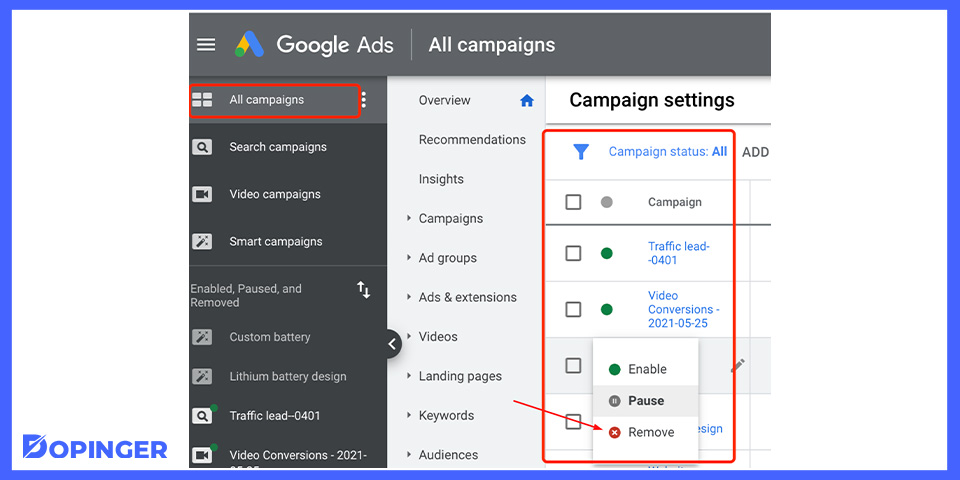
To cancel ads on Google, log into your Google Ads account, select the campaign you want to cancel, and click on ‘Pause’ or ‘Remove’. This will stop your ads from running.
Understanding how to cancel ads on Google is crucial for businesses managing their advertising budgets effectively. Incorrectly handling ad cancellation can lead to unnecessary expenditures and missed opportunities for optimization. Knowing the proper steps ensures that campaigns are paused or removed without disrupting overall marketing strategies.
This guide provides a comprehensive, step-by-step approach to canceling ads on Google, including how to pause or remove campaigns, and tips for managing your advertising account efficiently.
What happens when you cancel ads on Google?
When you cancel ads on Google, your advertisements will stop running immediately, and they will no longer be shown to potential customers. This action halts all associated campaigns, meaning no further clicks or impressions will be generated, and you will cease to incur any additional charges for those ads. However, you will be billed for any costs incurred up until the point of cancellation.
Canceling ads affects ongoing campaigns in several ways. First, all active ad groups and ads within those campaigns will be paused, preventing them from being displayed. Additionally, if you have set up automated bidding strategies or ongoing budgets, those will also be halted, which could impact your overall advertising strategy. It is essential to consider the timing of your cancellation; if you cancel ads before the end of a billing cycle, you may still receive a final statement reflecting charges for that period.
- Campaign Visibility: Your ads will no longer appear in search results or partner sites.
- Billing Implications: You will be charged for any clicks received prior to cancellation.
- Data Access: Historical performance data will still be available for analysis after cancellation.
Furthermore, if you wish to restart your advertising efforts in the future, you will need to reactivate your campaigns, which may require additional adjustments or optimizations to achieve desired results. Awareness of how cancellation impacts your marketing strategy is crucial in maintaining brand visibility and managing your budget effectively.
Expert Tip: Consider setting a pause on campaigns instead of outright cancellation if you anticipate a future need for those ads. This allows for quicker reactivation and minimizes disruption to your advertising strategy.
How do I pause my Google Ads campaign?
Pausing a Google Ads campaign is straightforward and can be done in just a few steps. By pausing your campaign, you prevent any further ads from being shown while retaining your settings and data for future use. This action is reversible, allowing you to reactivate the campaign whenever needed.
- Sign in to your Google Ads account. Navigate to ads.google.com and enter your credentials to access your account dashboard.
- Select the campaign you want to pause. From the left-hand menu, click on “Campaigns” to view a list of all your active campaigns.
- Locate the campaign status toggle. Find the campaign you wish to pause and look for the status column, which indicates whether the campaign is currently active.
- Click on the status toggle. Click on the toggle switch next to the campaign name; it will change from “Enabled” to “Paused.” This action will stop all ads associated with the campaign immediately.
- Verify the pause status. Ensure that the campaign status now reads “Paused” to confirm the action was successful. You can also check the performance metrics to see that no new impressions or clicks are being recorded.
Pausing a campaign is beneficial for temporary breaks without losing historical data. This allows for adjustments based on performance analysis or seasonal changes without needing to recreate the campaign later. Be aware that while the campaign is paused, it will not accrue any costs or generate traffic.
Consider analyzing your campaigns regularly to determine the optimal times to pause and reactivate them. This strategy ensures that your advertising budget is allocated efficiently, maximizing your return on investment.
Expert Tip: Use the “Schedule” feature in Google Ads to automate pauses and activations based on specific dates or times, allowing for proactive management of your campaigns without constant manual intervention.
Is there a cost associated with canceling Google Ads?
There are no direct costs associated with canceling Google Ads. However, advertisers may incur charges based on their billing cycle and any ads that were active prior to cancellation. Fees for ads that have already run may still apply, even after cancellation.
When canceling Google Ads, several factors can influence costs:
- Billing Cycle: Google Ads operates on a billing cycle, which can be daily, monthly, or based on a specific budget. If ads are canceled mid-cycle, charges for the period leading up to cancellation may still be incurred.
- Unspent Budget: Any unspent budget at the time of cancellation does not result in a refund. Advertisers are charged only for the clicks or impressions received up to the cancellation point.
- Active Campaigns: If a campaign is paused rather than canceled, costs may continue to accrue until the campaign is fully stopped. Only once a campaign is completely canceled will no further charges apply.
Understanding how billing works is crucial for managing costs effectively. Advertisers should review their account settings and billing statements to anticipate any charges that may occur after cancellation.
Expert Tip: To avoid unexpected charges, always check the billing summary before canceling ads and ensure that all campaigns are appropriately paused or stopped to prevent further costs.
How long does it take to cancel Google Ads?
Cancelling Google Ads is typically effective immediately, but the complete cessation of ad serving may take up to 24 hours to reflect across all platforms. Once an ad campaign is paused or removed, it will no longer appear in search results or on partner sites shortly thereafter.
The timing of cancellation can depend on several factors. For instance, if the ad is part of a scheduled campaign, any remaining budget may still lead to impressions until the budget is exhausted. Additionally, users may still see your ad until the server processes the cancellation, which can take a few hours. If your account has pending billing issues, it may affect the immediate cessation of ads as well.
Another important aspect is the campaign type. Different types of campaigns, such as Search, Display, or Video, may have varying processing times due to the complexity of their delivery systems. If you have multiple campaigns running, cancelling one may not affect the others immediately, so individual monitoring is necessary to verify the status of each campaign.
Practical Implications
For businesses that rely on immediate ad visibility, it is advisable to monitor the impact of cancellation closely. After cancellation, reviewing performance metrics will help ensure that you are not incurring additional costs. Furthermore, if the goal is to pause ads temporarily rather than cancel them entirely, consider using the pause feature, which allows for quicker resumption without the need to set up a new campaign.
Expert Tip: Always check the billing section of your Google Ads account after cancellation. Any remaining balance may still incur charges for clicks or impressions that occurred before the cancellation was processed.
Can I reactivate my canceled Google Ads?
Yes, you can reactivate your canceled Google Ads campaigns. The process is straightforward and allows you to reinstate your ads without starting from scratch. However, there are key differences between reactivating canceled ads and launching a new campaign.
Reactivating canceled ads means restoring a previously active campaign that you chose to stop running. This option retains historical data, ad settings, and performance metrics, which can be beneficial for future optimizations. In contrast, starting a new campaign requires setting everything up from the ground up, including creating new ads, selecting keywords, and defining targeting parameters.
| Aspect | Reactivating Canceled Ads | Starting a New Campaign |
|---|---|---|
| Historical Data | Retained, useful for insights | New, no historical context |
| Setup Time | Quick, minimal adjustments | Lengthy, requires full setup |
| Ad Performance | Can leverage past performance | Initial performance unknown |
It’s also important to recognize that if your account has been inactive for an extended period, Google may require you to update your payment information or comply with new advertising policies before reactivation. This could add additional steps to the process.
Expert Tip: Regularly monitor your campaigns to determine if reactivation is the best option. Sometimes, refining existing campaigns may yield better results than reactivating outdated ads.
What are the best practices for managing Google Ads?
Effective management of Google Ads involves continuous optimization and strategic decision-making. By implementing best practices, advertisers can maximize their return on investment and ensure campaigns align with business goals. This includes knowing when to cancel or pause campaigns that are underperforming.
Ad management requires a proactive approach to monitoring performance metrics and adjusting strategies accordingly. Regularly analyzing data such as click-through rates (CTR), conversion rates, and cost-per-acquisition (CPA) can help identify areas needing improvement. The following best practices can enhance campaign management:
- Conduct Regular Audits: Periodically review all campaign settings, keywords, and ad copy. This helps identify inefficiencies and allows for adjustments based on performance trends.
- Utilize A/B Testing: Test different ad variations to determine which elements resonate best with your audience. This can include headlines, descriptions, and display URLs, enabling data-driven decisions on what to scale.
- Set Clear Goals: Define specific, measurable objectives for each campaign. This includes target CTR, desired conversion rates, and budget limits, which guide your strategy and help assess performance.
- Leverage Negative Keywords: Implement negative keywords to prevent ads from appearing in irrelevant searches. This reduces wasted spend and improves overall campaign efficiency.
- Monitor Competitor Activity: Keep an eye on competitor ads and strategies. This insight can guide adjustments in bidding strategies and ad positioning to maintain competitiveness.
Ad management is not just about spending wisely but also about making informed decisions based on data. Regularly pausing or canceling underperforming campaigns can free up budget for more effective strategies, ensuring resources are allocated efficiently.
Expert Tip: Use automated rules and alerts to streamline management processes. These tools can help automate adjustments based on performance thresholds, making it easier to maintain optimal campaign performance without constant manual oversight.
How to delete a Google Ads account permanently?
To delete a Google Ads account permanently, you must first cancel any active campaigns and then proceed to account deletion in the settings. This action is irreversible; once deleted, all data associated with the account will be lost.
Follow these steps to ensure a complete deletion of your Google Ads account:
- Log in to your Google Ads account. Ensure you are accessing the correct account you wish to delete.
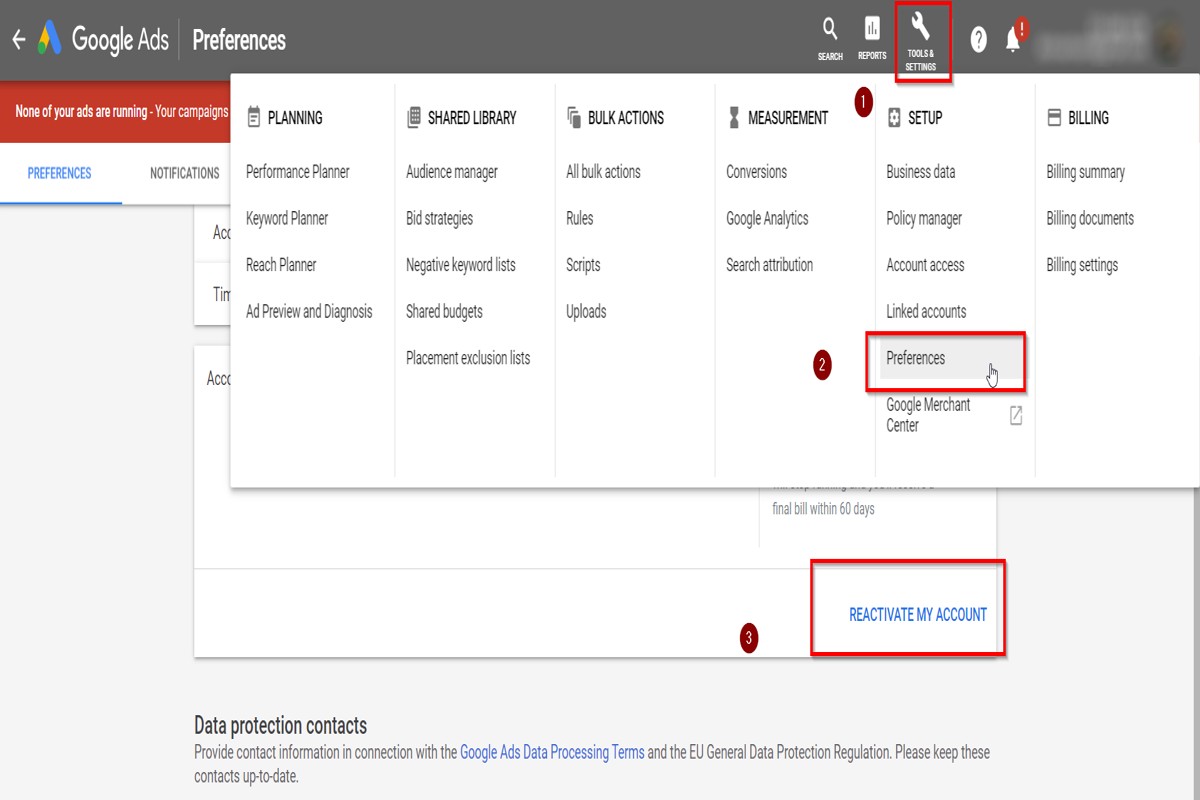
- Navigate to the “Tools & Settings” icon in the upper right corner. This icon looks like a wrench and provides access to various account management options.
- Select “Preferences” under the “Setup” section. This area contains the settings needed to manage your account.
- Scroll down to find the “Account Status” section. Here, you will see the option to cancel your account.
- Click on “Cancel Account.” A prompt will appear asking for confirmation. Review the implications of this action, as it will lead to permanent deletion.
- Confirm the cancellation. After confirming, your account will be suspended. Note that you can reactivate it within 20 days if needed.
- To permanently delete the account, wait for the 20-day period to expire. After this period, the account will be permanently deleted, and you will lose access to all data.
It is crucial to remember that once the account is deleted, any associated campaigns, settings, and performance data will be irretrievable. Consider exporting any reports or data before initiating this process.
Expert Tip: Always review your billing information before deleting your account to ensure all charges are settled and no unexpected fees arise after cancellation.
Understanding the Google Ads Billing Cycle
This section elucidates the Google Ads billing cycle, detailing the charges that may arise prior to cancellation and providing guidance on how to check billing history. A solid grasp of the billing cycle is essential for informed decision-making before canceling ads.
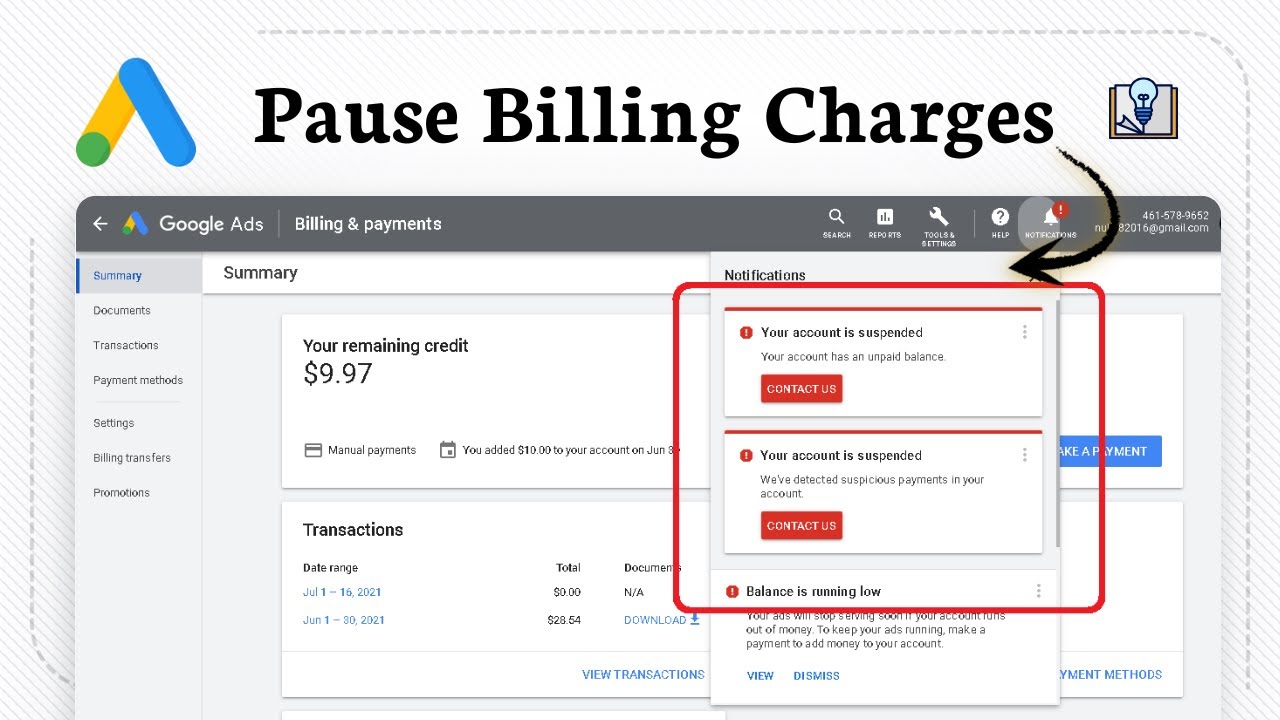
Overview of Google Ads Billing Cycles
The Google Ads billing cycle typically operates on a monthly basis, with advertisers being charged either when they reach their billing threshold or at the end of the monthly cycle. Google Ads offers two primary billing options: automatic payments and manual payments. In the automatic payment model, charges occur after reaching the billing threshold, which can vary based on account activity, while manual payments require funds to be deposited before ads run.
Charges That May Occur Before Cancellation
Before canceling ads, users should be aware of potential charges that may apply. Charges can include:
- Accrued Costs: Costs incurred for clicks and impressions up to the point of cancellation.
- Unbilled Charges: Any costs that have not yet been invoiced may still be charged to the account.
- Final Invoice: A final bill will be generated based on the last activity before cancellation.
These charges can vary significantly depending on campaign performance, so monitoring activity closely is advisable.
How to Check Billing History
To review billing history, follow these steps:
- Log into your Google Ads account.
- Click on the “Tools & Settings” icon in the upper right corner.
- Select “Billing” from the dropdown menu.
- Navigate to “Transactions” to view a detailed history of all charges and payments.
Regularly checking billing history can help users identify trends in spending and manage their budgets effectively.
Implications of Canceling Mid-Cycle
Cancelling ads mid-cycle may have several implications. Primarily, campaigns that are paused or canceled will not accrue further costs, but users may still be responsible for any outstanding charges up to that point. Additionally, mid-cycle cancellation can affect ad performance metrics, as historical data can no longer be accumulated. This may impact future campaigns if these metrics are used for optimization.
Nuance / Expert Layer
A common misconception is that canceling ads immediately stops all associated costs. While pausing or canceling ads prevents further ad spend, any accrued costs from previous clicks or impressions will still be billed. Moreover, advertisers should be aware that if they have set up multiple campaigns under a single account, canceling one campaign does not automatically cancel others. Understanding the specific billing arrangements for each campaign is crucial to avoid unexpected charges.
Practical Application
To effectively manage your Google Ads billing, take the following actions:
- Review your current billing cycle and keep track of any accrued costs.
- Check billing history regularly to identify spending patterns and adjust budgets accordingly.
- Consider scheduling cancellation strategically at the end of the billing cycle to minimize unexpected charges.
This proactive approach will help mitigate financial surprises and ensure a smoother transition when deciding how to cancel ads on Google.
Common Mistakes When Canceling Google Ads
This section identifies frequent errors users make when canceling Google Ads and explains how to avoid them, ensuring a smooth transition while managing advertising campaigns.

Not Understanding the Difference Between Pausing and Canceling
Many users confuse the terms “pausing” and “canceling” their ads. Pausing a campaign retains its settings and structure, allowing for easy reactivation later. In contrast, canceling an ad permanently removes it from your account, requiring a complete setup if you decide to run it again. Recognizing this distinction can prevent unnecessary complications when managing your advertising strategy.
Failing to Review Ongoing Campaigns Before Cancellation
Before proceeding with cancellation, it is essential to conduct a thorough review of all ongoing campaigns. Neglecting this step can lead to the loss of valuable data and insights derived from active ads. Users should evaluate the performance metrics of each campaign to determine if cancellation is justified or if adjustments can enhance performance.
- Check the overall ROI of each campaign.
- Analyze which ads are underperforming and consider optimizing instead.
- Review audience engagement metrics to identify potential areas for improvement.
Ignoring the Impact on Account Performance Metrics
Canceling ads can significantly affect overall account performance metrics, such as Quality Score and historical performance. A sudden drop in activity can lead to decreased visibility in future campaigns. Users should be aware that these metrics influence ad ranking and cost-per-click (CPC) on subsequent campaigns. Maintaining a consistent advertising presence can help ensure better performance in the long run.
Not Communicating with Team Members About Changes
Effective communication within your team is crucial when making changes to advertising campaigns. Failing to inform team members about cancellations can lead to confusion, misaligned strategies, and duplicated efforts. Establishing a clear communication protocol ensures that everyone is on the same page regarding campaign statuses and objectives.
Nuanced Considerations
While the errors outlined above are common, users should also consider the impact of seasonal trends and market fluctuations. For example, canceling ads during peak shopping seasons may result in missed opportunities for sales and brand visibility. Additionally, understanding the implications of canceling versus adjusting budgets could provide a more favorable outcome. Many articles overlook the strategic timing of cancellations and the potential benefits of temporary pauses instead.
Practical Application
To avoid common pitfalls when canceling ads on Google, take the following actionable steps:
- Determine whether to pause or cancel based on your long-term advertising goals.
- Conduct a comprehensive review of all campaigns to assess performance metrics.
- Monitor how cancellations may impact your overall account performance.
- Communicate changes clearly with your team to ensure alignment on advertising strategies.
By following these guidelines, users can manage their Google Ads campaigns more effectively and avoid unnecessary complications.
Advanced Strategies for Managing Your Google Ads
Effectively managing Google Ads requires a strategic approach to performance data, automation, and testing. This section outlines advanced techniques that will enhance ad management and optimize decision-making when considering cancelation or pause of campaigns.
Using Performance Data to Inform Decisions
Performance data is the cornerstone of effective ad management. Regularly analyze metrics such as click-through rates (CTR), conversion rates, and return on ad spend (ROAS). These insights enable advertisers to identify trends and make data-driven decisions. For instance, a consistently low CTR may signal a need for ad copy refinement or keyword adjustments. Utilize Google Ads’ built-in reporting tools to generate custom reports that focus on the performance indicators most relevant to your goals.
Setting Up Automated Rules for Campaigns
Automated rules streamline the management of Google Ads campaigns, allowing advertisers to set specific criteria for actions to be taken automatically. For example, rules can be established to pause ads when the cost per conversion exceeds a predetermined threshold or to increase bids when a campaign performs above average. This not only saves time but also ensures that campaigns are responsive to changing performance metrics. To set up automated rules, navigate to the “Rules” section under your campaign settings and define the criteria that trigger actions.
A/B Testing Before Canceling Underperforming Ads
A/B testing is a critical process for determining the effectiveness of different ad variations. Before deciding to cancel an ad, run tests to compare at least two versions of the ad copy, images, or targeting settings. This method helps isolate variables that impact performance. For example, if one ad variation achieves a significantly higher conversion rate, it may warrant further investment while the underperforming ad is paused or modified. Ensure that tests run for a sufficient duration to gather statistically significant data.
Leveraging Google Ads Features for Better Management
Google Ads offers a range of features designed to enhance campaign management. Utilize tools such as Smart Bidding, which automatically adjusts bids based on the likelihood of conversion, and Ad Extensions, which provide additional information and increase ad visibility. Additionally, consider implementing audience targeting options to reach specific demographics or interests, thereby improving relevance and performance.
When employing these advanced strategies, be aware of common misconceptions. Many advertisers prematurely cancel ads due to short-term fluctuations in performance without considering longer-term data trends. A nuanced approach that involves comprehensive analysis and testing can yield insights that promote sustained campaign success.
To effectively apply these strategies, follow these actionable steps:
- Regularly review performance metrics and adjust campaigns accordingly.
- Set up automated rules that align with your advertising objectives.
- Conduct A/B tests on underperforming ads before making cancellation decisions.
- Utilize Google Ads features to enhance targeting and bid strategies.
By implementing these practices, advertisers can optimize their campaigns and make informed decisions about when to cancel ads on Google.
Case Studies: Successful Google Ads Management
This section examines real-world examples of businesses that effectively managed their Google Ads, highlighting strategies for canceling and reactivating campaigns. These case studies illustrate the impact of strategic ad management on business performance.
Case Study 1: Effective Pausing of Ads
A regional bakery, Sweet Treats, faced rising costs and declining engagement from their Google Ads campaign. After analyzing performance metrics, management decided to pause their ads for one month. During this time, they focused on optimizing their website and enhancing their product offerings. Upon reactivating the ads, they reported a 30% increase in click-through rates and a 20% boost in sales compared to the previous campaign period. This pause allowed them to refine their messaging and target audience effectively.
Case Study 2: Successful Reactivation of a Canceled Campaign
Tech Solutions, a startup providing IT services, canceled their Google Ads campaign after an initial poor performance. They took time to reassess their target demographics and adjusted their ad copy to better reflect their unique value proposition. Six months later, Tech Solutions reactivated their campaign with a more refined approach. The results were significant: they achieved a 50% increase in conversions within the first month of reactivation, demonstrating that a well-planned comeback can yield impressive results.
Lessons Learned from Ineffective Ad Management
Several businesses have faced challenges due to ineffective Google Ads management. Common mistakes include:
- Failing to regularly analyze campaign performance, leading to wasted budget.
- Not adjusting bids based on competitive analysis, resulting in poor ad placement.
- Ignoring the importance of A/B testing for ad copy and landing pages.
These pitfalls highlight the necessity of ongoing optimization and strategic planning to maximize ad effectiveness.
Best Practices Derived from Case Studies
From the aforementioned case studies, several best practices emerge for managing Google Ads:
- Regularly pause underperforming ads to reassess strategies and avoid unnecessary spending.
- Incorporate data analysis to identify trends and adjust campaigns accordingly.
- Test different ad variations before full campaign launches to determine the most effective messaging.
These practices can lead to better resource allocation and improved performance metrics.
Many businesses mistakenly believe that canceling ads equates to a loss of visibility. However, the case studies illustrate that strategic pauses and reactivations can rejuvenate campaigns and enhance overall performance. Businesses should consider their specific circumstances and goals when deciding how to cancel ads on Google or when to reactivate them.
To effectively implement these insights, businesses should regularly review their Google Ads performance, identify potential areas for improvement, and be willing to pause and reassess campaigns when necessary. Establishing a cycle of continual optimization will ensure long-term success in Google Ads management.
Frequently Asked Questions
What happens when you cancel ads on Google?
When you cancel ads on Google, they stop running immediately, and no further charges will accrue for those ads. However, you will still be billed for any clicks or impressions accrued before cancellation.
How do I pause my Google Ads campaign?
To pause a Google Ads campaign, navigate to the campaign dashboard, select the campaign you wish to pause, and click the “Pause” button. This action stops all ads within that campaign from being displayed.
Is there a cost associated with canceling Google Ads?
There is no fee for canceling Google Ads; however, you will be charged for any clicks or impressions incurred up to the point of cancellation. Ensure to review your billing details for any outstanding amounts.
How long does it take to cancel Google Ads?
Cancelling Google Ads is immediate; once you confirm the cancellation, the ads stop running right away. However, it may take a few hours for the changes to reflect in your account.
Can I reactivate my canceled Google Ads?
Yes, you can reactivate a canceled Google Ads campaign by selecting it from your account and clicking the “Resume” button. The campaign will start running again, but you may need to adjust your budget or settings.
What are the best practices for managing Google Ads?
Best practices for managing Google Ads include regularly reviewing performance metrics, optimizing keywords, and adjusting bids based on campaign goals. Consistent monitoring and testing can improve overall campaign effectiveness.
How to delete a Google Ads account permanently?
To permanently delete a Google Ads account, go to the account settings, select “Account access,” and then choose the option to close the account. Keep in mind that this action is irreversible and all data will be lost.
Final Thoughts on how to cancel ads on google
Effectively managing Google Ads requires a strategic approach, and understanding the cancellation process is crucial for optimizing your advertising budget. Canceling ads not only halts expenditures but also allows for a reevaluation of marketing strategies, ensuring resources are allocated where they yield the highest returns.
To proceed, access your Google Ads account and pause your campaigns to assess performance before making a permanent cancellation decision. This proactive measure allows for data analysis and informed adjustments moving forward.
Mastering the nuances of Google Ads management is essential for maximizing your advertising potential and ensuring that financial resources are utilized efficiently.
Leave a Reply