
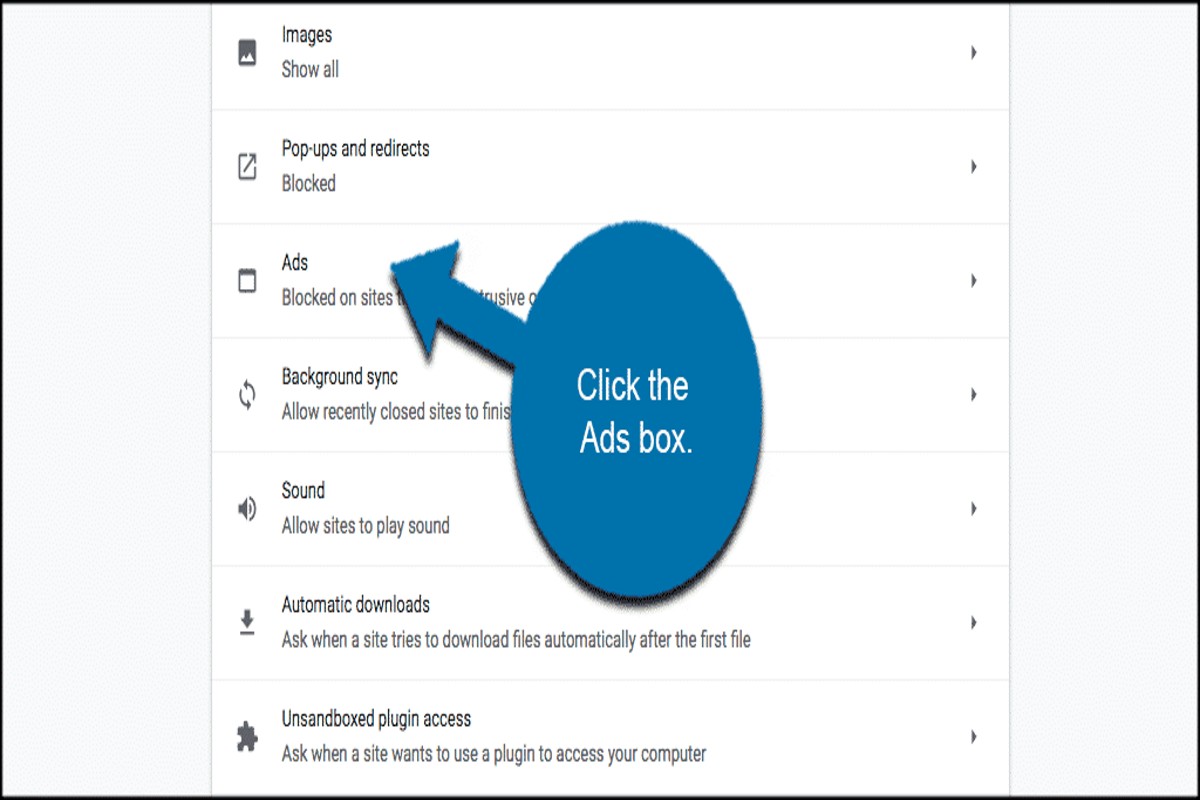
To get rid of Google Chrome ads, you can use ad blockers, adjust your Chrome settings, and remove unwanted extensions. These methods will enhance your browsing experience by minimizing distractions and improving page load times.
Understanding how to effectively eliminate ads in Google Chrome is crucial for users seeking a more streamlined and secure online experience. Failing to address intrusive advertisements can lead to decreased productivity, potential security risks, and a frustrating browsing environment.
This guide will detail practical strategies, including the use of ad blockers, adjustments to Chrome settings, and the removal of unnecessary extensions, to help users reclaim control over their web browsing experience.
What are the best ad blockers for Google Chrome?
The best ad blockers for Google Chrome include AdBlock Plus, uBlock Origin, and Ghostery. Each of these options provides effective ad blocking capabilities, but they vary in features and performance. Choosing the right ad blocker depends on specific needs, such as customization, resource usage, and privacy protections.
AdBlock Plus is one of the most popular ad blockers available. It allows users to customize their ad blocking preferences and whitelists certain sites. While it effectively blocks ads, it may allow some non-intrusive ads by default to support content creators. uBlock Origin, on the other hand, is known for its lightweight design and efficiency. It blocks ads without slowing down browser performance and offers extensive filter lists and user-defined rules, making it highly customizable. Ghostery focuses on privacy, blocking ads while also preventing trackers from gathering user data. It features a built-in tracker blocking tool and offers insights into the trackers on any given page.
- AdBlock Plus: Customizable, allows some non-intrusive ads.
- uBlock Origin: Lightweight, efficient, highly customizable.
- Ghostery: Privacy-focused, blocks trackers alongside ads.
Expert Tip: Using multiple ad blockers simultaneously can lead to conflicts and reduce browser performance. It is advisable to choose one ad blocker that aligns with your specific needs for optimal results.
How to disable pop-up ads in Google Chrome?
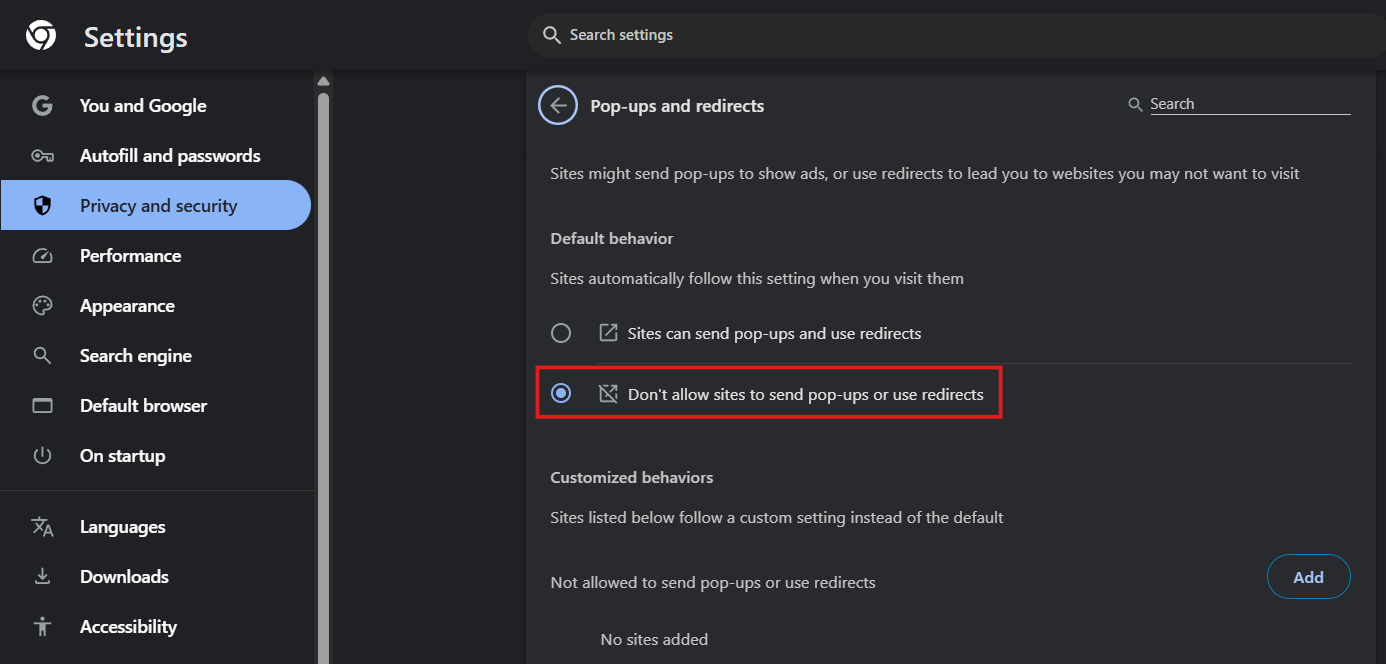
To disable pop-up ads in Google Chrome, access the browser settings and adjust the pop-up blocking feature. This process involves a few straightforward steps to ensure that unwanted pop-ups are effectively blocked while browsing.
- Open Google Chrome and click on the three vertical dots in the upper-right corner to access the menu.
- Select “Settings” from the drop-down menu, which will direct you to the Chrome settings page.
- Scroll down and click on “Privacy and security” in the left sidebar.
- Click on “Site settings” to view various permissions for websites.
- Under the “Content” section, find and click on “Pop-ups and redirects.”
- Toggle the setting to “Blocked” to prevent sites from showing pop-ups. Ensure that this setting is enabled to block all unwanted pop-ups.
- If necessary, you can add specific sites to the “Allowed” list for pop-ups by clicking on “Add” next to the “Allowed to send pop-ups and use redirects” section.
Blocking pop-up ads not only enhances the browsing experience but also reduces the risk of encountering malicious content. Some websites might require pop-ups for legitimate functions like login or payment processes, so consider adding those to the allowed list if needed.
Regularly updating Google Chrome can also help maintain the effectiveness of its built-in ad-blocking features. Additionally, consider using reputable ad-blocking extensions for more robust protection against intrusive ads.
Expert Tip: For enhanced security, enable the “Enhanced Safe Browsing” feature in the Privacy settings, which provides real-time protection against dangerous websites and downloads, further reducing the risk of unwanted ads and malware.
Why am I still seeing ads after using an ad blocker?
Despite using an ad blocker, ads may still appear due to several factors, including whitelisted sites or limitations of the ad blocker itself. Many ad blockers allow some ads to pass through, especially on sites that are considered safe or are part of their whitelist. Additionally, certain types of ads, like those integrated within the content, may evade detection.
Several reasons contribute to the continued visibility of ads:
- Whitelisted Sites: Some ad blockers maintain a list of sites that can display ads. If a website is on this list, ads will still show, even with ad blocking enabled.
- Native Ads: These are ads designed to blend in with website content. They can be challenging for ad blockers to identify and may appear as regular content.
- Ineffective Ad Blocker: Not all ad blockers are equally effective. Some may not be updated regularly to combat new advertising methods, resulting in ads slipping through the cracks.
- Browser Settings: Chrome’s built-in ad filtering options may conflict with the ad blocker, leading to inconsistent ad blocking.
Moreover, some websites employ techniques to detect ad blockers and may restrict access to their content until the ad blocker is disabled. This can create a frustrating cycle where users are compelled to allow ads to access the desired content. Users should also be cautious about the settings of their ad blockers to ensure they are configured for maximum effectiveness.
Expert Tip: Regularly update your ad blocker and review its settings to ensure it is blocking effectively. Consider using a combination of ad blockers and browser features for enhanced ad removal, as well as practicing safe browsing habits to minimize exposure to intrusive ads.
How much do ad blockers for Chrome cost?
Ad blockers for Chrome can range from free options to premium subscriptions costing around $5 to $15 per month. Many popular ad blockers offer a free version with basic features, while more advanced functionalities are available through paid plans.
The cost of ad blockers is influenced by several factors, including the features offered, user interface quality, and customer support. Free ad blockers typically rely on donations or ads for revenue, while premium versions may include additional privacy protections, faster browsing speeds, and customization options. Users should consider their specific needs when selecting an ad blocker, as this will affect their overall experience and satisfaction.
- Features: Advanced features like tracker blocking, malware protection, and customizable filters often come with a price tag.
- Subscription Model: Some ad blockers use a one-time purchase model, while others may charge monthly or annually for continued access to premium features.
- User Support: Paid versions often provide better customer support, including technical assistance and updates, which can justify the higher cost.
When choosing an ad blocker, evaluate both free and paid options to determine which best aligns with your browsing habits and privacy concerns. A thorough comparison of features and user reviews can help in making an informed decision.
Consider that while free ad blockers may suffice for casual users, those who prioritize privacy and enhanced browsing experiences might find the investment in a premium ad blocker worthwhile.
How long does it take to set up an ad blocker on Chrome?
Setting up an ad blocker on Chrome typically takes between 5 to 15 minutes. This timeframe includes selecting, installing, and configuring the ad blocker extension. The exact time may vary based on the user’s familiarity with browser extensions and their internet speed.
The process begins with choosing an ad blocker from the Chrome Web Store, which can vary in complexity depending on the number of features offered. Popular options like AdBlock or uBlock Origin are straightforward and require minimal configuration after installation. Users unfamiliar with browser settings may take longer to navigate through permissions and settings.
Another factor influencing setup time is the need to customize filters and preferences. While most ad blockers work effectively with default settings, users may want to adjust options to suit their specific browsing habits. This customization can add a few extra minutes but can enhance the overall effectiveness of the ad blocker.
Additional Considerations
After installation, users should also consider running a quick test to ensure that the ad blocker is functioning properly. Visiting known ad-heavy sites can help confirm that ads are being blocked as intended. This final check might take an additional few minutes but is essential for verifying the effectiveness of the chosen solution.
Expert Tip: Regularly update the ad blocker extension and review its settings to maintain optimal performance and adapt to new ad formats. Additionally, consider enabling anti-tracking features for enhanced privacy while browsing.
What are common mistakes when trying to block ads in Chrome?
Many users make critical errors when attempting to block ads in Google Chrome, which can lead to ineffective results. Common mistakes include relying solely on built-in features, neglecting to keep extensions updated, and failing to customize settings properly. These oversights can significantly diminish the effectiveness of ad-blocking efforts.
One major mistake is depending exclusively on Chrome’s built-in ad-blocking feature, which may not be sufficient for all types of ads. While this option can filter out some intrusive ads, it often fails to block less obvious advertisements, such as those embedded within content. Users should consider supplementing this feature with a dedicated ad-blocking extension that offers more comprehensive protection.
- Neglecting to update ad-blocking extensions: Outdated extensions may lack the latest filters and updates necessary to combat new ad formats. Regularly check for updates and ensure that your chosen ad-blocker is running the latest version.
- Ignoring extension permissions: Some ad-blockers require specific permissions to function optimally. Always review and grant the necessary permissions to ensure full operational capacity.
- Failing to customize settings: Most ad-blocking extensions come with default settings that may not suit every user’s needs. Take the time to customize these settings to maximize ad-blocking efficiency, such as whitelisting certain sites that you trust.
Another frequent issue is not clearing the browser cache and cookies after installing ad-blocking tools. Residual data can interfere with the new settings and hinder performance. Regularly clear your cache to ensure that your ad-blocker functions seamlessly.
Using a combination of methods, including updating extensions and customizing settings, significantly enhances ad-blocking effectiveness. Consider employing more than one solution for optimal results.
Implementing these best practices not only improves ad-blocking efficiency but also enhances overall browsing experience. Users are encouraged to stay informed about the latest ad formats and blocking technologies to maintain effective ad management.
Can I block ads without using an ad blocker?
Yes, it is possible to block ads in Google Chrome without using a traditional ad blocker. By adjusting browser settings and utilizing privacy-focused extensions, users can significantly reduce the number of ads they encounter while browsing.
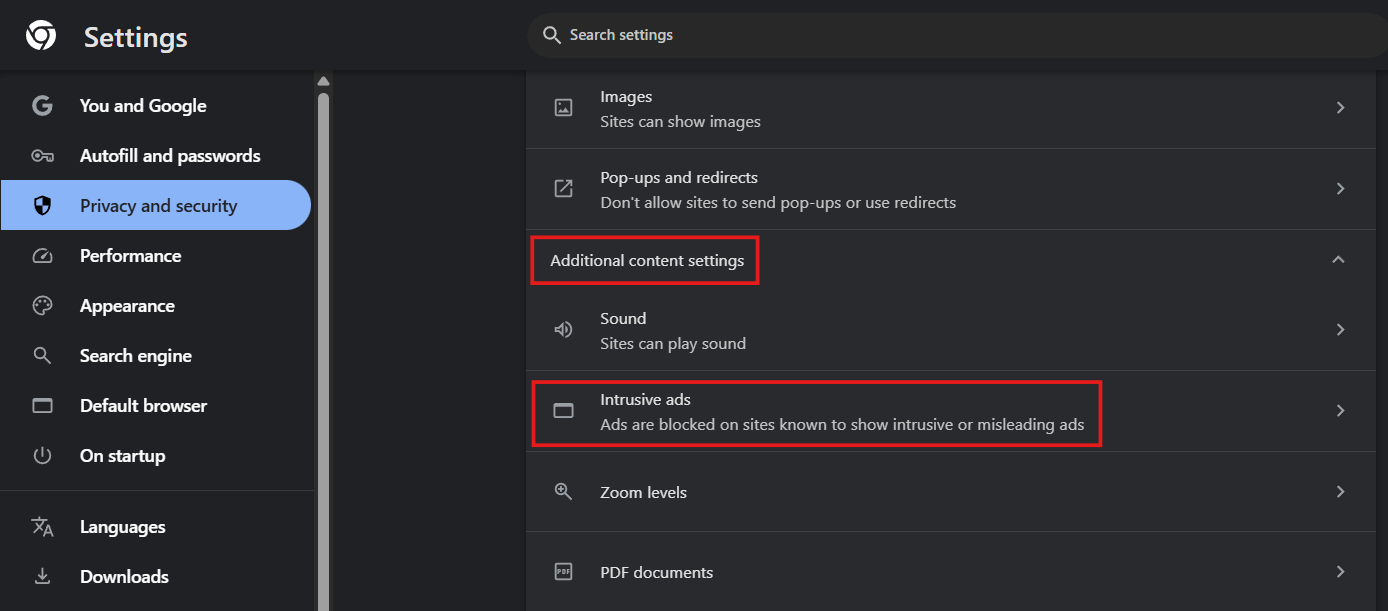
One effective method involves tweaking Chrome’s built-in settings. Users can navigate to the Chrome settings menu, select “Privacy and security,” and then click on “Site settings.” From there, they can adjust permissions for ads and pop-ups. For example, disabling pop-ups and redirects can prevent intrusive ads from appearing during browsing sessions. Additionally, enabling “Do Not Track” requests may help reduce ad targeting, although compliance by websites is voluntary.
Another approach is to utilize extensions that enhance privacy without acting as full-fledged ad blockers. Extensions like uBlock Origin or Privacy Badger focus on blocking trackers and intrusive scripts that often serve ads without necessarily blocking all advertisements. These tools can provide a layer of protection against unwanted ads while allowing some legitimate advertising to pass through, which can benefit website owners relying on ad revenue.
Expert Tip: Regularly review and adjust your browser settings and extensions to ensure maximum effectiveness in ad reduction. Keep in mind that some websites may not function optimally with strict ad-blocking measures, so finding a balance is key.
Advanced Techniques for Blocking Ads in Google Chrome
This section delves into advanced methods for experienced users seeking to enhance their ad-blocking capabilities in Google Chrome. By leveraging developer tools, custom filter lists, alternative browsers, and VPNs with ad-blocking features, users can effectively minimize unwanted advertisements.
Using Developer Tools to Block Specific Ads
Google Chrome’s Developer Tools (DevTools) provide a powerful way to block specific ads that may not be removed by standard ad blockers. Access DevTools by right-clicking on a web page and selecting “Inspect” or by pressing Ctrl + Shift + I (or Cmd + Option + I on Mac). Once open, navigate to the “Elements” tab, where you can identify the HTML elements associated with the ads.
To block an ad:
- Right-click on the ad element in the “Elements” panel.
- Choose “Block Element” from the context menu.
- Confirm the change in the “Styles” panel to ensure the ad is hidden.
Note that this method requires ongoing maintenance, as website structures may change, necessitating periodic updates to your block list.
Implementing Custom Filter Lists in Ad Blockers
Many ad blockers, such as uBlock Origin and AdGuard, allow users to implement custom filter lists. These lists enhance the default filtering capabilities and can block specific types of ads, trackers, or even entire domains. To add a custom filter list:
- Open your ad blocker’s settings.
- Locate the “Filter Lists” or “Custom Filters” section.
- Paste the URL of the desired filter list into the provided field.
- Save the changes and refresh your browser.
Utilizing reputable filter lists, like those from EasyList or Fanboy’s lists, can significantly improve ad-blocking efficiency.
Exploring Privacy-Focused Browsers as Alternatives
For users seeking a more comprehensive solution to ad blocking and privacy, consider switching to privacy-focused browsers such as Brave, Firefox with enhanced tracking protection, or DuckDuckGo Browser. These browsers have built-in ad and tracker blocking features, offering a seamless experience with less configuration required.
Brave, for example, blocks ads and trackers by default and provides an option for users to earn cryptocurrency rewards by viewing privacy-respecting ads. This approach not only enhances user privacy but also supports content creators.
Utilizing VPNs with Ad-Blocking Features
Some VPN services, like NordVPN and Surfshark, offer integrated ad-blocking features that prevent ads from loading at the network level. By encrypting internet traffic and filtering out unwanted content, these VPNs provide an additional layer of protection against intrusive advertising.
When selecting a VPN, look for:
- Robust ad-blocking capabilities.
- Fast connection speeds to avoid latency.
- Strong privacy policies and no-logs guarantees.
Using a VPN in conjunction with an ad blocker can significantly reduce the volume of ads encountered across all applications, not just in Google Chrome.
Advanced ad-blocking techniques empower users to take control of their online experience. To implement these strategies effectively, utilize Chrome’s Developer Tools to block specific ads, enhance ad blockers with custom filter lists, explore privacy-oriented browsers, and consider a VPN with ad-blocking capabilities. By integrating these methods, users can achieve a cleaner, less intrusive browsing environment.
Common Pitfalls When Removing Ads in Chrome
This section identifies common mistakes users make that can impede their efforts to eliminate ads in Google Chrome. Recognizing these pitfalls is essential for effective ad removal and enhanced browsing experience.
Ignoring Browser Updates
Google Chrome frequently updates its browser to improve performance and security. These updates often include enhancements to ad-blocking capabilities. Users who neglect to update their browser may miss out on critical features that help block intrusive ads. Regularly updating to the latest version ensures access to the most effective ad-blocking tools available.
Failing to Review Installed Extensions
Extensions can significantly influence ad visibility in Chrome. Users often install multiple extensions, some of which may conflict with one another or degrade performance. Failing to regularly review and manage installed extensions can lead to inefficiencies. It is advisable to remove any extensions that are outdated or redundant, as they may inadvertently allow ads to slip through.
Overlooking Site-Specific Settings
Chrome offers site-specific settings that can affect ad displays. Users may overlook the option to block ads on individual sites, inadvertently allowing ads from those domains. To address this, navigate to the site settings and enable the option to block ads where necessary. This targeted approach can significantly reduce ad interruptions while browsing.
Assuming All Ad Blockers are Equally Effective
Not all ad blockers function the same way. Some are more effective in specific contexts, such as blocking video ads or pop-ups, while others may not cover all ad types. Users often make the mistake of assuming that any ad blocker will suffice. Researching and selecting a reputable ad blocker that aligns with specific needs is crucial for optimal results.
Common Misconceptions About Ad Blocking
Many users believe that installing an ad blocker automatically removes all ads. However, some ads may bypass ad blockers due to advanced tracking techniques or specific browser settings. Additionally, some sites detect ad blockers and may restrict content access. Understanding these nuances can help users set realistic expectations and explore alternative solutions, such as whitelisting sites that provide valuable content in exchange for ads.
Practical Steps to Enhance Ad Removal
- Regularly update Google Chrome to leverage the latest ad-blocking features.
- Periodically review and clean up installed extensions to eliminate conflicts.
- Check site-specific settings to ensure ads are blocked on unwanted sites.
- Choose a reputable ad blocker and understand its strengths and limitations.
By addressing these common pitfalls, users can significantly enhance their ability to get rid of Google Chrome ads and enjoy a more streamlined browsing experience. Taking proactive steps will lead to fewer interruptions and a more enjoyable online environment.
Real-World Applications: Success Stories of Ad-Free Browsing
This section presents case studies and testimonials from users who have successfully eliminated ads in Google Chrome, showcasing the tangible benefits of an ad-free browsing experience.

Case Studies of Users Who Improved Productivity
Many users report significant increases in productivity after implementing ad-blocking measures. For instance, a marketing professional noted that using an ad blocker reduced their online distractions, allowing them to focus on essential tasks. This user reported a 30% increase in work output within a month of eliminating ads from their browser. Similar outcomes were observed by students who found that minimizing ads during research enhanced their concentration and information retention.
User Feedback on Different Ad Blockers
Feedback on various ad blockers highlights their effectiveness and user satisfaction. The following ad blockers are frequently recommended:
- uBlock Origin: Users appreciate its lightweight performance and extensive customization options.
- AdBlock Plus: Favored for its user-friendly interface and ability to allow non-intrusive ads.
- Ghostery: Lauded for its privacy features, enabling users to block ads and trackers simultaneously.
Users often report that these tools not only block ads but also enhance browsing speed, further improving the overall experience.
Impact of Reduced Ads on User Experience
The impact of reduced ads on user experience is profound. Users frequently express relief at no longer being bombarded with intrusive advertisements. This shift leads to a more streamlined, enjoyable browsing experience, characterized by faster loading times and less visual clutter. One user described their experience as “like breathing fresh air,” emphasizing the mental clarity gained from an ad-free environment.
Comparison of Before-and-After Scenarios
Before implementing ad blockers, users often reported frustration with page load times and difficulty locating relevant content due to overwhelming advertisements. After adopting ad-blocking tools, these users experienced:
- Decreased loading times, with reports of up to 50% faster page responses.
- Greater engagement with content, as distractions were minimized.
- Increased satisfaction with online activities, leading to longer browsing sessions with less fatigue.
These comparisons illustrate the tangible benefits of an ad-free browsing experience and underscore the positive changes that can occur when users learn how to get rid of Google Chrome ads.
Nuance: Misconceptions and Edge Cases
Despite the benefits, some misconceptions exist regarding ad blockers. One common myth is that all ad blockers are equally effective. In reality, performance can vary based on the user’s specific needs, browsing habits, and the types of ads encountered. Additionally, some websites may restrict access to content for users employing ad blockers, prompting users to toggle their settings or whitelist specific sites. Understanding these nuances is critical for optimizing the ad-blocking experience.
Practical Application
To achieve an ad-free browsing experience, users should:
- Choose an ad blocker that aligns with their browsing habits and preferences.
- Regularly update the ad blocker to ensure optimal performance and compatibility.
- Evaluate website access and selectively whitelist sites as necessary to maintain access to content while blocking unwanted ads.
Implementing these steps will significantly enhance the browsing experience and productivity.
The Future of Ad Blocking in Google Chrome
This section explores the future developments in ad blocking technology, specifically within Google Chrome. As user experience evolves, understanding these trends is critical for effective ad management.

Anticipated Changes in Chrome’s Ad Policies
Google Chrome has historically adjusted its ad policies to enhance user experience while balancing revenue generation. Recent trends indicate a shift towards stricter regulations on intrusive ads. The company may implement measures that further restrict ad formats deemed annoying or deceptive. These changes aim to improve overall browsing satisfaction and could lead to a more standardized approach across platforms.
The Role of AI in Ad Detection and Blocking
Artificial intelligence (AI) is poised to revolutionize ad blocking technologies. By leveraging machine learning, ad blockers can become more efficient at identifying and filtering out undesirable ads. AI algorithms can analyze user behavior and preferences, allowing for a more personalized ad experience. As these technologies mature, users may benefit from an increasingly accurate ad blocking experience that minimizes disruption.
Potential Privacy Concerns with Ad Blockers
While ad blockers enhance the browsing experience, they also raise significant privacy concerns. Many popular ad blockers require access to user data to function effectively. This data can be sensitive and, if mishandled, may lead to privacy violations. Users should be cautious when selecting ad blockers, ensuring they choose reputable options that prioritize data protection.
Innovations in User Control Over Ads
Future developments are expected to provide users with enhanced control over their ad experiences. Features such as customizable ad preferences and granular blocking options will empower users to tailor their browsing environment. This shift aligns with a growing demand for transparency in digital advertising, allowing users to dictate what ads they see and how they interact with them.
Nuanced Considerations in Ad Blocking
Many articles overlook the distinction between blocking ads and blocking tracking. While ad blockers can suppress visual advertisements, they often do not prevent websites from tracking user activity. Furthermore, users may misinterpret the efficacy of free ad blockers, which may compromise performance or privacy in exchange for revenue through data collection. A comprehensive understanding of both functionalities is essential for users looking to optimize their browsing experience.
Practical Application
To effectively adapt to the evolving landscape of ad blocking in Google Chrome, consider the following steps:
- Stay informed about changes in Chrome’s ad policies through official announcements.
- Explore AI-powered ad blockers that offer personalized filtering options.
- Prioritize ad blockers with transparent privacy policies to protect personal data.
- Regularly review and adjust your ad preferences within your chosen ad blocker.
By implementing these strategies, users can enhance their browsing experience while maintaining control over the ads they encounter.
Frequently Asked Questions
What are the best ad blockers for Google Chrome?
Some of the best ad blockers for Google Chrome include uBlock Origin, AdBlock Plus, and Ghostery. These extensions effectively block intrusive ads and improve browsing speed.
How to disable pop-up ads in Google Chrome?
To disable pop-up ads in Google Chrome, go to Settings, select Privacy and security, then Site settings, and click on Pop-ups and redirects. From there, toggle the setting to block pop-ups.
Why am I still seeing ads after using an ad blocker?
You may still see ads due to websites using anti-adblocker technology or if the ad blocker is not properly configured. Additionally, some ad blockers may allow certain non-intrusive ads by default.
How much do ad blockers for Chrome cost?
Most ad blockers for Chrome are free to use, though some offer premium features for a subscription fee. The free versions are typically sufficient for basic ad blocking needs.
How long does it take to set up an ad blocker on Chrome?
Setting up an ad blocker on Chrome usually takes just a few minutes. After installing the extension from the Chrome Web Store, it typically requires minimal configuration.
What are common mistakes when trying to block ads in Chrome?
Common mistakes include not updating the ad blocker regularly or disabling it for specific sites. Additionally, users may overlook browser settings that allow pop-ups and ads.
Can I block ads without using an ad blocker?
Yes, you can block ads without an ad blocker by adjusting your browser settings to disable pop-ups and using features like Chrome’s built-in ad filtering. However, this method may not be as effective as dedicated ad blockers.
Final Thoughts on how to get rid of google chrome ads
Effective ad management in Google Chrome is not merely about removing distractions; it is crucial for enhancing productivity and safeguarding user privacy. By leveraging advanced ad blockers, fine-tuning browser settings, and understanding ad mechanics, users can achieve a seamless, ad-free browsing experience.
Implement a combination of reputable ad blockers and customize your Chrome settings to eliminate persistent ads, ensuring a significant reduction in intrusive content while browsing.
The ability to navigate the digital landscape without the constant interruption of ads is essential for maintaining focus and enhancing overall online efficiency.
Leave a Reply