
To get rid of ads on Google Chrome, you can install ad-blocking extensions, adjust your browser settings, or use a different search engine. Each method effectively reduces or eliminates ads, enhancing your browsing experience.
This topic is crucial for users seeking a more streamlined and less distracting online experience. Understanding how to manage ads is essential, as excessive advertising can slow down browsing speeds and compromise user privacy.
This guide details specific methods to eliminate ads, including recommended ad-blocking extensions, essential browser settings adjustments, and alternative search engines that minimize advertising.
What are the best ad blockers for Google Chrome?
Ad blockers are essential tools for eliminating unwanted advertisements in Google Chrome. The most effective options include AdBlock, uBlock Origin, and AdGuard, each offering unique features and varying levels of performance. Choosing the right ad blocker depends on personal preferences regarding functionality and user interface.
AdBlock is one of the most widely used ad blockers, known for its straightforward installation and user-friendly interface. It effectively blocks a wide range of ads, including video ads and pop-ups. However, it may not be as lightweight as other options, which can lead to slightly slower browsing speeds on some systems.
uBlock Origin stands out for its efficiency and low resource usage. It employs a variety of filter lists to block ads while allowing users to create custom filters. This flexibility makes it a favorite among tech-savvy users who want granular control over their browsing experience. Additionally, uBlock Origin is open-source, which enhances its credibility and transparency.
AdGuard offers a comprehensive ad-blocking solution with additional privacy protection features. It includes built-in tracking protection, phishing protection, and a customizable interface. AdGuard’s premium version provides even more advanced features, such as parental controls and ad blocking across all devices. However, its more complex setup may not appeal to all users.
- AdBlock: User-friendly, effective for general ad blocking, but can be resource-heavy.
- uBlock Origin: Lightweight, efficient, customizable, and open-source.
- AdGuard: Comprehensive features including privacy protection, but more complex to set up.
Expert Tip: When selecting an ad blocker, consider your browsing habits and whether you require additional features like privacy protection or custom filters. Regularly updating the ad blocker ensures optimal performance and effectiveness against new advertising techniques.
How do I turn off pop-up ads in Google Chrome?
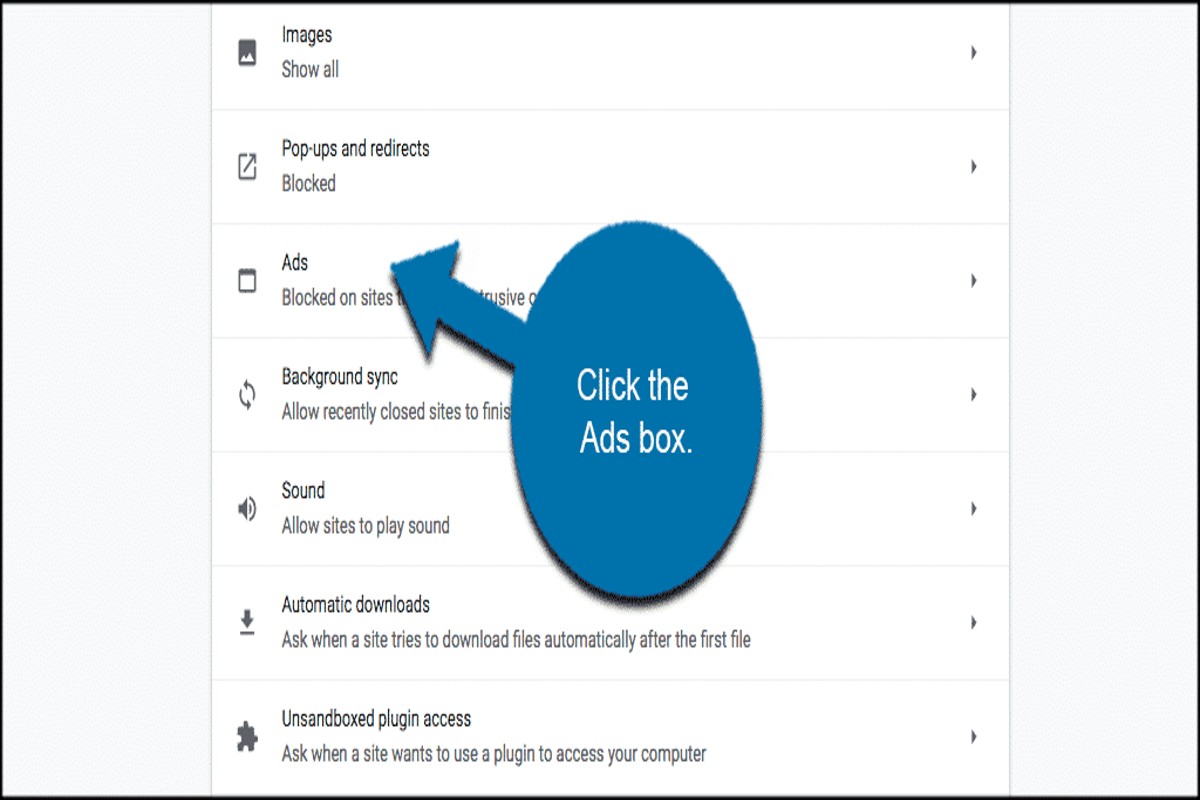
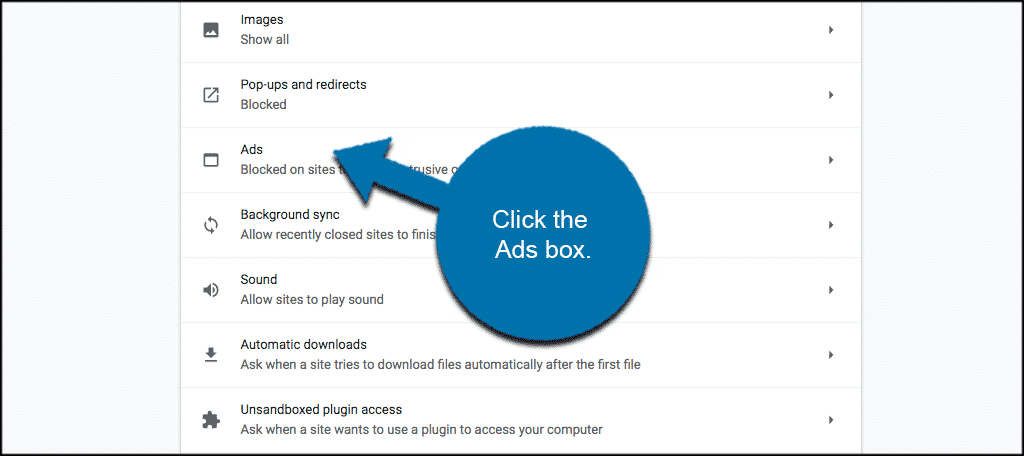
To turn off pop-up ads in Google Chrome, adjust the settings within the browser. This process involves accessing the site settings and disabling pop-ups, ensuring a smoother browsing experience.
Follow these steps to disable pop-up ads:
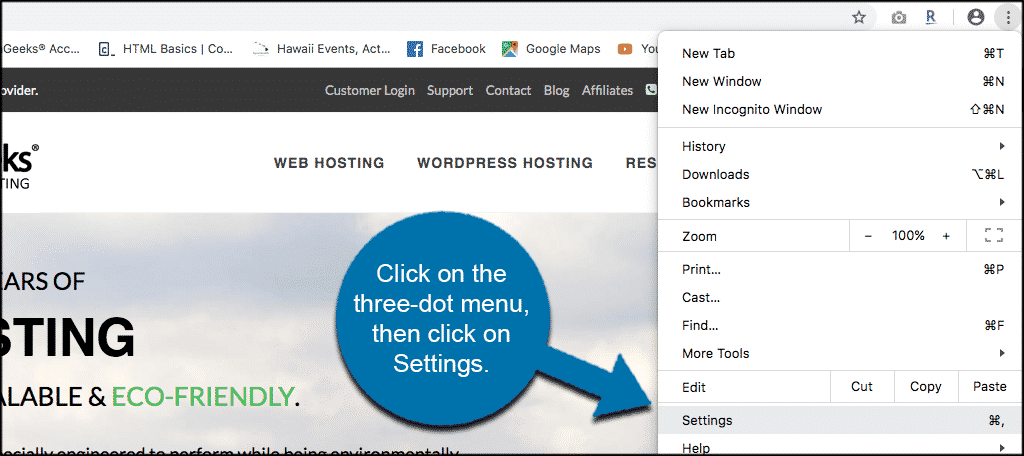
- Open Google Chrome on your computer. Click on the three vertical dots in the upper-right corner to access the menu.
- Select “Settings” from the dropdown menu. This will take you to the settings page where various configurations can be adjusted.
- Scroll down and click on “Privacy and security” in the left sidebar. This section contains options related to your browsing privacy and security.
- Click on “Site settings.” Here, you can manage permissions and settings for individual websites, including pop-ups.
- Locate the “Pop-ups and redirects” option and click on it. You will see a toggle to allow or block pop-ups.
- Switch the toggle to “Blocked.” This will prevent websites from opening pop-up windows during your browsing sessions.
- Optionally, you can add specific sites to the “Allow” or “Block” lists if you want to customize pop-up behavior for certain pages.
These steps will effectively block pop-up ads in Google Chrome. However, some websites may still use other methods to display ads, so consider additional ad-blocking extensions for a more comprehensive solution.
For optimal browsing, regularly check your settings and keep your browser updated. This ensures the latest security measures are in place, further reducing intrusive ads.
Are there any free ways to get rid of ads on Google Chrome?
Yes, there are several free methods to eliminate ads on Google Chrome. Users can utilize built-in settings and install free ad-blocker extensions to significantly reduce or completely block unwanted advertisements. These solutions are accessible and easy to implement, making them suitable for most users.
The first approach involves adjusting Chrome’s built-in settings. Chrome has features that allow users to control their ad preferences and limit intrusive ads. For instance, users can enable the “Block third-party cookies” setting under “Privacy and security” in the Chrome settings menu. This action can help prevent some ads from appearing, particularly those based on tracking user behavior.
Another effective method is to install free ad-blocker extensions from the Chrome Web Store. Popular options include uBlock Origin, AdBlock Plus, and Ghostery. These extensions provide robust ad-blocking capabilities, allowing users to customize their filtering preferences. While most of these tools are free, some may offer premium features for a fee. Factors affecting the effectiveness of these solutions include:
- Ad Type: Some ads, particularly those embedded in videos or specific websites, may bypass standard blockers.
- Extension Updates: Regular updates to ad-blockers are essential for maintaining effectiveness against new ad technologies.
- User Settings: Individual configurations can impact how well ads are blocked, as users can whitelist certain sites.
Utilizing these free methods not only enhances browsing experience but also improves page load times and reduces data usage. Users should regularly check for updates to their ad-blockers and review settings to ensure maximum effectiveness.
Expert Tip: For optimal results, consider combining built-in settings with an ad-blocker extension. This layered approach can provide comprehensive ad-blocking capabilities and enhance online privacy.
How long does it take to block ads on Google Chrome?
Blocking ads on Google Chrome can take as little as five minutes. The time required depends on whether you choose to install an ad blocker extension or adjust Chrome’s built-in settings.
Installing an ad blocker is typically the quickest method. Users can find various ad blocker extensions in the Chrome Web Store, such as AdBlock or uBlock Origin. The installation process usually involves clicking “Add to Chrome,” confirming the installation, and then configuring basic settings if needed. This entire process can be completed in under five minutes.
Alternatively, adjusting Chrome’s settings to limit ads takes a bit longer, especially if users are unfamiliar with the browser’s interface. This may involve navigating to the privacy and security settings, managing site settings, and then adjusting the permissions for ads. Depending on prior knowledge and comfort with the settings menu, this could take anywhere from five to fifteen minutes.
Factors Influencing Time
The time it takes to block ads can vary based on several factors. The user’s familiarity with Chrome and its settings plays a significant role. Those who regularly use the browser may find the process quicker than those who are less experienced. Additionally, the internet connection speed can affect the time taken to download and install extensions.
Another factor is the specific ad blocker chosen. Some extensions may require additional configuration or setup, which can extend the time needed. Conversely, a user-friendly ad blocker that automatically configures itself will save time.
For users looking for a streamlined experience, opting for popular and well-reviewed ad blockers can simplify the process significantly.
Expert Tip: Regularly update your ad blocker to ensure optimal performance and to benefit from the latest features and security enhancements. This proactive approach can help maintain a smooth browsing experience and further reduce unwanted ads.
What should I do if ads keep appearing on Google Chrome?
If ads continue to appear on Google Chrome, several steps can help resolve the issue. These include checking for malware, managing extensions, and resetting your Chrome settings. Following these methods can significantly reduce or eliminate unwanted advertisements.
Start by checking your computer for malware. Malicious software often injects ads into your browser. Use a reputable antivirus program to scan your system and remove any threats. Additionally, consider using anti-malware tools specifically designed for browsers, such as Malwarebytes or AdwCleaner, which can target adware effectively.
- Review Installed Extensions: Navigate to the Chrome menu, select “More tools,” and then “Extensions.” Disable or remove any suspicious extensions that may be causing ad disruptions. Extensions related to ad-blocking may also conflict with legitimate ones.
- Clear Browsing Data: Go to “Settings,” then “Privacy and security,” and select “Clear browsing data.” Ensure you check the boxes for cookies and cached images. This can help remove any remnants of ad-related scripts stored in your browser.
- Reset Chrome Settings: If the problem persists, reset Chrome to its default settings. In “Settings,” scroll to the bottom and click “Advanced.” Under “Reset and clean up,” choose “Restore settings to their original defaults.” This will disable extensions and clear temporary data.
After performing these steps, monitor your browsing experience. If ads still appear, consider using a dedicated ad-blocking extension like uBlock Origin or AdBlock Plus. These tools can provide an additional layer of protection against intrusive advertisements.
Expert Tip: Regularly update Chrome and your installed extensions to ensure you have the latest security features and bug fixes. Staying proactive in managing your browser can prevent future ad-related issues.
Can I block ads on mobile Chrome as well?
Yes, you can block ads on mobile Chrome using built-in settings and third-party apps. Chrome offers a feature to limit intrusive ads, and additional ad-blocking applications can enhance your browsing experience by filtering out advertisements entirely.
To enable ad blocking in mobile Chrome, open the app and tap on the three dots in the upper right corner to access the menu. Select “Settings,” then navigate to “Site settings.” Here, you will find the “Ads” option, which you can toggle off for sites that show intrusive ads. This built-in feature helps reduce the number of disruptive ads you encounter while browsing.
For a more comprehensive solution, consider downloading a reputable ad-blocking app from the Google Play Store. Examples include AdGuard and Blockada. After installation, follow the app’s setup instructions to enable ad blocking. Most of these apps work by creating a local VPN that filters out ad traffic, thus providing an ad-free browsing experience across all applications, including Chrome.
Expert Tip: Regularly update your ad-blocking app and review its settings to ensure optimal performance. Some sites may detect ad blockers and restrict content, so consider whitelisting frequently visited sites to maintain access.
What are the risks of using ad blockers on Google Chrome?
Using ad blockers on Google Chrome can lead to several risks, including potential website functionality issues and privacy concerns. While ad blockers effectively reduce unwanted advertisements, they may also interfere with the proper operation of some websites and services.
One primary risk is that certain websites rely on advertising revenue to function. When ad blockers are enabled, these sites may restrict access to their content or disable features, leading to a diminished user experience. Some websites may present messages requesting users to disable their ad blocker before accessing content, which can be frustrating for users seeking uninterrupted browsing.
- Privacy Concerns: While many ad blockers enhance privacy by blocking tracking scripts, they can also inadvertently expose users to risks. Some ad blockers may collect user data to improve their services, which can counteract their intended purpose of enhancing privacy.
- Compatibility Issues: Some ad blockers may conflict with other browser extensions or features, leading to browser instability or crashes. This can affect the overall performance of Google Chrome, resulting in a less efficient browsing experience.
- Missing Out on Content: Certain sites offer exclusive content or features tied to their advertising models. By blocking ads, users might miss out on valuable resources or services that could enhance their online experience.
Users should also be aware that some ad blockers may not be completely effective against all forms of ads, particularly those that are integrated into the website’s design. This limitation can lead to inconsistent ad-blocking performance, leaving some ads visible.
To mitigate these risks, users can consider using “whitelisting,” which allows ads on specific sites they trust while blocking them on others. This approach balances user experience with the need for website functionality and support.
When choosing an ad blocker, it is crucial to research its privacy policy and data collection practices. Opting for reputable ad blockers with transparent practices can help maintain user privacy while still providing a degree of ad reduction.
Advanced Techniques to Block Ads on Google Chrome
This section delves into advanced methods for blocking ads on Google Chrome, focusing on network-level solutions that enhance user experience and security. These techniques are especially beneficial for users seeking more comprehensive ad-blocking strategies beyond browser extensions.
Using DNS-Based Ad Blocking Services
DNS-based ad blocking services intercept requests to ad servers before they reach the browser. By configuring your network settings to use a DNS service that filters out ads, users can effectively reduce ad exposure system-wide.
- AdGuard DNS: Provides a free service that blocks ads, trackers, and phishing sites.
- NextDNS: Offers customizable filtering options and detailed analytics on blocked content.
- OpenDNS: Known for its security features and ad-blocking capabilities, OpenDNS can be set up easily via router settings.
Configuring Router Settings for Ad Blocking
Blocking ads at the router level ensures that all devices connected to the network benefit from ad filtering. This method is particularly useful for households with multiple users or devices.
- Access the router’s admin panel by entering the IP address (commonly 192.168.1.1 or 192.168.0.1) in a web browser.
- Log in with the administrator credentials (often found on the router or its manual).
- Locate the DNS settings section and replace the current DNS addresses with those of a DNS-based ad blocking service.
- Save the changes and restart the router to apply the new settings.
Implementing Host File Modifications
Modifying the host file on individual devices can block specific ads by redirecting requests for ad servers to a non-existent address. This method requires administrative access but is effective for localized ad blocking.
- Open the host file located at C:\Windows\System32\drivers\etc\hosts on Windows or /etc/hosts on macOS.
- Add entries for the ad servers you wish to block, such as 0.0.0.0 adserver.com.
- Save the file and restart the browser for changes to take effect.
While modifying the host file is a powerful technique, it is essential to keep the list updated. Many ad servers frequently change their domains, which can lead to missed ads if the list is not maintained. Additionally, this method does not scale well across multiple devices unless replicated on each one.
Implementing these advanced techniques can significantly enhance your ad-blocking capabilities. Use DNS-based services for system-wide protection, configure your router for comprehensive coverage, and modify host files for localized control. For best results, combine these methods with browser extensions to create a robust ad-blocking environment. Regular updates and maintenance of your ad-blocking configurations will ensure lasting effectiveness.
Common Mistakes When Trying to Block Ads
Effective ad blocking in Google Chrome requires attention to detail and proper configuration. This section highlights common mistakes that can undermine your efforts to eliminate unwanted advertisements.
Ignoring Browser Updates
Many users overlook the importance of keeping their browser updated. Google Chrome frequently releases updates that can affect how ad blockers function. Failing to update the browser may lead to security vulnerabilities and incompatibility with ad blocker extensions, diminishing their effectiveness. Regular updates also include improved tracking prevention features, which can enhance ad blocking capabilities.
Neglecting to Whitelist Trusted Sites
Ad blockers often operate by blocking all ads indiscriminately. However, some legitimate websites rely on ad revenue to provide free content. Neglecting to whitelist these trusted sites can result in a poor browsing experience, including broken layouts or missing content. Many users mistakenly believe that whitelisting sites defeats the purpose of using an ad blocker, but it is essential for maintaining access to valuable resources without intrusive ads.
Failing to Configure Ad Blocker Settings Properly
Default settings in ad blockers may not suit every user’s needs. Many ad blocker extensions come with customizable options that allow users to tailor their experience. Failing to explore these settings can lead to ineffective ad blocking. Users should take the time to adjust filters, enable specific blocking lists, and set up custom rules to maximize the ad blocker’s performance.
Common Misconceptions
One prevalent misconception is that all ad blockers are equally effective. In reality, performance can vary significantly between different ad blocking tools. Some ad blockers may focus on specific types of ads, while others provide comprehensive coverage. Additionally, users often assume that installing multiple ad blockers will enhance ad blocking capabilities. However, this can lead to conflicts and hinder overall performance.
Edge Cases and Exceptions
Some websites use advanced techniques, such as anti-ad blocker scripts, to circumvent ad blocking tools. These sites may display messages urging users to disable their ad blockers. In such cases, users may need to adopt additional measures, such as using a browser extension that can bypass these scripts or employing a VPN. Understanding these edge cases allows for a more strategic approach to ad blocking.
To effectively block ads in Google Chrome, users should regularly update their browser, whitelist trusted sites, and thoroughly configure their ad blocker settings. Consider researching different ad blocker options to determine which best meets individual needs. By addressing these common mistakes, users can significantly enhance their browsing experience and reduce unwanted advertisements.
Comparative Analysis of Ad Blockers: Which One is Right for You?
This section provides a comprehensive comparison of leading ad blockers available for Google Chrome, aiding users in selecting the most suitable option based on features, performance, and cost-effectiveness.

Feature Comparison of Top Ad Blockers
- AdBlock Plus: Offers customizable filters, whitelisting options, and is compatible with a variety of browsers. It also provides a user-friendly interface.
- uBlock Origin: Known for its low resource usage, it includes advanced settings for tech-savvy users and supports a wide range of filter lists.
- Ghostery: Focuses on privacy, blocking trackers along with ads. It includes detailed analytics on what is being blocked.
- AdGuard: A premium option that provides extensive filtering capabilities, anti-tracking features, and parental controls. It also has a standalone application.
User Experience and Performance Evaluations
User experience varies significantly across different ad blockers. AdBlock Plus is praised for its simplicity, making it suitable for casual users. In contrast, uBlock Origin is favored by advanced users due to its extensive customization options, though it may require a learning curve. Ghostery excels in privacy-focused environments but can slow down page loading times if not configured correctly.
Performance evaluations show that uBlock Origin tends to consume less system resources compared to its counterparts, making it optimal for users with older hardware. AdGuard, while feature-rich, may impact browsing speed due to its comprehensive tracking protection.
Cost vs. Benefit Analysis of Premium Options
- AdGuard Premium: Priced around $29.99 per year, it offers additional features like a standalone application and enhanced privacy controls. Ideal for users seeking robust protection.
- Ghostery Plus: Costs approximately $4.99 per month and provides advanced tracker blocking. Best for users prioritizing enhanced privacy.
- AdBlock Premium: Available at $24.99 annually, it includes features such as ad-free browsing and priority support, making it suitable for frequent users of the web.
The free versions of these ad blockers provide substantial functionality, but premium options deliver advanced features that can enhance user experience significantly. The decision hinges on personal needs, such as whether privacy or performance takes precedence.
Nuance / Expert Layer
Many users mistakenly believe that all ad blockers function identically. However, each ad blocker has unique strengths and weaknesses. For example, while uBlock Origin is highly efficient for ad blocking, it may not provide the same level of privacy protection as Ghostery. Additionally, some ad blockers allow certain ads to bypass their filters if the websites support them, a feature known as “acceptable ads.” This model can lead to user frustration if not adequately understood. Therefore, evaluating an ad blocker based on individual browsing habits and preferences is essential.
Practical Application
To effectively choose an ad blocker, assess personal browsing habits and priorities. For those prioritizing performance, uBlock Origin is recommended. If privacy is the main concern, consider Ghostery. For users willing to invest in additional features, AdGuard stands out as a comprehensive solution. Install a trial version where available to evaluate performance and find the best fit for your needs.
Real-World Applications: How Businesses Use Ad Blockers
This section explores how businesses can utilize ad blockers to enhance user experience and engagement, addressing the growing trend of ad avoidance among consumers.
Impact of Ads on User Retention
Research indicates that intrusive ads can significantly diminish user retention. A study by PageFair found that over 30% of users abandon a website when confronted with excessive ads. This abandonment often stems from frustration caused by slow loading times, misleading clickbait, and pop-ups that disrupt the user journey. As a result, businesses face challenges in maintaining user loyalty and engagement.
Strategies for Businesses to Adapt to Ad-Blocking Trends
In response to the increasing use of ad blockers, businesses need to adopt innovative strategies to retain their audience. Here are three effective approaches:
- Content-Driven Marketing: Focus on creating high-quality, informative, and entertaining content that naturally attracts users. This can replace traditional ad placements.
- Native Advertising: Integrate ads seamlessly into the content, making them less intrusive and more engaging. Native ads blend with the platform’s design, providing value while promoting products or services.
- User-Centric Design: Optimize website layouts to enhance user experience. Prioritize fast loading times and minimize pop-ups to foster a more enjoyable browsing experience.
Case Studies of Successful Ad-Free Environments
Several companies have demonstrated the effectiveness of ad-free strategies. For instance, Spotify offers a premium subscription model that eliminates ads altogether, resulting in higher user satisfaction and retention rates. Similarly, Medium focuses on quality content and user engagement, providing a platform free from traditional advertising, which has led to a dedicated user base willing to pay for premium features.
Nuance / Expert Layer
While many businesses fear the impact of ad blockers, some misconceptions exist regarding their utility. For instance, some believe that simply reducing ad volume will suffice. However, the focus should shift toward enhancing overall user experience. Additionally, not all users who employ ad blockers are entirely opposed to advertising; many are receptive to non-intrusive, relevant ads. Understanding the balance between monetization and user satisfaction is critical for long-term success.
Practical Application
Businesses looking to adapt to ad-blocking trends should consider implementing the following actionable steps:
- Analyze user behavior to identify pain points related to ad experiences.
- Invest in high-quality content to engage users organically.
- Explore subscription models or premium services that deliver ad-free experiences.
- Utilize analytics to measure the effectiveness of new strategies and refine them based on user feedback.
Frequently Asked Questions
What are the best ad blockers for Google Chrome?
Some of the best ad blockers for Google Chrome include AdBlock, uBlock Origin, and AdGuard. These extensions effectively block unwanted ads and enhance browsing speed.
How do I turn off pop-up ads in Google Chrome?
To turn off pop-up ads in Google Chrome, go to Settings, then Privacy and security, and select Site settings. Under Pop-ups and redirects, set the option to “Blocked.”
Are there any free ways to get rid of ads on Google Chrome?
Yes, using free ad blockers like AdBlock or uBlock Origin can effectively remove ads on Google Chrome. Additionally, adjusting Chrome’s settings can help limit pop-ups and unwanted ads.
How long does it take to block ads on Google Chrome?
Blocking ads on Google Chrome is almost instantaneous once an ad blocker is installed and activated. Users can start browsing ad-free immediately.
What should I do if ads keep appearing on Google Chrome?
If ads persist, ensure your ad blocker is enabled and updated. Additionally, check for any unwanted extensions that may be causing the issue and remove them.
Can I block ads on mobile Chrome as well?
Yes, ads can be blocked on mobile Chrome by using ad-blocking apps or enabling the built-in ad blocker in Chrome settings. This will help improve the browsing experience on mobile devices.
What are the risks of using ad blockers on Google Chrome?
Using ad blockers may lead to potential website functionality issues, as some sites rely on ads for revenue. Additionally, some ad blockers may collect user data, so it’s essential to choose reputable options.
Final Thoughts on how do i get rid of ads on google chrome
Effectively eliminating ads on Google Chrome requires a strategic approach that combines the right tools and practices. Leveraging reputable ad blockers and adjusting browser settings can significantly enhance your browsing experience, allowing for faster page loads and reduced distractions.
To take immediate action, install a top-rated ad blocker such as uBlock Origin or Adblock Plus from the Chrome Web Store and configure its settings to suit your preferences, ensuring optimal performance against intrusive advertising.
Mastering ad-blocking techniques is essential not only for a cleaner browsing experience but also for safeguarding your privacy and enhancing online security in an increasingly ad-saturated digital landscape.
Leave a Reply