
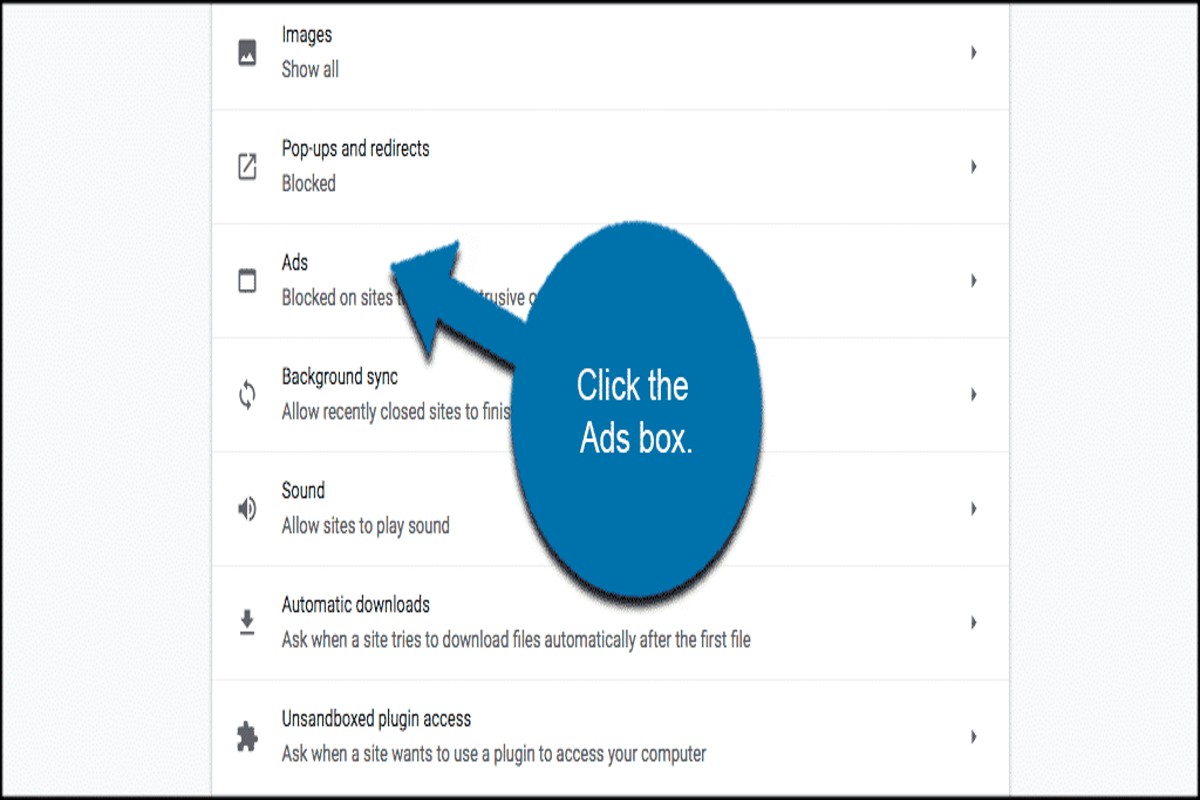
To stop ads in Google Chrome, you can enable the built-in ad blocker in Chrome settings, install ad-blocking extensions, or use the ‘Block’ feature in Chrome’s site settings. These methods effectively reduce unwanted advertisements while browsing.
This topic is crucial for users seeking a more streamlined and less intrusive online experience. Understanding how to manage ads not only enhances browsing efficiency but also protects against potential security risks associated with malicious advertisements.
This guide will detail the steps to enable Chrome’s ad blocker, recommend effective ad-blocking extensions, and explain how to utilize the site’s blocking features for optimal ad management.
What are the best ad blockers for Google Chrome?
The best ad blockers for Google Chrome include AdBlock Plus, uBlock Origin, and AdGuard. Each of these extensions offers unique features and varying levels of effectiveness when it comes to blocking ads, trackers, and pop-ups. Selecting the right ad blocker depends on user preferences for customization, resource usage, and overall ad-blocking efficiency.
AdBlock Plus is one of the most popular choices, known for its user-friendly interface and customizable filter lists. It allows users to whitelist certain websites, enabling ads on sites they wish to support. However, some users report that it can be less effective against certain types of ads, particularly those that are more discreet or integrated into content.
uBlock Origin, on the other hand, is favored for its lightweight design and advanced filtering capabilities. It consumes fewer system resources and offers a more extensive range of blocking options compared to AdBlock Plus. Users appreciate its ability to block not only ads but also trackers and scripts, significantly enhancing browsing speed and privacy. However, its extensive features can be overwhelming for less tech-savvy users.
AdGuard stands out for its robust privacy protection features, including a built-in tracker and phishing protection. It also offers a premium version that includes additional features such as parental controls and advanced filtering. While it provides a comprehensive solution for ad blocking, users may need to pay for the full feature set, making it less accessible for some.
- AdBlock Plus: User-friendly, customizable, less effective against some ads.
- uBlock Origin: Lightweight, advanced filtering, more resource-efficient.
- AdGuard: Strong privacy features, premium options available, comprehensive but potentially costly.
When choosing an ad blocker, consider factors such as ease of use, resource consumption, and desired features. Users seeking a balance between effectiveness and simplicity may prefer AdBlock Plus, while those prioritizing performance and advanced options might opt for uBlock Origin. AdGuard is ideal for users looking for a comprehensive privacy solution.
Expert Tip: Regularly update your ad blocker and its filter lists to ensure optimal performance against the latest ad techniques and tracking methods. This practice enhances the overall effectiveness of your chosen ad blocker.
How do I enable ad blocking in Google Chrome?
To enable ad blocking in Google Chrome, access the browser’s settings and adjust the ad blocking feature. Chrome has a built-in ad blocker that helps prevent intrusive ads from appearing on websites.
Follow these steps to enable ad blocking:
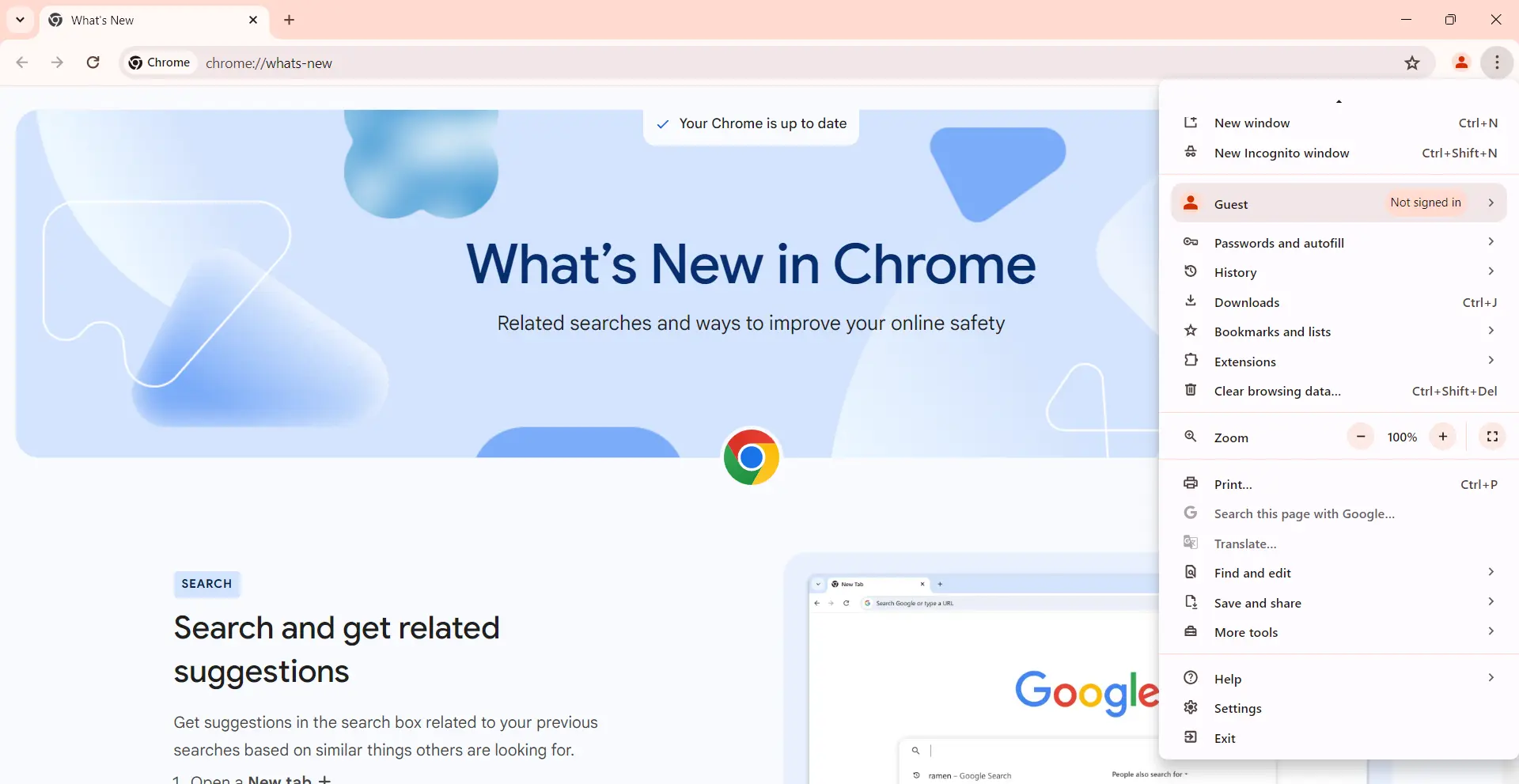
- Open Google Chrome and click on the three vertical dots in the top right corner to access the menu.
- Select “Settings” from the dropdown menu to enter the settings page.
- Scroll down and click on “Privacy and security” in the left sidebar.
- Click on “Site Settings,” then locate and select “Ads.”
- Toggle the switch to block ads on sites that show intrusive or misleading ads. This option will help enhance your browsing experience.
While Chrome’s built-in ad blocker is effective against many ads, it may not catch all types. Some websites may still display ads that meet their criteria for acceptable advertising. For a more comprehensive solution, consider using third-party ad-blocking extensions available in the Chrome Web Store.
For optimal results, regularly update your ad-blocking settings and review any extensions you may have installed. Combining Chrome’s built-in features with reputable ad-blocking extensions can provide a more robust defense against unwanted ads.
Expert Tip: Consider enabling “Enhanced Protection” under “Privacy and security” settings for additional security against harmful sites and intrusive ads. This feature not only blocks ads but also improves your overall browsing security.
Are there any costs associated with stopping ads in Chrome?
Stopping ads in Google Chrome can be done at no cost, but there are options that may involve fees. Many ad-blocking extensions are free, while some premium versions offer additional features for a price.
Several factors can influence whether there are costs associated with stopping ads in Chrome:
- Ad Blocker Type: Most popular ad blockers, such as uBlock Origin and AdBlock Plus, are free to use. However, paid versions may provide enhanced privacy features or fewer interruptions.
- Browser Features: Google Chrome includes built-in ad-blocking capabilities that are available at no cost, particularly for intrusive ads. Utilizing these features incurs no additional charges.
- Third-party Services: Some services offer ad-free browsing as part of a subscription model. These often provide additional security and privacy but come with a monthly or annual fee.
Free options are widely available and sufficient for most users looking to reduce ads. However, for those seeking a more comprehensive ad-blocking solution, premium services can provide added benefits, such as advanced tracking protection and customizable filters.
Expert Tip: Evaluate the features of both free and paid ad blockers carefully. Paid versions can sometimes offer better performance and user experience, especially for those who browse heavily or require specific functionalities.
How long does it take to set up ad blocking in Chrome?
Setting up ad blocking in Google Chrome typically takes between 5 to 15 minutes. The time required depends on the method chosen for ad blocking, whether it’s installing a browser extension or adjusting Chrome’s settings.
For most users, installing a popular ad blocker, such as AdBlock or uBlock Origin, is straightforward and can be completed in under 10 minutes. This process involves visiting the Chrome Web Store, selecting the desired extension, clicking “Add to Chrome,” and confirming the installation. Once installed, users may need to configure a few settings, which usually requires minimal additional time.
On the other hand, configuring Chrome’s built-in ad blocking features, which allow users to block pop-ups and intrusive ads, can take a bit longer. This process requires navigating through the settings menu, adjusting privacy settings, and potentially managing permissions for specific sites. Depending on familiarity with the settings, this could take an additional few minutes.
Factors Influencing Setup Time
The complexity of the ad blocker chosen can also affect setup time. Some ad blockers offer extensive customization options, which may require users to spend extra time adjusting filters and preferences. Additionally, users who are less experienced with browser settings may take longer to familiarize themselves with the options available for ad blocking.
Lastly, consider any prior browser configurations. Users who have existing extensions may need to manage compatibility issues, which can prolong the setup process. Ensuring that the new ad blocker does not conflict with existing tools may add a few minutes to the total time required.
For optimal performance, it is advisable to regularly update the ad blocker and check for new features or settings that can enhance ad blocking capabilities.
Expert Tip: After installation, regularly review the ad blocker’s settings and performance, as updates may introduce new features or require adjustments to maximize effectiveness in blocking ads.
What are the common mistakes when trying to block ads in Chrome?
Many users encounter difficulties when attempting to block ads in Chrome due to common mistakes. These errors often lead to ineffective solutions or unintended consequences, such as decreased browser performance or missed ads. Recognizing and avoiding these pitfalls can enhance your ad-blocking efforts significantly.
One frequent mistake is relying solely on the built-in ad-blocking settings in Chrome. While these features can help reduce some ads, they are not comprehensive. Users often overlook the benefits of installing dedicated ad-blocker extensions, which provide enhanced filtering capabilities. Many popular extensions, such as uBlock Origin or AdBlock Plus, offer customizable options and advanced settings that can improve ad-blocking performance.
- Ignoring Extension Permissions: When installing ad-blocker extensions, users often overlook the permissions they grant. Always review the permissions requested by extensions to ensure they align with your privacy preferences.
- Not Updating Extensions Regularly: Many users forget to update their extensions. Regular updates ensure that ad blockers can effectively handle new ad formats and tracking techniques. Enable automatic updates in Chrome settings to stay current.
- Disabling Important Features: Some users may disable critical features of their ad blockers, such as anti-tracking or script-blocking options, to improve page load times. This can compromise the effectiveness of the ad-blocking tool. Instead, fine-tune settings to balance performance and ad-blocking efficiency.
- Neglecting Site Exceptions: Users may overlook the necessity of managing exceptions for specific sites. Some sites may not function properly without ads, leading to a poor user experience. Regularly review and adjust exception lists to ensure a seamless browsing experience.
Ad-blocking effectiveness can vary based on individual browsing habits and the types of content consumed. Therefore, users should remain proactive in adjusting their settings and exploring new extensions to maintain optimal ad-blocking performance.
Expert Tip: Regularly clear your browser cache and cookies to enhance the performance of your ad blocker. This practice can help eliminate residual data that may interfere with effective ad filtering.
Can I block ads on specific websites in Chrome?
Yes, you can block ads on specific websites in Google Chrome using the browser’s built-in settings. This feature allows users to tailor their browsing experience by preventing unwanted advertisements on chosen sites. Here’s how to do it effectively.
- Open Google Chrome: Launch the Chrome browser on your computer.
- Access Site Settings: Click on the three vertical dots in the upper right corner, then select “Settings.” Scroll down and click on “Privacy and security,” followed by “Site Settings.”
- Find Ads Settings: In the Site Settings menu, locate the “Ads” option. Here, you can manage settings related to ads on different websites.
- Add Blocked Sites: Under the “Ads” section, you will see an option to “Add” sites to block. Enter the URL of the website from which you want to block ads, and click “Add.”
- Repeat as Necessary: If there are multiple websites you wish to block ads from, repeat the process for each site.
Blocking ads on specific sites can enhance your browsing experience, but it may also limit the content and features of some websites. It is essential to be aware that some sites rely on ad revenue, and blocking ads can affect their operation. Additionally, this method primarily blocks display ads, but may not prevent all types of advertisements, such as pop-ups.
For a more comprehensive ad-blocking solution, consider using browser extensions like uBlock Origin or Adblock Plus, which offer advanced filtering options and additional features.
Expert Tip: Regularly review and update your blocked sites list, as websites often change their ad practices and may require adjustments to ensure optimal ad blocking.
What is the difference between ad blockers and pop-up blockers in Chrome?
Ad blockers and pop-up blockers serve distinct purposes in managing online advertising in Google Chrome. Ad blockers prevent various types of advertisements from displaying on web pages, while pop-up blockers specifically target and block pop-up windows that can appear unexpectedly. Both tools aim to enhance the browsing experience, but they operate differently and affect user interactions with online content in unique ways.
Ad blockers work by filtering out content that is identified as advertisements, including banners, video ads, and sponsored posts. They often use lists of known ad-serving domains to determine which elements to block, resulting in a cleaner, less cluttered browsing experience. In contrast, pop-up blockers focus solely on stopping new browser windows or tabs that open automatically, which can be intrusive and disrupt user activity. While many ad blockers include pop-up blocking functionality, the two serve different roles in managing online distractions.
- Functionality: Ad blockers stop various forms of ads, while pop-up blockers specifically target pop-up windows.
- User Control: Ad blockers often allow users to customize which ads to block, whereas pop-up blockers generally operate with predetermined settings.
- Impact on Browsing: Ad blockers can improve page load times by reducing the amount of data downloaded, while pop-up blockers enhance user focus by preventing unexpected interruptions.
Many modern ad blockers include pop-up blocking features, which can create confusion. However, relying solely on an ad blocker may not entirely prevent all pop-ups, especially those that are designed to bypass standard blocking methods. Thus, using both tools in tandem can provide a more comprehensive approach to managing unwanted content in Chrome.
For optimal performance, select an ad blocker that offers robust customization options and an effective pop-up blocking feature. Regularly updating the blocker’s filter lists ensures continued effectiveness against evolving advertising strategies.
How do I remove ad blockers from Google Chrome?
To remove ad blockers from Google Chrome, access the Extensions menu and uninstall the desired extension. This process is straightforward and can be completed in just a few steps.
Follow these steps to uninstall an ad blocker:
- Open Google Chrome and click on the three vertical dots in the upper right corner to access the menu.
- Select “More tools” from the dropdown menu, then click on “Extensions” to open the Extensions page.
- Locate the ad blocker extension you wish to remove. Each extension will have its own card on this page.
- Click the “Remove” button on the extension’s card. A confirmation dialog will appear.
- Confirm the removal by clicking “Remove” again in the dialog box. The extension will be uninstalled from Chrome.
Once removed, the ad blocker will no longer filter advertisements on websites. If multiple ad blockers are installed, repeat the process for each one you wish to uninstall. Additionally, if you encounter any issues with the uninstallation, consider restarting Chrome to ensure all changes are applied.
For users concerned about privacy or performance, evaluate other options before removing an ad blocker. Alternatives may include adjusting Chrome’s built-in settings or exploring different ad-blocking extensions that align with your preferences.
Expert Tip: Always check the permissions requested by extensions before installation to ensure they align with your privacy standards and browsing needs.
Understanding the Impact of Ads on Browsing Experience
This section explores how ads influence various aspects of the browsing experience, highlighting the importance of blocking them. Users encounter slower page loads, privacy risks, and distractions that can hinder productivity.
Effects of Ads on Page Loading Times
Ads significantly impact page loading times, often serving as a primary cause of delays. Studies indicate that ads can increase load times by as much as 50%, depending on the website and the number of ads present. This lag not only frustrates users but can also lead to higher bounce rates, where visitors leave a site before it fully loads. Additionally, ads often rely on external servers, which can further exacerbate loading issues, especially on slower internet connections.
Privacy Concerns Related to Ad Tracking
Ad tracking poses substantial privacy concerns. Advertisers collect data on users’ browsing habits through cookies and tracking pixels, creating detailed profiles that can be used for targeted advertising. This data collection often occurs without explicit consent, raising ethical questions about user privacy. Furthermore, breaches of this data can lead to identity theft and other forms of cybercrime, putting users at risk. Users who prioritize their privacy may find it necessary to block ads to minimize their digital footprint.
Distraction and Its Impact on Productivity
Ads can create significant distractions, impacting overall productivity. Research shows that users can lose focus due to intrusive ads, such as pop-ups and autoplay videos, which disrupt the flow of information. This distraction can lead to decreased efficiency, especially for those using browsers for work or study. A cluttered interface filled with ads can overwhelm users, making it difficult to concentrate on the content that matters most.
User Preferences for Ad-Free Browsing
Surveys reveal a strong preference for ad-free browsing experiences among users. Approximately 70% of internet users express a desire to see fewer ads, with many willing to pay for ad-free versions of websites or services. This shift in preference highlights the growing demand for improved browsing experiences that prioritize user comfort and engagement over advertising revenue.
Nuance / Expert Layer
While many users view ad-blocking as a straightforward solution, it is essential to recognize that not all ads are detrimental. For instance, some websites rely on advertising revenue to provide free content. Users may inadvertently support content creators through ad views and clicks, contributing to a sustainable internet ecosystem. A nuanced approach involves understanding which types of ads are acceptable and considering whitelisting sites that offer valuable content in exchange for ad exposure. This balance can help maintain the availability of free resources while still addressing the negative impacts associated with excessive advertising.
Practical Application
- Evaluate your browsing habits and identify websites that frequently display intrusive ads.
- Consider using ad-blocking extensions in Google Chrome, such as AdBlock or uBlock Origin, to enhance your browsing experience.
- Review privacy settings and adjust them to limit ad tracking and data collection.
- Explore options for supporting content creators directly, such as subscriptions or donations, to maintain access to ad-free content.
Advanced Techniques for Ad Blocking in Chrome
This section explores advanced methods for blocking ads in Google Chrome, focusing on custom filters and scripts that enhance the ad-blocking experience. By utilizing these techniques, users can achieve a more tailored browsing environment.
Using uBlock Origin for Custom Filters
uBlock Origin is a highly customizable ad blocker that allows users to create specific filters tailored to their needs. Unlike traditional ad blockers, uBlock Origin enables users to block elements based on their CSS selectors, which can effectively eliminate unwanted ads that other blockers might miss. To set up custom filters:
- Install uBlock Origin from the Chrome Web Store.
- Click the uBlock Origin icon in the toolbar and select the settings (gear icon).
- Navigate to the “My filters” tab to add your custom filter rules.
By using this feature, users can enhance their experience significantly, especially on websites with aggressive advertising strategies.
Implementing Script Blockers like Tampermonkey
For users seeking an even deeper level of customization, script blockers such as Tampermonkey provide the ability to run custom scripts that can manipulate web pages. These scripts can be used to remove ads or modify the behavior of web elements. To implement Tampermonkey:
- Install Tampermonkey from the Chrome Web Store.
- Create a new script by clicking the Tampermonkey icon and selecting “Create a new script.”
- Write or copy a script designed to block ads or modify page elements.
Using Tampermonkey alongside uBlock Origin can significantly bolster ad blocking capabilities.
How to Create and Use Filter Lists
Filter lists are essential for enhancing ad-blocking effectiveness. Users can subscribe to various filter lists that target specific types of ads or trackers. Some steps to create and use filter lists include:
- Access the uBlock Origin dashboard.
- Go to the “Filter lists” tab.
- Select from a variety of community-maintained lists or add your own URLs.
This approach enables users to stay updated with the latest ad-blocking techniques and ensures that newly emerging ads are effectively blocked.
Combining Multiple Tools for Enhanced Ad Blocking
Using multiple tools in conjunction can lead to superior ad-blocking results. For example, pairing uBlock Origin with Ghostery can block ads while also preventing trackers from collecting data. Consider the following combinations:
- uBlock Origin: Blocks ads and trackers simultaneously.
- uBlock Origin: Customized ad removal through scripts.
- Privacy Badger: Focuses on privacy while blocking ads.
This multi-faceted approach can significantly increase the effectiveness of ad blocking in Chrome.
Despite the effectiveness of these advanced techniques, users should be aware of certain nuances. Some websites may block access if they detect ad blockers. In such cases, users may need to create exceptions or whitelist specific sites to maintain access. Additionally, a common misconception is that ad blockers can eliminate all forms of ads; however, some ads may still appear due to sophisticated techniques employed by advertisers.
To implement these advanced ad-blocking techniques, users should install uBlock Origin and Tampermonkey, create custom filters, and subscribe to relevant filter lists. Combining these tools will result in a more tailored and effective ad-blocking experience, allowing for a cleaner and more enjoyable web browsing environment.
Real-World Applications: Case Studies of Effective Ad Blocking
This section examines real-life examples of users and organizations that have successfully implemented ad-blocking solutions, highlighting the benefits and challenges encountered in the process.
Case Study: Business Reducing Ad Clutter
A mid-sized e-commerce company, “ShopSmart,” faced significant challenges with ad clutter on its website. Customers reported frustration with intrusive ads, which led to a higher bounce rate and lower conversion rates. In response, the company implemented an ad-blocking solution that focused on limiting third-party advertisements while maintaining essential promotional content. After six months, ShopSmart recorded a 35% increase in customer engagement and a 20% rise in sales, demonstrating the effectiveness of reducing ad clutter.
User Testimonials on Improved Browsing Experience
Individual users have experienced remarkable improvements in their browsing experience after adopting ad-blocking extensions. For instance, one user reported, “Using an ad blocker has transformed my daily internet usage. Pages load faster, and I can focus on content without distractions.” Another user highlighted, “I used to dread visiting certain websites because of the overwhelming number of ads. Now, I enjoy a cleaner and more efficient browsing experience.” These testimonials underscore the substantial impact of ad blockers on user satisfaction.
Challenges Faced When Implementing Ad Blockers
While the benefits of ad blocking are evident, challenges exist. Users often encounter:
- Compatibility Issues: Some websites may not function correctly with ad blockers enabled, limiting access to content.
- Ethical Concerns: Content creators rely on ad revenue, leading to debates about the fairness of blocking ads.
- Ad Blocker Detection: Some sites employ scripts to detect ad blockers, prompting users to disable them or face restricted access.
These challenges necessitate a thoughtful approach to ad blocking, balancing user experience with content accessibility.
Statistical Data on Ad Blocker Usage Trends
According to a 2023 report by Statista, approximately 27% of internet users worldwide utilize ad blockers, with this figure steadily rising. The report indicates that ad blocker adoption is notably higher among younger demographics, particularly those aged 18-24, where the usage rate approaches 40%. This trend signifies a growing demand for cleaner online experiences and raises questions about the future of digital advertising.
Many articles on ad blocking focus solely on benefits without addressing the broader implications. A common misconception is that all ads are detrimental; however, not all online ads are intrusive. Some provide valuable content and support creators. Users should discern which ads are acceptable within their browsing experience.
To effectively implement ad-blocking solutions, users should consider the following steps:
- Research and select a reputable ad blocker compatible with Google Chrome.
- Adjust settings to balance blocking capabilities with site functionality.
- Regularly review and update the ad blocker to ensure optimal performance.
By understanding the real-world applications and implications of ad blocking, users can make informed decisions on how to stop ads in Google Chrome effectively while supporting a sustainable online ecosystem.
Maintaining a Balance: The Ethics of Ad Blocking
This section examines the ethical implications of ad blocking, particularly its effects on website revenue and content creators. It also explores how users can support valuable content while employing ad-blocking technology.

Understanding the Revenue Model of Websites
Most websites rely on advertising as a primary source of revenue. Ad placements allow content creators to offer free access to their material. According to a report from IAB, digital advertising revenue in the United States reached $189 billion in 2020, highlighting the significant reliance on ads for sustaining online platforms. Without this revenue, many sites may struggle to maintain operations or provide quality content.
Whitelisting Sites That Provide Valuable Content
Whitelisting is a practice that allows users to selectively disable ad blockers for specific sites. This approach enables users to support creators whose work they find valuable while still blocking disruptive ads elsewhere. To whitelist a site in Google Chrome, follow these steps:
- Click on the ad blocker icon in the browser’s toolbar.
- Select the option to pause or disable the ad blocker for the current site.
- Refresh the website to view ads and support the content creators.
The Debate on Ad Blocking and Free Content
The rise of ad blocking has sparked a debate about the sustainability of free online content. Some argue that users have the right to block ads, citing intrusive advertising practices and privacy concerns. Others contend that ad blocking undermines the financial model of online content, potentially leading to paywalls or reduced content quality. Striking a balance between user experience and creator support is essential for the future of online media.
Alternatives to Ad Blocking That Support Creators
Users seeking to reduce ad interference while still supporting creators can consider various alternatives:
- Subscription Services: Many websites offer premium content through subscription models, allowing users to access ad-free experiences.
- Donations: Platforms like Patreon enable users to directly support their favorite creators financially.
- Engagement: Interacting with content through comments or social media shares can help boost visibility and revenue for creators.
While ad blocking serves a purpose in enhancing user experience, understanding the broader implications on content creators is vital. Many users mistakenly believe that all advertisements are intrusive, neglecting the fact that some ads are essential for supporting free content. Furthermore, not all ad-blocking technologies are equal; some may compromise privacy or security, undermining the very reasons users opt to block ads in the first place.
To balance ad blocking with ethical considerations, users should actively whitelist sites that provide valuable content and explore alternative support options like subscriptions or donations. Engaging thoughtfully with online content can foster a healthier ecosystem for both users and creators, ensuring that quality content remains accessible.
Frequently Asked Questions
What are the best ad blockers for Google Chrome?
Some of the best ad blockers for Google Chrome include AdBlock Plus, uBlock Origin, and Ghostery. These extensions effectively block unwanted ads and improve browsing speed.
How do I enable ad blocking in Google Chrome?
To enable ad blocking in Google Chrome, install an ad blocker extension from the Chrome Web Store. Once installed, the extension will automatically start blocking ads on your browsing sessions.
Are there any costs associated with stopping ads in Chrome?
Most ad blockers for Google Chrome are free to use, although some may offer premium features for a subscription fee. Users can choose between free and paid options based on their needs.
How long does it take to set up ad blocking in Chrome?
Setting up ad blocking in Google Chrome typically takes just a few minutes. After installing an ad blocker extension, it will begin working immediately without additional configuration.
What are the common mistakes when trying to block ads in Chrome?
Common mistakes include not updating ad blocker extensions regularly or disabling them accidentally. Users may also overlook browser settings that could interfere with ad blocking functionality.
Can I block ads on specific websites in Chrome?
Yes, many ad blockers allow users to whitelist or blacklist specific websites. This feature lets users customize their ad blocking experience according to their preferences.
What is the difference between ad blockers and pop-up blockers in Chrome?
Ad blockers prevent various types of advertisements from displaying, while pop-up blockers specifically target unwanted pop-up windows. Both tools enhance the browsing experience but focus on different types of content.
How do I remove ad blockers from Google Chrome?
To remove an ad blocker from Google Chrome, go to the Extensions menu by clicking on the three dots in the upper right corner and selecting “More tools” > “Extensions.” From there, you can disable or remove the ad blocker extension.
Final Thoughts on how to stop ads in google chrome
Effective ad blocking in Google Chrome significantly enhances the browsing experience, leading to faster page loads and reduced distractions. Utilizing the right tools and settings can empower users to reclaim their online space, fostering a more enjoyable and efficient internet experience.
To take action, immediately install a reputable ad blocker from the Chrome Web Store, such as uBlock Origin or Adblock Plus, and customize its settings to suit your preferences. This step not only streamlines your browsing but also contributes to a more secure online environment.
In a digital landscape increasingly dominated by intrusive advertising, mastering ad blocking is essential for maintaining focus and productivity while surfing the web.
Leave a Reply