
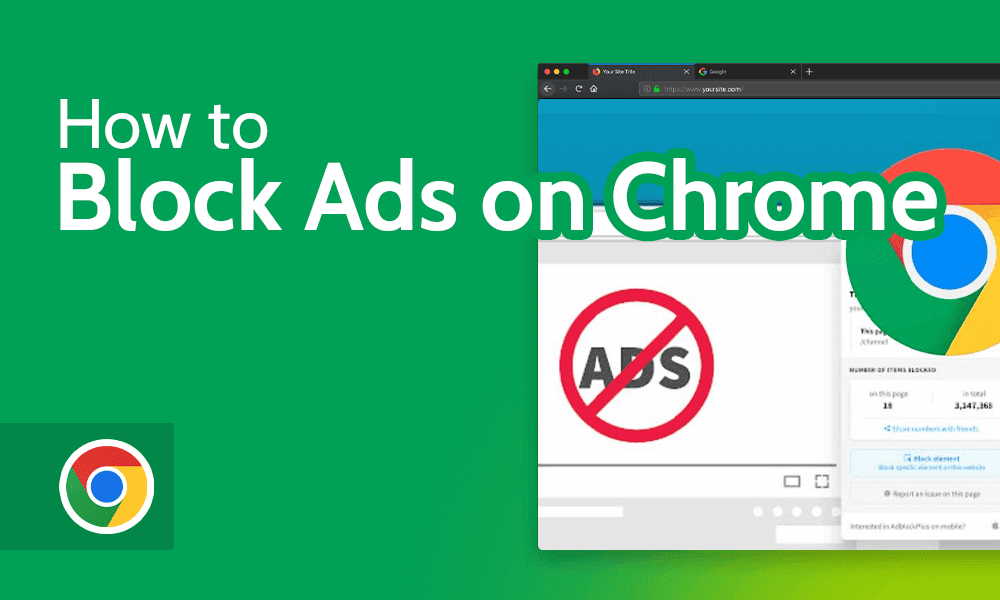
To get rid of ads in Google Chrome, you can use ad-blocking extensions, enable Chrome’s built-in ad blocker, or adjust your settings to limit pop-ups and redirects.
This topic is crucial for users seeking a more streamlined and less intrusive browsing experience. Excessive ads can lead to slower page loads, increased data usage, and potential security risks, making it essential to understand how to effectively manage them.
This guide will detail the various methods for eliminating ads in Google Chrome, including the use of specific ad-blocking extensions, configuring built-in features, and adjusting browser settings for optimal performance.
What are the best ad blockers for Google Chrome?
The best ad blockers for Google Chrome include AdBlock Plus, uBlock Origin, and Ghostery. These extensions effectively block ads, enhance browsing speed, and improve user privacy. Each option has unique features that cater to different user needs.
AdBlock Plus is one of the most popular ad blockers, allowing users to customize their filtering options. It effectively blocks standard ads and offers the ability to whitelist certain websites, which can be useful for supporting content creators. uBlock Origin is known for its lightweight design and high efficiency, using less memory and CPU resources than other ad blockers. It provides extensive filtering options and allows users to block specific elements on a page. Ghostery focuses on enhancing privacy by blocking trackers, in addition to ads, giving users detailed insights into the trackers present on websites they visit.
- AdBlock Plus: Customizable filters, whitelist options, supports various ad formats.
- uBlock Origin: Lightweight, efficient memory usage, extensive filtering capabilities.
- Ghostery: Privacy-focused, tracker blocking, insights into website tracking.
Choosing the right ad blocker depends on individual needs. Users prioritizing speed may prefer uBlock Origin, while those concerned about privacy might lean towards Ghostery. AdBlock Plus is ideal for users who want a balance between ad blocking and supporting websites they enjoy.
For optimal results, consider combining an ad blocker with a privacy-focused browser extension. This dual approach can significantly enhance both browsing speed and online security.
How do I disable ads in Google Chrome settings?
To disable ads in Google Chrome settings, you can adjust various options that limit ad visibility and control pop-ups. Chrome does not provide a direct setting to completely eliminate all ads but offers tools to manage unwanted content. Following these steps can significantly reduce the number of intrusive advertisements you encounter while browsing.
- Open Google Chrome: Launch the Chrome browser on your computer or device.
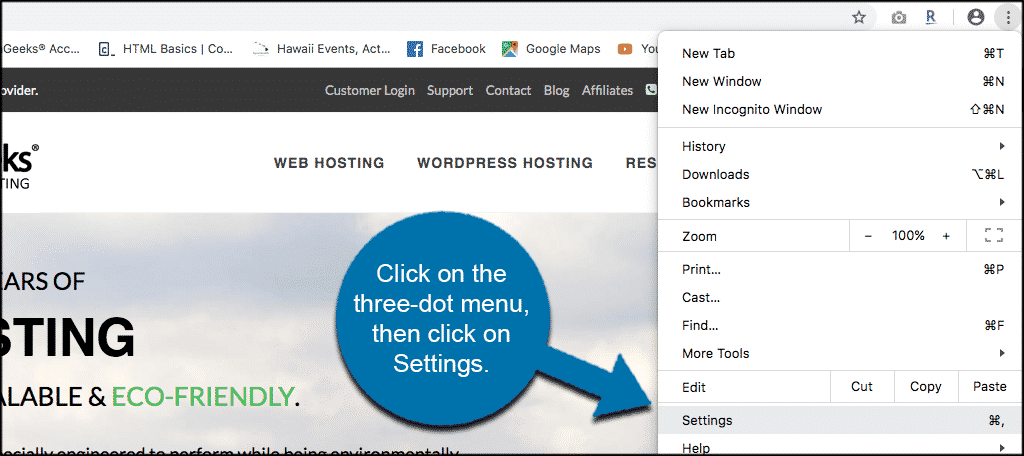
- Access Settings: Click the three vertical dots in the upper-right corner to open the menu, then select “Settings.”
- Privacy and Security: In the left sidebar, click on “Privacy and security” to view related options.
- Site Settings: Click on “Site settings” under the Privacy and security section.
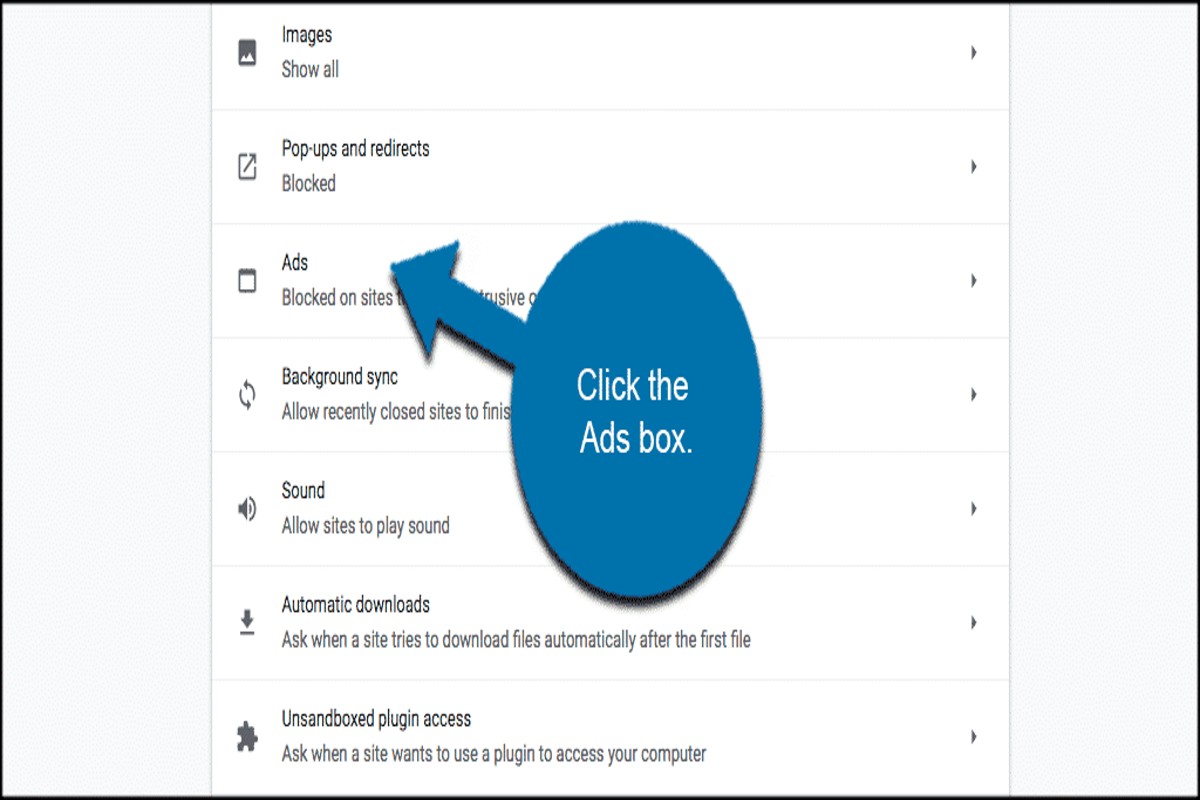
- Ads Settings: Scroll down to find “Ads” and click on it. Here, you can toggle the setting to block ads on sites that tend to show intrusive ads.
- Pop-ups and Redirects: Return to Site settings and locate “Pop-ups and redirects.” Ensure this is set to “Blocked” to prevent unwanted pop-up ads.
- Clear Cookies: Consider clearing cookies and site data. Go back to the Privacy and security section, select “Clear browsing data,” and choose “Cookies and other site data.”
- Consider a Clean Slate: If ads persist, consider resetting Chrome settings to their original defaults by navigating to the advanced section in Settings and selecting “Reset settings.”
While these steps can help reduce ads in Google Chrome, they may not eliminate all advertisements entirely. Additional measures, such as using ad-blocking extensions, can further enhance your browsing experience by minimizing disruptive ads.
Expert Tip: To maximize ad blocking effectiveness, consider combining Chrome’s built-in settings with trusted ad-blocker extensions like uBlock Origin or AdBlock Plus. These tools can provide more comprehensive protection against various ad formats.
Are ad blockers safe to use in Google Chrome?
Ad blockers are generally safe to use in Google Chrome, but their safety can vary based on the specific extension you choose. While reputable ad blockers effectively enhance your browsing experience by blocking unwanted advertisements, some less trustworthy options may compromise your privacy or security.
Choosing a well-reviewed ad blocker from trusted sources significantly reduces the risk of encountering malicious software. Commonly used ad blockers like uBlock Origin and Adblock Plus are considered safe and have extensive user bases. However, users should be vigilant about permissions requested by these extensions, as some may access sensitive data or browsing history.
- Reputable Ad Blockers: Extensions like uBlock Origin and AdGuard have strong reputations for user safety and privacy.
- Less Trusted Options: Some ad blockers may sell data or inject ads instead of blocking them, posing a risk to users.
- Permissions: Always review the permissions an ad blocker requests during installation; avoid those that require excessive access.
Additionally, ad blockers can sometimes interfere with website functionality. Some sites may restrict access or display messages requesting you to disable the ad blocker to view content. Users should weigh the benefits of an ad-free experience against potential disruptions to webpage functionality.
Regularly updating the ad blocker and Chrome itself helps maintain a secure browsing environment. Users should also consider privacy-focused browsers or built-in ad-blocking features in some browsers as alternatives.
Expert Tip: Always download ad blockers from the official Chrome Web Store and check user reviews for insights into their reliability and safety. This practice minimizes the risk of installing harmful extensions.
How much do ad-blocking extensions cost?
Ad-blocking extensions for Google Chrome can range from free to around $30 per year for premium versions. Most popular ad blockers, such as AdBlock and uBlock Origin, are free, while others offer premium features at a cost.
The price of ad-blocking extensions is influenced by several factors, including the features they provide, the level of customer support, and whether they operate on a subscription model. Users may find free options sufficient for basic ad-blocking needs, while premium versions may offer enhanced privacy features, faster browsing speeds, and additional customization options.
- Features: Free extensions often block ads effectively but may lack advanced features like anti-tracking or customizable filters.
- Subscription Models: Some ad blockers charge a monthly or annual fee for premium features, providing users with regular updates and enhanced functionality.
- Customer Support: Paid versions typically include customer support, which can be a significant consideration for users who require assistance.
While free options are sufficient for many users, those seeking comprehensive ad and tracking protection may find value in investing in a paid extension. Evaluating the specific needs and browsing habits can help determine if a premium ad blocker is necessary.
For users looking to maximize their ad-blocking experience, consider extensions that regularly update their filter lists and offer user-friendly interfaces. This can enhance both the effectiveness and ease of use of the ad-blocking solution.
How long does it take to set up an ad blocker in Chrome?
Setting up an ad blocker in Google Chrome typically takes between 5 to 15 minutes. The time largely depends on the user’s familiarity with browser extensions and the specific ad blocker chosen.
For users who are comfortable navigating the Chrome Web Store, locating and installing an ad blocker can be done in a matter of minutes. Popular options, such as AdBlock or uBlock Origin, are straightforward to install. After installation, configuring settings—if necessary—usually adds only a few extra minutes to the process. However, less experienced users might take longer as they familiarize themselves with the interface and options available.
Additional factors influencing setup time include the need to create an account or customize settings. Some ad blockers offer advanced features that may require additional configuration. Users who prefer to tweak their ad blocking preferences or whitelist certain sites might spend extra time adjusting these settings. In contrast, opting for the default settings can streamline the process and minimize setup time.
Practical Implications
While the initial setup is quick, ongoing management of the ad blocker can require periodic updates or adjustments. Users should also be aware that some websites may restrict access if they detect ad blockers, which could necessitate further configuration. Overall, the initial investment of time is minimal compared to the benefits of a cleaner browsing experience.
Expert Tip: Consider using an ad blocker that offers a simple user interface and frequent updates. This not only ensures effective ad blocking but also enhances security and performance over time.
What are the common mistakes when using ad blockers in Chrome?
Common mistakes when using ad blockers in Chrome can lead to ineffective ad blocking and potential security risks. Users often overlook settings, compatibility issues, and the need for regular updates. Understanding these pitfalls can enhance the ad-blocking experience and improve browser performance.
One frequent mistake is failing to customize ad blocker settings. Many users install ad blockers with default configurations, which may not effectively block all unwanted ads. Adjusting settings to block specific types of ads, such as video ads or pop-ups, can significantly improve the ad-blocking capabilities. Additionally, allowing ads on certain sites can lead to a less disruptive browsing experience, but it may also expose users to unwanted content.
- Neglecting updates: Regularly update the ad blocker to ensure it can combat new ad strategies and threats. Most ad blockers receive frequent updates that enhance their effectiveness.
- Ignoring site exceptions: Some websites may require disabling the ad blocker for full functionality. Making exceptions for trusted sites can improve user experience without compromising security.
- Overlooking compatibility: Not all ad blockers work seamlessly with every extension or browser configuration. Research compatibility and test different options to find the most effective solution for your setup.
- Using multiple ad blockers: Installing more than one ad blocker can lead to conflicts and reduce overall effectiveness. Stick to a single, reliable ad blocker to avoid complications.
Effective use of ad blockers in Chrome requires attention to settings and ongoing maintenance. Users should regularly review their configurations and stay informed about the latest ad-blocking technologies to ensure optimal performance.
Expert insight: Consider using additional privacy-focused extensions alongside ad blockers. These can enhance online security by blocking trackers and malicious scripts that ads may carry, providing a more comprehensive browsing protection strategy.
Can I block specific ads in Google Chrome?
Yes, you can block specific ads in Google Chrome using various methods, including browser extensions and built-in features. These options allow users to customize their ad experience by selectively filtering out unwanted advertisements while still seeing others they may find relevant.
For example, consider a scenario where a user frequently visits a travel website and enjoys seeing ads for flight deals but is annoyed by ads for unrelated products. By installing an ad-blocking extension like uBlock Origin, the user can create custom filters to block specific domains or keywords associated with unwanted ads. This way, ads for flights from the travel website can still appear while those for unrelated products are blocked. The user can adjust these settings easily through the extension’s dashboard.
Another option is to utilize Chrome’s built-in ad settings to manage ad personalization. Users can navigate to their Google account settings and adjust ad preferences to indicate which types of ads they prefer. While this method does not block specific ads outright, it can help reduce the number of irrelevant ads displayed, leading to a more tailored browsing experience. Users can also report specific ads directly through Chrome, which may help improve the overall ad relevance over time.
Expert Tip: Regularly updating ad-blocking extensions and maintaining a curated list of blocked domains can enhance the effectiveness of ad filtering, ensuring a seamless browsing experience while still allowing for the display of relevant advertisements.
How do I report unwanted ads in Google Chrome?
You can report unwanted ads in Google Chrome by following a straightforward process. This involves using Chrome’s built-in reporting tool or notifying the website responsible for the ads. Reporting helps improve your browsing experience and can assist in reducing intrusive advertisements.
- Identify the ad: When an unwanted ad appears, take note of its content and the website it originated from. This information is crucial for accurate reporting.
- Right-click on the ad: On the ad itself, right-click to open the context menu. Select the option that says “Report this ad.” This option may vary slightly depending on the type of ad.
- Provide feedback: A dialog box will appear asking for more details about why you’re reporting the ad. Choose the reason that best fits your situation, such as “It’s annoying” or “It’s misleading,” and submit your feedback.
- Use the Ad Settings: Visit Chrome’s Ad Settings page by navigating to chrome://settings/ads. Here, you can manage your preferences and block specific advertisers or categories of ads.
- Report to Google: If you continue to see unwanted ads from specific sites, consider reporting them directly to Google through their support page. Provide all relevant details for effective action.
Reporting ads not only helps improve your experience but also contributes to a better online environment for all users. If an ad is particularly intrusive, consider using an ad blocker, which can prevent such ads from appearing in the first place.
Expert Tip: Regularly review your ad settings and opt-out choices, as advertisers may change their strategies and continue showing unwanted content. Keeping these preferences updated can significantly enhance your browsing experience.
Advanced Techniques for Blocking Ads in Chrome
This section explores advanced methods for blocking ads in Google Chrome, going beyond basic ad blockers to include network-level solutions and browser configurations. These techniques enhance browsing experiences by significantly reducing unwanted advertisements.
Using DNS Services for Network-Wide Ad Blocking
DNS-level ad blocking can affect all devices connected to your network, providing a comprehensive solution to unwanted ads. Two prominent services for this purpose are AdGuard and Pi-hole.
- AdGuard DNS: This service offers a straightforward setup, requiring users to change their DNS settings on their router or device. Once configured, it blocks ads at the DNS resolution level, preventing them from loading altogether.
- Pi-hole: A more advanced option, Pi-hole acts as a local DNS sinkhole. By installing Pi-hole on a Raspberry Pi or a compatible server, users can filter out ads for all devices on their network. This solution provides extensive customization options and detailed analytics on ad traffic.
- Router Configuration: Many modern routers allow DNS configuration directly. By setting your router to use AdGuard or Pi-hole DNS, all connected devices benefit from ad blocking without additional software installations.
Adjusting Chrome Flags for Enhanced Ad Filtering
Chrome flags are experimental features that can be enabled to enhance browser functionality. Modifying these flags can lead to improved ad filtering.
- Open Chrome and type chrome://flags in the address bar.
- Search for enable-privacy-sandbox and enable it. This feature aims to limit tracking and, consequently, ad delivery.
- Consider enabling block-insecure-private-network-requests to prevent unwanted ads from less secure sources.
Keep in mind that modifying Chrome flags can lead to instability. Test changes carefully and revert if issues arise.
Exploring Privacy-Focused Browsers as Alternatives
For users seeking robust ad blocking beyond Chrome, privacy-focused browsers such as Brave and Firefox offer built-in ad blocking features. These browsers prioritize user privacy and typically block ads by default, ensuring a cleaner browsing experience.
Brave, for instance, uses a unique approach by blocking ads and trackers while offering users the option to view privacy-respecting ads for cryptocurrency rewards. Firefox, with its extensive add-on ecosystem, allows users to customize their ad blocking experience using various extensions.
Expert Insights on Ad Blocking Techniques
Common misconceptions about ad blockers include the belief that all blockers are equally effective. In reality, different ad blockers use various filtering techniques, leading to varying success rates against particular ad types. Additionally, many users overlook the importance of regularly updating their ad blocker and associated lists to maintain effectiveness against evolving ad technologies.
Another critical point is that while DNS-level blocking is effective, it may also inadvertently block legitimate content. Users should regularly review blocked domains and whitelist essential sites to avoid disruptions in browsing.
Practical Application
To implement these advanced techniques, start by selecting a DNS service that fits your needs. If opting for Pi-hole, follow the installation guide on their website. For Chrome flags, proceed to adjust the relevant flags as outlined. Finally, consider downloading a privacy-focused browser to complement your ad-blocking efforts. This multi-layered approach will significantly enhance your experience in Google Chrome and beyond.
Troubleshooting Common Ad Blocking Issues
This section addresses common challenges users face with ad blockers in Google Chrome and offers solutions. Understanding these issues is essential for optimizing your browsing experience.
Identifying Conflicts Between Multiple Extensions
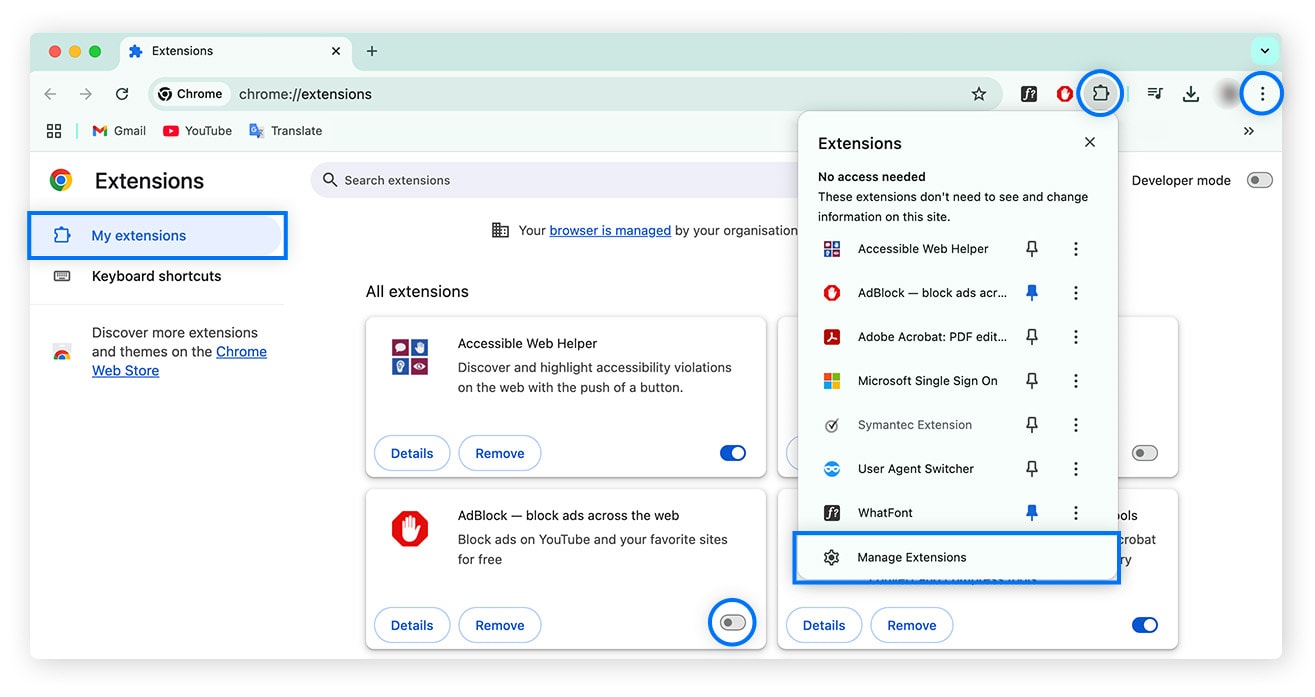
Using several extensions can lead to conflicts that prevent ad blockers from functioning correctly. For instance, if you have multiple ad blockers installed, they may interfere with each other, causing ads to bypass the filters. To identify conflicts:
- Disable all extensions except your primary ad blocker.
- Re-enable extensions one by one, testing ad blocking after each to detect any conflicts.
- Consider removing or disabling any extensions that are not essential to your browsing experience.
Resolving Issues with Ads Still Appearing
Despite having an ad blocker, users may still encounter ads on certain websites. This can happen due to various factors:
- Site-Specific Issues: Some websites employ anti-ad-blocker scripts that can bypass filters.
- Outdated Ad Blocker: Ensure your ad blocker is updated to the latest version, as updates often include improved filtering capabilities.
- Settings Configuration: Check your ad blocker’s settings to confirm it is set to block all ads, including pop-ups and tracking ads.
Understanding Whitelisting and Its Effects
Whitelisting allows certain websites to display ads, which can lead to confusion regarding ad blockers. Users may unintentionally whitelist sites, resulting in ads appearing. To manage whitelisting effectively:
- Access your ad blocker’s settings and navigate to the whitelist section.
- Review the list of websites and remove any that you do not wish to support by allowing ads.
- Consider the implications of whitelisting; some sites rely on ad revenue, but this can compromise your ad-free experience.
Many users mistakenly believe that having multiple ad blockers guarantees a completely ad-free experience. In reality, this can lead to diminished performance and increased complexity in managing settings. Some ad blockers can also interfere with each other, reducing their overall effectiveness. A single, well-configured ad blocker often provides better results than multiple conflicting tools.
To effectively troubleshoot ad blocking issues, start by disabling any unnecessary extensions and testing your primary ad blocker. Regularly update your software and review your settings to ensure optimal performance. Whitelist only the websites you trust and monitor for any changes in ad behavior. This proactive approach will enhance your browsing experience while minimizing interruptions from unwanted ads.
Real-World Applications of Ad Blocking in Chrome
This section explores the tangible benefits of ad blocking in Google Chrome, highlighting how it enhances user experience through improved browsing speed, reduced data consumption, and increased productivity.
Case Studies: Improved Browsing Speed and Reduced Data Usage
Numerous studies indicate that ad blocking can significantly enhance browsing speed. For instance, research conducted by the PageFair and Adobe in 2019 revealed that users who employed ad blockers experienced an average page load time improvement of 25%. This is particularly evident on content-heavy websites, where ads can account for over 50% of the total page load time.
Moreover, ad blockers also lead to reduced data usage. A report by the analytics firm Statista showed that mobile users who block ads can save up to 30% of their mobile data. This is crucial for individuals on limited data plans, as ads can consume substantial bandwidth, especially video and interactive ads.
User Testimonials: Enhanced Focus and Productivity
User feedback supports the claim that ad blocking enhances focus and productivity. A survey conducted by the website blocking service, BlockSite, found that 76% of respondents reported increased concentration while browsing without ads. This is largely because ads often distract users, leading to a fragmented browsing experience.
Many professionals have shared testimonials about how ad blocking has improved their work efficiency. For instance, a freelancer noted that by eliminating ads, they could complete tasks 20% faster, allowing them to take on more projects. Such experiences underline the practical benefits of ad blocking in maintaining a streamlined workflow.
Impact of Ad Blocking on Website Revenue and User Experience
The implementation of ad blockers poses significant implications for website revenue. According to a 2020 report by the Interactive Advertising Bureau (IAB), publishers lost an estimated $12 billion in advertising revenue due to ad blocking. This loss can lead to a decline in the quality of content available online, as publishers may struggle to maintain their offerings without adequate funding.
However, an improved user experience often results in higher engagement rates. Websites that prioritize user experience over intrusive advertising may see increased traffic and user retention. By focusing on quality content and minimal ads, publishers can foster a loyal audience while still generating revenue through less intrusive methods, such as affiliate marketing or sponsored content.
While ad blocking offers clear advantages, it is important to recognize the balance between user experience and website revenue. Some websites rely heavily on advertising for funding, and blocking ads can inadvertently harm content creators. Users should consider supporting their favorite sites through alternative means, such as subscriptions or donations, to ensure the sustainability of quality content.
Practical Application: What to Do Next
- Evaluate your browsing habits and determine if ad blocking suits your needs.
- Install a reputable ad blocker extension from the Chrome Web Store, such as uBlock Origin or AdBlock Plus.
- Regularly review website performance and user experience to gauge the effectiveness of the ad blocker.
- Consider supporting websites that you frequently visit by enabling ads or contributing financially.
Ethical Considerations of Ad Blocking
This section explores the ethical dimensions of ad blocking, balancing user experience with the financial realities faced by content creators. The implications of ad blocking extend beyond individual browsing preferences, influencing the broader advertising ecosystem.

Balancing User Experience and Support for Content Creators
Ad blocking offers users a cleaner, less intrusive browsing experience. However, this convenience often comes at a cost to content creators who rely on advertising revenue. Approximately 70% of websites depend on ads for their income, meaning that widespread ad blocking can threaten the viability of many online platforms. Striking a balance between a seamless user experience and supporting creators is essential for a sustainable digital landscape.
Alternative Monetization Strategies for Websites
With the rise of ad blocking, content creators are exploring alternative revenue streams. These strategies can include:
- Subscription Models: Offering premium content for a fee allows users to support creators directly.
- Donations and Crowdfunding: Platforms like Patreon enable fans to contribute financially to their favorite creators.
- Affiliate Marketing: Content creators can earn commissions by promoting products, allowing for monetization without intrusive ads.
These alternatives can help maintain the quality of content while respecting user preferences regarding ads.
The Future of Advertising in an Ad-Blocked Environment
The advertising landscape is evolving due to the increasing prevalence of ad blockers. Advertisers are adapting by investing in native advertising, which integrates promotional content seamlessly into the user experience. This approach can enhance engagement while minimizing disruption. Additionally, brands are exploring contextual advertising, which targets users based on their interests rather than relying on tracking cookies, thus addressing privacy concerns.
The shift towards more respectful advertising practices suggests a potential compromise. Users may be more receptive to ads that provide value without compromising their browsing experience.
Nuances and Misconceptions
Many users mistakenly believe that ad blocking universally harms all content creators, but this is not always the case. Some creators leverage ad blockers to enhance their user experience while still using alternative monetization strategies. Additionally, the perception that all ads are intrusive overlooks the potential for well-designed, relevant ads to improve user engagement. Understanding the diversity of content monetization approaches can lead to more informed decisions regarding ad blocking.
Practical Application
Users contemplating ad blocking should consider the impact on their favorite websites. Before disabling ads entirely, explore options such as supporting creators through subscriptions or donations. If opting for ad blocking, consider using selective ad blockers that allow non-intrusive ads or whitelist sites that provide valuable content. This approach fosters a healthier digital ecosystem while enhancing the browsing experience.
Frequently Asked Questions
What are the best ad blockers for Google Chrome?
Some of the best ad blockers for Google Chrome include uBlock Origin, AdBlock Plus, and Ghostery. These extensions effectively block unwanted ads while allowing for customizable settings.
How do I disable ads in Google Chrome settings?
To disable ads in Google Chrome settings, navigate to “Settings,” then “Privacy and security,” and select “Site Settings.” From there, you can manage pop-ups and redirects, as well as adjust ad settings.
Are ad blockers safe to use in Google Chrome?
Most reputable ad blockers are safe to use in Google Chrome, as they are developed by trusted developers and regularly updated. However, it’s important to download extensions only from the Chrome Web Store to avoid malicious software.
How much do ad-blocking extensions cost?
Many ad-blocking extensions for Google Chrome are free, while some offer premium versions with additional features for a subscription fee. Users can choose based on their needs and preferences.
How long does it take to set up an ad blocker in Chrome?
Setting up an ad blocker in Chrome typically takes just a few minutes. After installing the extension from the Chrome Web Store, users can configure settings to their liking immediately.
What are the common mistakes when using ad blockers in Chrome?
Common mistakes include not updating the ad blocker regularly and failing to customize settings for optimal performance. Users may also overlook the need to whitelist certain sites that rely on ad revenue.
Can I block specific ads in Google Chrome?
Yes, many ad blockers allow users to block specific ads by using custom filters or selecting “block this ad” options. This feature enables more tailored ad-blocking experiences.
How do I report unwanted ads in Google Chrome?
To report unwanted ads in Google Chrome, click on the three-dot menu in the top right corner, select “Help,” and then “Report an issue.” Provide details about the ad and the website to facilitate action.
Final Thoughts on how do I get rid of ads in Google Chrome
Eliminating ads in Google Chrome is not only about enhancing browsing speed and experience, but also about reclaiming user control over online content. By utilizing reputable ad blockers and fine-tuning Chrome settings, one can significantly reduce intrusive advertising while maintaining a secure browsing environment.
To take immediate action, install a trusted ad blocker such as uBlock Origin or AdGuard, ensuring you configure it according to your preferences for optimal performance and security.
Addressing the prevalence of online ads is critical for fostering a more streamlined and user-centric internet experience, where users can navigate freely without disruption.
Leave a Reply