
To cancel Google Ads, log into your Google Ads account, navigate to the ‘Billing’ section, and select ‘Cancel Account’. Follow the prompts to complete the cancellation.
Understanding how to cancel Google Ads is crucial for businesses managing their online advertising budgets. Incorrectly navigating the cancellation process can lead to unexpected charges or prolonged ad visibility, impacting financial planning and brand reputation.
This guide provides a clear, step-by-step process for canceling Google Ads, including how to access the necessary sections of your account and what to expect during the cancellation procedure.
What happens when I cancel my Google Ads account?
Cancelling your Google Ads account stops all advertising activities and halts any ongoing campaigns. Once the account is cancelled, ads will no longer be displayed, and you will not incur further charges. However, you will still be responsible for any outstanding balance accrued before cancellation.
When an account is cancelled, all associated data, including campaign performance metrics, will remain accessible for reporting purposes for a limited time. This allows users to analyze past performance even after the account is inactive. However, once the account is permanently deleted, all data will be lost, and recovery will not be possible.
- Ad Performance: All active ads will stop running immediately upon cancellation, which means no further impressions or clicks will occur.
- Billing: Any remaining balance will be charged to the payment method on file. Users will receive a final invoice for any outstanding charges.
- Account Data: Users can access historical data for 30 days post-cancellation, after which all performance data will be permanently deleted.
It is also important to consider any implications for linked services, such as Google Analytics or Google Merchant Center, as cancellation may affect their functionality or reporting accuracy. If you have plans to return to Google Ads in the future, it may be advisable to pause campaigns instead of cancelling the account entirely.
Expert Tip: Before cancelling, export any crucial performance data and reports you may need for future reference, as this information will not be retrievable once the account is permanently deleted.
How do I pause my Google Ads instead of canceling?
To pause your Google Ads, access your Google Ads account, select the campaign you wish to pause, and then toggle the campaign status from active to paused. This allows you to halt ads without permanently deleting them, enabling you to reactivate them later if needed.
Follow these steps to pause your campaigns effectively:
- Log into your Google Ads account.
- Navigate to the “Campaigns” tab on the left-hand side of the dashboard.
- Select the specific campaign you want to pause by clicking on its name.
- Locate the status toggle, usually found at the top of the campaign details page.
- Click on the status toggle and select “Pause” from the dropdown menu.
- Confirm the action if prompted, and the campaign will be paused immediately.
Pausing ads is a strategic choice, especially during specific periods when you want to conserve budget or reassess your marketing strategy. Unlike cancellation, which removes your ads permanently, pausing keeps your campaign data intact, allowing for easier reactivation.
Additionally, consider reviewing the performance metrics before pausing to ensure that you are making informed decisions based on data. Regular monitoring of your campaigns helps to identify the best times to pause or reactivate your ads.
Expert Tip: Utilize automated rules within Google Ads to pause campaigns based on specific performance criteria or date ranges, streamlining your ad management process.
Is there a cost associated with canceling Google Ads?
There are no cancellation fees for terminating a Google Ads account. However, users should be aware of the billing cycle, as final payments may still be processed based on existing campaigns and any accrued costs.
The cost implications of canceling Google Ads primarily involve the timing of your account cancellation and the billing cycle. Google Ads operates on a pay-per-click (PPC) model, meaning you are charged for the clicks your ads receive up to the point of cancellation. This means that if you cancel mid-cycle, you will still be billed for any clicks or impressions that occurred before the cancellation took effect.
- Billing Cycle: Google typically bills users either monthly or whenever they reach a specified spending threshold. Therefore, if you cancel before the end of your billing cycle, ensure you check for any final charges that may apply.
- Accrued Costs: Depending on when you cancel, any outstanding charges for clicks or impressions may still be processed. This could result in a final bill that reflects costs incurred during the period leading up to cancellation.
- Pending Promotions: If you have active promotions or credits applied to your account, these may be forfeited upon cancellation. Evaluate the terms of any promotional offers before deciding to cancel.
To avoid unexpected charges, monitor your account closely in the days leading up to cancellation. Review any upcoming invoices and ensure that you understand your current spending before proceeding.
For users considering future advertising, regularly evaluate campaign performance to optimize spend and avoid unnecessary costs. This proactive approach can lead to more effective budget management in the long run.
Can I reactivate my Google Ads account after cancellation?
Yes, you can reactivate your Google Ads account after cancellation, but the process and conditions vary. Generally, accounts can be reinstated if they were canceled voluntarily and not due to policy violations. Reactivation can be done through your Google Ads interface or by contacting Google support.
There are several scenarios regarding account reactivation:
- Voluntary Cancellation: If you canceled your account voluntarily, you can reactivate it at any time. Simply log in to your Google Ads account and follow the prompts to restore your account.
- Policy Violation: If your account was suspended due to a policy violation, reactivation is contingent upon resolving the issues that led to the suspension. You must address the specific violation and submit an appeal to Google.
- Inactive Accounts: Accounts that have been inactive for more than 15 months may be deleted by Google. In such cases, reactivation is not possible, and you would need to create a new account.
Each of these scenarios highlights key differences in the reactivation process. Voluntary cancellations allow for straightforward restoration, while policy violations require remediation. Inactive accounts, however, present a significant barrier, as they may lead to complete account loss.
Expert Tip: Always keep an eye on your account status and Google Ads policy updates to avoid unintentional suspensions, as timely action can facilitate smoother reactivation if needed.
How long does it take to cancel Google Ads?
Cancelling Google Ads typically takes about 10 to 15 minutes to complete the process online. However, the actual cessation of ads may take up to 24 hours to fully take effect, depending on the status of your campaigns and billing cycle.
The cancellation process involves navigating through your Google Ads account, selecting the appropriate campaigns, and choosing the option to pause or cancel them. While the act of cancelling can be completed quickly, the time it takes for ads to stop appearing can vary. Factors such as ongoing ad approvals, pending payments, and the specific settings of your account can influence the overall timeline.
Additionally, if you are managing multiple campaigns or have a complex account structure, this may extend the time required to ensure all ads are properly cancelled. Users should also consider that any scheduled ads may continue to run until their scheduled end date, even after initiating cancellation.
Expert Tip: To avoid unexpected charges, review your billing settings and ensure that all campaigns are paused or cancelled before the next billing cycle begins. This proactive approach will help manage costs effectively.
What are the best practices for canceling Google Ads?
To cancel Google Ads effectively, follow structured best practices that ensure a smooth transition. Adhering to these guidelines minimizes confusion and prevents unintended charges. Properly managing your campaigns during cancellation is essential for a clear exit.
Begin by reviewing your account status and identifying the specific campaigns you wish to cancel. This allows for a targeted approach, ensuring you only discontinue what is necessary. Next, consider the timing of your cancellation. Cancelling at the end of the billing cycle can help avoid partial charges, thus optimizing your financial management.
- Backup Your Data: Prior to cancellation, export performance reports and any valuable data. This information can be crucial for future marketing strategies.
- Pause Campaigns First: Temporarily pause your campaigns before full cancellation. This provides an opportunity to assess the impact and make necessary adjustments.
- Communicate with Your Team: Inform all stakeholders about the cancellation process. Ensure everyone understands the rationale and next steps to avoid miscommunication.
- Monitor Billing Statements: After cancellation, keep an eye on billing statements for any unexpected charges. This helps catch potential errors early.
Following these best practices ensures not only a smooth cancellation process but also prepares you for future advertising efforts. Proper management during this transition can lead to more informed decisions when re-engaging with digital marketing.
Expert Tip: Always consider setting a calendar reminder for a follow-up review of your marketing strategy post-cancellation. This helps you remain proactive and ready for future opportunities.
How do I cancel a specific Google Ads campaign?
To cancel a specific Google Ads campaign, you need to pause or remove it from your account. This process allows you to stop ad delivery for that particular campaign without affecting others.
Follow these steps to successfully cancel an individual campaign:
- Log in to your Google Ads account. Navigate to the “Campaigns” tab on the left sidebar, where all your campaigns are listed.
- Identify the campaign you wish to cancel. Click on the checkbox next to the campaign name to select it.
- Locate the “Edit” dropdown menu at the top of the campaign list. Click it, and then select “Pause” to temporarily halt the campaign or “Remove” to delete it entirely.
- If you choose to pause the campaign, it will stop running but remain in your account for future use. If you select “Remove,” the campaign will be deleted, and you will lose all associated data.
- Confirm your choice. A prompt will appear asking you to verify your action. Confirm to finalize the cancellation.
Pausing a campaign is a useful option if you plan to reactivate it later. Removing a campaign is more permanent, so consider your decision carefully. Keep in mind that any changes may take a few hours to reflect in your account status.
Expert Tip: Regularly review your campaigns to identify underperforming ads before deciding to cancel. This proactive approach can enhance your overall ad performance and budget allocation.
What are common mistakes when canceling Google Ads?
Users often make several common mistakes when canceling Google Ads, which can lead to unintended charges or incomplete cancellations. Key errors include not pausing campaigns before cancellation, failing to check billing details, and overlooking account settings. Understanding these pitfalls can help ensure a smooth cancellation process.
One frequent mistake is simply canceling the account without pausing active campaigns. For example, a user may decide to stop their ads due to budget constraints but forget to pause the campaigns first. This oversight can result in additional charges for clicks or impressions accrued after the decision to cancel. Users should always pause all campaigns before initiating the cancellation to prevent further costs.
Another common error is neglecting to review billing settings. A user might assume their cancellation is immediate, but if they have a pending balance or active promotional credits, they may still incur charges. It is essential to verify the account’s billing history and payment methods before cancellation to avoid surprises. Additionally, some users overlook the necessity of downloading important data and reports before canceling, which can lead to lost insights that could be valuable for future campaigns.
Expert Tip: Always document the cancellation process and keep records of any communications with Google Ads support. This practice can help resolve any discrepancies that may arise post-cancellation.
Understanding the Impact of Canceling Google Ads
This section examines the long-term effects of canceling Google Ads on business operations and marketing strategy. Understanding these implications is essential for making informed decisions about advertising investments.

Effects on Ongoing Campaigns and Performance Metrics
Canceling Google Ads results in an immediate halt to all active campaigns, which can significantly disrupt advertising efforts. Performance metrics such as click-through rates (CTR), conversion rates, and return on ad spend (ROAS) will cease to accrue. This disruption can lead to a lack of visibility into customer behavior and engagement, making it challenging to assess the effectiveness of past campaigns.
Potential Loss of Historical Data and Insights
When Google Ads campaigns are canceled, businesses risk losing access to valuable historical data. This data includes insights into customer demographics, peak performance times, and keyword effectiveness. Such information is crucial for refining future marketing strategies. Without historical context, businesses may struggle to make data-driven decisions, leading to inefficiencies in advertising spend and targeting.
Impact on Brand Visibility and Customer Acquisition
The cancellation of Google Ads can lead to a noticeable decrease in brand visibility. As paid ads often occupy prime real estate on search engine results pages (SERPs), their absence can result in reduced website traffic and potential customer acquisition. Competing brands may gain an advantage, capturing the attention of users who would have otherwise engaged with canceled ads. This shift can have lasting effects on market share and brand recognition.
Alternatives to Cancellation for Budget Management
Instead of canceling campaigns outright, businesses can consider several alternatives to manage their budgets effectively:
- Pause campaigns: Temporarily halt specific campaigns to reevaluate their performance without losing historical data.
- Reduce budgets: Lower daily or monthly budgets to maintain some level of advertising presence while minimizing costs.
- Optimize campaigns: Focus on high-performing ads and pause or adjust underperforming ones to improve overall efficiency.
Nuance / Expert Layer
A common misconception about canceling Google Ads is that it is a straightforward solution to immediate budget constraints. However, the long-term ramifications can outweigh short-term savings. For instance, businesses that rely heavily on paid advertising may find it difficult to regain traction once they decide to reactivate their campaigns. Additionally, the loss of competitive positioning in the digital marketplace can create barriers that are challenging to overcome. Experts recommend a thorough analysis of marketing goals before making drastic changes to advertising strategies.
Practical Application
To mitigate the negative impacts of canceling Google Ads, businesses should conduct a comprehensive review of their current campaigns and performance metrics. Consider implementing budget adjustments or campaign optimizations instead of outright cancellation. If cancellation is necessary, ensure to document key insights and data before proceeding. This proactive approach will facilitate better decision-making in future advertising endeavors.
Step-by-Step Guide to Canceling Google Ads
This section provides a clear, actionable process for canceling your Google Ads account. Following these steps ensures a smooth transition and helps maintain control over your advertising expenses.
1. Accessing Your Google Ads Account Securely
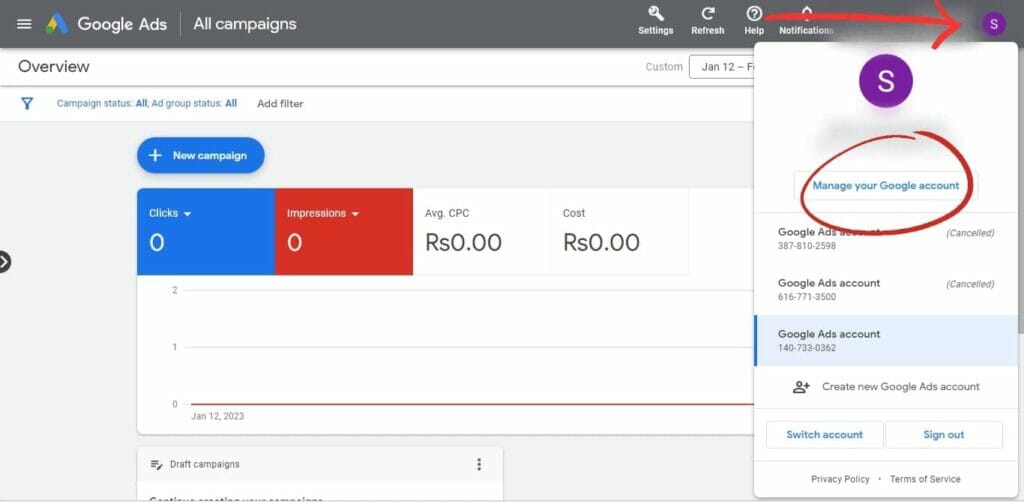
Begin by logging into your Google Ads account. Ensure that you use a secure internet connection to protect your account information. Go to the official Google Ads website and enter your credentials. If you have two-factor authentication enabled, complete that process to gain access.
2. Navigating to the Billing Section
Once logged in, locate the tools icon in the upper right corner of the dashboard. Click on it, and from the dropdown menu, select “Billing.” This section contains all financial aspects of your account, including payment methods and billing history.
3. Initiating the Cancellation Process
In the Billing section, find the option labeled “Account settings.” Click on it, and scroll down to locate the “Cancel account” button. Click this button to proceed with the cancellation. Google may prompt you with questions regarding your reasons for canceling, which may help improve their services.
4. Understanding the Cancellation Confirmation Process
After initiating the cancellation, a confirmation dialog will appear. This dialog outlines the implications of canceling your account, including the loss of access to your campaigns and data. Review the information carefully. If you are sure about proceeding, confirm the cancellation by clicking the designated button.
5. Post-Cancellation Steps for Account Management
Once your account is canceled, you will receive a confirmation email from Google. Retain this email for your records. Additionally, consider reviewing your billing information to ensure no further charges are incurred. If you plan to return to Google Ads in the future, note that your previous campaigns and settings will not be retrievable unless you choose to reactivate your account within a specific timeframe.
Nuance / Expert Layer
Common misconceptions about canceling Google Ads include the belief that canceling an account automatically deletes all associated data. In reality, while campaigns become inactive, the account information remains intact for a limited time. Users can reactivate their accounts, but any data older than 18 months may be permanently deleted. Additionally, some users may find that they still receive charges for services rendered before cancellation. Always review your billing history to avoid unexpected charges.
Practical Application
- Log in to your Google Ads account securely.
- Access the Billing section and initiate the cancellation process.
- Confirm your cancellation and retain any confirmation emails for your records.
- Review your billing history to ensure no further charges occur.
Common Pitfalls and How to Avoid Them When Canceling Google Ads
Canceling Google Ads can seem straightforward, but several common mistakes can lead to unwanted complications. This section outlines these pitfalls and provides actionable strategies to help ensure a smooth cancellation process.
Failing to Pause Campaigns Before Cancellation
One of the most frequent mistakes is not pausing active campaigns before proceeding with cancellation. When campaigns remain active, they can continue to accrue costs even after the decision to cancel has been made. This can result in unexpected charges that may strain budgets and lead to confusion over final billing.
To avoid this, ensure all campaigns are paused prior to cancellation. This can be done through the Google Ads dashboard by navigating to the campaign overview and selecting the campaigns you wish to pause. Implementing this step protects your budget and allows for a clear transition to cancellation.
Not Reviewing Billing Details and Final Charges
Another common oversight involves neglecting to review the billing details and expected final charges associated with the cancellation. Users often assume that canceling will immediately halt all charges, but this is not always the case. Google may bill for services rendered up until the cancellation is processed.
Before proceeding with cancellation, take time to review the billing section in your Google Ads account. Check for pending charges and ensure that you understand how the cancellation will affect your billing cycle. A thorough review helps prevent surprises on your final invoice.
Ignoring the Need for Data Export Before Cancellation
Many advertisers overlook the importance of exporting campaign data before canceling their Google Ads account. Once the account is canceled, access to campaign statistics, performance data, and other valuable insights is lost permanently.
To preserve important data, follow these steps:
- Navigate to the Reports section in your Google Ads account.
- Select the relevant reports you wish to export.
- Choose the export format (CSV, Excel, etc.) and download the data.
Saving this information can be invaluable for future marketing strategies and performance analysis.
Underestimating the Importance of Communication with Stakeholders
Canceling Google Ads can impact various stakeholders, including team members, clients, or partners. Failure to communicate effectively about the cancellation can lead to misalignment and confusion regarding ongoing marketing efforts.
Ensure that all relevant parties are informed about the cancellation timeline and reasons. Consider holding a meeting or sending a detailed email outlining the decision, expected outcomes, and next steps. This proactive communication fosters transparency and helps manage expectations.
One misconception is that simply canceling the account will suffice for all stakeholders. In reality, a well-informed team can better adapt to changes in marketing strategies and resource allocation.
Practical Application: Steps to Cancel Google Ads Effectively
To effectively cancel Google Ads and avoid common pitfalls, follow these steps:
- Pause all active campaigns to halt further charges.
- Review your billing details thoroughly to anticipate final charges.
- Export any necessary data for future reference.
- Communicate the cancellation to all stakeholders involved.
By adhering to these guidelines, the process of canceling Google Ads becomes more manageable and less prone to complications. Proper preparation ensures a seamless transition and preserves valuable insights for future marketing endeavors.
Reactivating Your Google Ads Account: What You Need to Know
This section outlines the process for reactivating a Google Ads account, including the necessary conditions, steps to follow, and implications of reactivation. Understanding these elements is crucial for users considering a return to advertising.
Conditions for Reactivation
Reactivation of a Google Ads account is contingent upon several factors:
- Account Status: The account must not be permanently suspended. Temporary suspensions can be resolved through reactivation.
- Time Frame: Accounts that have been inactive for less than 15 months can typically be reactivated without issue.
- Compliance with Policies: Users must ensure that their account adheres to Google Ads policies upon reactivation.
Steps to Follow for Reactivation
To reactivate a Google Ads account, follow these steps:
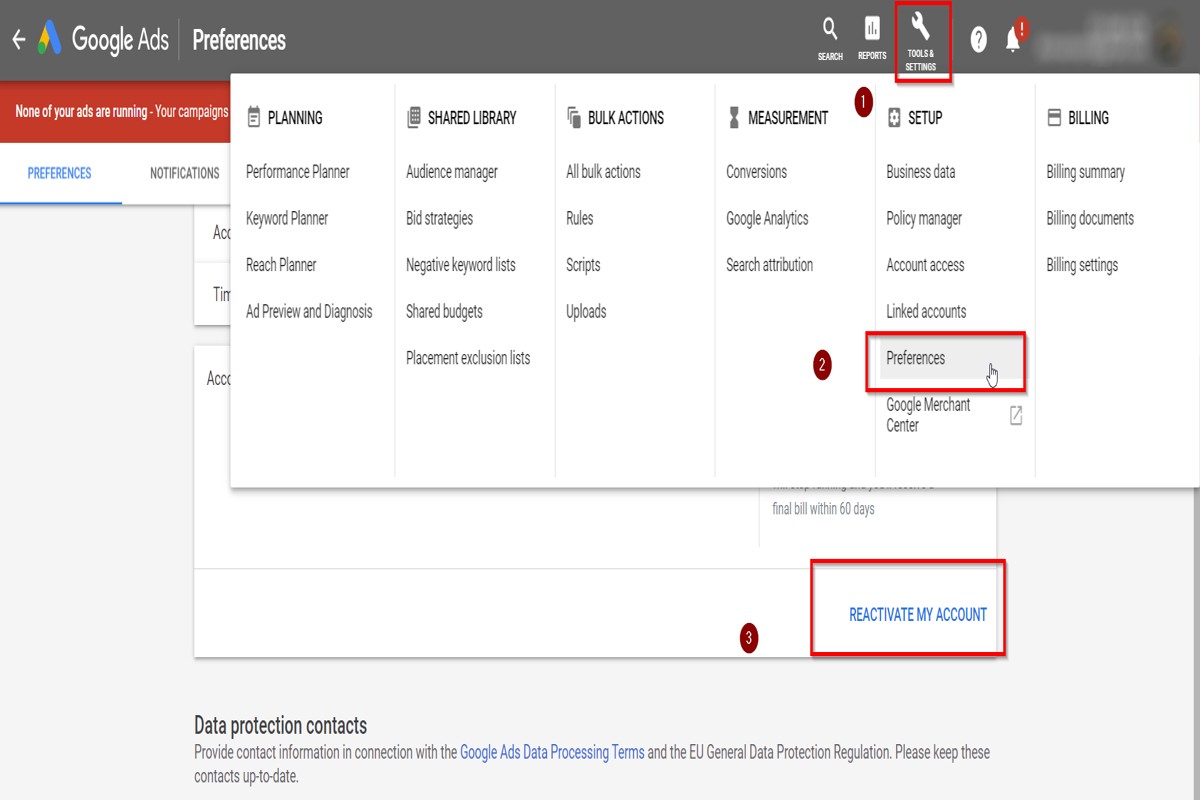
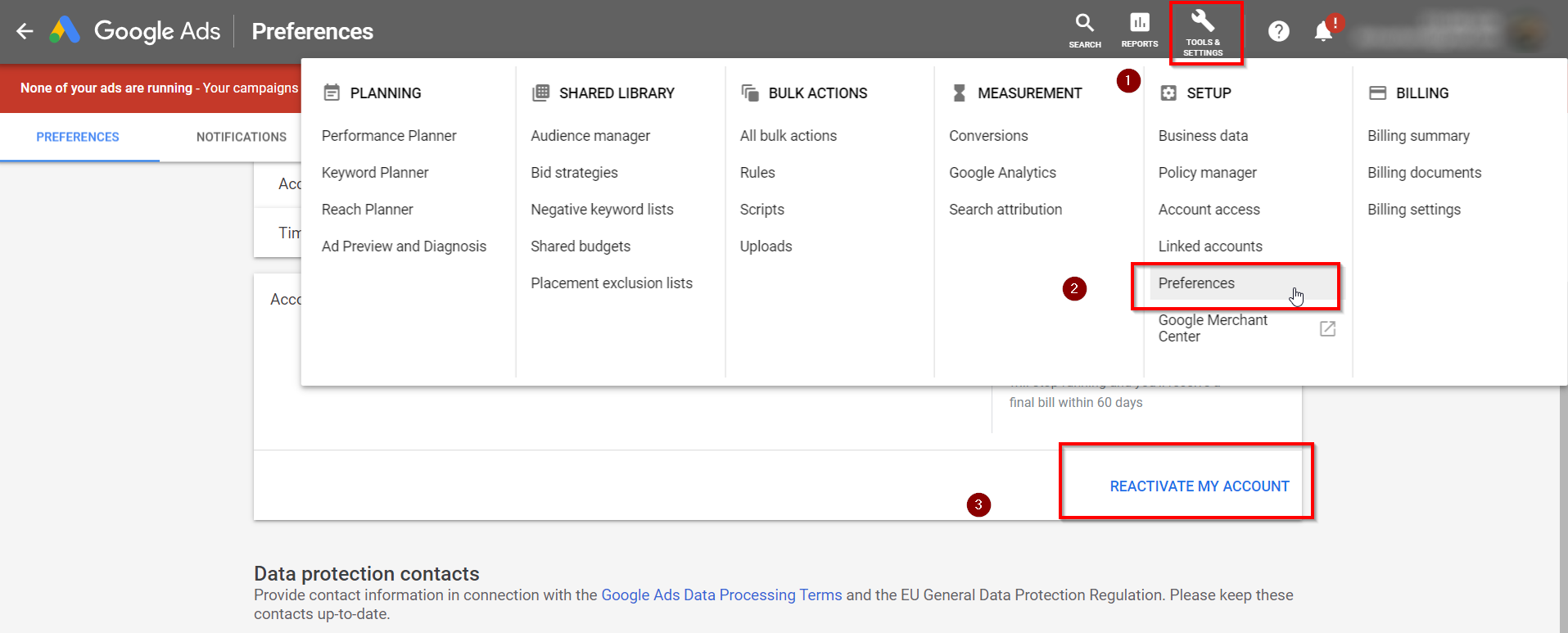
- Log into your Google Ads account using your credentials.
- Navigate to the account settings or the billing section.
- Select the option to reactivate your account, which may be labeled as “Restore” or “Reactivate.”
- Review any outstanding notifications or compliance issues that must be addressed.
- Confirm the reactivation by following any on-screen prompts.
Understanding the Implications of Reactivating an Account
Reactivating a Google Ads account comes with several implications:
- Ad Performance: Previous ad performance data may be available, but changes in the advertising landscape could affect current results.
- Billing Information: Ensure that your billing information is up to date to prevent disruptions in service.
- Policy Compliance: Reactivation requires compliance with all Google Ads policies, which may have changed since the account was last active.
Best Practices for Transitioning Back to Advertising
To ensure a smooth transition back into advertising, consider the following best practices:
- Review Campaigns: Evaluate previous campaigns for effectiveness and relevance.
- Update Keywords: Research and update keywords to align with current market trends.
- Set Clear Goals: Define specific, measurable objectives for your advertising efforts.
Reactivating a Google Ads account may seem straightforward, yet it involves a nuanced understanding of current policies and market conditions. Many users mistakenly believe that simply reactivating their account will restore previous performance levels without accounting for changes in the competitive landscape. Furthermore, some may overlook compliance updates that could affect ad delivery.
To effectively utilize this information, users should ensure their account is eligible for reactivation before proceeding. After reactivation, conduct a thorough review of past campaigns and make necessary adjustments based on updated industry insights. This proactive approach will enhance the likelihood of successful re-engagement with Google Ads.
Frequently Asked Questions
What happens when I cancel my Google Ads account?
When you cancel your Google Ads account, your ads will stop running immediately, and you will no longer incur charges. Any remaining balance in your account will be refunded according to Google’s policies.
How do I pause my Google Ads instead of canceling?
To pause your Google Ads, navigate to the campaign you wish to pause and toggle the status to “Paused.” This allows you to stop ads temporarily while retaining your account and campaign settings.
Is there a cost associated with canceling Google Ads?
There is no direct cost to cancel your Google Ads account. However, you will be charged for any outstanding costs incurred before the cancellation date.
Can I reactivate my Google Ads account after cancellation?
Yes, you can reactivate your Google Ads account within a certain period after cancellation. Contact Google Ads support for assistance with reactivation and to confirm eligibility.
How long does it take to cancel Google Ads?
Cancelling Google Ads is typically instant, with ads stopping immediately. However, it may take a few hours for all changes to reflect in the system.
What are the best practices for canceling Google Ads?
Before canceling, review your campaigns to ensure you have downloaded any necessary data. Additionally, consider pausing campaigns as an alternative to cancellation for future flexibility.
How do I cancel a specific Google Ads campaign?
To cancel a specific Google Ads campaign, select the campaign from your dashboard and change its status to “Removed.” This will stop the ads associated with that campaign without affecting your entire account.
What are common mistakes when canceling Google Ads?
Common mistakes include failing to pause campaigns instead of canceling, which can lead to loss of valuable data. Additionally, neglecting to review billing details can result in unexpected charges.
Final Thoughts on how do i cancel google ads
Canceling your Google Ads account is a significant decision that can impact your overall marketing strategy. It is essential to weigh the implications of cancellation against the potential benefits of pausing your campaigns to maintain flexibility in your advertising efforts.
To proceed effectively, assess your current campaigns and consider pausing them rather than outright cancellation, allowing for a reevaluation of your advertising approach without losing valuable data and settings.
Understanding the nuances of Google Ads cancellation is crucial for optimizing your marketing strategy and ensuring that your business remains competitive in the digital landscape.
Leave a Reply