
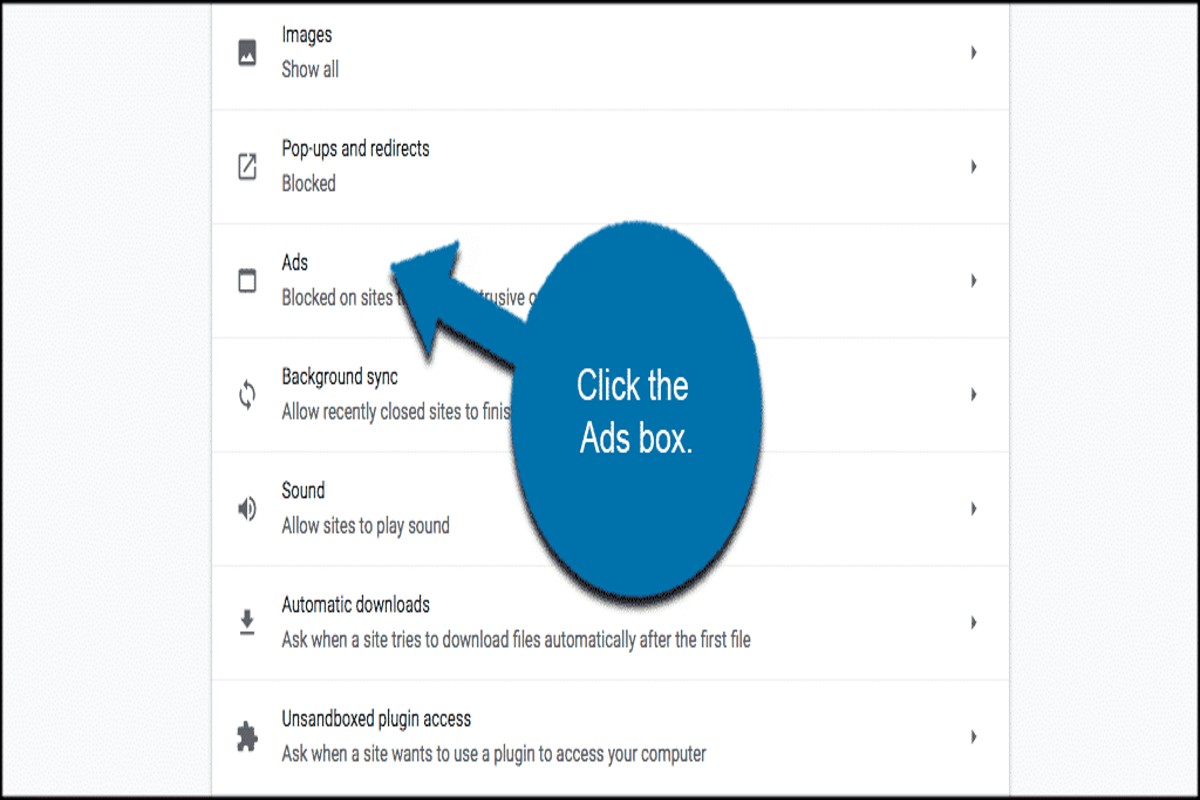
To get rid of ads on Google Chrome, you can enable the built-in ad blocker, use ad-blocking extensions, or adjust your browser settings to limit personalized ads. These methods can significantly enhance your browsing experience by reducing intrusive advertisements.
Understanding how to effectively eliminate ads in Google Chrome is crucial for users seeking a more streamlined and efficient online experience. Ads can slow down browsing speeds, compromise privacy, and detract from content quality, making it essential to utilize effective ad-blocking strategies.
This article outlines specific methods to remove ads on Google Chrome, including the use of the built-in ad blocker, recommended ad-blocking extensions, and adjustments to browser settings for personalized ad management.
What are the best ad blockers for Google Chrome?
Several effective ad blockers are available for Google Chrome, each offering unique features. The top-rated options include uBlock Origin, Adblock Plus, and Ghostery. These tools can significantly enhance browsing experience by reducing unwanted advertisements.
uBlock Origin is a highly efficient and lightweight ad blocker. It uses a wide range of filter lists to block ads and trackers without consuming significant system resources. In contrast, Adblock Plus provides customizable options, allowing users to whitelist certain sites. However, it may allow some non-intrusive ads by default, which can be a drawback for users seeking a completely ad-free experience. Ghostery, while primarily known for privacy protection, also blocks ads effectively and offers detailed insights into trackers on websites.
- uBlock Origin: Lightweight, highly customizable, and resource-efficient.
- Adblock Plus: User-friendly, allows non-intrusive ads by default, customizable whitelisting.
- Ghostery: Focuses on privacy, blocks ads, and provides tracker insights.
When selecting an ad blocker, consider your specific needs. For those prioritizing speed and efficiency, uBlock Origin is often the best choice. Adblock Plus is suitable for users who prefer customization, while Ghostery is ideal for individuals focused on privacy alongside ad blocking.
Expert Tip: Regularly update your ad blocker and its filter lists to ensure maximum effectiveness against evolving advertising strategies and tracking technologies.
How do I disable pop-up ads in Google Chrome?
To disable pop-up ads in Google Chrome, you can adjust the browser’s settings directly. This process is straightforward and can be completed in just a few steps. By following these instructions, you can effectively block unwanted pop-ups while browsing.
- Open Google Chrome on your computer. Click the three vertical dots in the upper right corner to access the menu.
- Select “Settings” from the dropdown menu. This will take you to the Chrome settings page where various configurations can be adjusted.
- Scroll down and click on “Privacy and security” in the left sidebar. This section contains options related to your browsing security and data management.
- Under “Privacy and security,” click on “Site settings.” This will allow you to manage permissions for different types of content on websites.
- Locate and click on “Pop-ups and redirects.” Here, you can see the current settings regarding pop-up ads.
- Toggle the switch to block pop-ups. Ensure that the setting shows “Blocked” to prevent pop-ups from appearing during your browsing sessions.
- Optionally, review the “Allowed to send pop-ups and use redirects” section. Remove any sites you do not wish to receive pop-ups from by clicking the trash can icon next to the site name.
Pop-up ads can be annoying and disruptive, but blocking them is a simple process. Additionally, consider using ad-blocking extensions for more comprehensive ad control, as they can enhance your browsing experience further.
Expert Tip: Regularly review your site settings and permissions, as some websites may request to enable pop-ups for legitimate purposes, such as login forms or important alerts.
Do ad blockers slow down Google Chrome?
Ad blockers can potentially slow down Google Chrome, but the impact varies based on several factors. In many cases, they actually enhance browsing speed by preventing ads from loading, which can consume bandwidth and processing power. However, the performance of the ad blocker itself may introduce some latency, especially if it is resource-intensive or poorly optimized.
When evaluating the effect of ad blockers on browser speed, consider the following components:
- Ad Blocker Efficiency: Well-designed ad blockers are optimized to filter ads quickly and efficiently, reducing load times. Conversely, some ad blockers may utilize extensive filtering lists that can slow down the page-rendering process.
- System Resources: The overall performance of your device plays a crucial role. If your computer has limited processing power or memory, even a lightweight ad blocker can contribute to a noticeable slowdown.
- Browser Extensions: The interaction between multiple extensions can impact performance. Using several extensions alongside an ad blocker may lead to increased resource consumption, which can slow down browsing speeds.
Additionally, some ad blockers provide features such as script blocking and privacy protection, which can further affect loading times. While these features enhance user experience, they may introduce delays in how quickly a webpage is displayed. However, the overall benefit of reduced clutter and improved focus on content often outweighs these minor speed issues.
For optimal performance, choose an ad blocker that is regularly updated and known for its efficiency. Keeping your browser and extensions updated can also mitigate performance issues and ensure a smoother browsing experience.
Implementing a reliable ad blocker can lead to a faster, more streamlined browsing experience, particularly if it is tailored to your specific needs. Regularly assess the performance of your chosen ad blocker to ensure it aligns with your browsing habits.
How much do ad-blocking extensions cost?
Ad-blocking extensions can range from free options to premium subscriptions costing between $1 to $10 per month. Many popular ad blockers, such as AdBlock Plus and uBlock Origin, are available at no cost, while others may offer enhanced features for a fee.
Several factors influence the cost of ad-blocking extensions. First, the type of features provided can vary significantly. Free versions typically block standard ads and trackers, while premium versions may include advanced functionalities such as privacy protection, performance optimization, and customizable blocking settings. Additionally, the business model of the extension plays a role; some developers rely on donations or advertising revenue, while others charge for premium services.
- Feature Set: Advanced features like anti-tracking, customizable filters, and multiple device support can increase the price.
- Subscription Model: Some extensions operate on a subscription basis, while others offer a one-time purchase option.
- Developer Reputation: Well-established brands may charge more due to their proven track record and reliability.
Users should evaluate their needs before deciding on a paid option, as many effective ad blockers are available for free. Testing different extensions can help determine which features are most beneficial.
Expert Tip: Consider using a combination of free ad-blockers with privacy-focused browser settings for a comprehensive ad-free experience on Google Chrome without incurring costs.
Can I get rid of ads on Google Chrome for free?
Yes, it is possible to eliminate ads on Google Chrome without incurring any costs. Several free methods and tools are available that can significantly reduce or completely remove ads while browsing.
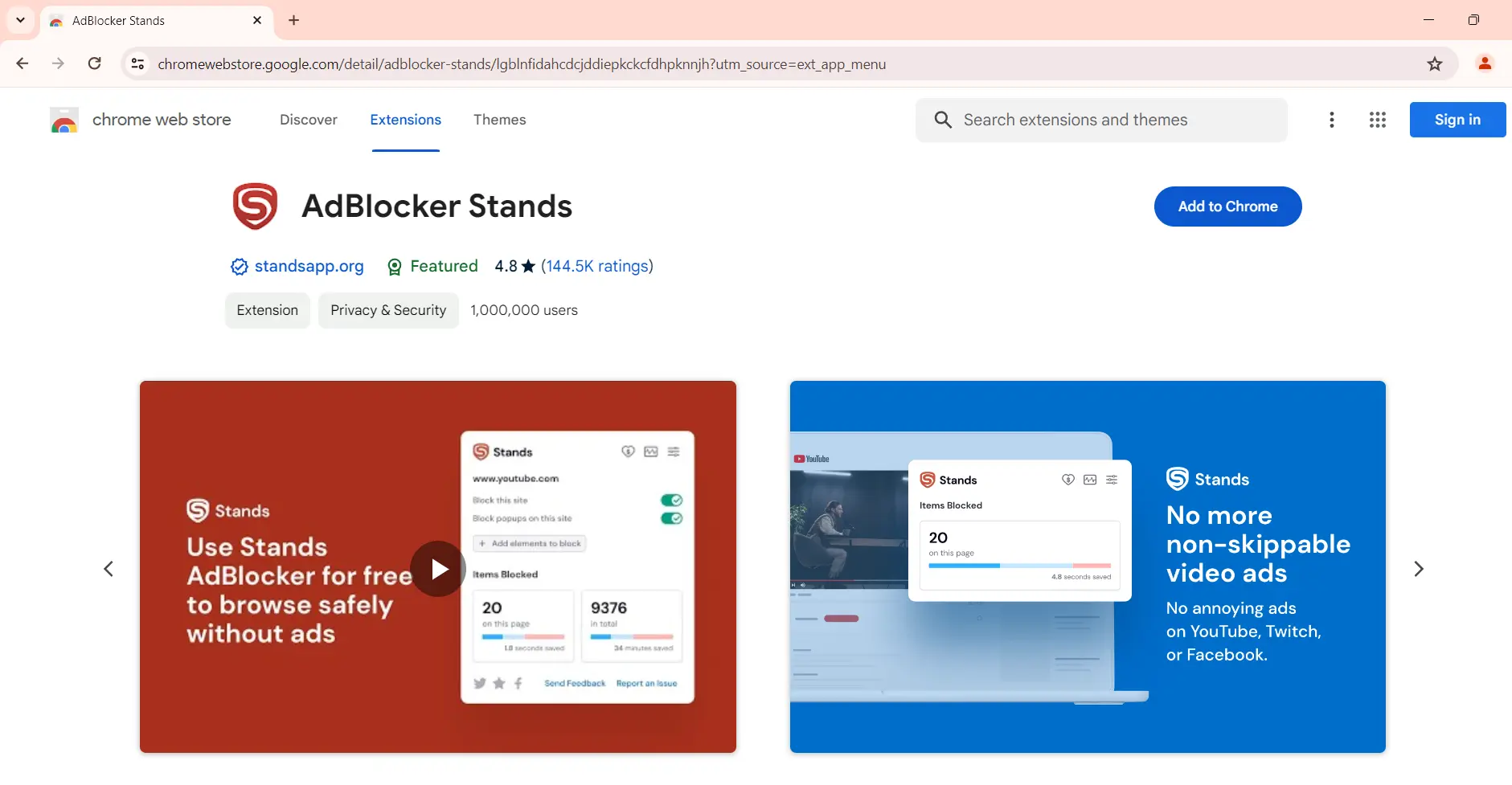
One effective approach is to install a free ad blocker extension from the Chrome Web Store. Popular options like uBlock Origin or AdBlock can be added to your browser with just a few clicks. Once installed, these extensions automatically filter out ads from websites, enhancing your browsing experience. For instance, after installing uBlock Origin, a user may notice that ads on popular sites like YouTube or news outlets are no longer visible, allowing for uninterrupted content consumption.
Another method involves adjusting your Chrome settings to limit personalized ads. This can be done by navigating to the settings menu, selecting “Privacy and security,” and then choosing “Site settings.” Under “Ads,” you can disable ads on sites that tend to show intrusive advertisements. While this does not eliminate all ads, it can reduce the frequency and relevance of the ads shown, leading to a less cluttered browsing environment.
Utilizing these free tools and settings adjustments not only enhances your online experience but also protects your privacy by limiting tracking mechanisms often used by advertisers.
Expert Tip: Regularly update your ad blocker extension to ensure it remains effective against new ad formats and tracking technologies that may emerge.
How long does it take to set up an ad blocker on Chrome?
Setting up an ad blocker on Google Chrome typically takes between 5 to 15 minutes. This timeframe includes downloading the extension, installing it, and configuring basic settings. The overall time may vary based on the user’s familiarity with browser extensions and their specific preferences.
Several factors can influence the time required for setup. First, users who are new to Chrome or browser extensions may take longer to navigate the Chrome Web Store and understand how to install the ad blocker. For experienced users, the process is generally quicker, often involving just a few clicks. Additionally, some ad blockers offer a variety of customization options, which can extend the setup time if the user chooses to explore these features.
Another consideration is the specific ad blocker being installed. Popular options such as Adblock Plus, uBlock Origin, or Ghostery have straightforward installation processes, while others may require more detailed configuration. Users may also need to adjust settings to whitelist specific sites or types of ads, which can add a few extra minutes to the setup. Therefore, while the initial installation is quick, the time spent on customization can vary significantly.
Key Takeaway: To streamline the process, users should research and select an ad blocker that fits their needs prior to installation. Familiarity with the chosen ad blocker can significantly reduce setup time, allowing for immediate ad-free browsing.
What are the common mistakes when using ad blockers?
Many users make critical mistakes when utilizing ad blockers, which can lead to ineffective ad blocking or even browser performance issues. Common errors include not configuring the ad blocker properly, ignoring updates, and failing to whitelist essential sites. Recognizing and avoiding these pitfalls can enhance the ad-blocking experience significantly.
One frequent mistake is neglecting to customize ad blocker settings. Most ad blockers come with default configurations that may not suit individual browsing habits. Users should explore options like blocking specific elements, adjusting filter lists, and enabling or disabling certain features based on their needs. This tailored approach can maximize the effectiveness of the ad blocker.
- Ignoring updates: Regularly updating the ad blocker ensures it can effectively counter new ad formats and tracking techniques. Developers frequently release updates to improve performance and enhance security. Users should enable automatic updates or check for them manually.
- Over-blocking: Some users may inadvertently block essential content by being too aggressive with their ad-blocking settings. This can disrupt website functionality or result in degraded user experience. Carefully reviewing blocked elements and adjusting settings can help maintain a balance between content accessibility and ad blocking.
- Neglecting whitelisting: Certain websites rely on ad revenue to provide free content. Users should consider whitelisting sites that they trust and wish to support. Allowing ads on these sites can enhance the browsing experience and support content creators.
Lastly, failing to monitor the performance of the ad blocker can lead to missed opportunities for improvement. Users should periodically review ad-blocking effectiveness and gather feedback on their browsing experience. This proactive approach allows for timely adjustments and ensures optimal performance.
To maximize the benefits of an ad blocker, users should stay informed about best practices and emerging trends in ad blocking. Engaging with user forums or communities dedicated to ad blockers can provide valuable insights and tips for refining ad-blocking strategies.
How can I customize my ad-blocking settings in Chrome?
Customizing ad-blocking settings in Google Chrome can significantly enhance your browsing experience by filtering out unwanted advertisements. Users can adjust these settings through the browser’s built-in features or by utilizing third-party extensions. The following steps outline how to personalize these settings effectively.
- Access Chrome Settings: Open Google Chrome and click on the three vertical dots in the top-right corner. From the dropdown menu, select “Settings.”
- Navigate to Privacy and Security: In the left sidebar, click on “Privacy and security.” This section includes options related to ad blocking and tracking.
- Manage Site Settings: Click on “Site Settings.” Here, you can control how ads are displayed on websites by adjusting permissions for individual sites.
- Adjust Ads Settings: Scroll down to find the “Ads” option. Ensure that the toggle is set to “Blocked on sites that show intrusive or misleading ads.”
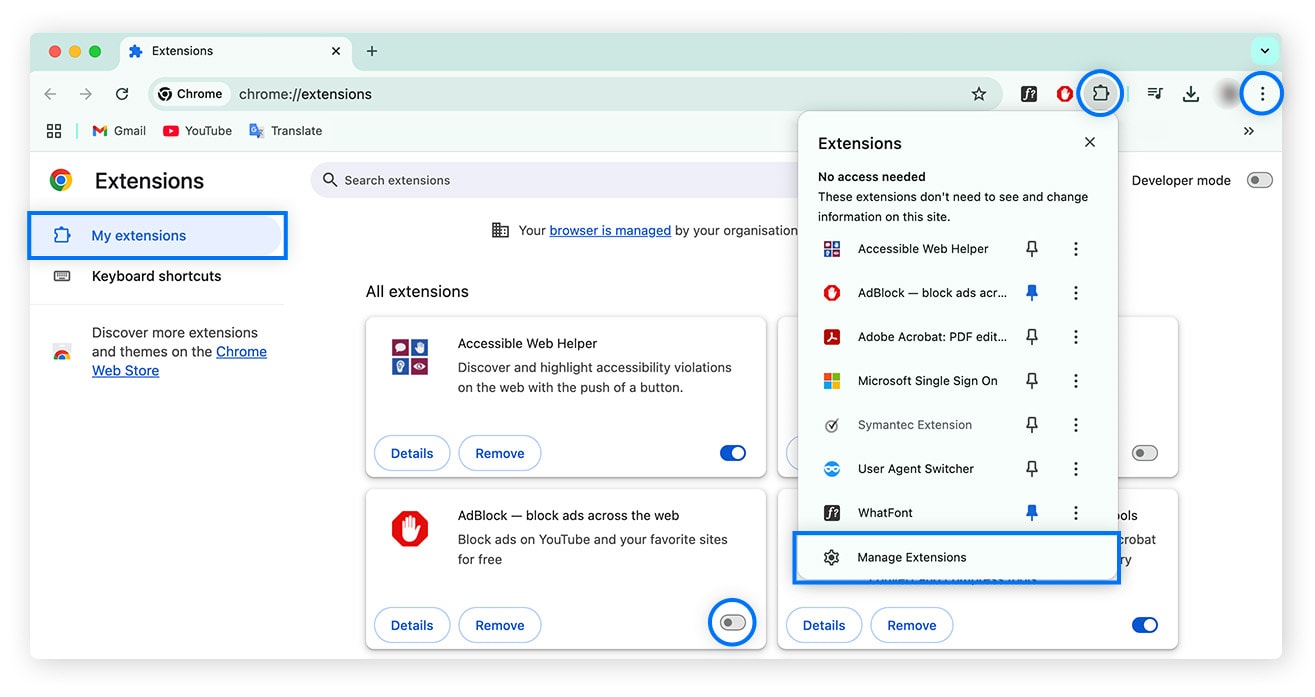
- Install an Ad Blocker: For more robust ad-blocking capabilities, consider installing a trusted ad-blocker extension from the Chrome Web Store. Options like uBlock Origin and AdBlock Plus offer extensive customization features.
- Configure Extension Settings: After installation, click on the extension icon in the toolbar. Access its settings to customize ad-blocking rules, allowing or blocking specific types of ads based on your preferences.
Regularly review your ad-blocking settings and extension configurations to ensure they meet your evolving needs. Different websites may require different levels of ad filtering, so adjust settings accordingly for optimal browsing.
Expert Tip: Be cautious when allowing ads on specific sites. Some websites rely on ad revenue to provide free content. Consider whitelisting sites that you trust and want to support, rather than blocking ads entirely.
Understanding How Ads Work on Google Chrome
This section explores the underlying mechanics of online advertising within Google Chrome, providing clarity on how ads are delivered and personalized. Understanding these processes is essential for users seeking to minimize or eliminate unwanted ads.
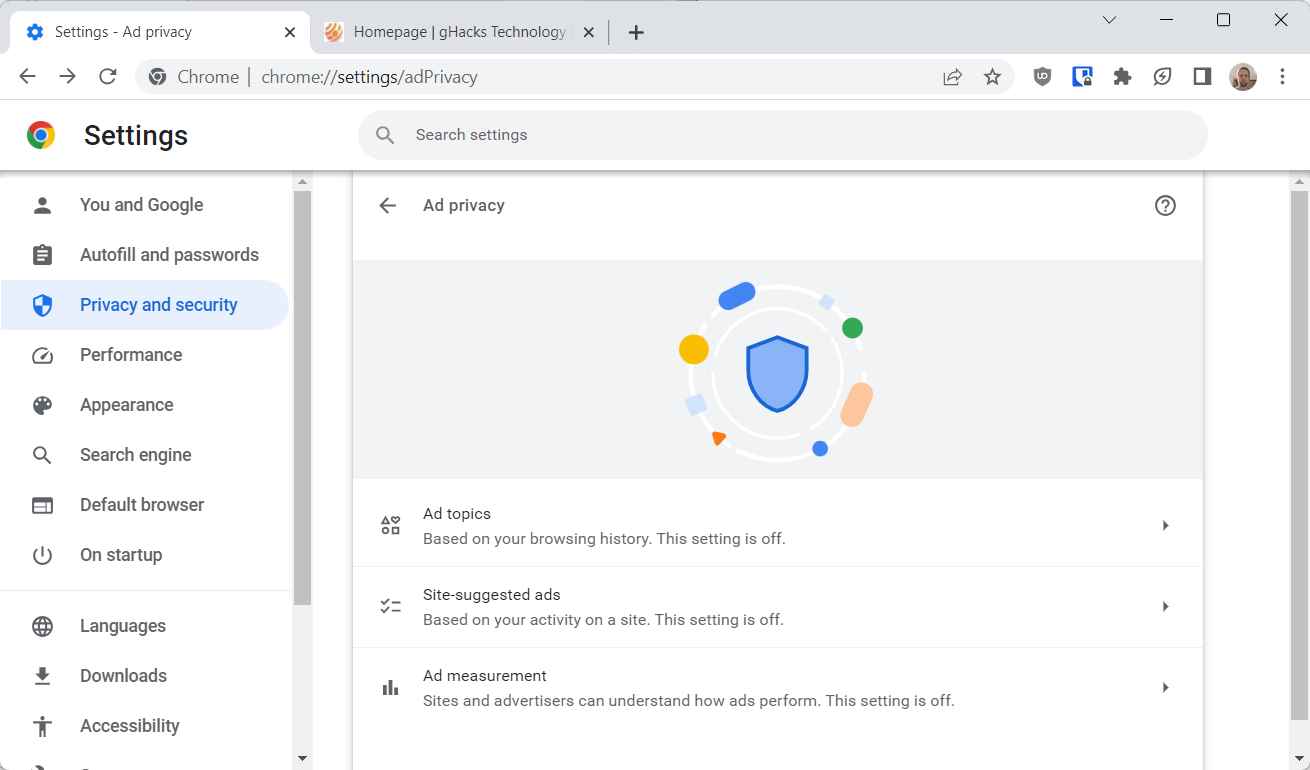
Ad Delivery Mechanisms
Online ads in Google Chrome are primarily served through a combination of targeted advertising and real-time bidding. Advertisers utilize platforms like Google Ads to display their content to specific audiences. This system relies on data collected from user behavior, which informs advertisers about potential customer interests. The delivery process involves several key components:
- Ad Networks: These platforms connect advertisers with website publishers, facilitating the placement of ads based on audience targeting.
- Real-Time Bidding: Advertisers bid for ad space in real-time, allowing for dynamic pricing based on user engagement and demographics.
- Retargeting: This technique displays ads to users who have previously interacted with a brand, increasing conversion chances.
Types of Ads Commonly Seen in Chrome
Users encounter various types of ads while browsing with Google Chrome. Common formats include:
- Display Ads: Banner ads that appear on websites, often visually oriented.
- Search Ads: Text-based ads that appear on search engine results pages, strategically placed to capture user interest.
- Video Ads: Short clips that play before, during, or after video content, typically on streaming platforms.
- Pop-Ups and Interstitials: Ads that open in new windows or cover the entire screen, often interrupting the user experience.
Impact of Personalized Ads on User Experience
Personalized ads significantly influence user experience in Google Chrome. By analyzing browsing history, search queries, and interactions across platforms, advertisers can tailor ads to individual preferences. This customization can enhance relevance but may also lead to ad fatigue, where users feel overwhelmed by repetitive messaging. Furthermore, personalized ads often contribute to the perception of a more engaging online experience, despite potential privacy concerns.
How Tracking Affects Ad Visibility
Tracking is a critical aspect of online advertising, impacting the visibility of ads. Various tracking methods, such as cookies and device fingerprinting, enable advertisers to gather data on user behavior. This information helps refine ad targeting, but it raises privacy issues. Users who opt out of tracking may experience less relevant ads, which could lead to a decrease in ad engagement. In contrast, those who allow tracking often see more tailored ads that align with their interests.
Many users mistakenly believe that blocking ads entirely removes tracking, but this is not always the case. Even with ad blockers, tracking can still occur through other means, such as social media plugins or browser fingerprinting techniques.
Practical Applications
To minimize the impact of ads on Google Chrome, consider implementing the following strategies:
- Use ad-blocking extensions like AdBlock or uBlock Origin to filter out unwanted ads.
- Adjust privacy settings in Chrome to limit tracking by disabling third-party cookies.
- Regularly clear browsing data to remove cached cookies and reset ad personalization.
- Utilize incognito mode for private browsing sessions, which limits tracking and ad targeting.
By understanding how ads work and the mechanisms behind them, users can take informed steps to reduce unwanted advertising in Google Chrome. Implementing these strategies will lead to a more streamlined and less intrusive browsing experience.
Advanced Techniques to Block Ads Effectively
This section details advanced strategies for tech-savvy users seeking to block ads on Google Chrome. By leveraging developer tools, customizing filters, implementing DNS-level blocking, and utilizing the hosts file, users can achieve a more ad-free browsing experience.
Using Browser Developer Tools to Identify Ad Sources
Browser developer tools are an invaluable resource for identifying the sources of ads on web pages. By right-clicking on the page and selecting “Inspect,” users can access the Elements tab, which displays the HTML structure of the page. Here, one can find elements associated with ads, often labeled with classes like “ad” or “banner.” Tracking these elements allows users to determine which scripts or domains are responsible for ad delivery.
Customizing Filters in Advanced Ad Blockers
Advanced ad blockers such as uBlock Origin or AdGuard offer customizable filters that enable users to tailor their ad-blocking experience. Users can create their own filter lists, blocking specific domains or content types. To customize filters:
- Open the ad blocker settings.
- Navigate to the “My Filters” section.
- Add the desired filter rules, specifying domains or elements to block.
These personalized filters can significantly enhance ad-blocking efficiency, especially for frequently visited sites that may not be fully covered by default settings.
Implementing DNS-Level Ad Blocking
DNS-level ad blocking operates by preventing ad-related domains from resolving. This method blocks ads before they even reach the browser, ensuring a cleaner browsing experience. Services such as AdGuard DNS or NextDNS can be configured at the router level:
- Access your router’s settings via its IP address.
- Locate the DNS settings section.
- Replace the existing DNS addresses with those provided by the chosen DNS service.
By implementing this change, all devices connected to the network will benefit from ad blocking without the need for individual browser settings.
Utilizing Hosts File for Ad Blocking
The hosts file on a computer allows users to map domain names to IP addresses. By redirecting ad domains to a non-routable address (such as 0.0.0.0), users can block ads effectively. To edit the hosts file:
- Open the hosts file located at C:\Windows\System32\drivers\etc\hosts on Windows or /etc/hosts on macOS.
- Add entries for known ad domains, such as:
- 0.0.0.0 ads.example.com
- 0.0.0.0 trackers.example.com
- Save the file and restart the browser.
This method is particularly effective for persistent ads that evade typical ad blockers.
Many users believe that ad blockers alone suffice for a completely ad-free experience. However, ads can still slip through due to whitelisting practices or ad networks using dynamic URLs. Combining multiple techniques—like DNS-level blocking and hosts file modifications—creates a robust defense against ads. Understanding the interplay between different ad delivery mechanisms is key to formulating an effective strategy.
To implement these advanced techniques for blocking ads, begin by utilizing browser developer tools to identify ad sources, then customize ad block filters to target specific domains. Consider setting up DNS-level ad blocking for comprehensive protection across all devices on your network. Lastly, modify your hosts file to ensure persistent ad domains are effectively redirected. These steps will significantly enhance your ad-blocking capabilities on Google Chrome.
Evaluating the Effectiveness of Different Ad Blockers
This section provides a detailed comparison of various ad blockers, offering insights into their effectiveness and user satisfaction. Understanding these factors enables users to make informed decisions on how to enhance their browsing experience in Google Chrome.
Criteria for Evaluating Ad Blocker Effectiveness
Several criteria can help assess the effectiveness of ad blockers:
- Blocking Efficiency: The primary function of an ad blocker is to prevent ads from displaying. Effective blockers should achieve over 90% ad blocking rates.
- Impact on Performance: An ad blocker should not significantly slow down browser performance or increase load times.
- User Control: Features such as whitelisting specific sites and customizable settings enhance user experience.
- Privacy Protection: Some ad blockers also provide tracking protection, which is crucial for safeguarding user data.
Comparison of Popular Ad Blockers
Here is a comparison of some of the most popular ad blockers available for Google Chrome:
| Ad Blocker | Blocking Efficiency | Performance Impact | Privacy Features | User Reviews |
|---|---|---|---|---|
| uBlock Origin | 95% | Minimal | Yes | 4.8/5 |
| AdBlock Plus | 90% | Moderate | Limited | 4.5/5 |
| Ghostery | 88% | Low | Extensive | 4.6/5 |
| AdGuard | 92% | Low | Yes | 4.7/5 |
User Reviews and Performance Metrics
User reviews provide valuable insights into the real-world performance of ad blockers. For instance, uBlock Origin receives high praise for its lightweight design and robust blocking capabilities, while AdBlock Plus is often criticized for its slower performance due to its extensive filter lists. Ghostery’s privacy features attract users looking for enhanced tracking protection, although some find it less effective at blocking ads compared to others.
Long-Term Benefits of Using Ad Blockers
In the long term, employing an ad blocker can significantly improve the browsing experience. Some benefits include:
- Reduced Data Usage: By blocking ads, users can save on data costs, particularly on mobile networks.
- Enhanced Security: Ad blockers can protect against malicious ads that may contain malware.
- Improved Focus: A clutter-free browsing experience allows for better concentration and productivity.
When evaluating ad blockers, users should consider both their immediate needs and long-term browsing habits. While many articles focus solely on blocking efficiency, overlooking privacy features and user control can lead to suboptimal choices.
To effectively reduce ads on Google Chrome, users should download a highly rated ad blocker such as uBlock Origin or AdGuard, review their settings for customization, and regularly update the blocker to maintain optimal performance. Consider whitelisting sites that rely on ad revenue to support content creation while still benefiting from a largely ad-free experience.
Navigating the Ethical Considerations of Ad Blocking
Ad blocking raises significant ethical questions about the sustainability of free content on the internet. This section explores the implications of ad blocking for content creators and offers alternative solutions that support online ecosystems.

Understanding the Revenue Model of Free Websites
Many websites rely on advertising as their primary revenue source. This model allows users to access content without direct payment. According to a report by IAB, digital advertising revenue in the United States reached approximately $189 billion in 2020, with a substantial portion coming from display ads on websites. When users block ads, they inadvertently undermine this revenue stream, placing the financial viability of many sites at risk.
Ethical Considerations for Ad Blocking
The ethical implications of ad blocking extend beyond individual user preferences. While users may seek a cleaner browsing experience, many content creators depend on ad revenue to produce high-quality material. Blocking ads can be seen as a lack of support for the creators whose work users consume. This creates a tension between user experience and the financial sustainability of content production.
- Creators may face reduced income, leading to lower-quality content.
- Small publishers are disproportionately affected, as they often lack diverse revenue streams.
- Ad blocking can result in a less diverse content ecosystem.
Alternatives to Ad Blocking That Support Content Creators
Instead of outright blocking ads, users can consider alternatives that respect both their browsing experience and the livelihoods of content creators. Options include:
- Whitelisting: Allow ads on sites that provide valuable content, thus supporting them financially.
- Paid Subscriptions: Opt for premium versions of services that eliminate ads while supporting creators through direct payments.
- Engaging with Content: Interact with ads that interest you, as this can contribute to the revenue generated for the site.
The Future of Online Advertising and User Experience
The landscape of online advertising is evolving in response to user preferences and ethical considerations. Advertisers are increasingly focusing on more relevant, personalized ads that enhance user experience rather than detract from it. This shift is crucial as users demand less intrusive and more engaging advertising formats. Innovations such as native advertising and sponsored content are becoming more common, aiming to blend seamlessly with the user experience while still providing value to advertisers and content creators alike.
Furthermore, as privacy concerns grow, many advertisers are adapting to a cookie-less future, exploring alternatives like contextual targeting that respects user privacy while still delivering relevant ads. This evolution may lead to a more balanced relationship between users, advertisers, and content creators.
Practical Application
To navigate the ethical considerations of ad blocking effectively, users should consider the following actions:
- Evaluate the websites they frequent and their funding models.
- Opt to whitelist sites that provide valuable content.
- Consider subscription services that contribute directly to creators.
By consciously engaging with online content, users can help sustain the ecosystem while still enjoying a pleasant browsing experience. This approach addresses the question of how can I get rid of ads on Google Chrome while supporting the creators behind the content.
Frequently Asked Questions
What are the best ad blockers for Google Chrome?
Some of the best ad blockers for Google Chrome include uBlock Origin, AdBlock Plus, and Ghostery. These extensions effectively block unwanted ads and enhance browsing speed.
How do I disable pop-up ads in Google Chrome?
To disable pop-up ads in Google Chrome, go to Settings > Privacy and security > Site settings > Pop-ups and redirects. From there, toggle the setting to block pop-ups.
Do ad blockers slow down Google Chrome?
Ad blockers generally do not slow down Google Chrome; in fact, they can improve page load times by preventing ads from loading. However, some extensions may impact performance if they are resource-intensive.
How much do ad-blocking extensions cost?
Most popular ad-blocking extensions for Google Chrome are free to use. Some may offer premium features for a subscription fee, but basic ad blocking is typically available at no cost.
Can I get rid of ads on Google Chrome for free?
Yes, you can remove ads on Google Chrome for free by using ad-blocking extensions. Many effective options are available that do not require any payment.
How long does it take to set up an ad blocker on Chrome?
Setting up an ad blocker on Google Chrome usually takes just a few minutes. After downloading the extension from the Chrome Web Store, installation and configuration are typically straightforward.
What are the common mistakes when using ad blockers?
Common mistakes include not updating the ad blocker regularly and whitelisting too many sites, which can allow ads to appear. Additionally, users may overlook customizing settings for optimal performance.
How can I customize my ad-blocking settings in Chrome?
To customize ad-blocking settings in Chrome, access the extension’s options by right-clicking the ad blocker icon in the toolbar. From there, users can adjust filters, whitelist sites, and modify other preferences.
Final Thoughts on how can i get rid of ads on google chrome
To effectively eliminate ads on Google Chrome, utilizing a combination of high-quality ad blockers and adjusting browser settings is essential. The right tools not only enhance your browsing experience but also protect your privacy by limiting tracking.
Begin by installing a reputable ad blocker, such as uBlock Origin or AdGuard, and configure its settings to maximize ad filtering. This proactive approach will significantly reduce unwanted interruptions while ensuring a smoother online experience.
Addressing ads is crucial in today’s digital landscape, as it fosters a more focused and efficient browsing environment, allowing users to engage with content on their terms.
Leave a Reply