
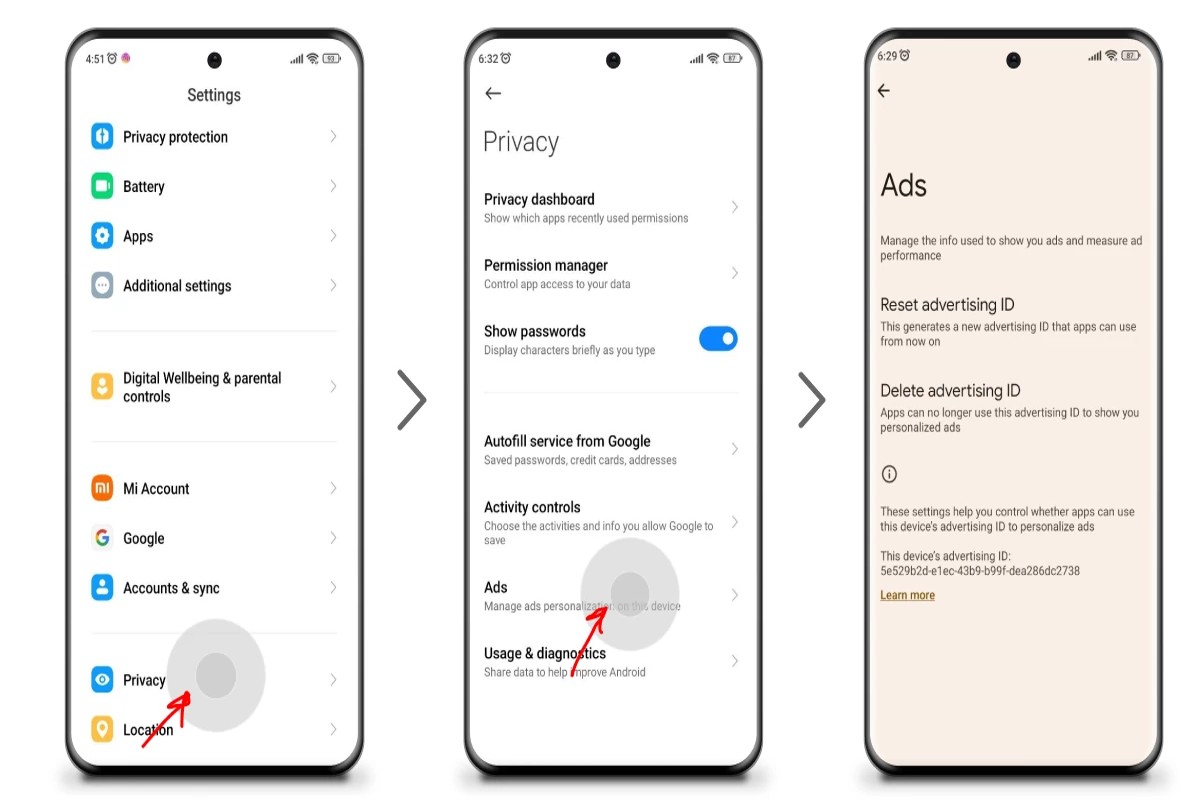
To stop Google ads on iPhone, go to Settings > Privacy > Advertising. Turn off ‘Personalized Ads’ to limit targeted advertising.
Understanding how to stop Google ads on iPhone is essential for users seeking greater control over their digital privacy and advertising preferences. With the rise of personalized advertising, many individuals may find themselves overwhelmed by targeted ads that do not align with their interests. Mismanaging these settings can lead to an unsatisfactory user experience and increased exposure to unwanted promotions.
This guide outlines the step-by-step process to disable personalized ads on your iPhone, along with additional tips for managing ads across various platforms and enhancing overall privacy settings.
How do I turn off Google ads on my iPhone?
To turn off Google ads on your iPhone, you need to adjust your ad settings through the Google app and your device’s privacy settings. This process involves modifying ad personalization settings and limiting ad tracking. Follow these steps to effectively stop Google ads on your iPhone.
- Open the Google app on your iPhone. Navigate to the app’s main screen and tap on your profile picture in the top right corner.
- Select ‘Settings’ from the menu that appears. This will take you to a new screen where you can manage various preferences related to your Google account.
- Tap on ‘Ads’. Here, you will find options related to ad personalization and tracking.
- Disable ‘Ad Personalization’ by toggling the switch off. This prevents Google from using your personal information to tailor ads specifically for you.
- Go to your iPhone’s Settings. Exit the Google app and open the Settings app on your device.
- Select ‘Privacy & Security’, then tap on ‘Tracking’. Here, you can manage how apps are allowed to track your activity.
- Toggle off ‘Allow Apps to Request to Track’. This setting will stop apps, including Google, from tracking your activity across other apps and websites.
Keep in mind that turning off personalized ads may not eliminate all ads but will reduce their relevance based on your interests. Additionally, you can clear your browsing history and cookies in Safari to further limit targeted advertising.
Expert Tip: Regularly review and adjust your ad settings, as Google often updates its privacy policies and settings. Staying informed about these changes can help maintain your desired level of privacy and control over your ad experience.
What are personalized ads on iPhone?
Personalized ads on iPhone are advertisements tailored to individual users based on their interests, online behavior, and demographic information. These ads aim to enhance user engagement by showing relevant products or services that match the user’s preferences.
Personalized ads utilize data collected from various sources, including app usage, browsing history, and location information. This data is processed to create a profile, allowing advertisers to target users more effectively. Personalized ads can appear across different platforms, including social media, websites, and mobile applications.
- Interest-based targeting: Ads are shown based on topics or products the user has previously interacted with.
- Behavioral targeting: Ads are influenced by the user’s online activities, such as search queries and website visits.
- Demographic targeting: Ads are customized according to user demographics like age, gender, and location.
The effectiveness of personalized ads relies on the accuracy of the data collected. Users can control their ad preferences through their iPhone settings, which may limit the personalization of ads they receive. However, opting out may not eliminate all ads; it simply reduces their relevance.
Expert Tip: Regularly reviewing and updating privacy settings on your iPhone can help manage personalized ads effectively, allowing you to maintain greater control over the data shared with advertisers.
Are there any costs associated with stopping Google ads?
Stopping Google ads on an iPhone is free of charge. Users can adjust their settings to limit or stop personalized ads without incurring any fees. However, while disabling ads is cost-free, opting for an ad-free experience in certain apps or services may involve subscription costs.
The primary factor affecting costs relates to the choice of services or applications that offer ad-free experiences. Many popular apps provide premium versions that eliminate ads, but these typically require a subscription or one-time payment. Users should evaluate their app usage to determine if such options are necessary based on their preferences.
- Subscription Services: Many apps, including streaming platforms and games, offer ad-free experiences through paid subscriptions.
- In-App Purchases: Some free apps may allow users to remove ads via a one-time purchase within the app.
- Service-Specific Fees: Certain services, like premium web browsers, may charge for ad-blocking features.
While the act of stopping ads on an iPhone is straightforward and free, users should be aware of the potential costs associated with premium versions of apps that provide an ad-free experience. Evaluating the benefits of these services against their costs can help users make informed decisions.
Expert Tip: Consider using built-in browser features or third-party ad blockers that can provide ad-free browsing experiences without subscription fees, ensuring a cost-effective solution for reducing ads across various platforms.
How long does it take to stop seeing Google ads on iPhone?
Typically, users may notice a reduction in Google ads on their iPhone within 24 to 48 hours after making changes to their ad settings. However, the complete cessation of ads can take up to a few weeks, depending on various factors such as the settings adjusted and the type of ads being served.
When users disable personalized ads or reset their ad settings, the immediate effect is a shift in the types of ads displayed. Google’s algorithms may take time to recalibrate, and during this period, users might still see some ads based on non-personalized data. Furthermore, if users have multiple devices linked to the same Google account, changes made on one device may not immediately reflect across all devices.
Another factor influencing the time frame is the frequency with which users interact with Google services. If a user frequently uses Google apps or websites, the system may continue to serve ads based on previous behavior until the algorithm recognizes the new settings. Additionally, clearing the browsing history and cache on Safari or other browsers can expedite the process, as it removes residual data that could influence ad targeting.
Practical Implications
For individuals seeking to minimize ads quickly, adjusting settings in both the Google app and the iPhone’s privacy settings is crucial. Users should check the “Ad Personalization” section in their Google account and ensure that they opt out of personalized ads. Moreover, enabling “Limit Ad Tracking” in the iPhone settings can further reduce ad visibility.
While immediate changes can be observed, patience is necessary for a complete transition. Regularly monitoring ad behavior over the following weeks will provide insight into the effectiveness of the adjustments made.
Expert Tip: Consider using ad blockers or privacy-focused browsers alongside adjusting ad settings for a more comprehensive approach to reducing ad visibility on your iPhone.
What is the difference between disabling ads and limiting tracking?
Disabling ads and limiting tracking are two distinct approaches to managing advertisements on your iPhone. Disabling ads completely removes ads from your experience, while limiting tracking restricts how advertisers gather data about your online behavior. Each method impacts your user experience differently.
Disabling ads means that you will no longer see any advertisements across apps and websites. This can lead to a cleaner and more streamlined user experience. However, it may also limit the app’s revenue, leading to potential service changes or reduced functionality. In contrast, limiting tracking allows ads to be displayed but minimizes their relevance. Advertisers will have less data on your preferences, which can lead to less targeted, and potentially less useful, advertisements.
- Disabling Ads: Completely removes advertisements from your device, resulting in a cleaner interface.
- Limiting Tracking: Reduces data collection on your activity but still allows ads to be displayed, albeit less relevant ones.
- User Experience Impact: Disabling ads may improve aesthetics and reduce distractions, while limiting tracking may lead to irrelevant ads but still supports revenue for free apps.
While both options aim to enhance user privacy and experience, they serve different purposes. Disabling ads provides immediate relief from advertisements, which some users may prefer for a distraction-free experience. Limiting tracking, however, allows for the continuation of ad-supported services, albeit with potentially annoying or less relevant ads.
Expert Tip: Consider using both options in tandem for a balanced approach—disabling ads in particularly distracting apps while limiting tracking on others to maintain app functionality without excessive annoyance from irrelevant advertisements.
Can I stop Google ads in specific apps on my iPhone?
Yes, you can stop Google ads from appearing in specific apps on your iPhone by adjusting your ad settings and preferences within those apps. This typically involves changing settings related to personalized ads or opting out of ad tracking. The process can vary depending on the app and the permissions granted on your device.
For example, consider the YouTube app, which is commonly used for streaming videos. To limit ads, open the app and navigate to your account settings. From there, select “Privacy” and look for the option that allows you to manage ad preferences. You can choose to disable personalized ads, which may reduce the frequency of targeted ads based on your interests. However, keep in mind that ads may still appear, but they will be less tailored to you.
Another example is the Google Search app. Open the app, tap on your profile icon, and go to “Settings.” Under “Privacy,” you can find options to adjust your ad settings. You can opt out of ad personalization, which will limit the ads shown based on your search history. Additionally, if you want to stop ads entirely, consider uninstalling the app or using an alternative search engine that offers less intrusive advertising.
Expert Tip: Regularly reviewing and updating your privacy settings in each app can help minimize unwanted ads. Additionally, consider utilizing content blockers or privacy-focused browsers to further enhance your ad-free experience while using your iPhone.
What are the best practices for managing ads on iPhone?
Managing ads on an iPhone effectively requires a combination of settings adjustments and proactive measures. By implementing specific strategies, users can significantly reduce their exposure to unwanted advertisements and enhance their browsing experience. Below are several best practices for managing ads on iPhone.
- Adjust Privacy Settings: Navigate to Settings > Privacy & Security > Tracking, and disable the option that allows apps to request to track your activity across other companies’ apps and websites. This limits ad personalization.
- Limit Ad Tracking: In the same Privacy menu, turn on Limit Ad Tracking. This feature restricts advertisers from using your data to target ads based on your interests.
- Utilize Safari’s Content Blockers: Consider using content-blocking apps available on the App Store. These apps can filter out unwanted ads while browsing in Safari, providing a cleaner experience.
- Clear Browsing Data: Regularly clear your browsing history and website data. This can be done by going to Settings > Safari > Clear History and Website Data. This action can help reset ad tracking cookies.
- Review Subscription Services: Some apps offer ad-free experiences for a subscription fee. Evaluate whether these services are worth the cost for your usage patterns, particularly for apps you use frequently.
Implementing these practices can lead to a more streamlined iPhone experience with fewer intrusive ads. However, it is essential to remain vigilant, as advertisers continuously adapt their strategies. Regularly revisiting your privacy settings and app permissions can ensure ongoing management of ad exposure.
Expert Tip: Consider using a VPN service with ad-blocking capabilities. This adds an additional layer of privacy and can further minimize ad tracking and exposure while using your iPhone.
How to report inappropriate Google ads on iPhone?
Reporting inappropriate Google ads on an iPhone is a straightforward process that helps improve the ad experience. Users can easily flag ads that are misleading, offensive, or irrelevant. This action contributes to better ad quality and user safety.
- Open the Google app: Launch the Google app on your iPhone. If you do not have the app, you can report ads directly through Safari or another browser.
- Find the ad to report: Scroll through your search results or feeds until you locate the ad you find inappropriate.
- Tap the three dots: In the upper right corner of the ad, tap on the three vertical dots (more options icon) to open the ad options menu.
- Select “Report ad”: From the menu that appears, choose the option labeled “Report ad.” This will direct you to a list of reasons for reporting.
- Choose a reason: Select the reason that best describes why the ad is inappropriate, such as misleading content, offensive material, or irrelevant targeting. Each option helps Google understand the issue.
- Submit your report: After selecting a reason, tap the ‘Submit’ button to send your report. You should receive a confirmation that your report has been received.
Reporting ads is essential for maintaining a safe online environment. Users should report any ads that violate community standards or personal values.
Expert Tip: Regularly reviewing and reporting ads can enhance your personalized ad experience on Google. Additionally, consider adjusting your ad settings in your Google account to further refine the type of ads you see.
Understanding Google Ads and User Privacy
This section delves into how Google utilizes user data for advertising, the implications of tracking on user experience, and the legal frameworks governing privacy rights. Grasping these concepts is essential for users seeking to manage their ad exposure effectively.
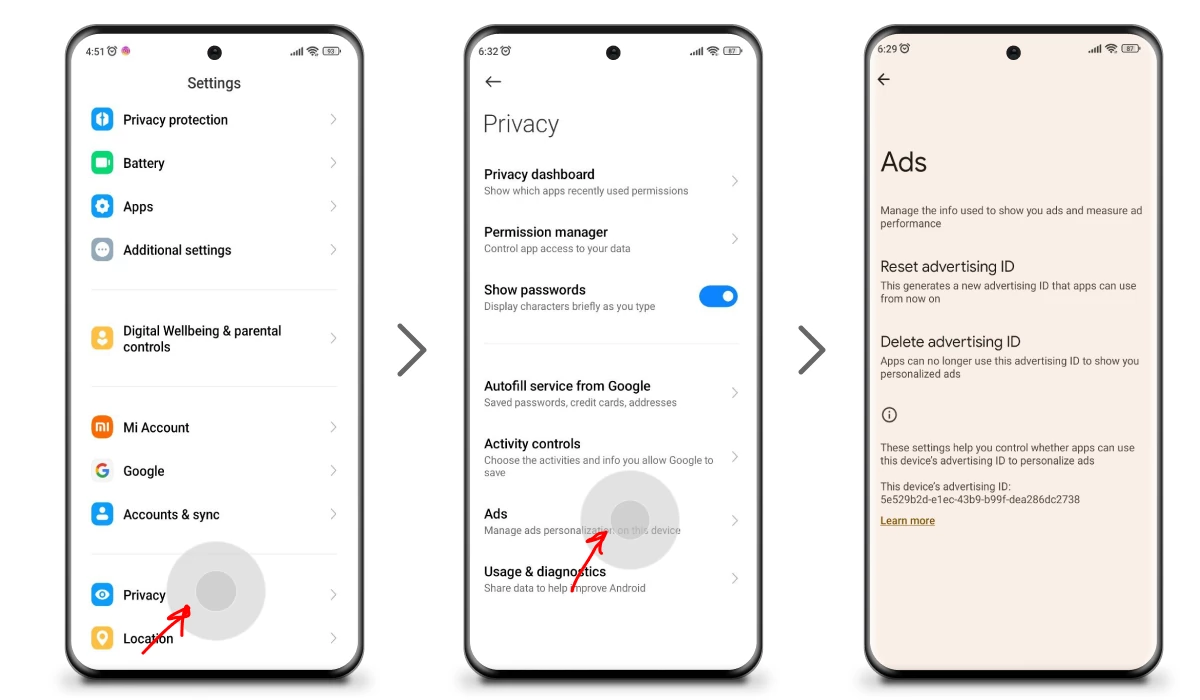
How Google Uses Data for Ads
Google employs sophisticated algorithms to analyze user behavior and preferences. This data collection occurs across various platforms, including search queries, website visits, and app usage. By leveraging this information, Google tailors advertisements to individual users, enhancing the likelihood of engagement and conversion. As of 2023, Google processes over 40,000 search queries per second, underscoring the scale at which user data informs ad targeting.
Impact of Tracking on User Experience
Tracking technologies, such as cookies and device identifiers, significantly influence user experience. While personalized ads can enhance relevance, they also raise concerns regarding privacy and autonomy. Users often encounter ads based on previous online behavior, leading to a perception of being surveilled. This can result in ad fatigue, wherein users become desensitized to targeted advertisements, ultimately diminishing their effectiveness.
Privacy Policies and User Rights
Google’s privacy policy outlines how user data is collected, used, and shared. Users have the right to access, modify, or delete their personal data. Moreover, they can opt out of personalized advertising through their Google account settings. However, many users remain unaware of these options, underscoring the need for greater transparency and education regarding privacy rights.
The Role of GDPR and CCPA in Ad Management
Legal frameworks like the General Data Protection Regulation (GDPR) and the California Consumer Privacy Act (CCPA) play a pivotal role in shaping advertising practices. GDPR mandates that companies obtain explicit consent before processing personal data from users within the European Union. Similarly, CCPA grants California residents the right to know what data is collected and the ability to opt out of its sale. These regulations empower users with greater control over their information, impacting how Google and other companies manage ads.
Nuance and Expert Insights
Common misconceptions about ad tracking often revolve around the belief that disabling personalized ads eliminates all advertisements. In reality, users will still encounter ads, but these will be less relevant. Additionally, some users may assume that opting out of tracking entirely is possible; however, this is not feasible given the pervasive nature of online data collection. Understanding the nuances of ad targeting and privacy settings allows users to make informed decisions about their online presence.
Practical Application
To effectively manage Google ads on an iPhone, users should consider taking the following steps:
- Access the Google app or Safari settings to adjust privacy settings.
- Disable personalized ads in Google account settings.
- Utilize ad blockers or privacy-focused browsers to limit tracking.
- Familiarize yourself with GDPR and CCPA rights, if applicable.
By implementing these measures, users can enhance their control over ad experiences and protect their privacy online.
Advanced Techniques to Block Ads on iPhone
This section delves into advanced methods for effectively blocking Google ads on your iPhone, providing users with tools and strategies that go beyond basic settings. By implementing these techniques, users can significantly enhance their browsing experience and reduce unwanted advertisements.
Using Ad Blockers Effectively
Ad blockers serve as powerful tools for eliminating intrusive advertisements across various apps and websites. Popular ad blockers for iPhone include 1Blocker, AdGuard, and BlockBear. These applications work by filtering out ads before they reach your screen, allowing for a cleaner, faster browsing experience.
- 1Blocker: Offers customizable filters and a user-friendly interface.
- AdGuard: Provides comprehensive ad and tracker blocking with additional privacy protection features.
- BlockBear: Focuses on user-friendly design, making it easy to set up and use.
To use an ad blocker, download your chosen app from the App Store, then navigate to Settings > Safari > Content Blockers to enable it. This step ensures that ads are blocked across all Safari browsing sessions.
Browser Settings for Ad Management
Safari and other browsers on iPhone come with built-in features that can help manage ads. In Safari, you can adjust settings to limit tracking and reduce personalized ads:
- Open Settings and select Safari.
- Enable Prevent Cross-Site Tracking.
- Turn on Block All Cookies to limit data collection.
These settings can help decrease the number of targeted ads you encounter while browsing.
App-Specific Ad Controls
Many apps have their own ad settings that allow users to control the type and frequency of advertisements displayed. For instance, social media apps like Facebook and Instagram offer options to manage ad preferences directly within the app. Users can typically find these settings in the Account or Privacy sections.
Additionally, consider uninstalling or limiting usage of apps that display excessive ads. Some free apps depend heavily on advertising revenue, leading to an overwhelming experience.
Customizing Safari Settings to Reduce Ads
Beyond content blockers, customizing Safari settings can further minimize ad exposure. Users can enable the Reader Mode for articles, which presents content without ads or distractions. To activate Reader Mode, tap the icon in the address bar when viewing an article. This mode enhances readability and eliminates advertisements.
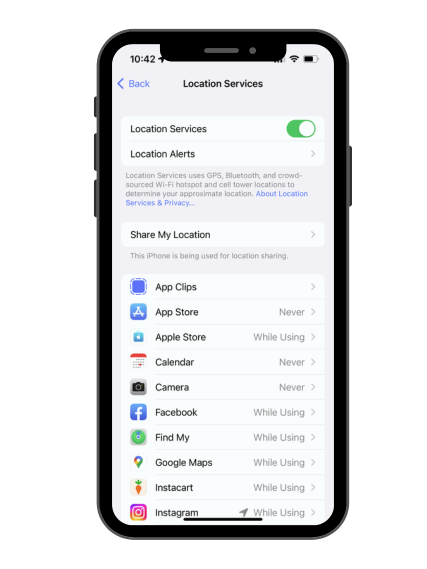
Furthermore, consider disabling Location Services for apps to prevent personalized ads based on your location. Navigate to Settings > Privacy > Location Services to adjust these settings.
Many guides neglect the importance of understanding how ads are targeted. Google and other platforms utilize complex algorithms to serve ads based on user behavior and preferences. While blocking ads can reduce exposure, it may not eliminate ads entirely, especially if users do not regularly clear their browsing history and cookies. Regularly managing these aspects can enhance ad-blocking efforts.
To effectively implement these advanced techniques, start by downloading a reputable ad blocker and configuring Safari settings to limit tracking. Regularly review app-specific ad controls and consider using Reader Mode when applicable. By taking these steps, users can substantially reduce Google ads on their iPhones and improve their overall online experience.
Common Mistakes When Trying to Stop Ads
Many iPhone users attempt to stop Google ads but often stumble due to common mistakes. Recognizing these pitfalls is essential for effectively reducing ad exposure and enhancing privacy.

Not Understanding the Difference Between Ad Blocking and Limiting Tracking
Ad blocking and limiting tracking serve different purposes. Ad blocking prevents ads from displaying entirely, while limiting tracking reduces the amount of data advertisers collect about users. Users frequently confuse these terms, believing that enabling one automatically disables the other. This misunderstanding can lead to continued exposure to unwanted ads despite implementing blocking measures.
Ignoring App-Specific Settings
Users often overlook the specific settings within individual apps that can impact ad experiences. Many applications, including popular ones like Facebook and Instagram, have their own ad preferences and privacy settings. Neglecting to adjust these settings means users may continue to receive targeted ads based on their activity within those apps.
- Check each app for ad preferences.
- Adjust settings to limit personalization.
- Review permissions that may allow data tracking.
Failing to Update Privacy Settings Regularly
Privacy settings on iPhones evolve, and Apple frequently updates its operating system. Users who do not regularly check for updates to privacy settings may miss out on new features designed to enhance ad control. For instance, features like App Tracking Transparency require user consent for tracking, but if not reviewed, users may inadvertently allow tracking.
Overlooking the Impact of Cookies and Website Data
Cookies and website data play a significant role in ad targeting. Users often clear app data but neglect to manage cookies stored within browsers. These cookies can retain user preferences and browsing history, allowing advertisers to serve tailored ads. Regularly clearing cookies and website data is essential for reducing targeted advertising.
Expert Insight: Misunderstanding Privacy Tools
A common misconception regarding how to stop Google ads on iPhone is that simply downloading an ad-blocking app will solve the problem. While these apps can reduce the number of ads encountered, they do not eliminate tracking by advertisers. Many apps may still collect data even when ads are blocked. Furthermore, some ad blockers may inadvertently allow certain ads through due to whitelisting practices. It’s crucial to understand the limitations of these tools and complement them with comprehensive privacy practices.
Practical Steps to Take
To effectively reduce Google ads on your iPhone, consider the following actions:
- Review and adjust ad preferences in all installed apps.
- Regularly check and update privacy settings on your device.
- Clear cookies and website data frequently to limit tracking.
- Consider utilizing both ad-blocking apps and built-in privacy features for maximum effectiveness.
By addressing these common mistakes, users can significantly enhance their efforts to limit unwanted advertisements and protect their privacy on iPhones.
Real-World Impact of Stopping Google Ads
This section examines the broader implications of halting Google ads on iPhone, focusing on how it affects app monetization, user experience, and the delicate balance between privacy and free services.
How Ad Revenue Supports Free Apps
Many popular applications rely on advertising revenue to sustain their operations. This funding model allows developers to offer their apps without charging users upfront. In fact, a significant percentage of free apps generate revenue primarily through ads. Stopping Google ads can disrupt this financial support, leading to potential app closures or the introduction of subscription fees.
User Experience Changes After Stopping Ads
Removing ads can enhance the user experience significantly. Users often report less distraction and a more streamlined interaction with apps. However, this improvement may come at a cost. Developers might prioritize paid features or impose new charges to offset lost revenue. Consequently, users may face a choice between a more pleasant experience and financial investment.
Alternatives to Ad-Supported Content
- Subscription Models: Many apps are transitioning to subscription-based models, offering ad-free experiences in exchange for a monthly fee.
- Freemium Models: Apps may adopt a freemium model where basic features remain free, but advanced functionalities require payment.
- Donations and Crowdfunding: Some developers are turning to user donations or crowdfunding platforms to support their development efforts.
The Balance Between Privacy and Free Services
Users often seek to enhance their privacy by stopping ads, particularly when it comes to personalized advertising. However, this desire for privacy can conflict with the availability of free services. Many companies leverage user data to improve their offerings and keep costs low. Thus, users must consider whether they are willing to compromise on privacy for access to free content.
Moreover, a common misconception is that stopping ads will completely eliminate data tracking. While it may reduce targeted advertising, many apps still collect user data for various purposes, including analytics and app improvement. Understanding the nuances of data collection is vital for making informed choices about privacy settings on iPhone.
Practical Application
To navigate the implications of stopping Google ads on iPhone, users should assess their priorities. If privacy is paramount, consider exploring subscription-based or freemium apps that align with these values. Users can also support developers through donations or by providing feedback on features they value. Evaluating the trade-offs between a free, ad-supported experience and a paid, ad-free version will help users make informed decisions that suit their needs.
Frequently Asked Questions
How do I turn off Google ads on my iPhone?
To turn off Google ads on your iPhone, go to Settings > Privacy > Advertising. Toggle on “Limit Ad Tracking” to reduce targeted ads.
What are personalized ads on iPhone?
Personalized ads on iPhone are advertisements tailored to your interests based on your browsing history and app usage. These ads aim to provide a more relevant advertising experience.
Are there any costs associated with stopping Google ads?
There are no costs associated with stopping Google ads on your iPhone. Disabling ads and limiting tracking are free features available in the device settings.
How long does it take to stop seeing Google ads on iPhone?
After disabling personalized ads, it may take some time for Google to update your ad settings. Typically, changes can take effect within a few hours to a couple of days.
What is the difference between disabling ads and limiting tracking?
Disabling ads removes personalized advertising, while limiting tracking restricts the collection of data used for targeting. Both options reduce the relevance of ads you see but serve different purposes.
Can I stop Google ads in specific apps on my iPhone?
You cannot selectively stop Google ads in specific apps directly through iPhone settings. However, you can limit ad tracking globally, which affects ads across all apps.
What are the best practices for managing ads on iPhone?
Best practices include enabling “Limit Ad Tracking” in settings, regularly reviewing privacy settings, and uninstalling apps that show excessive ads. Consider using ad blockers for additional control.
How to report inappropriate Google ads on iPhone?
To report inappropriate Google ads, tap the “i” icon or the three dots on the ad and select “Report ad.” Follow the prompts to specify the issue with the advertisement.
Final Thoughts on how to stop google ads on iPhone
Effectively stopping Google ads on your iPhone is not just about enhancing your browsing experience; it also empowers you to reclaim your privacy and control over your digital footprint. By implementing the recommended settings and utilizing advanced techniques, users can significantly reduce unwanted ad exposure and ensure a more tailored online experience.
To take immediate action, navigate to your iPhone’s settings and disable personalized ads under Privacy > Advertising, while also considering the installation of a reputable ad-blocking app for comprehensive ad management.
Understanding how to control ad exposure is essential in today’s digital landscape, where personal data and user experience are increasingly intertwined.
Leave a Reply