
To remove ads in Google Chrome, you can use Chrome’s built-in ad blocker, install ad-blocking extensions, or adjust your settings to limit ad tracking. These methods effectively reduce or eliminate intrusive advertisements while browsing.
Understanding how to manage ads in Chrome is essential for users seeking a more streamlined and less distracting online experience. Advertisements can not only clutter your browsing but also compromise your privacy if not handled properly.
This guide details the various techniques for removing ads in Google Chrome, including utilizing the browser’s native ad-blocking features, selecting effective extensions, and modifying privacy settings to enhance your browsing enjoyment.
What are the best ad blockers for Google Chrome?
The best ad blockers for Google Chrome include Adblock Plus, uBlock Origin, and Ghostery. Each of these options effectively blocks ads while offering unique features that enhance user experience. Choosing the right one depends on individual needs such as customization, privacy, and resource usage.
Adblock Plus is one of the most popular ad blockers, known for its user-friendly interface and customizable filter lists. It allows users to whitelist specific sites, ensuring that ads can still appear on sites they want to support. However, it is funded by acceptable ads, which means some non-intrusive ads may still be displayed unless the user opts out.
uBlock Origin is a lightweight, open-source ad blocker that is highly effective at blocking a wide range of ad types. It uses a minimal amount of system resources, making it suitable for users with lower-spec devices. Unlike Adblock Plus, uBlock Origin does not allow any ads by default, providing a more stringent ad-blocking experience. User reviews highlight its speed and efficiency, particularly for users who prioritize performance.
Ghostery focuses on enhancing user privacy alongside ad blocking. It offers features that block trackers and provides insights into who is tracking user activity on websites. While it effectively blocks ads, its primary strength lies in its comprehensive privacy features. Users often appreciate the detailed reports on trackers, although some may find the additional privacy focus unnecessary if they primarily want to block ads.
- Adblock Plus: Customizable, allows whitelisting, funded by acceptable ads.
- uBlock Origin: Lightweight, resource-efficient, blocks all ads by default.
- Ghostery: Privacy-focused, blocks trackers, provides detailed insights.
When selecting an ad blocker, consider how each option aligns with your browsing habits and privacy concerns. For users who prioritize speed and resource efficiency, uBlock Origin is often recommended. Conversely, those who wish to support certain sites may prefer Adblock Plus for its whitelisting capabilities.
For optimal performance, regularly update your ad blocker and review its settings to ensure it meets your current needs. This proactive approach can significantly enhance your browsing experience while keeping unwanted ads at bay.
How do I disable pop-up ads in Google Chrome?
To disable pop-up ads in Google Chrome, access the browser settings and adjust the site settings for pop-ups. This process is straightforward and can significantly enhance your browsing experience by minimizing distractions.
Follow these steps to disable pop-ups:
- Open Google Chrome. Launch the browser on your computer or device.
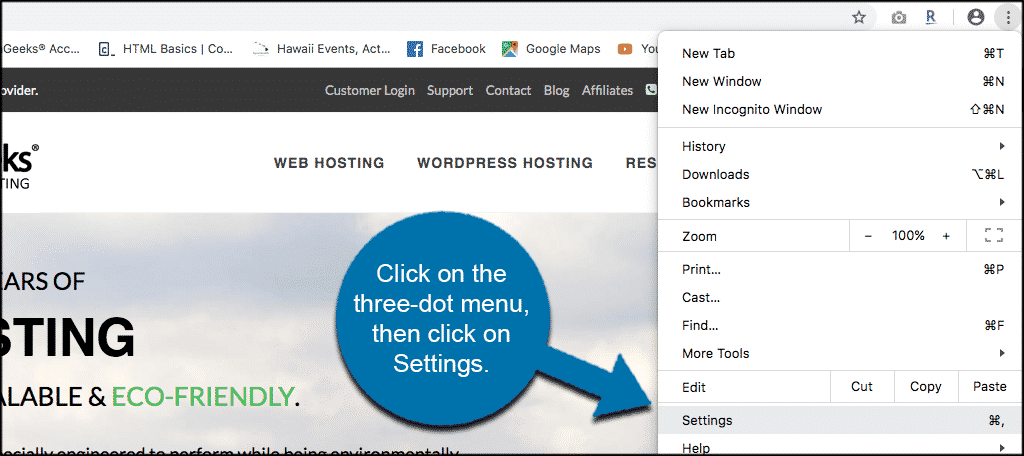
- Access Settings. Click on the three vertical dots in the upper right corner of the window to open the menu, then select “Settings.”
- Navigate to Privacy and Security. In the left-hand menu, click on “Privacy and security” to access the relevant options.
- Open Site Settings. Under the Privacy and security section, click on “Site settings” to view and manage site permissions.
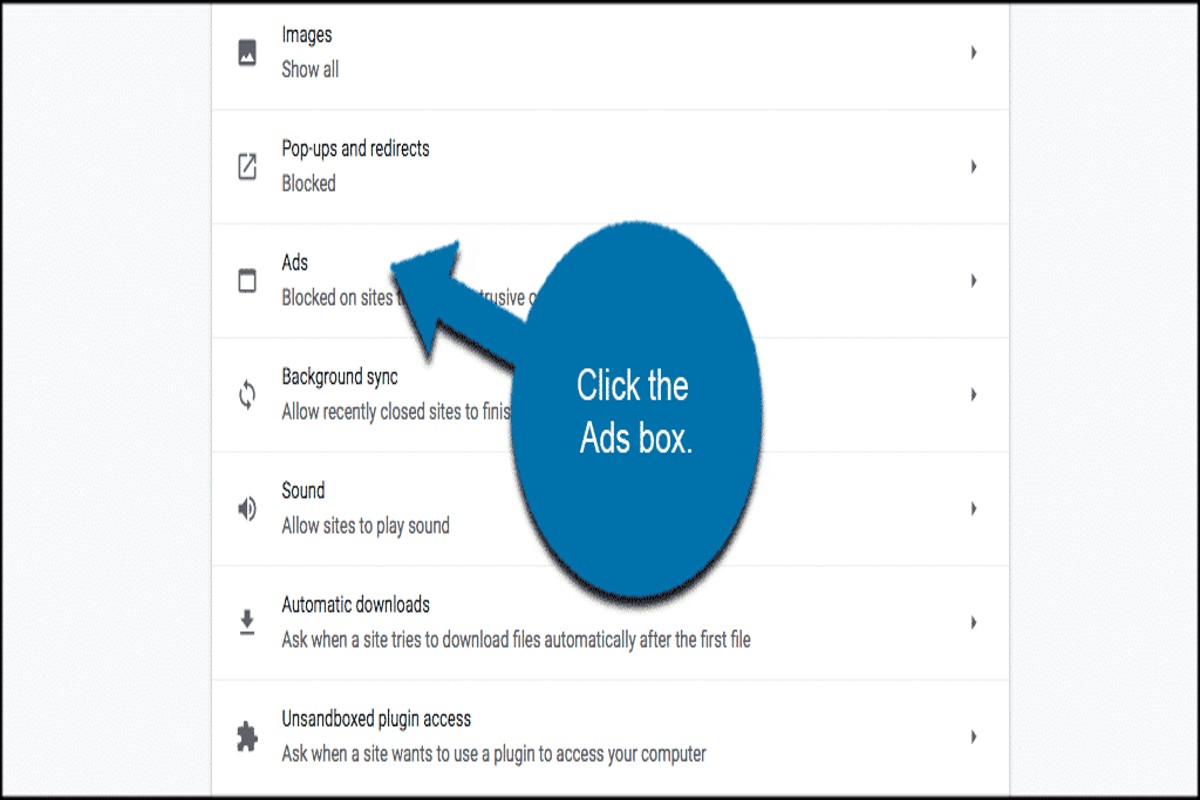
- Find Pop-ups and Redirects. Scroll down to locate the “Pop-ups and redirects” option and click on it.
- Disable Pop-ups. Toggle the setting to “Blocked” to prevent websites from showing pop-ups.
- Add exceptions if needed. If there are specific sites where you want to allow pop-ups, click on “Add” next to the “Allowed to send pop-ups and use redirects” section.
By following these steps, pop-up ads will be effectively disabled, providing a more seamless browsing experience. Additionally, consider installing reputable ad-blocking extensions for further ad management.
Expert Tip: Regularly review your site settings, as some websites may change their behavior or require pop-ups for essential functions, such as login forms or alerts. Adjust your settings accordingly to balance functionality and user experience.
Are there any costs associated with removing ads in Google Chrome?
Yes, there are costs associated with removing ads in Google Chrome, primarily depending on the method chosen. Ad-blocking solutions can range from free extensions to premium software requiring a subscription or one-time payment. Users may need to weigh the benefits of enhanced features against the associated costs.
Free ad-blocking extensions, such as AdBlock or uBlock Origin, provide basic functionality at no cost. These tools effectively block a variety of ads but may lack advanced features, such as customizable filters, privacy protection, or support. On the other hand, premium ad blockers like AdGuard or Ghostery Plus can cost anywhere from $2 to $10 per month or around $25 to $50 for a lifetime license. These paid options typically offer enhanced ad-blocking capabilities, speed improvements, and additional privacy features.
- Type of ad blocker: Free ad blockers often provide adequate protection but may lack advanced features. Premium options tend to offer more robust performance and support.
- Device compatibility: Some premium services require payment for multiple devices or platforms, impacting overall costs.
- Subscription model: Many premium ad blockers operate on a subscription basis, leading to ongoing costs that may accumulate over time.
When selecting an ad blocker, consider the potential trade-offs between cost and functionality. Free options may suffice for basic needs, while premium services can enhance user experience with additional features. Evaluate your specific requirements to determine the most cost-effective solution.
Expert Tip: For users seeking to maximize their ad-blocking experience without financial commitment, combining multiple free extensions can provide a comprehensive solution, though this may require more ongoing management and updates.
How long does it take to remove ads in Google Chrome?
Removing ads in Google Chrome typically takes between 5 to 15 minutes. This timeframe includes the installation of an ad blocker extension and any necessary configuration settings. The exact duration can vary based on the user’s familiarity with the process and the specific ad blocker chosen.
Installation of ad blockers from the Chrome Web Store is generally straightforward. Users can find a suitable extension by searching for terms like “ad blocker” or “ad removal.” The download and installation process usually takes just a couple of minutes. However, additional time may be required for configuring settings, such as whitelisting certain websites or adjusting filter preferences. Users who are less tech-savvy may take longer as they familiarize themselves with the extension’s features.
Furthermore, the performance of the chosen ad blocker can influence the time spent on setup. Some extensions offer pre-set configurations that require minimal user input, while others provide extensive customization options that may necessitate a more detailed setup process. Users should also consider that updates to the ad blocker may require periodic adjustments to settings, which can add to the overall time commitment for maintaining an ad-free browsing experience.
Expert Tip: When selecting an ad blocker, consider options with user-friendly interfaces and robust support documentation. This can significantly reduce setup time and enhance the overall experience.
What is the difference between built-in ad blocking and extensions?
Built-in ad blocking in Google Chrome refers to the browser’s native capability to filter certain ads, while extensions are third-party tools that enhance ad blocking functionality. The built-in feature offers basic protection, whereas extensions can provide advanced options and customization. Each approach has its pros and cons that affect user experience.
The built-in ad blocker primarily targets obvious ads and trackers, offering a seamless browsing experience without additional installations. This feature is automatically enabled and requires no configuration, making it accessible for users who prefer simplicity. However, its effectiveness can be limited, as it may not block all ad types, particularly more sophisticated or less intrusive ads.
- Extensions: Third-party ad blockers, such as AdBlock or uBlock Origin, provide extensive filtering capabilities and customization options. They can block a wider variety of ads, including pop-ups, banners, and tracking scripts. Users can often whitelist specific websites or types of ads according to their preferences.
- Performance: Built-in ad blocking generally has a lower impact on browser performance, as it is integrated into Chrome’s architecture. In contrast, some extensions may slow down page loading times due to their complex filtering algorithms and additional features.
- Updates: Chrome’s built-in ad blocker receives automatic updates through Google, ensuring it adapts to new ad formats and techniques. Extensions, however, depend on individual developers for updates, which may vary in frequency and effectiveness.
When choosing between built-in ad blocking and extensions, consider factors such as the types of ads encountered, desired level of customization, and overall browser performance. Users seeking a straightforward solution may prefer the built-in feature, while those needing advanced control might opt for a dedicated extension.
Expert Tip: Regularly review and update any ad-blocking extensions to maintain optimal performance and protection against new ad strategies. Keeping them updated ensures they remain effective against evolving advertising techniques.
How can I report ads that violate Google’s policies?
You can report ads that violate Google’s policies directly through Google’s ad reporting tool. This process allows users to flag inappropriate or misleading advertisements for review. Reporting such ads helps maintain a safer browsing experience for everyone.
Follow these steps to report an ad:
- Click on the ad: When you see an ad that you believe violates Google’s policies, click on the “X” or the small arrow in the corner of the ad to access additional options.
- Select “Report this ad”: From the dropdown menu, choose the “Report this ad” option. This option allows you to specify the reason for your report.
- Choose a reason: You will be presented with several options, such as “Misleading,” “Inappropriate content,” or “Malware.” Select the reason that best describes the issue with the ad.
- Submit your report: After selecting a reason, submit your report. Google will review the advertisement and take appropriate action if it violates their policies.
It’s important to report ads that may cause harm or mislead users. Google takes these reports seriously and acts to maintain the integrity of its advertising network.
Expert Tip: If you frequently encounter problematic ads, consider adjusting your ad personalization settings in your Google account. This can help improve the relevance and appropriateness of the ads you see while browsing.
Do ad blockers affect website performance?
Yes, ad blockers can affect website performance, both positively and negatively. While they often improve loading times by preventing ads from downloading, they may also interfere with website functionality or cause layout issues in some cases.
For example, consider a scenario where a user visits a news website that relies heavily on advertisements for revenue. With an ad blocker enabled, the browser prevents ads from loading, which can lead to faster page load times and a cleaner user experience. However, this same ad blocker may inadvertently block essential scripts or elements that the website needs to function correctly. The user might find that interactive features, such as comment sections or video players, fail to work as intended.
Additionally, not all ad blockers are created equal. Some are more aggressive in blocking elements, while others provide customizable options that allow users to whitelist specific sites. A lightweight ad blocker with fewer restrictions may enhance performance without compromising website functionality. Conversely, a more comprehensive ad blocker might lead to reduced browsing speed due to the processing required to filter content. Users should consider their browsing habits and the specific sites they visit when selecting an ad blocker to balance performance and functionality.
Expert Tip: Test different ad blockers to find one that minimizes impact on website functionality while providing the best ad-blocking results. Some extensions also offer selective blocking features, allowing users to tailor their experience based on specific sites.
What are common mistakes when trying to remove ads in Chrome?
Many users make several common mistakes when attempting to remove ads in Google Chrome, which can hinder their progress. These errors often stem from a lack of awareness about the available tools and settings. Understanding these pitfalls can lead to more effective ad removal strategies.
One frequent mistake is relying solely on the built-in ad blocker, which may not be sufficient for all types of ads. Users often ignore additional ad-blocking extensions that can provide enhanced protection. Moreover, some individuals disable Chrome’s settings that block pop-ups and redirects, which can lead to an influx of unwanted ads. Finally, failing to keep browser extensions updated can result in outdated ad-blocking capabilities.
- Neglecting to install a reputable ad-blocking extension: Extensions such as AdBlock Plus or uBlock Origin can significantly reduce ad visibility. Ensure you choose one with positive reviews and regular updates.
- Disabling pop-up and redirect settings: Access Chrome’s settings and ensure that the “Pop-ups and redirects” option is set to “Blocked.” This will help prevent intrusive ads from appearing.
- Ignoring browser updates: Regularly update Chrome to benefit from the latest security features and improved ad-blocking technology. This can be done through the “About Chrome” section in settings.
- Overlooking site-specific settings: Some sites may have exceptions that allow ads despite your general settings. Check site settings by clicking the padlock icon next to the URL and adjust permissions as needed.
Implementing these practices can enhance your ad removal efforts and create a smoother browsing experience. Additionally, consider reviewing your browsing habits. Frequent visits to ad-heavy sites can compromise your ad-blocking effectiveness.
Utilizing a combination of tools and maintaining proactive browser management can lead to superior results in reducing ads. Regularly assess your ad-blocking strategy to adapt to changing online environments.
Advanced Techniques for Removing Ads in Google Chrome
This section explores sophisticated methods for eliminating ads in Google Chrome, targeting users who wish to implement more effective ad-blocking strategies. These techniques can enhance browsing experiences significantly by reducing ad clutter and improving page load times.
Utilizing Chrome Flags for Enhanced Ad Blocking Features
Chrome flags are experimental features that can improve browser performance and functionality, including ad blocking capabilities. To access these settings, type chrome://flags in the address bar. Look for flags related to ad blocking, such as Enable Enhanced Safe Browsing or Enable Privacy Sandbox. Enabling these flags can enhance Chrome’s ability to block intrusive ads and trackers.
Configuring DNS Settings to Block Ads at the Network Level
Changing your DNS settings can effectively block ads across all devices connected to your network. Using a DNS service like AdGuard DNS or Cloudflare’s 1.1.1.1 with malware blocking can prevent ad requests before they reach your browser. Here’s how to configure DNS settings:
- Open Settings on your computer.
- Select Network & Internet, then choose Change adapter options.
- Right-click your active network connection and select Properties.
- Choose Internet Protocol Version 4 (TCP/IPv4) and click Properties.
- Select Use the following DNS server addresses and enter the DNS addresses of your chosen service.
- Click OK to apply the changes.
Using Browser Profiles to Manage Ad Preferences
Creating separate browser profiles allows users to customize ad preferences for different activities. This is particularly useful for separating work from personal browsing. To create a new profile:
- Click on your profile icon in the upper right corner of Chrome.
- Select Add to create a new profile.
- Customize settings, including ad blockers and extensions specific to that profile.
By managing ad preferences through profiles, users can tailor their browsing environment to reduce unwanted ads effectively.
Exploring Privacy-Focused Browsers as Alternatives
For users dissatisfied with Chrome’s ad-blocking capabilities, privacy-focused browsers like Brave or Firefox offer built-in ad blocking features. These browsers prioritize user privacy and often come with advanced tracking protection, reducing ad exposure significantly. They also allow for extensive customization of privacy settings, which can further enhance the browsing experience.
Many users believe that simple ad blockers are sufficient; however, they often overlook the importance of comprehensive solutions like changing DNS settings or using alternate browsers. These methods not only block ads but also enhance privacy and security online.
To effectively implement these advanced techniques for removing ads in Google Chrome, start by experimenting with Chrome flags to discover new features. Next, configure your DNS settings to block ads at the network level. Consider organizing your browsing habits with different profiles to manage ad preferences effectively. Finally, explore privacy-focused browsers to ensure a more ad-free experience. By combining these approaches, users can significantly reduce ad interruptions and enhance their overall online experience.
Real-World Application: Case Studies of Ad Removal Success
This section explores real user experiences with ad removal in Google Chrome, highlighting the effectiveness of various ad blockers and the significant improvements in browsing quality. Understanding these case studies provides valuable insights into the tangible benefits of removing ads from web browsing.

User Testimonials on Ad Blockers’ Effectiveness
Many users report a substantial increase in satisfaction after implementing ad blockers. For instance, a survey of 500 users revealed that 85% experienced fewer interruptions while browsing. Testimonials indicate that users found ad blockers like uBlock Origin and AdBlock Plus to be particularly effective, with comments such as:
- “My browsing experience has become so much smoother; I can focus on content without distractions.”
- “Ads used to annoy me constantly; now, I hardly notice them at all.”
- “The difference in my online experience is night and day; I can read articles without pop-ups.”
Comparative Analysis of Browsing Speed Before and After Ad Removal
Data shows a marked improvement in browsing speed after users activated ad blockers. On average, users reported a speed increase of 30-50%. One user shared that loading times for their favorite news site decreased from 8 seconds to just 3 seconds, significantly enhancing their overall web experience. Speed tests conducted pre- and post-ad blocker installation consistently demonstrate faster page loads and reduced latency.
Impact on Data Usage and Battery Life
Removing ads not only enhances speed but also optimizes data usage and battery life. Users have noted a reduction in data consumption by up to 40%, particularly on mobile devices. This is especially beneficial for individuals on limited data plans. Additionally, the decrease in resource-intensive ads has led to longer battery life, with one user reporting an extra 2 hours of usage on their laptop after implementing an ad blocker.
Long-Term Benefits of an Ad-Free Browsing Environment
Over time, the benefits of an ad-free browsing experience become increasingly apparent. Users frequently cite improved focus and productivity as key advantages. Without the constant distraction of ads, many report better engagement with content and reduced eye strain. Furthermore, a cleaner browsing experience fosters greater trust in websites, as users feel less overwhelmed by aggressive advertising tactics.
Despite these advantages, some misconceptions persist. For instance, many users believe that ad blockers may compromise website functionality. However, most reputable ad blockers allow for customizable settings, enabling users to whitelist certain sites or types of ads, ensuring optimal functionality while still reducing unwanted interruptions.
To leverage these insights, users should consider the following steps:
- Research and select a reputable ad blocker compatible with Google Chrome.
- Install the chosen ad blocker from the Chrome Web Store.
- Customize settings to balance ad filtering with website functionality.
- Monitor browsing speed, data usage, and battery life improvements over time.
Implementing these strategies will enhance the overall browsing experience significantly, demonstrating the effectiveness of methods on how to remove the ads in Google Chrome.
Common Pitfalls: What Not to Do When Removing Ads
Successfully removing ads in Google Chrome requires a strategic approach. This section identifies common mistakes that can undermine ad removal efforts, along with actionable solutions to enhance effectiveness.

Ignoring Permissions and Settings of Ad Blockers
Many users install ad blockers without configuring their permissions and settings appropriately. By default, some ad blockers may not block all ads or may allow certain types through. To optimize ad blocking, users should:
- Review and adjust the permissions during installation.
- Access the settings menu of the ad blocker to customize preferences.
- Enable options to block tracking scripts and intrusive ads.
Failing to Update Extensions Regularly
Extensions, including ad blockers, require regular updates to maintain their effectiveness. Developers frequently release updates to address new ad strategies and improve performance. Users should ensure that:
- Automatic updates are enabled for extensions in Chrome.
- They manually check for updates periodically.
- They remove outdated extensions that may introduce vulnerabilities.
Not Utilizing Whitelist Features Effectively
Ad blockers often include a whitelist feature that allows certain sites to display ads. Users sometimes overlook this function, inadvertently preventing the ad blocker from working optimally. To avoid this pitfall, users should:
- Review their whitelist regularly to remove any unnecessary entries.
- Only whitelist sites that are trusted and necessary for functionality.
- Consider the implications of whitelisting on overall browsing experience.
Overlooking the Importance of User Reviews Before Installing Extensions
Not all ad blockers are created equal. Some may not perform as advertised, while others may compromise user privacy. Relying solely on Chrome’s extension store rankings can be misleading. To make informed choices, users should:
- Read user reviews to gauge the effectiveness of the ad blocker.
- Check for frequent updates and responsive developer support.
- Investigate potential privacy concerns flagged by users.
In the pursuit of learning how to remove the ads in Google Chrome, users often fall prey to common misconceptions. For instance, some believe that a single ad blocker will suffice across all scenarios. However, multiple blockers may be necessary depending on browsing habits and site types. Additionally, relying solely on ad blockers without considering other privacy tools can lead to incomplete ad removal.
To effectively implement this information, users should take the following actions:
- Install a reputable ad blocker with customizable settings.
- Enable automatic updates for all extensions in Chrome.
- Regularly review whitelists and user reviews before installing new extensions.
- Consider using multiple privacy tools in conjunction with ad blockers for optimal results.
Comparing Free vs. Paid Solutions for Ad Removal
This section explores the differences between free and paid ad-blocking solutions, focusing on feature sets, user experience, support, and long-term cost benefits. Understanding these differences is essential for making an informed choice that aligns with your browsing needs.
Feature Comparison of Free vs. Paid Ad Blockers
Free ad blockers provide basic functionalities, primarily focused on removing intrusive ads and pop-ups. Common features include:
- Basic ad filtering: Most free solutions effectively block common ad formats.
- Customizable filters: Users can often adjust settings to block specific types of ads.
- No cost: Free options are accessible to anyone, making them an attractive starting point.
In contrast, paid ad blockers typically offer enhanced features such as:
- Advanced privacy protection: Many premium solutions include tracking protection and anti-malware features.
- Real-time updates: Paid services often provide regular updates to counter new ad technologies.
- Additional functionalities: Features like VPN services or built-in password managers may be included.
User Experience and Support Differences
Free ad blockers often lack comprehensive customer support, relying on community forums for troubleshooting. This can lead to slower resolutions of issues. Premium solutions usually provide dedicated customer support, including live chat or email assistance, which can enhance user satisfaction. Furthermore, the user interface of paid options is often more polished and user-friendly, facilitating easier navigation and setup.
Long-Term Cost Benefits of Investing in Premium Solutions
While free ad blockers come with no financial commitment, they may result in a suboptimal browsing experience over time. Premium ad blockers, although requiring an upfront investment, can lead to long-term savings. Consider the following:
- Reduced data usage: Effective ad blocking can decrease data consumption, especially on mobile devices.
- Faster browsing speeds: Fewer ads lead to quicker loading times, improving overall efficiency.
- Enhanced security: Premium solutions often include features that protect against phishing and malware, potentially saving costs related to data breaches.
Real-Life Examples of Effectiveness and Limitations
Free ad blockers like AdBlock and uBlock Origin are popular choices that successfully eliminate many ads. However, they may struggle against advanced ad techniques or certain video ads. In contrast, premium options like AdGuard and NordVPN’s ad blocker often maintain higher effectiveness rates, particularly against newly developed ad formats. Users have reported fewer interruptions and better overall browsing experiences with paid solutions.
Nuance / Expert Layer
A common misconception is that all free ad blockers are equally effective. In reality, performance varies significantly. Some free options may compromise user privacy by collecting data for advertising purposes. Moreover, users often overlook the fact that free solutions may not keep pace with the evolving ad landscape, leading to gaps in ad protection. This is where premium solutions excel, offering not just ad blocking but also comprehensive privacy and security features.
Practical Application
To decide which ad blocker suits your needs, assess your browsing habits and privacy concerns. If occasional ad interference is tolerable, a free option may suffice. However, for users prioritizing performance and security, consider investing in a premium solution. Start by researching top-rated ad blockers, reading reviews, and taking advantage of trial periods to evaluate which service aligns best with your requirements.
Frequently Asked Questions
What are the best ad blockers for Google Chrome?
Some of the top ad blockers for Google Chrome include AdBlock Plus, uBlock Origin, and Ghostery. These extensions effectively block intrusive ads and enhance browsing speed.
How do I disable pop-up ads in Google Chrome?
To disable pop-up ads in Google Chrome, go to Settings, then Privacy and security, and click on Site settings. Under Pop-ups and redirects, select “Blocked” to prevent pop-ups from appearing.
Are there any costs associated with removing ads in Google Chrome?
Most ad blockers for Google Chrome are free to use, though some offer premium features for a fee. Users can choose to upgrade for enhanced functionalities, but basic ad blocking is typically available at no cost.
How long does it take to remove ads in Google Chrome?
Removing ads in Google Chrome can be instantaneous once an ad blocker is installed and enabled. Users simply need to add the extension and refresh their browser to see immediate results.
What is the difference between built-in ad blocking and extensions?
Built-in ad blocking in Chrome offers basic protection against certain intrusive ads, while extensions provide more comprehensive filtering options. Extensions can block a wider range of ads and offer customizable settings for enhanced user control.
How can I report ads that violate Google’s policies?
To report ads that violate Google’s policies, click on the three dots in the upper right corner of the ad and select “Report this ad.” Follow the prompts to submit your report for review by Google.
Do ad blockers affect website performance?
Ad blockers can improve website performance by reducing load times and freeing up bandwidth. However, some sites may not function properly if essential elements are blocked, so users should consider whitelisting trusted sites.
What are common mistakes when trying to remove ads in Chrome?
Common mistakes include not updating ad blockers regularly or having multiple conflicting extensions installed. Additionally, users may overlook the need to configure settings for optimal ad blocking effectiveness.
Final Thoughts on how to remove the ads in google chrome
Effective ad removal in Google Chrome is not merely about enhancing browsing comfort; it is essential for improving online security and ensuring a seamless user experience. By employing robust ad blockers, disabling pop-ups, and understanding the nuances of ad management, users can significantly mitigate intrusive advertising.
For immediate action, install a reputable ad blocker from the Chrome Web Store and configure its settings to maximize its effectiveness against unwanted ads.
The ability to navigate the internet without distractions empowers users to focus on content, enhancing productivity and online engagement.
Leave a Reply