
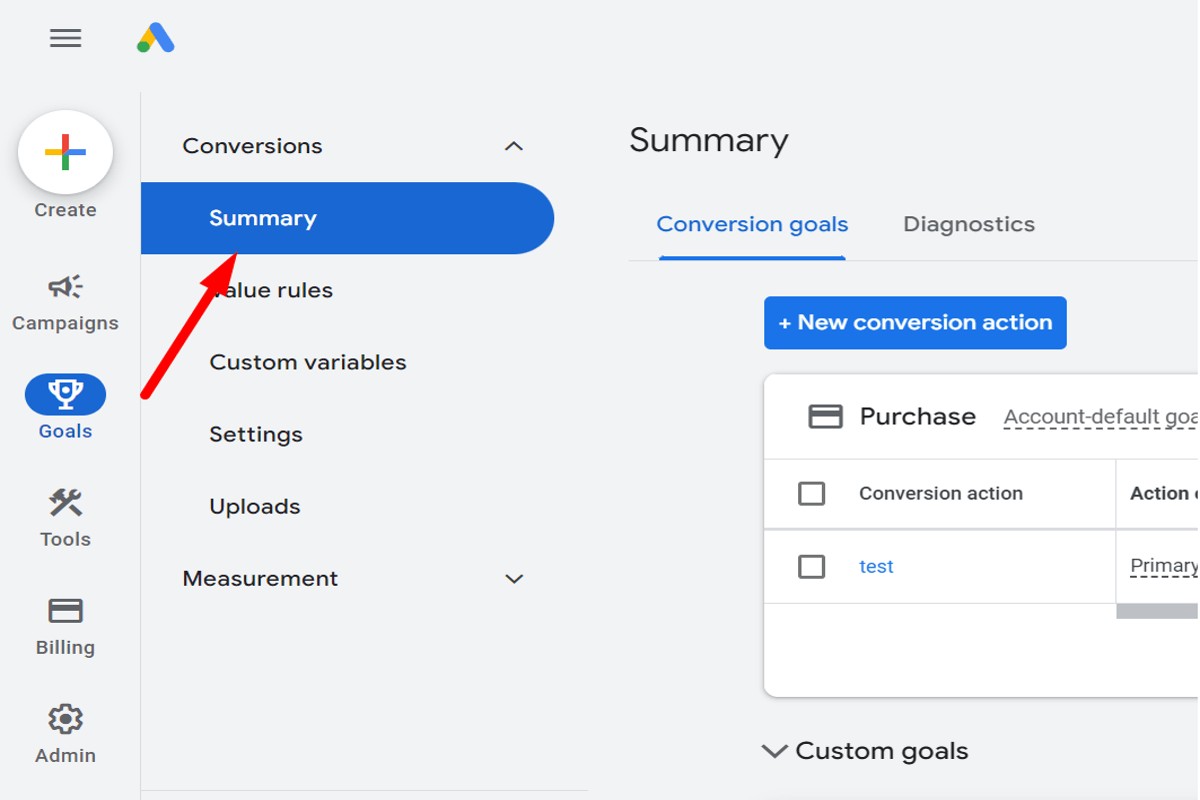
To find the conversion ID in Google Ads, navigate to the ‘Tools and Settings’ menu, select ‘Conversions’, and choose the specific conversion action. The conversion ID will be displayed in the conversion action details.
Understanding how to find the conversion ID in Google Ads is crucial for marketers and advertisers who aim to track the effectiveness of their campaigns accurately. Missteps in identifying or implementing the conversion ID can lead to inaccurate data collection, hampering the ability to optimize advertising strategies and measure return on investment.
This guide provides a step-by-step approach to locating the conversion ID, clarifies its significance in tracking conversions, and offers tips for ensuring accurate implementation within Google Ads.
What is a conversion ID in Google Ads?
A conversion ID in Google Ads is a unique identifier assigned to each conversion action you set up within your account. This ID is critical for tracking the performance of specific actions, such as purchases or sign-ups, that users take after interacting with your ads. By utilizing the conversion ID, advertisers can accurately attribute conversions to their respective campaigns and optimize their marketing strategies accordingly.
The conversion ID plays a vital role in the Google Ads ecosystem. It allows advertisers to differentiate between various conversion actions, ensuring that data is accurately recorded and reported. Each conversion action—whether it is a purchase, lead form submission, or app download—has its own specific conversion ID, which facilitates detailed performance analysis and reporting.
- Conversion Action: This refers to the specific behavior you want to track, such as a purchase or newsletter signup.
- Unique Identifier: Each conversion action is assigned a distinct conversion ID, allowing for precise tracking.
- Attribution: The conversion ID helps attribute conversions to the correct ads and campaigns, improving ROI analysis.
When setting up conversion tracking in Google Ads, it is essential to implement the conversion ID correctly in your website’s tracking code or via Google Tag Manager. This ensures that all relevant conversion data is captured and sent back to your Google Ads account for analysis. Misconfigured IDs can lead to inaccurate reporting and misinformed marketing decisions.
Expert Tip: Regularly review your conversion actions and their associated IDs to ensure they align with your marketing goals. This practice can help identify which campaigns are driving the most valuable actions, allowing for better budget allocation and campaign optimization.
How do I find my Google Ads conversion ID?
The Google Ads conversion ID can be located within the conversion tracking setup in your Google Ads account. This unique identifier is essential for tracking conversions accurately. Follow the steps below to find your conversion ID easily.
- Sign in to your Google Ads account. Navigate to the Google Ads homepage and enter your credentials to access your account dashboard.
- Click on the “Tools & Settings” icon. This icon is located in the upper right corner of the interface. It resembles a wrench and will open a dropdown menu.
- Select “Conversions” under “Measurement.” In the dropdown menu, look for the “Measurement” section and click on “Conversions.” This will lead you to the conversion tracking page.
- Locate the conversion action. Find the specific conversion action you wish to track. You may see a list of all existing conversion actions that you have set up.
- Click on the conversion action name. This will take you to a detailed view of that conversion action. Here, you can adjust settings and view relevant details.
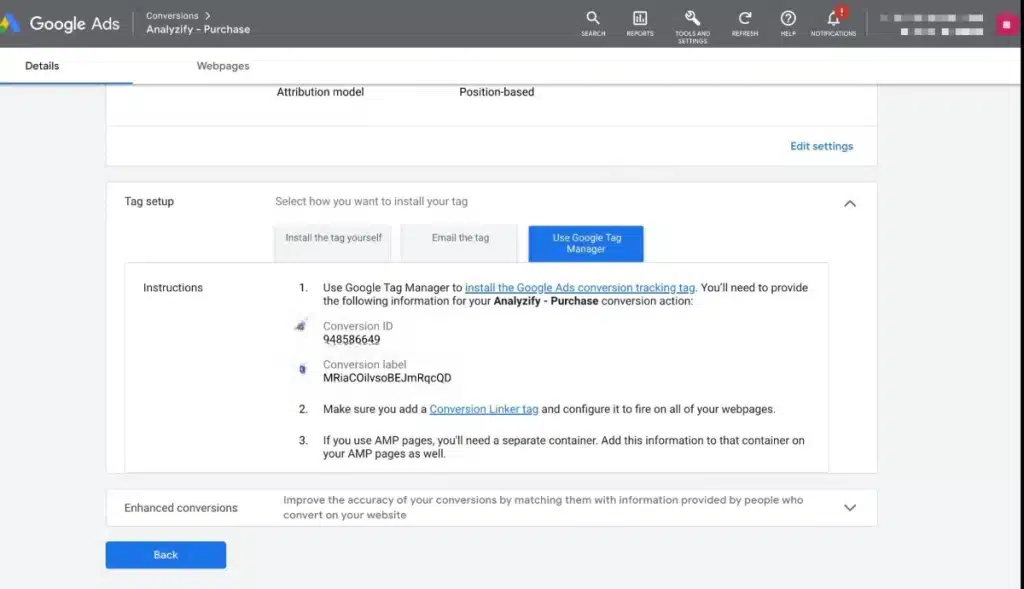
- Find the Conversion ID. In the details view, look for the section labeled “Tag Setup.” The Conversion ID will be clearly displayed in this section, typically alongside the Conversion Label.
After obtaining your Conversion ID, it can be integrated into your website or app to track conversions effectively. Ensure you keep this ID secure and do not share it publicly, as it is vital for your tracking accuracy.
Expert Tip: When setting up multiple conversion actions, maintain a clear naming convention for easy identification. This practice streamlines the management of your conversion tracking and minimizes the risk of errors during setup and reporting.
Why is my conversion ID not showing in Google Ads?
If your conversion ID is not displaying in Google Ads, it may be due to several factors, including improper account setup, tracking issues, or configuration errors. Identifying the root cause is essential for effective troubleshooting and ensuring your conversion tracking functions correctly.
One common reason for the absence of a conversion ID is an incomplete or incorrect setup of conversion tracking. Ensure that the conversion action has been created properly in your Google Ads account. This includes specifying the correct conversion source, such as website, app, or phone call, and ensuring that the tracking code is correctly implemented on the relevant pages, such as the thank you or confirmation page.
- Verify Account Access: Ensure that you have the necessary permissions to view conversion IDs in your Google Ads account. If you are not the account administrator, you may need to request access.
- Check Conversion Settings: Navigate to the “Tools & Settings” menu, select “Conversions,” and review the settings for each conversion action. Make sure the conversion ID is correctly assigned and that the conversion tracking is enabled.
- Inspect Tracking Code: Confirm that the tracking code is correctly implemented on your website. Use tools like Google Tag Assistant or the Google Tag Manager preview mode to diagnose any issues with the code.
- Review Event Status: For website conversions, check if the events are firing correctly when users complete the desired actions. Utilize browser developer tools to monitor network requests for the conversion tracking pixel.
- Allow Time for Data Processing: Remember that it may take some time for conversion data to appear in your account. Ensure you wait at least 24 hours after setting up the conversion action to see if the ID populates.
Regular audits of your conversion tracking setup can mitigate future issues. Keeping your tracking codes up to date and regularly reviewing conversion actions will help maintain accurate data collection.
Utilizing Google Analytics alongside Google Ads can provide additional insights into conversion tracking performance. This dual approach allows for a comprehensive review of user interactions and conversion attribution, enhancing overall campaign effectiveness.
Can I have multiple conversion IDs in Google Ads?
Yes, you can have multiple conversion IDs in Google Ads. Each conversion ID corresponds to a specific conversion action that you define within your Google Ads account. This allows for tailored tracking of different actions, such as purchases, sign-ups, or lead submissions.
Google Ads enables users to create multiple conversion actions, each with its own unique ID. This feature is particularly beneficial for businesses that engage in diverse marketing strategies or offer a variety of products and services. By setting up different conversion actions, advertisers can track specific user interactions, allowing for more precise measurement and optimization of advertising efforts.
- Website Conversions: Track actions taken on your website, like purchases or form submissions.
- App Conversions: Measure in-app actions, such as downloads or in-app purchases.
- Phone Call Conversions: Capture data from phone calls generated through ads.
The key differences among these conversion types lie in their tracking mechanisms and objectives. For instance, website conversions focus on user behavior on your site, while app conversions center on mobile app interactions. Phone call conversions provide insights into the effectiveness of call extensions in ads. Each conversion action can have its own conversion ID, enabling detailed reporting and analysis.
When determining which conversion actions to set up, consider your business goals and customer journey. Having multiple conversion IDs allows you to refine your campaigns based on specific performance metrics, enhancing your overall advertising strategy.
Expert Tip: Regularly review and update your conversion actions to ensure they align with your evolving business objectives. This practice enhances data accuracy and improves decision-making efficiency.
How long does it take to see conversions in Google Ads?
Typically, conversions appear in Google Ads within 24 to 72 hours after the initial setup of conversion tracking. However, various factors can influence this timeframe, including the volume of traffic, the type of conversion action, and the settings of your Google Ads account.
For many advertisers, the speed at which conversions are recorded can vary significantly. If your website receives high traffic and transactions occur frequently, conversions may be reported almost immediately. Conversely, sites with lower traffic or infrequent conversions may experience delays, as the system takes time to accumulate and process sufficient data. Additionally, specific conversion actions, like phone calls or form submissions, may have different reporting timelines compared to eCommerce transactions.
Account settings also play a critical role. If conversion tracking is newly set up, it may take a while for Google Ads to gather data and optimize reporting. Verification of the tracking code implementation is essential to ensure accurate data collection. Any discrepancies or errors in the setup can further lead to delays in conversion reporting.
Expert Tip: Regularly monitor the “Conversions” section in Google Ads to ensure that data is being tracked correctly. If conversions are not showing after a few days, double-check your conversion tracking setup and consider testing the conversion actions to confirm everything is functioning as expected.
What are the common mistakes when setting up conversion tracking in Google Ads?
Common mistakes when setting up conversion tracking in Google Ads include incorrect tagging, overlooking conversion actions, and failing to test the setup. These errors can lead to inaccurate data and ineffective advertising strategies.
One frequent error occurs when users implement tracking tags without verifying their functionality. For example, a business might add a conversion tracking tag to the order confirmation page but forget to check if the tag fires correctly upon a successful purchase. This results in missed tracking of valuable conversions, skewing the data and impacting campaign optimization. To avoid this, regularly use tools like Google Tag Assistant to confirm that all tags are firing as intended.
Another common mistake is neglecting to define specific conversion actions clearly. A digital marketing agency might set up a generic conversion for “form submissions” without differentiating between inquiries, quotes, or actual sales leads. This lack of specificity can dilute the effectiveness of the campaign and mislead decision-making. To enhance tracking precision, it is crucial to establish distinct conversion actions tailored to the business goals, allowing for better analysis and optimization of ad performance.
Finally, failing to regularly review and update conversion tracking settings can lead to outdated data. For instance, if a business changes its website structure or marketing goals but does not adjust its conversion tracking settings, the data can become irrelevant. Regular audits of tracking configurations, including conversion IDs, ensure alignment with current objectives and website changes.
Implementing robust conversion tracking is essential for campaign success. Keeping conversion definitions precise and routinely testing tags will provide clearer insights, facilitating informed marketing decisions.
How do I link my Google Ads conversion ID to my website?
Linking your Google Ads conversion ID to your website requires adding the appropriate tracking code to your site. This allows Google Ads to monitor specific actions, such as purchases or sign-ups, that you want to track as conversions. Follow the steps below to implement the conversion ID effectively.
- Access Google Ads Account: Log in to your Google Ads account and navigate to the ‘Tools & Settings’ menu. Under the ‘Measurement’ section, select ‘Conversions’ to access your conversion actions.
- Create a Conversion Action: If you haven’t already created a conversion action, click on the plus (+) button to set one up. Define the type of conversion you wish to track, such as website purchases or lead submissions.
- Get the Conversion Tracking Tag: After creating the conversion action, you will be prompted to set up the conversion tracking tag. Choose the ‘Install the tag yourself’ option to retrieve your unique conversion ID.
- Add Tracking Code to Your Website: Copy the provided tracking code snippet. This code should be added to the HTML of the page where the conversion occurs, typically a ‘Thank You’ or confirmation page.
- Verify Installation: After implementing the code, use the Google Tag Assistant Chrome extension to verify that your conversion tracking is set up correctly. This tool helps ensure that the tracking ID is firing as intended.
Adding the conversion ID is crucial for accurate performance tracking. Ensure that the code is placed correctly and that the conversion actions align with your marketing goals.
Expert Tip: Regularly monitor your conversion data in Google Ads. Analyzing this data helps refine your campaigns and optimize your return on investment (ROI). Consider using Google Analytics in conjunction with Google Ads for deeper insights into user behavior post-conversion.
What is the difference between a conversion ID and a conversion tracking tag?
A conversion ID is a unique identifier assigned to specific conversions tracked in Google Ads, while a conversion tracking tag is a snippet of code placed on a website to collect data about those conversions. Essentially, the conversion ID is part of the data collected by the conversion tracking tag, facilitating the identification of individual conversions within Google Ads.
The conversion ID is generated when you set up conversion tracking in Google Ads. This ID allows for precise tracking of performance metrics for each conversion action you define, such as purchases or sign-ups. It helps in distinguishing between various conversion actions and attributing them correctly in your reporting dashboard.
On the other hand, the conversion tracking tag is the actual code that you implement on your website. This tag collects data when visitors complete the desired actions, such as filling out a form or making a purchase. It sends that data back to Google Ads, where it is linked to the corresponding conversion ID for reporting and analysis.
- Conversion ID: A unique identifier for each conversion action.
- Conversion Tracking Tag: A piece of code placed on your website to track actions.
- Functionality: The ID identifies conversions; the tag collects and sends data.
For effective campaign management, both elements are crucial. The conversion tracking tag ensures that data is accurately collected, while the conversion ID helps in analyzing the performance of specific conversion actions. Proper implementation and understanding of both can significantly enhance the effectiveness of advertising strategies.
Expert Tip: Regularly review your conversion tracking setup to ensure all relevant actions are being captured accurately, as this can directly impact your advertising ROI.
Advanced Conversion Tracking Techniques in Google Ads
This section delves into advanced conversion tracking techniques that enhance the effectiveness of your Google Ads campaigns. Leveraging these methods allows marketers to gain deeper insights into user behavior and conversion performance.
Utilizing Custom Parameters for Enhanced Tracking
Custom parameters enable advertisers to collect specific data points beyond standard conversion metrics. By appending parameters to URLs, marketers can track additional information such as user demographics, referral sources, or campaign identifiers. This process involves:
- Identifying the key data points to track.
- Appending custom parameters to the destination URLs in your ads.
- Setting up Google Ads to recognize and report on these parameters.
Implementing custom parameters can provide granular insights into which segments of traffic are converting, allowing for more targeted optimizations.
Setting Up Event Tracking for Specific User Actions
Event tracking allows advertisers to capture specific interactions users have with their website, such as button clicks, form submissions, or video views. This requires integration with Google Tag Manager (GTM) or directly modifying the website’s code. The process generally involves:
- Defining the key user actions you want to track.
- Implementing event tracking tags in GTM or adding code snippets directly to your website.
- Testing the implementation to ensure accurate data capture.
By tracking specific user actions, businesses can better understand engagement patterns and optimize their campaigns accordingly.
Integrating Google Analytics with Google Ads for Comprehensive Data
Linking Google Analytics with Google Ads creates a robust framework for analyzing user behavior across platforms. This integration allows for detailed insights into how users interact with your site post-click. Key steps include:
- Linking your Google Ads and Google Analytics accounts in the admin settings.
- Enabling auto-tagging in Google Ads for seamless data flow.
- Setting up goals in Google Analytics to track conversions effectively.
This integration not only enhances tracking capabilities but also provides valuable information for making informed marketing decisions.
Using Google Tag Manager for Streamlined Conversion Tracking
Google Tag Manager (GTM) simplifies the process of managing tracking tags across your website. GTM allows marketers to deploy various tracking codes without modifying the website’s code directly, which can lead to faster implementation and updates. Key benefits of using GTM include:
- Centralized management of all tracking codes.
- Easy testing and debugging features for tags.
- Faster deployment of new tracking requirements.
Utilizing GTM can reduce reliance on developers, allowing marketers to adapt tracking strategies quickly as campaign needs evolve.
Many marketers overlook the importance of custom parameters and event tracking, focusing solely on standard conversion metrics. These advanced techniques provide a competitive edge by capturing a more comprehensive view of user behavior and conversion pathways. Misconceptions often arise around the complexity of implementing these methods, yet with the right tools like GTM, they can be executed efficiently.
To maximize the effectiveness of conversion tracking in Google Ads, consider the following actionable steps:
- Identify key user actions and set up event tracking for those actions.
- Implement custom parameters to capture additional data points.
- Ensure integration between Google Analytics and Google Ads for enhanced reporting.
- Utilize Google Tag Manager for streamlined management of tracking codes.
By applying these advanced techniques, marketers can achieve a more nuanced understanding of their campaigns and drive better results.
Troubleshooting Common Conversion Tracking Issues
This section addresses common pitfalls in conversion tracking within Google Ads, outlining steps to identify and resolve issues that may lead to discrepancies between reported conversions and actual sales.
Identifying Discrepancies Between Reported Conversions and Actual Sales
Discrepancies between reported conversions and actual sales can occur for various reasons, including data processing delays and tracking code misconfigurations. To identify these discrepancies, regularly compare conversion data in Google Ads with sales data from your e-commerce platform or CRM system. Significant differences might indicate issues that require immediate attention.
Verifying Proper Implementation of Tracking Codes
Accurate conversion tracking is dependent on the proper implementation of tracking codes. Follow these steps to verify their installation:
- Access your Google Ads account and navigate to the “Tools & Settings” menu.
- Select “Conversions” under the “Measurement” section.
- Check the status of each conversion action. Ensure that the tracking code is correctly placed on the relevant pages, such as the thank-you or confirmation page.
Using Google Tag Assistant or the Tag Manager preview feature can help confirm that tags are firing correctly.
Checking for Browser-Related Issues Affecting Tracking
Browser settings and extensions can interfere with conversion tracking. Ad blockers, privacy settings, and cookie settings can all prevent tracking codes from executing. Test your conversion tracking across different browsers and devices to ensure consistent performance. Encourage users to disable ad blockers temporarily to assess the impact on conversion tracking.
Using Debugging Tools to Test Conversion Tracking
Debugging tools are invaluable for testing conversion tracking setups. Utilize tools such as:
- Google Tag Assistant: This Chrome extension helps diagnose issues with Google tags.
- Google Analytics Debugger: This tool can verify whether the Google Analytics tracking code is functioning correctly.
- Browser Developer Tools: Inspect network requests to ensure the conversion tracking pixel fires as expected.
Testing conversion tracking with these tools can help pinpoint issues and verify that tracking codes are firing correctly.
Common misconceptions include the belief that conversion tracking will work perfectly without maintenance or updates. In reality, frequent changes to websites, such as design updates or new page additions, can disrupt tracking. Regular audits of tracking codes and conversion actions are essential for consistent data accuracy.
To effectively apply this information:
- Conduct monthly audits of your conversion tracking setup.
- Utilize debugging tools whenever changes are made to your website.
- Regularly cross-reference Google Ads data with actual sales data to identify discrepancies early.
By following these steps, advertisers can ensure accurate conversion tracking and optimize their campaigns effectively.
Real-World Applications of Conversion IDs in Marketing Strategies
This section explores how conversion IDs enhance marketing campaigns through practical applications. By examining real-world scenarios, marketers can leverage conversion data to optimize strategies and align with business goals.
Case Studies Showcasing Successful Conversion Tracking Implementations
Several companies have successfully harnessed conversion IDs to refine their marketing efforts. For instance, a leading e-commerce platform implemented conversion tracking to monitor purchases stemming from specific ad campaigns. By analyzing the conversion data, they identified high-performing ads and allocated budget accordingly, resulting in a 30% increase in ROI.
Another case involved a B2B software company that used conversion IDs to track lead generation from various channels. The data revealed that LinkedIn ads had a significantly higher conversion rate compared to Google Ads. As a result, the company shifted its budget to prioritize LinkedIn, leading to a 50% increase in qualified leads.
Strategies for Optimizing Ad Spend Based on Conversion Data
Conversion data plays a crucial role in refining ad spend strategies. Here are effective approaches:
- Identify High-Performing Channels: Analyze conversion rates across different platforms to determine where budget allocation yields the best results.
- Adjust Bids: Increase bids for keywords or ads with higher conversion rates while decreasing or pausing those that underperform.
- Utilize A/B Testing: Experiment with variations of ad copy and design to see which combinations drive more conversions, adjusting spend accordingly.
Leveraging Conversion Data for Retargeting Campaigns
Retargeting campaigns thrive on conversion data. By tracking user interactions through conversion IDs, marketers can segment audiences based on their behaviors. For example, users who added products to their cart but did not complete the purchase can be targeted with specific ads offering incentives, such as discounts or free shipping. This approach has proven to increase conversion rates significantly, with some businesses reporting up to a 70% increase in returning customers.
Aligning Conversion Tracking with Overall Business Objectives
Aligning conversion tracking with broader business goals ensures that marketing efforts contribute to long-term success. Establish clear objectives, such as increasing brand awareness or boosting sales, and set relevant conversion actions to track. For example, a company focused on lead generation may prioritize form submissions as a key conversion action, while an e-commerce business may focus on completed purchases. This alignment allows for more strategic decision-making and better resource allocation.
Common misconceptions about conversion tracking include the assumption that all conversions are equally valuable. In reality, the value of a conversion may vary based on customer lifetime value, the sales cycle, or the cost of acquiring a customer. Understanding these nuances allows marketers to make more informed decisions regarding ad spend and strategy adjustments.
To effectively apply this information, marketers should:
- Implement conversion tracking across all campaigns to gather actionable data.
- Regularly analyze conversion data to identify trends and areas for improvement.
- Align conversion tracking with specific business objectives to ensure marketing efforts are purposeful.
- Experiment with retargeting strategies based on conversion behavior to enhance customer engagement.
Best Practices for Managing Multiple Conversion IDs
Effectively managing multiple conversion IDs in Google Ads is essential for optimizing campaign performance and tracking user behavior accurately. This section provides strategies to streamline management, improve clarity, and enhance analysis of conversion actions.
Organizing Conversion Actions
Establish a clear structure for organizing conversion actions within your Google Ads account. Group similar conversions together based on their purpose or campaign objectives. This approach simplifies navigation and enables quicker access to relevant data.
- Group by type: Classify conversions as either primary or secondary actions.
- Use folders: Consider using labels to categorize conversions, such as “Sales,” “Leads,” or “Engagement.”
- Regular audits: Schedule periodic reviews to ensure that the organization remains relevant as business needs evolve.
Setting Up Naming Conventions
Implementing a consistent naming convention for conversion actions enhances visibility and identification. Use descriptive names that reflect the conversion’s intent and source.
- Include action type: For example, “Purchase – Online Store” or “Sign Up – Newsletter.”
- Use dates or versions: This can indicate updates or changes, such as “Lead Form – Q2 2023.”
- Limit character count: Ensure names are concise yet descriptive, ideally under 30 characters.
Analyzing Performance Across Conversion Actions
Regular analysis of conversion performance is vital for understanding which actions drive the most value. Utilize Google Ads’ reporting features to compare conversion IDs and derive insights.
- Set performance benchmarks: Define key performance indicators (KPIs) for each conversion action.
- Use segmented reports: Analyze conversions by segment, such as device, location, or audience type.
- Identify trends: Monitor changes in performance over time to inform optimization strategies.
Regularly Reviewing and Updating Conversion Settings
Maintaining up-to-date conversion settings is crucial for accurate tracking. Regularly review conversion actions to ensure they align with current business goals and marketing strategies.
- Check for duplicates: Remove or consolidate duplicate conversion actions to prevent data distortion.
- Adjust conversion windows: Fine-tune the conversion window settings based on your sales cycle and user behavior.
- Test and update: Regularly test tracking codes to ensure they function correctly and make necessary adjustments.
Many marketers overlook the nuances of conversion tracking. A common misconception is that simply having multiple conversion IDs is sufficient for accurate data collection. However, without a clear organization, naming convention, and regular performance analysis, tracking efforts may yield misleading results. Therefore, it is essential to integrate these best practices into your routine management of conversion actions.
To apply these strategies effectively, start by organizing your current conversion actions and establishing a naming convention today. Next, set up a regular schedule for performance analysis and reviews. This proactive approach will enhance your ability to track conversions and optimize campaigns based on data-driven insights.
Frequently Asked Questions
What is a conversion ID in Google Ads?
A conversion ID in Google Ads is a unique identifier assigned to each conversion action you track. It helps link specific conversions to your advertising campaigns for better performance analysis.
How do I find my Google Ads conversion ID?
To find your Google Ads conversion ID, navigate to the “Conversions” section under “Tools & Settings.” Select the conversion action you want, and the ID will be displayed in the settings.
Why is my conversion ID not showing in Google Ads?
If your conversion ID is not showing, it may be due to improper setup or permissions. Ensure that the conversion action is active and that you have the correct access rights to view it.
Can I have multiple conversion IDs in Google Ads?
Yes, you can have multiple conversion IDs in Google Ads, each corresponding to different conversion actions. This allows for detailed tracking and analysis of various user interactions.
How long does it take to see conversions in Google Ads?
Conversions typically appear in Google Ads within a few hours after they occur, but it can take up to 24 hours for them to be fully processed. Factors such as the type of conversion and reporting settings may affect this timeframe.
What are the common mistakes when setting up conversion tracking in Google Ads?
Common mistakes include not placing the conversion tracking tag correctly, failing to define the conversion action properly, and overlooking the need for proper permissions. These errors can lead to inaccurate tracking and reporting.
How do I link my Google Ads conversion ID to my website?
To link your Google Ads conversion ID to your website, implement the conversion tracking tag in the relevant page’s HTML where the conversion occurs. Ensure the tag is correctly placed to capture the conversion data.
What is the difference between a conversion ID and a conversion tracking tag?
A conversion ID is a unique identifier for a specific conversion action, while a conversion tracking tag is the code snippet placed on your website to track and report those conversions. Both work together to measure campaign effectiveness.
Final Thoughts on how to find conversion id in google ads
Understanding how to find your conversion ID in Google Ads is critical for optimizing your marketing efforts and ensuring accurate tracking of conversions. This unique identifier allows for precise measurement and analysis of your ad performance, enabling data-driven decisions that can significantly enhance ROI.
To maximize the effectiveness of your campaigns, implement advanced tracking techniques, such as integrating Google Tag Manager to streamline the identification and management of multiple conversion IDs. This approach not only simplifies the process but also enhances your ability to monitor various conversions across different platforms.
Effective conversion tracking is vital for strategic marketing success, making the mastery of conversion IDs a non-negotiable element of any serious advertising strategy.
Leave a Reply