
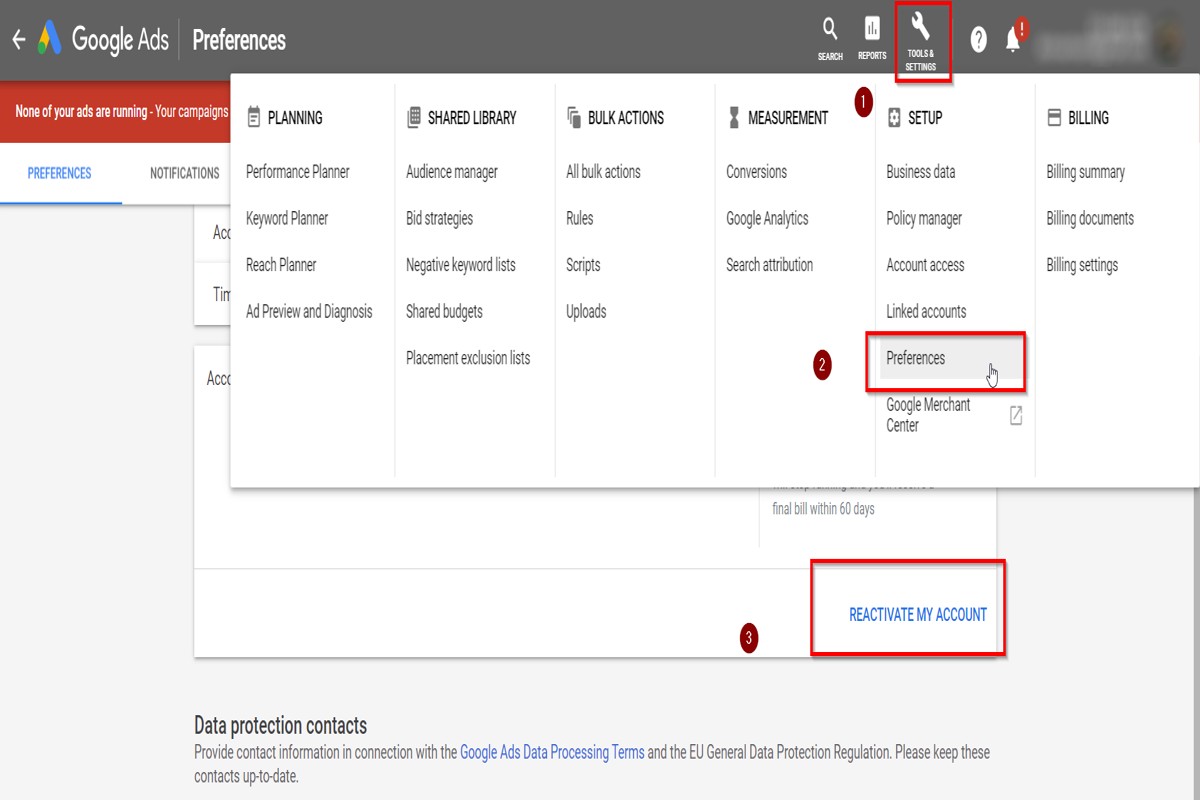
To cancel your Google Ads account, sign in to your account, navigate to ‘Settings’, select ‘Account Settings’, and click ‘Cancel Account’. Follow the prompts to complete the cancellation.
Understanding how to cancel a Google Ads account is crucial for businesses and marketers who may need to pause their advertising efforts or reallocate budgets. Incorrectly managing this process could lead to unwanted charges or complications in account management.
This guide provides a step-by-step process for canceling your Google Ads account, highlights common pitfalls to avoid, and offers insights into the implications of account cancellation, ensuring a smooth transition.
What happens when I cancel my Google Ads account?
Cancelling a Google Ads account immediately stops all active ads and prevents any new ads from being created. Additionally, any outstanding balance will need to be settled before the account can be fully closed. Once cancelled, the account will no longer accrue charges, but access to account data may be limited.
When a Google Ads account is cancelled, all existing campaigns, ad groups, and ads will cease to run. This means that any ongoing advertising efforts will be halted, which can impact visibility and traffic to your website. Furthermore, after cancellation, the account enters a grace period where you can still reactivate it if needed, but you will lose access to certain reporting features and data after a specified time.
Billing consequences also arise from the cancellation. If there are any remaining charges, they will be processed based on the billing cycle. Google typically requires payment for any clicks accrued until the cancellation is confirmed. Once the account is officially closed, advertisers can no longer view their performance metrics or historical data, which can hinder future marketing decisions.
Practical Implications
- Immediate Stop of Service: All ads are paused and will not be displayed.
- Final Billing: Any remaining balance must be paid, including charges for clicks before cancellation.
- Data Access: Access to account performance data diminishes over time after cancellation.
When cancelling your account, consider downloading any important reports or data for future reference. This ensures that you have the necessary insights for future advertising strategies, whether with Google Ads or other platforms. Always review the implications of cancellation carefully to avoid unnecessary disruptions to your marketing efforts.
Can I reactivate my Google Ads account after cancellation?
Yes, a canceled Google Ads account can be reactivated. However, there are specific conditions and time frames that must be considered during the reactivation process.
To reactivate your canceled account, you must log in to your Google Ads account within 30 days of cancellation. After logging in, follow the on-screen prompts to restore your account. If more than 30 days have passed, you will need to create a new account since Google permanently deletes accounts that remain inactive beyond this period.
It’s essential to understand that reactivating your account may not restore previous campaign data or settings. Depending on the duration of the cancellation, some features or settings might have changed, and you may need to reconfigure your campaigns. Additionally, ensure that any outstanding payments are settled before reactivation, as a suspended account may prevent you from accessing certain functionalities.
Expert Tip: Regularly monitor your account activity and consider pausing campaigns instead of cancellation if you anticipate needing them in the future. This approach keeps your data intact and allows for quicker resumption of advertising efforts.
How long does it take to cancel a Google Ads account?
Canceling a Google Ads account can take anywhere from a few minutes to several days, depending on various factors. Once a user initiates the cancellation process, the account is typically stopped immediately, but final billing and data retention can extend the timeline.
The immediate effect of cancellation is that the ads will cease to run, and no further charges will accrue. However, if the account is part of an ongoing billing cycle, charges for that cycle may still apply. Google bills in cycles, which means that users may see charges for services rendered up until the cancellation date, even if the account is canceled before the cycle ends. This could result in a final bill being issued after the cancellation.
In terms of data access, once the account is canceled, users will retain access to their data for a limited period, typically 60 days. After this period, data may be deleted permanently. Users looking to retain important information should download their data before initiating cancellation. Additionally, if there are any outstanding payments or issues, these must be resolved before the account can be fully canceled.
Expert Tip: Regularly monitor your Google Ads billing settings and account status to ensure that any cancellations are processed smoothly. This proactive approach can prevent unexpected charges and data loss.
What are the best practices for canceling a Google Ads account?
To cancel a Google Ads account effectively, follow established best practices to minimize disruptions and ensure a smooth process. These practices help in handling existing campaigns, managing billing, and preserving data for future reference.
First, inform your team and stakeholders about the cancellation. Transparency ensures that everyone is aligned, particularly if the account is tied to ongoing marketing efforts. Provide them with a timeline for when the cancellation will occur and any implications it may have on current projects.
- Pause campaigns before cancellation: Before officially canceling, consider pausing all active campaigns. This allows for a review of performance metrics and avoids unnecessary charges while you finalize your decision.
- Download campaign data: Before canceling, export all relevant data, including performance reports and analytics. This information can be valuable for future marketing strategies or if you decide to reactivate the account later.
- Clear any outstanding balances: Ensure that all payments are settled. Google Ads may not allow account cancellation if there are unpaid charges, potentially leading to complications or delays.
- Review account settings: Before cancellation, double-check the account settings and configurations. This helps ensure that all necessary adjustments are made and that no important information is overlooked.
After cancellation, monitor your email for any communications from Google. This can include confirmation of the cancellation and notifications regarding any pending charges or final reports.
Expert Tip: Consider documenting your cancellation process and the reasons behind it. This practice not only aids in understanding the decision but also serves as a reference for future marketing strategies, helping to avoid similar circumstances.
Is there a cost associated with canceling a Google Ads account?
No, there are no fees associated with canceling a Google Ads account. Users can close their accounts without incurring any charges. However, any outstanding balance for advertising costs must be settled prior to account cancellation.
When canceling a Google Ads account, users should consider several factors that may influence the overall financial implications:
- Outstanding Balances: Any remaining charges for ads that have already been run will need to be paid. This includes costs accrued up to the cancellation date.
- Billing Cycle: Google Ads operates on a billing cycle, so if a user cancels just before the billing date, they may receive a final invoice that includes charges for the current cycle.
- Pending Credits: If there are any unused promotional credits or refunds, these will not be paid out upon cancellation. Users lose the right to these credits once the account is closed.
Additionally, if a user decides to reactivate their account in the future, they will not incur any costs related to the cancellation itself. However, they may incur new advertising costs once they resume campaigns. Users should carefully review their account settings and billing information before proceeding with cancellation to avoid any surprises.
Expert Tip: Before canceling, consider pausing campaigns instead. This allows for a review of performance and a potential return to advertising without the need to set up a new account later.
How do I cancel a Google Ads account for my business?
To cancel a Google Ads account for your business, follow a straightforward process through your account settings. Ensure that you have administrative access, as only authorized users can initiate the cancellation. The cancellation will stop all advertising campaigns and prevent further charges.
Begin by signing in to your Google Ads account. Navigate to the “Tools & Settings” menu, which is usually represented by a wrench icon. From there, select “Billing” and then “Settings.” In this section, you will find the option to cancel your account. It is necessary to confirm the cancellation by following the prompts provided, which may include a survey about your reasons for leaving.
- Log into your Google Ads account using your credentials.
- Click on the “Tools & Settings” icon at the top right corner.
- Select “Billing” from the drop-down menu.
- Choose “Settings” from the billing options.
- Scroll down to find the “Cancel Account” option and click on it.
- Follow the on-screen instructions to confirm the cancellation.
Once the account is canceled, any remaining balance will be billed based on your payment settings. If you have active promotions or credits, they will be forfeited. It is advisable to download any reports or data you may need before cancellation, as access will be lost once the account is closed.
When canceling a Google Ads account, consider whether you may want to revisit advertising in the future. Instead of canceling outright, pausing campaigns can be a temporary solution while assessing business needs.
Expert Tip: Always review your account settings for any outstanding invoices or charges before cancellation to avoid unexpected billing after the account is closed.
What alternatives are there to canceling a Google Ads account?
Instead of canceling a Google Ads account, advertisers can consider options such as pausing campaigns, reducing budgets, or adjusting targeting settings. These alternatives allow for temporary changes without the need for permanent account closure. Each option has distinct implications for ongoing marketing efforts.
One primary alternative is to pause campaigns. This option stops ads from running while keeping the campaign data intact. Pausing is ideal for brands that anticipate wanting to reactivate their campaigns later, such as during seasonal changes or budget reevaluation. Campaigns can be reactivated at any time without losing historical performance data.
Another alternative involves reducing budgets. Lowering daily or monthly spending limits can help manage costs without stopping campaigns entirely. This strategy allows advertisers to maintain some level of visibility and engagement while controlling expenses. It’s particularly useful for businesses that want to stay in the market but need to cut back temporarily.
Lastly, adjusting targeting settings can refine who sees the ads. This may include modifying geographic locations, demographics, or keywords. By narrowing the audience, businesses can optimize their ad spend and potentially improve performance without the need for cancellation. Each of these alternatives provides flexibility depending on the advertiser’s current situation.
- Pause Campaigns: Stops ads but retains data for future use.
- Reduce Budgets: Lowers spending while keeping campaigns active.
- Adjust Targeting Settings: Refines audience to optimize ad spend.
Expert Tip: Before implementing any alternative, assess the performance of current campaigns. Data-driven decisions can help determine the most effective strategy for maintaining or adjusting advertising efforts.
Understanding the Implications of Canceling Your Google Ads Account
This section explores the various consequences of canceling a Google Ads account, detailing how it impacts current campaigns, billing, data access, and future advertising potential.
Impact on Existing Campaigns and Ad Visibility
Canceling your Google Ads account leads to an immediate halt in all active campaigns. Advertisements will stop appearing across Google’s advertising network, which can significantly affect your business’s visibility. This cessation can result in loss of potential customers who may have interacted with your ads. Additionally, any ongoing promotions will be discontinued, and you will not be able to reactivate them after cancellation.
Billing Cycle and Final Charges
Upon cancellation, you will continue to incur charges until the end of your current billing cycle. Google Ads operates on a post-pay model, meaning you pay for the clicks or impressions accrued during the billing period. After cancellation, you will receive a final invoice reflecting any outstanding charges. Ensure that your payment method is up-to-date to avoid disruptions in service or unexpected fees.
Data Retention and Access Post-Cancellation
Data associated with your Google Ads account is retained for a limited period even after cancellation. This data includes performance metrics, historical campaign information, and billing records. However, access to this data may be restricted. Typically, advertisers can access their data for up to 18 months post-cancellation, allowing for analysis of past campaigns and performance trends. After this period, data may be permanently deleted, which emphasizes the importance of downloading key reports before cancellation.
Long-Term Implications for Future Advertising
Canceling a Google Ads account affects future advertising opportunities. Once canceled, you lose all accumulated account history, which can be beneficial for targeting and optimization in future campaigns. Additionally, if you decide to open a new account later, you may not have the same access to features or promotional offers available to established accounts. Understanding these long-term implications is crucial for businesses considering a break from Google Ads.
Nuance / Expert Layer
Many advertisers mistakenly believe that canceling their account will automatically delete all associated data. In reality, while data access is limited post-cancellation, it is not immediately erased. Moreover, there can be complications if you attempt to open a new account after cancellation. Google may flag the new account due to the association with the canceled one, leading to potential restrictions or additional verification processes. Awareness of these nuances is critical for strategic planning.
Practical Application
Before proceeding with the cancellation of your Google Ads account, take the following steps:
- Review all active campaigns and note their performance metrics.
- Download essential data reports and billing information for future reference.
- Ensure your payment details are current to receive a final invoice without issues.
- Consider whether to pause campaigns instead of canceling, to retain access to historical data.
By taking these actions, you can effectively manage the implications of canceling your Google Ads account while safeguarding valuable information for potential future advertising efforts.
Step-by-Step Guide to Canceling Your Google Ads Account
This section provides a comprehensive walkthrough of the cancellation process for your Google Ads account, highlighting critical steps and common pitfalls to ensure a smooth experience.
Accessing Your Google Ads Account
Begin the cancellation process by signing into your Google Ads account. Ensure you’re using the correct account associated with the ads you wish to cancel. The account overview page will display your ongoing campaigns, performance metrics, and settings.
Navigating to Account Settings
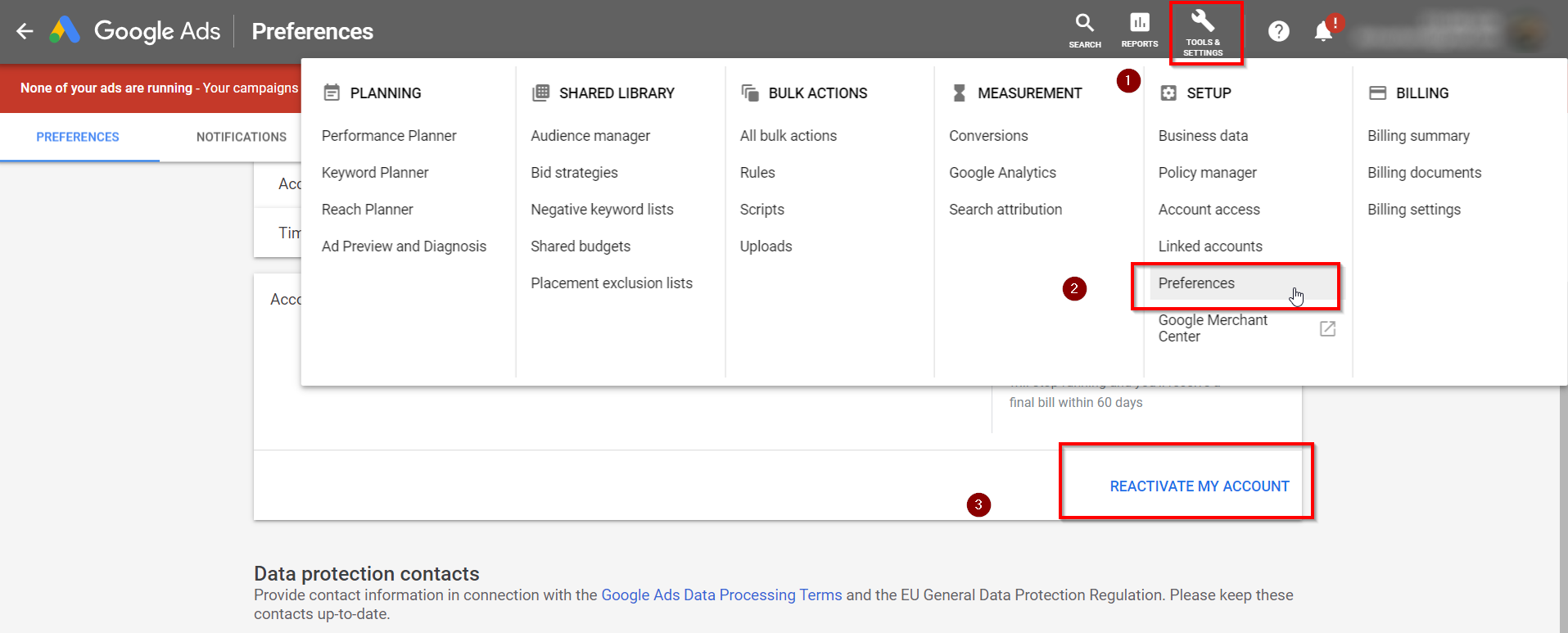
- Click on the tools icon in the upper right corner of the page.
- Under the “Setup” section, select “Preferences.” This section contains various account settings, including cancellation options.
Initiating Account Cancellation
Locate the “Account Status” section within the preferences. Here, you will find the option to cancel your account. Click on “Cancel Account” to proceed.
Common Mistakes to Avoid
- Failing to pause campaigns before cancellation, which may lead to unexpected charges.
- Overlooking outstanding balances. Ensure all payments are settled to avoid issues during the cancellation process.
- Not reviewing account data. Understand the implications of cancellation, including loss of historical data and access to performance reports.
Important Settings to Check
Before finalizing the cancellation, review the following settings:
- Billing Information: Ensure all invoices are paid to avoid complications.
- Campaign Settings: Double-check if any campaigns are still active.
- User Access: Consider removing additional users who may need access post-cancellation.
Confirmation and Follow-Up Actions
After confirming your cancellation, a notification will appear, confirming the account closure. Google Ads typically retains account data for a period, allowing for potential reactivation if needed. Save any necessary reports or data before the account is permanently deleted.
Nuance / Expert Layer
Many users mistakenly believe that canceling their Google Ads account will immediately stop all associated charges. However, cancellation does not retroactively affect charges accrued before the cancellation date. Additionally, it’s essential to understand that if you plan to re-enter the advertising space, having the account closed may complicate reactivation, as account histories and settings may not be recoverable.
Practical Application
To ensure a successful cancellation of your Google Ads account, follow these steps: sign in, navigate to account settings, initiate cancellation, check all relevant settings, and confirm the process. Avoid common pitfalls by settling any outstanding balances and ensuring no active campaigns remain. By adhering to this structured approach, you can effectively manage your account closure without unnecessary complications.
Alternatives to Canceling: Pausing vs. Canceling Your Google Ads Account
This section explores the strategic options of pausing campaigns versus canceling a Google Ads account, emphasizing the potential benefits of pausing for advertisers facing temporary setbacks.
When to Consider Pausing Instead of Canceling
Pausing campaigns can be a viable alternative to canceling an account, particularly when advertisers anticipate a return to active advertising in the near future. Situations that may warrant pausing include:
- Seasonal fluctuations in demand
- Budgetary constraints or financial re-evaluations
- Shifts in marketing strategy requiring time for adjustments
By pausing campaigns, advertisers retain their settings, historical performance data, and accumulated learnings, facilitating a smoother re-entry into the advertising ecosystem when conditions improve.
How to Effectively Pause Campaigns
Pausing campaigns in Google Ads is straightforward. Follow these steps:
- Log into your Google Ads account.
- Navigate to the “Campaigns” tab.
- Select the campaign(s) you wish to pause.
- Click on the “Edit” drop-down menu and select “Pause.”
This action halts all ad serving while retaining the campaign’s structure and performance metrics, allowing for quick reactivation when desired.
Impact on Ad Performance and Learning
Pausing a campaign has implications for ad performance and the learning phase. During a pause, Google Ads does not collect data or optimize performance. However, once reactivated, the campaign resumes from where it left off, with prior learnings still intact. Advertisers should be aware that a prolonged pause may lead to fluctuations in performance metrics due to changes in the competitive landscape and audience behavior.
Re-engagement Strategies for Paused Accounts
To maximize the effectiveness of a paused campaign upon reactivation, consider implementing the following strategies:
- Review and adjust targeting settings based on the latest market insights.
- Test new ad creatives or messaging to re-engage the audience.
- Utilize remarketing strategies to reconnect with previous visitors.
These strategies can help re-establish momentum and improve overall campaign performance post-pause.
Nuance / Expert Layer
Common misconceptions about pausing campaigns include the belief that performance will stagnate indefinitely. In reality, while pausing halts new data collection, it preserves the campaign’s historical context. Moreover, advertisers often overlook that reactivation can lead to a learning phase restart, impacting initial performance. Understanding the dynamics of campaign performance during inactivity is crucial for planning effective re-engagement strategies.
Practical Application
Evaluate your current advertising objectives and assess whether a pause is more beneficial than canceling. If pausing is the chosen option, implement the outlined steps and strategies to ensure a seamless transition back into active advertising. Regularly review your campaigns and be prepared to adjust based on market changes to maximize performance upon reactivation.
Reactivating a Canceled Google Ads Account: What You Need to Know
This section provides a clear framework for reactivating a canceled Google Ads account, outlining essential steps, conditions for reactivation, potential issues, and best practices for a successful return to advertising.
Steps to Reactivate Your Account
- Sign in to your Google Ads account using the same credentials used prior to cancellation.
- Navigate to the “Account settings” section.
- Locate the “Account status” option, where you will find an option to reactivate your account.
- Follow the prompts to confirm reactivation, including reviewing and accepting any updated terms and conditions.
- Review your billing information to ensure it is up to date.
Conditions for Reactivation
Reactivation of a canceled Google Ads account is contingent upon several factors. These include:
- The account must have been canceled within the last 90 days, as Google typically allows reactivation within this timeframe.
- All outstanding balances must be settled; any unpaid fees can prevent reactivation.
- Compliance with Google Ads policies is required. Accounts that were suspended for policy violations may face additional scrutiny.
Potential Issues During Reactivation
While reactivating your account, several issues may arise:
- Your account may be flagged for suspicious activity if it was previously suspended.
- Technical errors can prevent successful access or reactivation. Ensure that your browser is updated and clear the cache if problems occur.
- Billing issues may arise if payment methods were previously invalid or expired.
Best Practices for Re-engaging with Google Ads
Once reactivated, consider these best practices to ensure a smooth transition:
- Conduct a thorough review of past campaigns to identify successful strategies and areas for improvement.
- Update your ad copy and targeting settings to reflect any changes in your business or market conditions.
- Set a modest budget initially to gauge performance before scaling up.
- Utilize Google Ads support resources, including help articles and customer service, to assist with the re-engagement process.
Reactivating a canceled Google Ads account requires careful attention to detail and adherence to Google’s policies. Ensure all steps are followed meticulously to facilitate a smooth reactivation process. Once reactivated, focus on refining your advertising strategy to optimize performance and avoid previous pitfalls. For a successful return, regularly monitor campaign metrics and adjust your tactics as needed.
Frequently Asked Questions
What happens when I cancel my Google Ads account?
When you cancel your Google Ads account, your ads will stop running immediately, and you will no longer incur charges. However, you will retain access to your account for 30 days to review past performance and download reports.
Can I reactivate my Google Ads account after cancellation?
Yes, you can reactivate your Google Ads account within 30 days of cancellation. After this period, reactivation is not possible, and you will need to create a new account.
How long does it take to cancel a Google Ads account?
Canceling a Google Ads account is immediate upon request. However, it may take up to 24 hours for all ads to stop running completely.
What are the best practices for canceling a Google Ads account?
Before canceling, ensure all active campaigns are paused and download any important data or reports. Additionally, consider reviewing your account performance to understand the reasons for cancellation.
Is there a cost associated with canceling a Google Ads account?
There are no fees for canceling a Google Ads account. You will only be charged for any outstanding balance for ads that ran prior to cancellation.
How do I cancel a Google Ads account for my business?
To cancel a Google Ads account, sign in, navigate to the “Tools and Settings” menu, and select “Billing.” From there, choose “Account Settings” and follow the prompts to cancel your account.
What alternatives are there to canceling a Google Ads account?
Instead of canceling, consider pausing campaigns or adjusting your budget to reduce spending. This allows you to maintain account access while reassessing your advertising strategy.
Final Thoughts on how to cancel google ads account
Canceling your Google Ads account is a significant decision that requires careful consideration of its implications, including the potential loss of valuable data and advertising momentum. A strategic approach, whether opting for cancellation or simply pausing your campaigns, can minimize disruption and ensure a smoother transition.
To proceed effectively, assess your advertising objectives and determine whether pausing your campaigns aligns better with your long-term goals, or if cancellation is the necessary step. Implement this analysis to guide your next move.
Understanding the ramifications of your choices in digital advertising is crucial for sustainable business growth.
Leave a Reply