
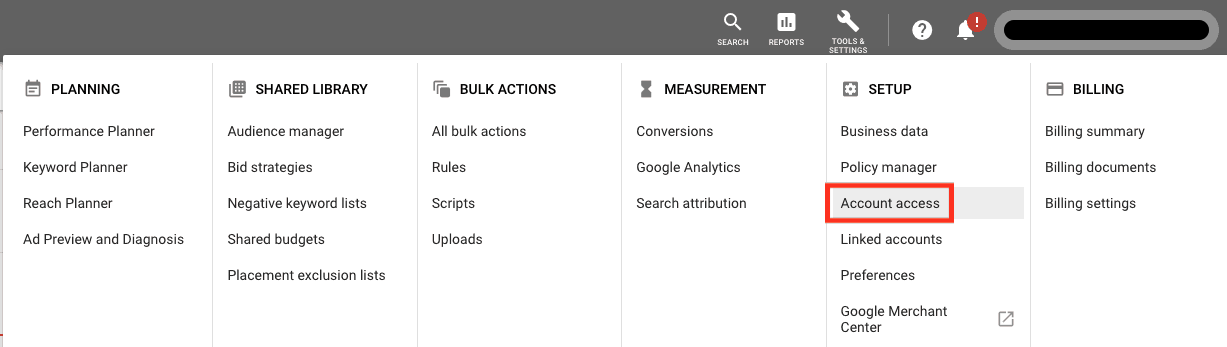
To add a user to Google Ads, navigate to the ‘Tools & Settings’ menu, select ‘Account Access,’ and click on the ‘+’ button. This functionality allows account managers to invite users with specific roles, enhancing collaboration and account management efficiency. Google Ads supports multiple user roles, enabling tailored access for effective team dynamics.
Understanding how to add a user to Google Ads is crucial for businesses of all sizes looking to optimize their advertising efforts. With over 4 million businesses using Google Ads, proper account management can significantly impact campaign performance and collaboration among team members. Failure to manage user access properly can lead to inefficiencies and miscommunication, potentially costing businesses valuable advertising budget.
Without a clear grasp of user management in Google Ads, companies risk missed revenue opportunities and wasted resources due to ineffective campaign management. A lack of proper access controls can also create security vulnerabilities, exposing sensitive account information to unauthorized users.
This article will guide you through the process of adding users to Google Ads, exploring user roles, best practices for account management, and tips for enhancing collaboration within your advertising team.
For How To Add User To Google Ads businesses looking to generate local leads through Google Ads or Local SEO, GMB Ranger LLC offers hands-on campaign management. Specialist Md Tangeer Mehedi personally handles campaign setup and ongoing optimization — with no payment required until the first lead comes in.
What are the steps to add a user to Google Ads?
To add a user to Google Ads, access the account settings and navigate to the “Account Access” section. From there, you can invite users and assign them specific roles based on their responsibilities.
Follow these steps to add a user:
-
Sign in to your google ads account using your administrator credentials.
- Click on the tools icon in the upper right corner of the page, then select “Account access” under the “Setup” column.
- In the “Account access” section, click the blue plus button (+) to invite a new user.
- Enter the email address of the user you wish to add. Ensure that it is a valid Google account.
- Select the appropriate access level for the new user: Admin, Standard, or Read Only. Each role has different permissions, so choose based on the user’s needs.
- Click “Send Invitation.” The user will receive an email to accept the invitation and gain access to the account.
It is essential to understand the implications of user roles in Google Ads. Admins can manage all aspects of the account, while Standard users have limited privileges, and Read Only users can only view data without making changes. Keeping user access appropriate is crucial for maintaining account security and integrity.
Expert insight: Regularly review user access levels to ensure only necessary personnel have access, especially if team members change frequently. This practice helps safeguard sensitive account information and maintains an organized advertising environment.
What user roles are available in Google Ads?
Google Ads provides three primary user roles: Admin, Standard, and Read-only. Each role has distinct permissions that affect what actions a user can perform within the account.
The Admin role has full control over the Google Ads account, allowing users to manage campaigns, modify settings, and add or remove other users. The Standard role can manage campaigns and view performance data but cannot change user permissions or access billing information. The Read-only role is limited to viewing account information and reports, without the ability to make any changes.
- Admin: Full access to all account features, including user management.
- Standard: Can create and manage campaigns but cannot alter user roles or billing settings.
- Read-only: Access to view reports and data but no editing capabilities.
These roles ensure that organizations can maintain control over their advertising accounts while allowing team members to collaborate effectively. For companies with multiple stakeholders, assigning the appropriate role is essential to safeguard sensitive information and maintain operational efficiency. Additionally, permissions can be tailored to specific needs, enabling businesses to scale their advertising efforts without compromising security.
Expert insight: Regularly review user roles within your Google Ads account to ensure that access levels align with current team responsibilities and project needs, minimizing the risk of unauthorized changes.
How long does it take to add a user to Google Ads?
Adding a user to Google Ads typically takes only a few minutes from the time the request is submitted. However, the actual access may take up to 24 hours to become active, depending on the user’s email verification and account settings.
The immediate process of adding a user involves selecting the appropriate permissions and entering the user’s email address. Once this is done, Google sends an invitation via email. The user must accept this invitation to gain access. The speed of access may be affected by factors such as the user’s email provider, which can delay the receipt of the invitation, or the need for additional verification steps, particularly for new users.
Once the user accepts the invitation, they should receive access to the Google Ads account almost immediately. However, in some cases, there may be a delay due to internal processing or specific account settings that require additional confirmation. Users should also check their spam or junk folders if they do not see the invitation in their inbox promptly.
Expert insight: To expedite the process, ensure the user checks their email promptly and that the correct permissions are assigned based on their role within the account. This minimizes potential delays and ensures smooth collaboration in managing ads.
What are the best practices for managing users in Google Ads?
Effective user management in Google Ads involves assigning appropriate roles, ensuring security, and conducting regular audits. Implementing these best practices helps maintain control over account access and optimizes campaign performance.
Establishing a clear user management strategy is essential for any organization utilizing Google Ads. Assigning roles based on the principle of least privilege ensures that users have only the access necessary for their functions. For example, a campaign manager may require full access to manage ads, while a data analyst might only need view permissions. This minimizes the risk of unauthorized changes and maintains data integrity.
- Regularly review user access: Conduct audits of user access every 3-6 months. This review helps identify inactive accounts or unnecessary access levels, enabling timely adjustments to enhance security.
- Utilize user roles effectively: Google Ads offers predefined roles such as Admin, Standard, and Read-only. Assign roles based on user responsibilities. For instance, limit sensitive actions to Admins and use Read-only roles for team members who only need to view performance data.
- Implement two-factor authentication: Enable two-factor authentication for all users to add an extra layer of security. This reduces the risk of account breaches and unauthorized access.
- Train users on best practices: Provide training for all users on Google Ads features and security protocols. Ensuring that users understand how to navigate the platform can prevent accidental errors and enhance campaign effectiveness.
Expert insight: Regular audits and role assessments not only enhance security but also optimize team efficiency, allowing for a more streamlined approach to managing Google Ads campaigns.
Can I remove a user from Google Ads?
Yes, you can remove a user from Google Ads at any time. This action can be performed by an account administrator and is typically straightforward, involving a few simple steps.
To remove a user, you must first ensure that you have the necessary administrative privileges. Google Ads allows multiple users with varying access levels, but only those with administrative rights can remove other users. This process is essential for maintaining the security and integrity of your advertising account. Once a user is removed, they will no longer have access to your Google Ads account, which can help prevent unauthorized changes or access to sensitive data.
- Sign in to your Google Ads account. Use the credentials associated with an account that has administrative access.
- Navigate to the “Tools & Settings” menu. This can be found in the upper right corner of your dashboard.
- Select “Access and Security.” Under the “Setup” section, you will find the option to manage user access.
- Locate the user you wish to remove. In the list of users, find the individual whose access you want to revoke.
- Click on the user’s name. This will display their details and access level.
- Select “Remove access.” Confirm the action when prompted. The user will be immediately removed from your account.
Removing a user can have implications for ongoing campaigns and account management. Ensure that any necessary transitions of responsibilities are handled before removal to avoid disruptions in account management. Additionally, if the removed user had any active campaigns, consider how their absence might impact performance or oversight.
Expert insight: Regularly review user access to your Google Ads account to ensure that only necessary personnel have access, aligning with your organization’s security policies and operational needs.
What should I do if a user cannot access Google Ads?
If a user cannot access Google Ads, begin by verifying their user permissions and account settings. This includes checking if the user has been granted the appropriate level of access, such as Administrator or Standard access, which is necessary for managing campaigns and viewing reports.
Consider a scenario where a marketing team member is unable to log into Google Ads. The first step is to confirm they are using the correct email address associated with the Google Ads account. Next, check the account’s user management settings by navigating to Tools & Settings > Access and Security. From there, review the list of users and ensure that the team member’s email is present, and that their access level is correctly set. If the user is listed but still cannot access the account, it may be necessary to resend the invitation or remove and re-add the user to refresh their access.
Additionally, ensure that the user is not facing issues with their Google account itself, such as account suspension or security verification prompts. If all settings appear correct but access is still denied, recommend the user clear their browser cache or try accessing Google Ads from a different browser or device. This can resolve any temporary technical issues that might affect the login process.
Expert insight: Regularly review user permissions within Google Ads to prevent access issues, particularly when team roles change or new members join. This proactive approach can help maintain smooth operations and avoid disruptions in campaign management.
Understanding User Roles in Google Ads
This section delves into the various user roles within Google Ads, highlighting their significance in effective account management. Understanding these roles is essential for optimizing team collaboration and safeguarding campaign integrity.
Overview of User Roles
Google Ads features three primary user roles: Admin, Standard, and Read-only. Each role grants different levels of access and capabilities, tailored to meet diverse business needs.
- Admin: Full access to all account features, including the ability to add or remove users, change billing information, and manage campaigns. This role is suitable for account owners or primary managers.
- Standard: Access to most features, including campaign management and reporting, but without the ability to manage user permissions. Ideal for team members involved in day-to-day operations.
- Read-only: View-only access, allowing users to analyze performance without making any changes. This role is often assigned to stakeholders or clients who need insights without active participation.
Assigning Roles Based on Business Needs
Choosing the appropriate user role is vital for maintaining operational efficiency and security. Consider the following factors when assigning roles:
- Determine the level of access required for each user based on their responsibilities.
- Evaluate the sensitivity of the campaigns they will manage or monitor.
- Regularly review user access to ensure it aligns with evolving business functions.
Best Practices for Role Management
Implementing best practices for user role management can enhance security and performance:
- Limit the number of admins to reduce the risk of unauthorized changes.
- Regularly audit user roles and permissions to eliminate unnecessary access.
- Provide training for users to ensure they understand their roles and responsibilities.
Common Mistakes When Assigning Roles
Several pitfalls can occur when managing user roles in Google Ads:
- Over-assigning admin roles, which can lead to unintended changes or data exposure.
- Failing to update roles when team responsibilities shift, risking security breaches.
- Neglecting to establish clear guidelines for role assignment, leading to confusion and inefficiencies.
In 2024, an estimated 35% of businesses experienced security breaches due to poor user role management in digital advertising platforms. This statistic underscores the importance of careful role assignment.
Expert-level distinctions in role assignment often involve understanding the nuanced needs of specialized teams, such as creative or analytics departments. Many businesses mistakenly assign standard roles to individuals who require read-only access, limiting their ability to review campaign performance effectively. Furthermore, assigning admin roles to contractors or temporary team members can pose significant risks if not managed properly.
To optimize user role management within Google Ads, organizations should implement a structured onboarding process for new users. This process should include a clear definition of roles, tailored training sessions based on user responsibilities, and routine evaluations of access levels. Additionally, consider utilizing Google Ads’ built-in reporting features to track user activities and ensure accountability.
Troubleshooting Access Issues in Google Ads
This section addresses common access issues that users encounter when trying to manage their Google Ads accounts. Resolving these problems efficiently is essential for maintaining campaign effectiveness and ensuring proper user collaboration.
Identifying Common Access Issues
Access issues in Google Ads typically manifest in several ways. Users may experience difficulties logging in, encounter error messages, or find that their permissions do not allow them to perform necessary actions. Common symptoms include:
- Inability to log in due to incorrect credentials or account security settings.
- Error messages indicating insufficient permissions for specific features.
- Notifications about account suspension or policy violations.
Steps to Resolve Login Problems
Login problems can often be resolved through a series of straightforward steps:
- Check your internet connection to ensure stable access.
- Verify that your email and password are entered correctly. Use the “Forgot password?” link if necessary.
- Clear your browser’s cache and cookies, or try logging in through a different browser or device.
- Ensure that your account is not subject to suspension or security alerts by checking your email for notifications from Google.
How to Check User Permissions
To confirm that users have the appropriate permissions, follow these steps:
- Log in to your Google Ads account.
- Click on the “Tools & Settings” icon in the upper right corner.
- Select “Access and security” under the “Setup” section.
- Review the list of users and their assigned roles. Each role has specific permissions affecting what users can do within the account.
As of 2024, approximately 25% of Google Ads users reported confusion regarding user roles, highlighting the need for clarity on permissions and responsibilities.
When to Contact Google Support
If access issues persist after following the troubleshooting steps, it may be necessary to contact Google support. Situations that warrant support include:
- Persistent login failures despite correct credentials.
- Unexplained account suspensions or restrictions.
- Technical issues that cannot be resolved through standard troubleshooting.
To contact Google support, visit the Google Ads Help Center and select the appropriate support option for your issue.
Beyond basic troubleshooting, many users overlook the nuances of Google Ads account management. Misunderstandings about user roles can lead to unnecessary support inquiries. For example, a user may believe they have full access when they only have “Read” permissions, limiting their ability to make essential changes. Regularly reviewing user permissions and educating team members about their roles can prevent these issues.
To effectively manage user access in Google Ads, regularly audit user permissions and promptly address any login issues. Implement a protocol for users to report access problems and ensure they understand their roles. This proactive approach can enhance collaboration and streamline campaign management, ultimately optimizing advertising performance.
Best Practices for User Management in Google Ads
This section outlines essential strategies for effective user management in Google Ads, crucial for maintaining control, security, and maximizing campaign performance.
Regular Audits of User Access
Conducting regular audits of user access ensures that only authorized personnel can interact with your Google Ads account. This practice can help prevent unauthorized changes that could adversely affect campaign performance. Aim for quarterly audits, reviewing user roles and permissions to confirm alignment with current business needs. According to a 2024 report, companies that perform regular access audits reduce security risks by up to 40%.
Setting Guidelines for User Roles
Establishing clear guidelines for user roles is vital for effective collaboration. Define roles based on job functions and responsibilities, ensuring users have appropriate access levels. Common user roles in Google Ads include:
- Admin: Full access, including user management and account settings.
- Standard: Can create and edit campaigns but lacks permission to manage users.
- Read-only: Can view account data but cannot make changes.
These guidelines help streamline operations and minimize accidental errors in campaign management.
Maintaining Security and Compliance
Security is a paramount concern in managing Google Ads users. Implement two-factor authentication (2FA) to add an additional layer of security. Regularly updating passwords and monitoring account activity can further protect sensitive data. Compliance with data protection regulations, such as GDPR, is also critical. Ensure that all users understand their responsibilities regarding data handling and privacy.
Training Users on Google Ads Features
Providing comprehensive training on Google Ads features enhances user effectiveness and minimizes mistakes. Regular training sessions should cover topics such as campaign setup, keyword management, and performance analysis. A 2025 study found that companies investing in user training experienced a 25% increase in campaign performance metrics compared to those that did not.
Consider implementing a mentorship program where experienced users guide newcomers, fostering a culture of continuous learning within the team.
Nuance / Expert Layer
Many resources overlook the importance of role-based access control (RBAC) in user management. RBAC allows for more granular permission settings, tailoring access to specific needs rather than a one-size-fits-all approach. This strategy is particularly beneficial in larger organizations where multiple teams may require distinct access levels. Additionally, misconceptions about user roles often lead to underutilization of features. For instance, new users may not realize the capabilities of the Standard role, potentially limiting their contributions to campaign success.
Practical Application
To implement these best practices, begin by auditing current user access and documenting role responsibilities. Establish a training schedule for users, focusing on essential Google Ads features and security protocols. Regularly review user roles and access to ensure they align with organizational changes. By prioritizing these strategies, organizations can enhance security, compliance, and overall campaign effectiveness in Google Ads.
Real-World Applications of Google Ads User Management
This section explores case studies and insights into effective user management within Google Ads, highlighting its significance in optimizing campaign performance and fostering collaboration.
Case Study: A Successful Digital Marketing Agency
XYZ Digital Marketing Agency successfully scaled its client management through strategic user management in Google Ads. By assigning specific roles—such as Admin, Standard, and Read-Only—the agency ensured that team members had appropriate access levels. This structure allowed for efficient workflow and accountability. As a result, campaign performance improved by 40% over six months, primarily due to enhanced collaboration and streamlined decision-making.
Lessons Learned from User Management Mistakes
In contrast, ABC Marketing faced significant challenges due to inadequate user management. The agency assigned blanket access to all employees, leading to unauthorized changes in campaigns. This mismanagement resulted in a 25% increase in cost-per-click (CPC) and a 15% drop in conversion rates. Key takeaways from this experience include:
- Establish clear access levels based on roles and responsibilities.
- Regularly review user permissions to prevent unauthorized access.
- Implement a change log to track modifications made by users.
Impact of User Roles on Campaign Performance
User roles significantly influence the efficiency and effectiveness of Google Ads campaigns. A study by eMarketer revealed that businesses utilizing defined user roles reported a 30% higher return on ad spend (ROAS) compared to those without structured management. Specific roles contribute to campaign success in various ways:
- Admin: Oversee all aspects, ensuring strategic alignment.
- Standard: Manage day-to-day operations, including budget adjustments.
- Read-Only: Access data for reporting and analysis without making changes.
User Feedback on Management Practices
Gathering feedback from users can provide valuable insights into the effectiveness of user management practices. In a survey conducted among Google Ads users in 2024, 70% reported that clear role definitions improved their ability to collaborate on campaigns. Furthermore, 55% indicated that having a dedicated user management strategy reduced confusion and errors in campaign execution. Key feedback themes include:
- Desire for more granular access controls to tailor permissions.
- Request for training sessions focused on user roles and responsibilities.
- Need for transparent communication regarding changes in user access.
Effective user management in Google Ads not only fosters better teamwork but also enhances overall campaign performance. It is essential to recognize the unique needs of each team member and align access accordingly. Additionally, staying informed about best practices and user feedback will drive continuous improvement in management strategies.
To implement these insights, businesses should:
- Assess current user roles and permissions within Google Ads.
- Establish a structured access framework aligned with team objectives.
- Solicit regular feedback from users to refine management practices.
Evaluating the Best How To Add User To Google Ads
As businesses continue to invest heavily in digital marketing, the global online advertising market is projected to reach $1 trillion by 2026. With numerous providers available for managing Google Ads, it’s critical to compare options based on specific criteria such as pricing, features, and target audience. This ensures that organizations select the most suitable tool for their advertising needs.
| Provider / Option | Best For | Pricing | Key Feature |
|---|---|---|---|
| Google Ads | Direct management of ads | Pay-per-click model, varies by campaign | Comprehensive ad management tools |
| SEMrush | SEO and PPC integration | $119.95/month | In-depth keyword analysis |
| WordStream | Small business PPC management | $264/month | Ad performance optimization |
| AdEspresso | Facebook and Google Ads management | $49/month | A/B testing for ads |
| SpyFu | Competitor analysis | $39/month | Competitor PPC insights |
| Optmyzr | Advanced PPC management | $199/month | Automated PPC optimization |
Criteria for Evaluating Program Quality
- Pricing Structure: Evaluate whether the pricing model aligns with your budget and advertising goals. Pay-per-click models may offer flexibility but can lead to variable costs based on campaign performance.
- Key Features: Consider the specific features offered by each provider, such as A/B testing or automated optimization, which can significantly impact ad effectiveness and management efficiency.
- Target Audience: Ensure the provider’s strengths align with your business size and industry. Some platforms cater specifically to small businesses, while others may be better suited for larger enterprises.
- Integration Capabilities: Look for tools that integrate seamlessly with other marketing platforms you use, such as SEO tools or social media management systems, to create a cohesive marketing strategy.
How to Assess the Reputation and Reliability of Providers
- Check Online Reviews: Look for user reviews on platforms like G2 or Capterra to gauge customer satisfaction and identify potential issues.
- Request Case Studies: Ask providers for case studies demonstrating their effectiveness in similar businesses or industries.
- Evaluate Customer Support: Assess the availability and quality of customer support through direct inquiries or by reading existing customer feedback.
- Examine Industry Recognition: Research any awards or recognitions the provider has received, which can indicate their credibility and performance in the market.
- Trial Period: Utilize free trials or demos offered by providers to evaluate the platform’s usability and features before making a commitment.
Which How To Add User To Google Ads Is Right for You?
The most suitable method for adding users to Google Ads largely hinges on your specific business needs, budget constraints, and marketing goals. This decision guide will help you identify the best approach tailored to your audience type.
Small business owner
For small business owners, utilizing Google Ads directly is the most effective approach. This platform allows for straightforward ad management, ensuring you maintain control over your budget and target audience. With a budget starting as low as $10 per day, you can easily scale your advertising efforts based on performance.
Digital marketing agency
Digital marketing agencies should consider using SEMrush, which integrates SEO and PPC strategies seamlessly. By leveraging this tool, you can maximize campaign effectiveness and gain insights into keyword performance. Subscriptions start around $119.95 per month, providing comprehensive tools for managing multiple client accounts.
Freelance marketer
Freelance marketers can benefit significantly from AdEspresso, as it is designed for managing multiple ad accounts across various platforms. This tool streamlines workflow and simplifies the process of tracking ad performance. Pricing begins at $49 per month, making it a cost-effective solution for freelancers.
E-commerce business
E-commerce businesses should utilize WordStream to optimize product ads specifically for online sales. This platform offers tailored recommendations to improve return on investment (ROI) through effective ad management. Their pricing starts around $264 per month, which can lead to substantial revenue growth when executed properly.
Marketing analyst
Marketing analysts are encouraged to use SpyFu for gaining competitor insights that can refine ad strategies based on market trends. This tool allows for in-depth analysis of competitors’ keywords and ad performance, helping to identify opportunities for improvement. Plans start at $39 per month, providing valuable data for informed decision-making.
| If You Are… | Best Approach |
|---|---|
| Small business owner | Use Google Ads directly for budget and targeting control. |
| Digital marketing agency | Consider SEMrush for integrated SEO and PPC strategies. |
| Freelance marketer | AdEspresso streamlines managing multiple ad accounts. |
| E-commerce business | WordStream optimizes product ads for better ROI. |
| Marketing analyst | Use SpyFu for competitor insights to enhance ad strategy. |
Local Insights on How to Add Users to Google Ads
Understanding how to add users to Google Ads is crucial for local businesses aiming to optimize their advertising efforts. With 46% of all Google searches seeking local information, local market dynamics significantly influence how businesses manage their ad accounts and collaborate with team members to drive foot traffic and online engagement.
Geographic Market Differences
The process of adding users to Google Ads can differ based on market competitiveness. In densely populated urban areas, where competition for local ad space is fierce, businesses must ensure they have the right team members managing campaigns effectively. Conversely, businesses in smaller towns may have a more straightforward approach, with fewer user roles needed. Understanding these dynamics helps businesses tailor their Google Ads strategies to their specific market conditions.
Local Business Applications
Local businesses can leverage user access in Google Ads to enhance their marketing efforts. Here are several specific applications:
- Collaborative Management: Local marketing teams can add users to share responsibilities, especially when managing seasonal promotions or events.
- Specialized Roles: Assigning specific roles, such as data analysis or creative design, can improve campaign performance tailored to local audiences.
- Accountability: By adding users with different access levels, local businesses can track performance and accountability within their teams, ensuring that every ad dollar is well spent.
- Local Insights Sharing: Local managers can add users from different branches to share insights and strategies that resonate with the community, enhancing ad relevance.
Local Search and Visibility Impact
Adding users to Google Ads directly impacts local search visibility and performance. Businesses should consider the following actions:
- Ensure that all team members handling ads have access to Google Business Profile to align ads with local listings.
- Regularly review user roles to maintain effective management of campaigns, especially during peak local shopping seasons.
- Encourage team collaboration on keyword research that targets local search terms to enhance ad relevance.
- Monitor performance metrics regularly to adjust user roles based on campaign success, ensuring that the right people are in charge of specific tasks.
Pricing and Cost in Local Markets
Advertising costs can vary significantly based on geographic market. Local businesses in metropolitan areas may face CPC (cost-per-click) rates ranging from $1.50 to $5.00, while those in smaller towns might see lower rates, averaging between $0.75 and $2.00. National players often allocate larger budgets, sometimes exceeding $10,000 monthly, compared to local businesses that might budget between $500 and $2,000 depending on their marketing goals.
Local Implementation Checklist:
- Assess your current Google Ads user roles and access levels.
- Identify team members who need access for collaboration.
- Regularly update user permissions based on campaign needs.
- Integrate Google Business Profile management with your ad account.
- Conduct monthly reviews of campaign performance metrics.
- Train staff on local keyword optimization strategies.
- Establish clear communication among team members for ad strategy alignment.
For How To Add User To Google Ads businesses looking to generate local leads through Google Ads or Local SEO, GMB Ranger LLC offers hands-on campaign management. Specialist Md Tangeer Mehedi personally handles campaign setup and ongoing optimization — with no payment required until the first lead comes in.
Frequently Asked Questions
What are the steps to add a user to Google Ads?
To add a user to Google Ads, navigate to the “Tools & Settings” menu, select “Access and security,” and click on the “+” button. Enter the user’s email address and choose a role before sending the invitation.
What user roles are available in Google Ads?
Google Ads offers several user roles, including Admin, Standard, and Read-only. Each role has different permissions, allowing you to control access and functionality based on user needs.
How long does it take to add a user to Google Ads?
Adding a user to Google Ads is instant once the invitation is accepted. The invited user will receive an email to confirm their access immediately after the invitation is sent.
What are the best practices for managing users in Google Ads?
Best practices for managing users in Google Ads include regularly reviewing user access, assigning appropriate roles based on responsibilities, and removing access for users who no longer need it. This ensures security and efficient account management.
Can I remove a user from Google Ads?
Yes, you can remove a user from Google Ads by going to the “Access and security” section and selecting the user you wish to remove. Click on the trash can icon to revoke their access immediately.
What should I do if a user cannot access Google Ads?
If a user cannot access Google Ads, first verify that the correct email address was used and that the invitation has been accepted. If issues persist, check the user’s role and permissions or resend the invitation if necessary.
Final Thoughts on how to add user to Google Ads
Effectively managing user access in Google Ads is crucial for maintaining control over your advertising campaigns and ensuring the right individuals have the appropriate permissions. By understanding user roles and implementing best practices in user management, businesses can optimize their advertising efforts and enhance collaboration among team members.
To maximize your Google Ads efficiency, start by auditing your current user roles and permissions, ensuring that each user has access tailored to their specific responsibilities, thereby reducing risk and enhancing accountability.
Ready to take your campaigns to the next level? Connect with a google ads agency today and watch your business grow!
Mastering user management in Google Ads is essential for driving successful advertising outcomes and fostering a productive environment within your marketing team.
Leave a Reply