
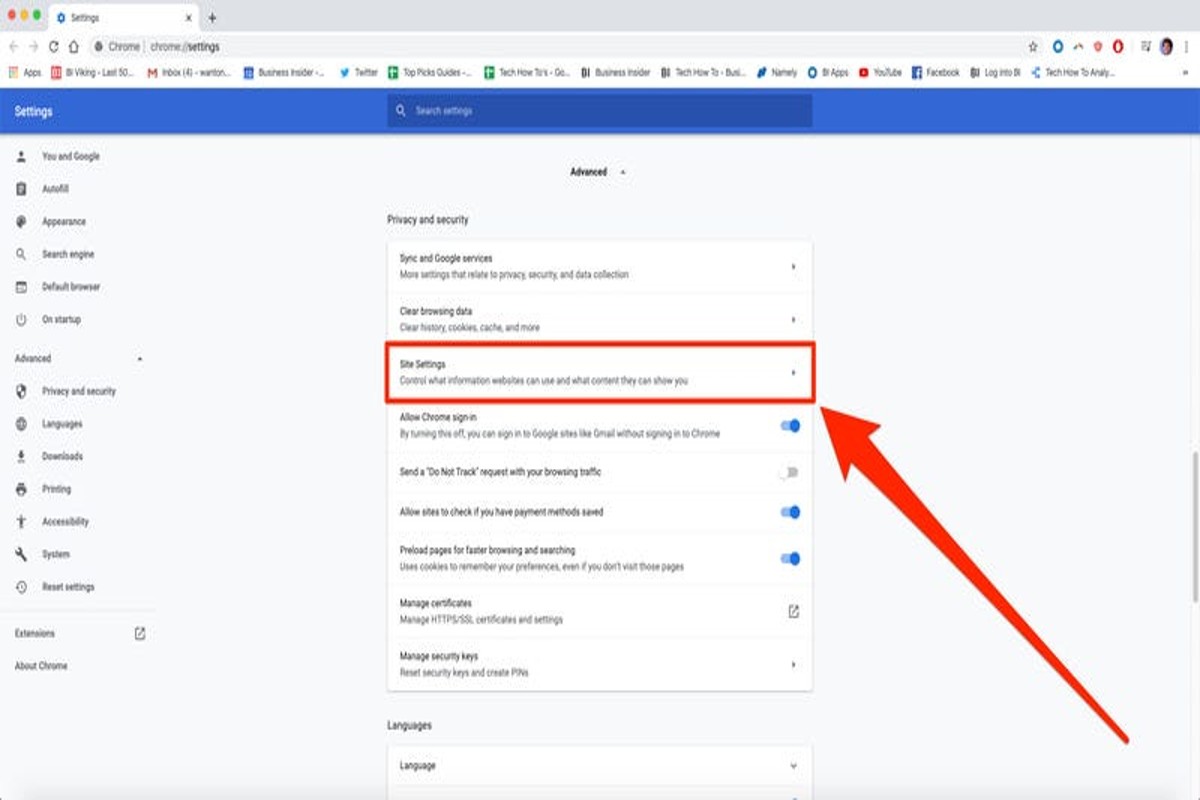
To stop pop up ads on Google, you can adjust your browser settings, use ad-blocking extensions, and enable pop-up blockers. These steps will enhance your browsing experience by reducing interruptions and improving page load times.
This topic is crucial for anyone who frequently uses the internet, as persistent pop-up ads can detract from usability and compromise online security. Understanding how to effectively manage these ads ensures a smoother, safer browsing experience.
This guide details specific methods to stop pop up ads on Google, including browser configuration, recommended ad-blocking tools, and best practices for enabling built-in pop-up blockers.
What are pop up ads and why do they appear?
Pop-up ads are unsolicited advertisements that appear in a new browser window or tab while browsing the internet. They are designed to capture the user’s attention, often promoting products, services, or subscriptions. These ads commonly appear due to website monetization strategies or user tracking practices.
Pop-up ads can be categorized into several types, including:
- Standard Pop-Ups: These open a new window or tab over the current page.
- Pop-Under Ads: These appear behind the main browser window, becoming visible when the user closes or minimizes their current window.
- Overlay Ads: These are typically semi-transparent ads that cover part of the webpage without opening a new window.
The primary purpose of pop-up ads is to generate revenue for website owners through advertising. They can also be used for lead generation, prompting users to sign up for newsletters or download content. Despite their intended benefits, they often disrupt the user experience, leading to frustration and potential abandonment of the site.
Pop-up ads frequently appear due to a combination of factors, including the website’s advertising model, user behavior tracking, and targeted marketing strategies. When users visit sites that rely on advertising for income, pop-ups become a common tool for maximizing exposure to advertisements. Additionally, ad networks often employ sophisticated algorithms to determine when and where to display these ads based on user demographics and browsing history.
To effectively manage pop-up ads, users can utilize browser settings or install ad-blocking extensions. These tools can significantly reduce unwanted ads, enhancing the overall browsing experience.
Expert Tip: Regularly reviewing browser privacy settings and permissions can help mitigate the frequency of pop-up ads, as many sites may request permission to display these ads based on user activity.
How can I block pop up ads on Google Chrome?
Blocking pop-up ads on Google Chrome is straightforward and can significantly enhance your browsing experience. By adjusting Chrome’s settings, users can prevent unwanted pop-ups. Follow these steps to effectively block pop-up ads.
- Open Google Chrome: Launch the Google Chrome browser on your device.
- Access Settings: Click on the three vertical dots in the upper right corner to open the menu, then select “Settings.”
- Privacy and Security: In the left sidebar, click on “Privacy and security.”
- Site Settings: Under the Privacy and security section, click on “Site settings.”
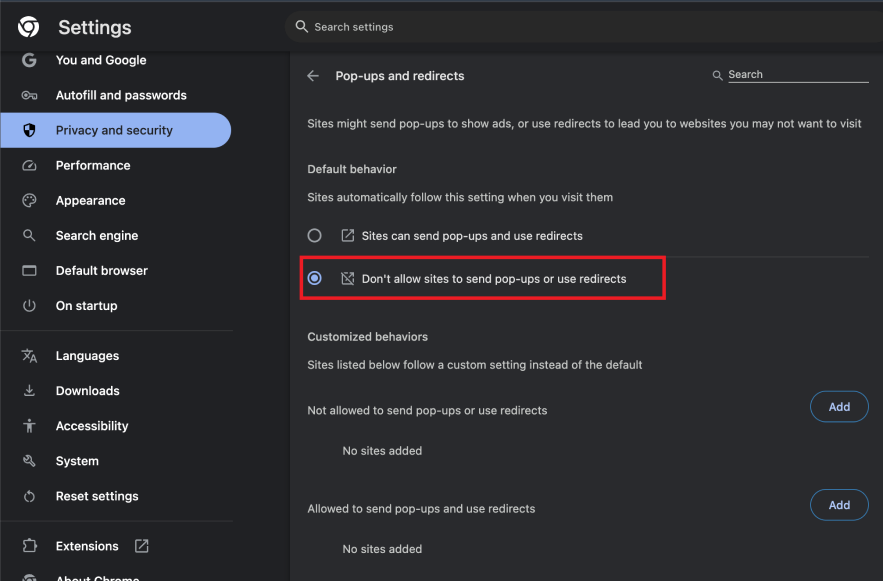
- Pop-ups and Redirects: Scroll down to find “Pop-ups and redirects” and click on it.
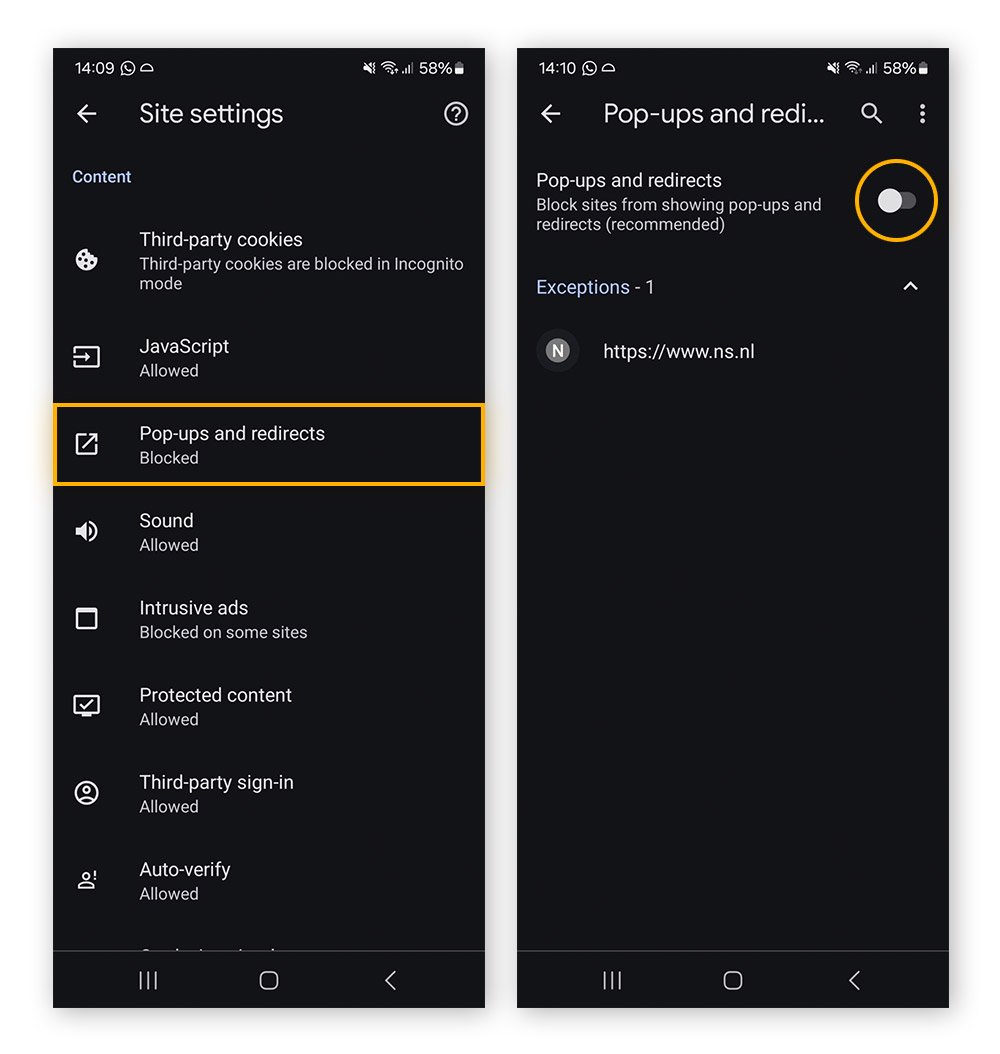
- Block Pop-ups: Ensure that the toggle switch is set to “Blocked (recommended).” This will prevent sites from showing pop-ups.
- Add Exceptions (Optional): If there are specific sites where you want to allow pop-ups, click on “Add” next to “Allowed to send pop-ups and use redirects” and enter the website URL.
- Close Settings: Once you have adjusted your settings, you can close the settings tab. Changes will be saved automatically.
These steps will help you eliminate most unwanted pop-up ads while browsing. However, some websites may still display pop-ups due to their design or specific settings. For enhanced protection, consider using a reputable ad-blocking extension from the Chrome Web Store.
Expert Tip: Regularly review and update your ad-blocking settings and extensions, as websites frequently change their advertising methods, leading to potential vulnerabilities in blocking strategies.
Are there any free tools to stop pop up ads?
Yes, several free tools and browser extensions can effectively stop pop-up ads. These tools vary in features and effectiveness, providing users with various options to enhance their browsing experience. Below are some of the most popular and effective tools available.
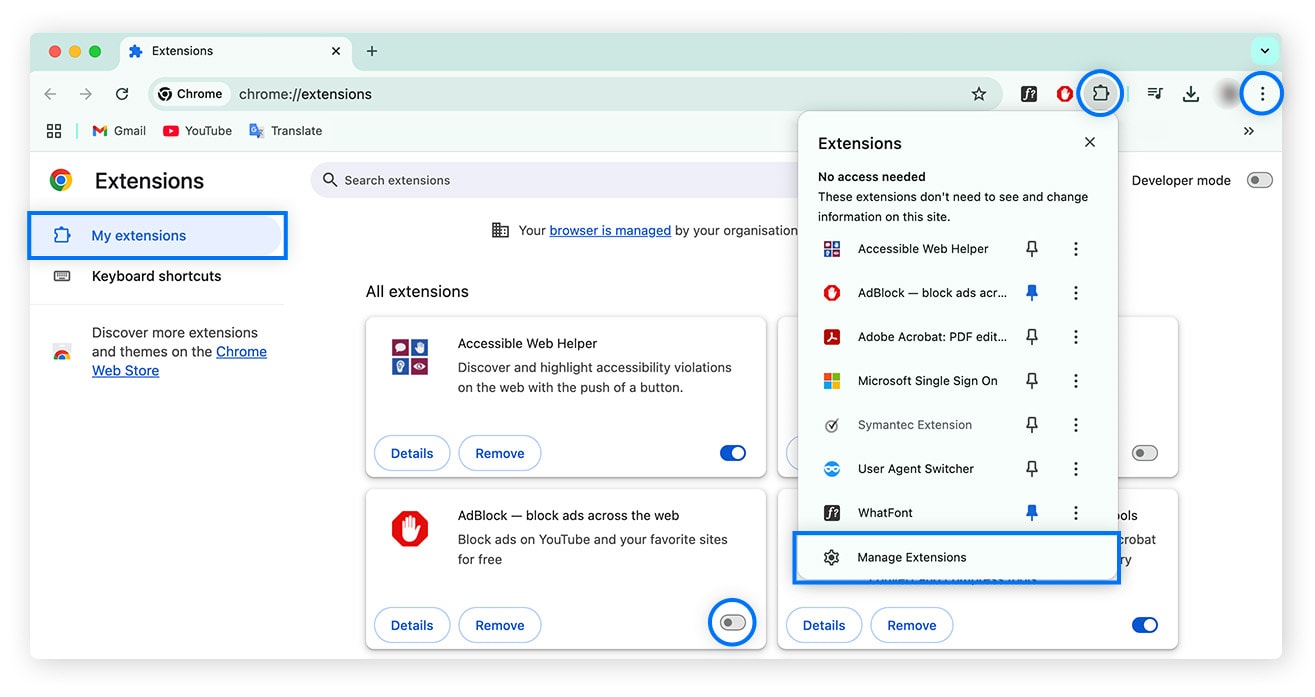
- AdBlock Plus: A widely used browser extension that blocks ads, including pop-ups. It allows users to customize filtering options and whitelist certain websites if desired.
- Poper Blocker: This extension specifically targets pop-ups and overlays. It works by automatically detecting and blocking pop-ups, which enhances the user experience without manual intervention.
- uBlock Origin: A lightweight and efficient ad-blocking tool that not only blocks pop-ups but also improves page loading times. It provides users with advanced filtering options and is highly customizable.
Each of these tools has its strengths. AdBlock Plus is user-friendly and offers extensive customization options. Poper Blocker excels at tackling specifically unwanted pop-ups and overlays, making it ideal for users who frequently encounter intrusive ads. uBlock Origin is favored for its efficiency and minimal resource usage, making it suitable for users with older hardware or those looking to maximize performance.
When selecting a tool, consider the specific types of ads you encounter and your browsing habits. Some users may prefer a tool that blocks all ads, while others might only want to eliminate pop-ups. Additionally, keep in mind that while these tools are effective, some websites may restrict content access for users with ad blockers enabled.
Expert Tip: Regularly update your chosen ad-blocking tool to ensure it effectively counters new ad formats. Also, consider combining tools, such as using a general ad blocker alongside a dedicated pop-up blocker for maximum effectiveness. This layered approach can significantly enhance your browsing experience while minimizing interruptions.
How long does it take to stop pop up ads using these methods?
Stopping pop-up ads can typically take anywhere from a few minutes to several hours, depending on the method chosen and the user’s familiarity with technology. Basic adjustments to browser settings can be completed in less than ten minutes, while more advanced methods, such as installing ad-blocking software, may require additional time for setup and configuration.
The time it takes to stop pop-up ads effectively is influenced by several factors. First, the user’s technical proficiency plays a significant role. Those comfortable with technology may find it quicker to navigate browser settings or install extensions. Conversely, users with limited experience may take longer to understand and implement these solutions.
Additionally, the type of browser being used can affect the time needed. For instance, Google Chrome and Firefox have straightforward settings for disabling pop-ups, while other browsers may require more steps. Users may also encounter variations in the effectiveness of these methods based on the specific ads and potential malware present on their devices, which can necessitate further action such as malware scans or system updates.
Practical Implications
In many cases, performing a one-time setup can lead to long-term benefits. Once pop-up blockers or ad-blocking extensions are correctly installed and configured, users should see a significant reduction in unwanted ads almost immediately. Regular maintenance, such as updating extensions and checking browser settings, may take a few minutes every few months but is crucial for ongoing effectiveness.
Expert Tip: Regularly review your browser’s privacy settings and update any ad-blocking tools to ensure optimal performance against evolving ad techniques. This proactive approach minimizes the risk of reintroducing pop-up ads in the future.
What are the best practices to avoid pop up ads?
To effectively avoid pop-up ads, users should implement several proactive strategies. These practices focus on browser settings, the use of software, and mindful browsing habits. By following these guidelines, users can significantly reduce the likelihood of encountering intrusive ads.
- Enable your browser’s built-in pop-up blocker: Most modern browsers have a default pop-up blocker. Ensure that this feature is activated in your browser settings to prevent unwanted ads from appearing.
- Install reputable ad-blocking extensions: Consider using trusted ad-blocking extensions like uBlock Origin or AdBlock Plus. These tools provide enhanced protection against various types of ads, including pop-ups.
- Regularly update your browser: Keeping your browser up to date ensures you have the latest security features and bug fixes. This helps in defending against vulnerabilities that could lead to increased pop-up ads.
- Be cautious with your browsing habits: Avoid clicking on suspicious links or visiting untrusted websites. Many pop-ups are triggered by malicious sites that exploit user interactions.
- Clear your browser’s cache and cookies: Regularly clearing cache and cookies can help eliminate stored data that may be used to generate pop-ups. This practice can also improve overall browser performance.
Implementing these best practices not only minimizes pop-up ads but also enhances online security. Users should remain vigilant about their online activity and adjust their settings as necessary. Awareness of the types of ads and their origins can further empower users to maintain a clean browsing experience.
Expert Tip: Regularly review and manage browser permissions for websites. This can prevent sites from automatically enabling pop-ups, providing an additional layer of control over your browsing environment.
Can pop up ads harm my computer?
Yes, pop-up ads can harm your computer by exposing it to malware and phishing attacks. These ads often serve as gateways for malicious software that can compromise your personal information and system integrity.
For instance, consider a scenario where a user clicks on a seemingly harmless pop-up ad while browsing a website. The ad prompts the user to download a software update, which appears legitimate. However, once downloaded, the file installs malware that grants unauthorized access to the user’s files and personal data. This type of malware can lead to identity theft, data loss, and performance issues with the computer.
Moreover, some pop-up ads are designed specifically for phishing attempts. A user may encounter a pop-up that mimics a legitimate login page for a popular service, such as a bank or email provider. If the user unknowingly enters their credentials, they risk having their account compromised. These scenarios illustrate the potential dangers associated with pop-up ads, emphasizing the need for caution when interacting with them.
Expert Tip: Utilize reputable ad blockers and keep your antivirus software updated to mitigate the risks associated with pop-up ads. Regularly review browser settings to ensure pop-ups are blocked by default, enhancing your overall online safety.
How do I disable pop up ads on mobile devices?
Disabling pop-up ads on mobile devices is a straightforward process that can significantly enhance your browsing experience. Most mobile browsers come equipped with settings to block pop-ups effectively. This guide outlines the steps for popular mobile browsers, ensuring a smoother and more secure online experience.
- Google Chrome: Open the Chrome app, tap the three dots in the upper right corner, and select “Settings.” Then, navigate to “Site settings” and tap on “Pop-ups and redirects.” Toggle the switch to “Blocked” to disable pop-ups.
- Safari (iOS): Launch the Settings app on your iPhone or iPad. Scroll down and select “Safari.” Find the “Block Pop-ups” option and toggle it to “On” to prevent pop-up ads from appearing.
- Firefox: Open the Firefox app, tap the three horizontal lines in the bottom right corner, and select “Settings.” Scroll down to “Privacy” and ensure that the “Block pop-up windows” option is enabled.
- Microsoft Edge: Open the Edge app, tap the three dots at the bottom center, and select “Settings.” Go to “Privacy and security,” then tap “Site permissions.” Here, find “Pop-ups and redirects” and turn it to “Blocked.”
- Samsung Internet: Open the Samsung Internet app, tap the three horizontal lines in the bottom right corner, and choose “Settings.” Select “Sites and download” and then “Block pop-ups” to enable this feature.
These steps will help block unwanted pop-ups across major mobile browsers, improving your overall web experience. Keep in mind that some websites may still display overlays or ads that are not classified as pop-ups, which may require additional ad-blocking solutions.
Expert Tip: Consider using a dedicated ad-blocking app in conjunction with browser settings for comprehensive ad management. This can further reduce intrusive ads and enhance your mobile browsing efficiency.
Why do some websites still show pop up ads despite blockers?
Some websites successfully display pop-up ads even when ad blockers are in use due to various techniques they employ. These techniques can exploit weaknesses in ad-blocking technology or utilize different methods of ad delivery that evade detection. As a result, users may continue to encounter unwanted pop-ups despite having protective measures in place.
Several factors contribute to the ability of certain websites to bypass ad blockers:
- Ad Delivery Methods: Websites may use different methods for delivering ads, such as in-page scripts or HTML overlays, which can be harder for ad blockers to detect. These methods often do not fit the traditional definitions of ads that blockers are designed to eliminate.
- Anti-Ad Blocker Scripts: Some sites deploy scripts specifically designed to detect whether a visitor is using an ad blocker. If detected, these scripts may either block access to content or serve pop-ups that are not recognized by ad blockers.
- Whitelist and Partnered Ads: Certain websites may partner with ad networks that are whitelisted by ad blockers. This allows them to display ads that are not filtered out, as the ad blocker recognizes these ads as safe or acceptable.
Additionally, websites often rely on aggressive monetization strategies, which may lead them to implement pop-ups that are less intrusive but still effective. This includes using pop-up ads that appear as user notifications or content prompts, which may not trigger ad blockers in the same way traditional pop-ups do.
Web developers continuously adapt their strategies to circumvent ad-blocking technologies, leading to a cat-and-mouse game between ad blockers and advertisers. As ad-blocking software evolves, so too do the methods employed by websites to maintain ad visibility.
Expert Tip: Regularly update your ad blocker and consider using browser extensions that enhance privacy, as these can offer additional layers of protection against evolving ad delivery methods.
Advanced Techniques for Blocking Pop Up Ads Effectively
Advanced methods for blocking pop-up ads can significantly enhance the browsing experience by targeting specific sources of annoyance. This section explores sophisticated techniques that extend beyond basic ad-blocking tools.
Utilizing Browser Developer Tools
Browser developer tools are powerful utilities that allow users to inspect and manipulate web elements. By accessing these tools, users can identify specific scripts responsible for pop-up ads. To block these scripts:
- Open the browser and navigate to the page with pop-up ads.
- Right-click on the page and select “Inspect” or “Inspect Element.”
- Go to the “Network” or “Elements” tab to locate ad scripts.
- Right-click on identified scripts and choose “Block Request URL” or use similar options to prevent them from loading.
Configuring DNS Settings
Changing DNS settings can proactively block known ad servers at the network level. By using a DNS service that filters out advertisements, users can reduce the frequency of pop-up ads. Popular options include:
- OpenDNS: Provides customizable filtering options.
- AdGuard DNS: Specifically designed to block ads and trackers.
- NextDNS: Offers extensive configuration for privacy and ad-blocking.
To configure DNS settings, access your network settings and replace the existing DNS addresses with those provided by your chosen service.
Exploring VPNs with Ad-Blocking Features
Using a VPN that includes ad-blocking functionality can add an additional layer of protection against pop-up ads. These services route internet traffic through their servers, filtering out unwanted content. When selecting a VPN, consider:
- Features: Ensure it includes built-in ad-blocking.
- Performance: Check for minimal impact on browsing speed.
- Privacy: Look for strong encryption and no-log policies.
The Role of Privacy-Focused Browsers
Privacy-focused browsers, such as Brave and DuckDuckGo, inherently block ads and trackers as part of their core functionality. These browsers provide a seamless experience by preventing pop-up ads from appearing in the first place. Key benefits include:
- Built-in ad blocking: No need for additional extensions.
- Enhanced privacy: Reduced tracking across websites.
- Faster browsing: Fewer ads lead to quicker page load times.
While many users opt for traditional browsers with ad-blocking extensions, privacy-focused browsers create a more secure environment by default. They often outperform standard browsers in both speed and ad-blocking efficiency.
To implement these advanced techniques effectively, users should consider the combination of browser tools, DNS configurations, VPN services, and privacy-focused browsers. Start by assessing your current setup and apply one or more of these strategies to significantly reduce pop-up ads. Regularly updating your ad-blocking methods ensures a consistently optimized browsing experience.
Common Mistakes Users Make When Trying to Block Ads
This section identifies frequent errors users encounter while attempting to block pop-up ads, emphasizing the significance of an informed approach to ad management.
:max_bytes(150000):strip_icc()/006_stop-pop-up-ads-android-4177859-ca02220a37c54d9fb714045f9a072c19.jpg)
Neglecting Updates for Ad-Blocking Extensions
Many users install ad-blocking extensions and forget to update them. Regular updates are critical because ad-blockers rely on continuously evolving databases to identify and block new ad formats. Outdated extensions may fail to block the latest ad types, rendering them ineffective.
Overlooking Browser Settings
Browser settings play a vital role in ad-blocking effectiveness. Users often overlook the default settings that can either enable or disable pop-up blocking. It is essential to check the browser’s privacy and security settings to ensure that pop-ups are disabled at the source.
Confusing Pop-Ups with Pop-Unders
Users frequently misidentify pop-ups and pop-unders. Pop-ups appear in a new window above the current content, while pop-unders open behind the existing window. Understanding this distinction can help users choose the right tools and strategies to effectively block each type.
Using Multiple Ad-Blockers
Installing multiple ad-blockers can lead to conflicts, causing them to malfunction. When two or more ad-blockers are active, they may interfere with each other’s functionality, ultimately resulting in poor ad-blocking performance. It is advisable to select one reliable ad-blocker and configure it properly.
- Regularly update your chosen ad-blocking extension.
- Check your browser settings to ensure pop-up blocking is enabled.
- Distinguish between pop-ups and pop-unders for effective blocking.
- Avoid using more than one ad-blocker simultaneously.
Expert Considerations
Many users assume that simply installing an ad-blocker will completely eliminate pop-up ads. However, some websites employ advanced techniques to bypass ad-blockers, such as using scripts or techniques that mimic legitimate content. Additionally, certain ad-blockers may not cover all ad types, particularly those that appear as overlays or in-page ads. A thorough understanding of how ads are served can inform users about the limitations of their chosen solutions.
Actionable Steps
To effectively reduce pop-up ads on Google, users should:
- Choose a reputable ad-blocking extension and keep it updated.
- Review and adjust browser settings to enhance ad-blocking capabilities.
- Educate themselves on the differences between pop-ups and pop-unders.
- Use a single ad-blocker to avoid conflicts and ensure optimal performance.
Real-World Implications of Pop Up Ads on User Experience
This section explores the significant effects of pop-up ads on user behavior, website performance, and overall brand reputation, highlighting the need for effective strategies on how to stop pop up ads on Google.
Impact on Website Bounce Rates
Pop-up ads are notorious for increasing website bounce rates. A study by the Nielsen Norman Group indicates that users are likely to leave a site if they encounter disruptive ads. High bounce rates can signal to search engines that the content is unengaging or irrelevant, potentially harming a website’s search ranking. Websites with pop-ups can see bounce rates exceed 70%, drastically reducing the chances of conversion.
User Frustration and Brand Loyalty
Frequent encounters with intrusive pop-ups lead to user frustration. This annoyance can diminish trust in a brand, as users often equate pop-up ads with aggressive marketing tactics. According to a survey by HubSpot, 95% of respondents find pop-up ads to be the least effective form of advertising. When users feel overwhelmed or manipulated, their loyalty diminishes, leading to a potential loss of long-term customers.
Economic Implications for Businesses
Businesses that rely heavily on ad revenue may experience a paradoxical effect due to pop-up ads. While these ads can generate immediate revenue, they may deter users from returning, ultimately undermining customer lifetime value. According to eMarketer, 70% of users report avoiding websites that they associate with excessive pop-ups. This avoidance can lead to a significant decline in overall traffic and, consequently, ad revenue.
Ethical Considerations of Intrusive Advertising
Ethically, the use of pop-up ads raises questions about user autonomy and consent. Many users feel that their browsing experience is compromised by ads that interrupt their engagement with content. Ethical advertising promotes transparency and respect for user experience. Businesses employing intrusive ads risk alienating their audience, potentially leading to negative public perception and backlash.
Nuance / Expert Layer
While some argue that pop-up ads can be effective for specific marketing campaigns, this effectiveness is often contingent on context and user intent. For example, a well-timed survey pop-up may yield valuable insights when presented at the right moment, such as after a user has engaged with content. However, this is the exception rather than the rule. Misconceptions persist that pop-ups universally enhance engagement; in reality, their overuse leads to diminishing returns and can foster widespread ad fatigue.
Practical Application
To mitigate the negative impacts of pop-up ads, businesses should consider the following actionable steps:
- Implement exit-intent pop-ups that appear only when a user is about to leave the page.
- Limit the frequency of pop-ups to avoid overwhelming users.
- Focus on providing value through pop-ups, such as exclusive offers or relevant content.
By adopting these strategies, businesses can enhance user experience while maintaining effective advertising practices that respect user preferences.
Comparative Review of Popular Ad-Blocking Tools
This section evaluates several leading ad-blocking tools, focusing on their effectiveness, user experience, and privacy implications. Understanding the strengths and weaknesses of these tools is essential for effectively stopping pop-up ads on Google.
Overview of Popular Ad Blockers
- Adblock Plus: One of the most well-known ad blockers, Adblock Plus offers a user-friendly interface and a large filter list. It allows users to enable “acceptable ads” for a less aggressive blocking approach.
- uBlock Origin: This lightweight ad blocker is highly customizable, providing users with control over what is blocked. It is known for its efficient performance and lower memory usage compared to other options.
- Ghostery: Primarily focused on privacy, Ghostery not only blocks ads but also tracks and analytics scripts. It provides detailed insights into the trackers it blocks, enhancing user awareness of privacy issues.
Performance Evaluation
Adblock Plus is effective in blocking a wide range of ads but can sometimes allow certain advertisements through its “acceptable ads” program. User experience tends to be smooth, though heavy resource usage may slow down older systems.
uBlock Origin excels in performance, using a minimal amount of system resources while effectively blocking ads. Users can customize filters extensively, allowing for tailored browsing experiences.
Ghostery provides robust privacy features, which may lead to a slight increase in loading times due to additional processing for tracking scripts. However, its comprehensive insights can be valuable for privacy-conscious users.
User-Friendliness and Customization
- Adblock Plus: Easy to install and use, suitable for users who prefer a straightforward approach.
- uBlock Origin: While it offers extensive customization, the interface may be overwhelming for novice users.
- Ghostery: Features a user-friendly dashboard that provides insights, making it accessible for users interested in understanding their privacy settings.
Privacy Concerns
Adblock Plus has faced criticism for its “acceptable ads” policy, which raises questions about its commitment to user privacy. While users can opt-out of this feature, it highlights a potential conflict of interest.
uBlock Origin emphasizes user control and transparency, with no tracking of user data. However, users should remain aware that some filters may inadvertently allow certain tracking scripts.
Ghostery is designed to prioritize privacy but collects some anonymized data to improve its services. Users should review its privacy policy to understand data handling practices fully.
User Testimonials and Expert Reviews
User feedback generally highlights the effectiveness of these tools in enhancing browsing experiences. Adblock Plus receives praise for its ease of use, while uBlock Origin is lauded for its efficiency and customization. Ghostery’s privacy features have garnered positive reviews from users concerned about data security, though some express concerns over its performance.
Experts often recommend uBlock Origin for users seeking a balance of performance and customization. Adblock Plus remains popular due to its simplicity, and Ghostery is recommended for those prioritizing privacy.
Nuance / Expert Layer
A common misconception is that all ad blockers provide the same level of protection and performance. In reality, their effectiveness can vary significantly based on user needs and browsing habits. For instance, users who frequently visit sites with aggressive advertising may prefer uBlock Origin for its customization options, while casual users may find Adblock Plus sufficient. Additionally, some users may not realize that certain browsers come with built-in ad-blocking capabilities, which can offer comparable protection without the need for additional extensions.
Practical Application
To effectively stop pop-up ads on Google, users should assess their browsing habits and needs before selecting an ad blocker. For general use, Adblock Plus offers simplicity. For advanced users seeking customization, uBlock Origin is ideal. Privacy-focused individuals should consider Ghostery. Install the chosen tool from a reputable source, configure settings to align with personal preferences, and regularly update the tool to ensure optimal performance.
Frequently Asked Questions
What are pop up ads and why do they appear?
Pop up ads are intrusive advertisements that open in a new window or tab, often triggered by user actions or website scripts. They appear primarily for promotional purposes or to capture user information.
How can I block pop up ads on Google Chrome?
To block pop up ads on Google Chrome, go to Settings, then Privacy and Security, and select Site Settings. Under Pop-ups and redirects, toggle the setting to “Blocked.”
Are there any free tools to stop pop up ads?
Yes, there are several free tools available, such as ad blockers like uBlock Origin or AdBlock Plus, which can effectively stop pop up ads. These extensions can be added to your browser for enhanced ad protection.
How long does it take to stop pop up ads using these methods?
Implementing ad-blocking methods can take only a few minutes, and you will notice a reduction in pop up ads immediately after activation. However, some sites may still bypass these measures occasionally.
What are the best practices to avoid pop up ads?
To avoid pop up ads, ensure your browser settings block them, use reputable ad-blocking extensions, and avoid clicking on suspicious links. Additionally, keep your browser and security software updated.
Can pop up ads harm my computer?
While pop up ads themselves are typically harmless, they can lead to malware infections if clicked. It’s crucial to avoid interacting with suspicious ads to protect your computer.
How do I disable pop up ads on mobile devices?
On mobile devices, disable pop up ads by accessing your browser settings, navigating to Site Settings, and turning off pop-ups. Most mobile browsers also offer ad-blocking features or extensions.
Why do some websites still show pop up ads despite blockers?
Some websites may use advanced techniques to bypass ad blockers, such as detecting ad-blocking software or employing non-standard pop up methods. Additionally, some ads may be embedded in the content itself, making them harder to block.
Final Thoughts on how to stop pop up ads on google
Effectively eliminating pop up ads on Google requires a multifaceted approach that combines browser settings, dedicated tools, and a keen understanding of common pitfalls. By proactively implementing these strategies, users can significantly enhance their online experience, ensuring smoother navigation and increased productivity.
To take immediate action, adjust your Google Chrome settings to block pop ups and consider installing a reputable ad blocker extension that offers customizable features for added control over your browsing environment.
Mastering the art of pop up ad prevention is essential for a seamless online experience, as these intrusive advertisements can undermine user trust and diminish the overall quality of digital interactions.
Leave a Reply