
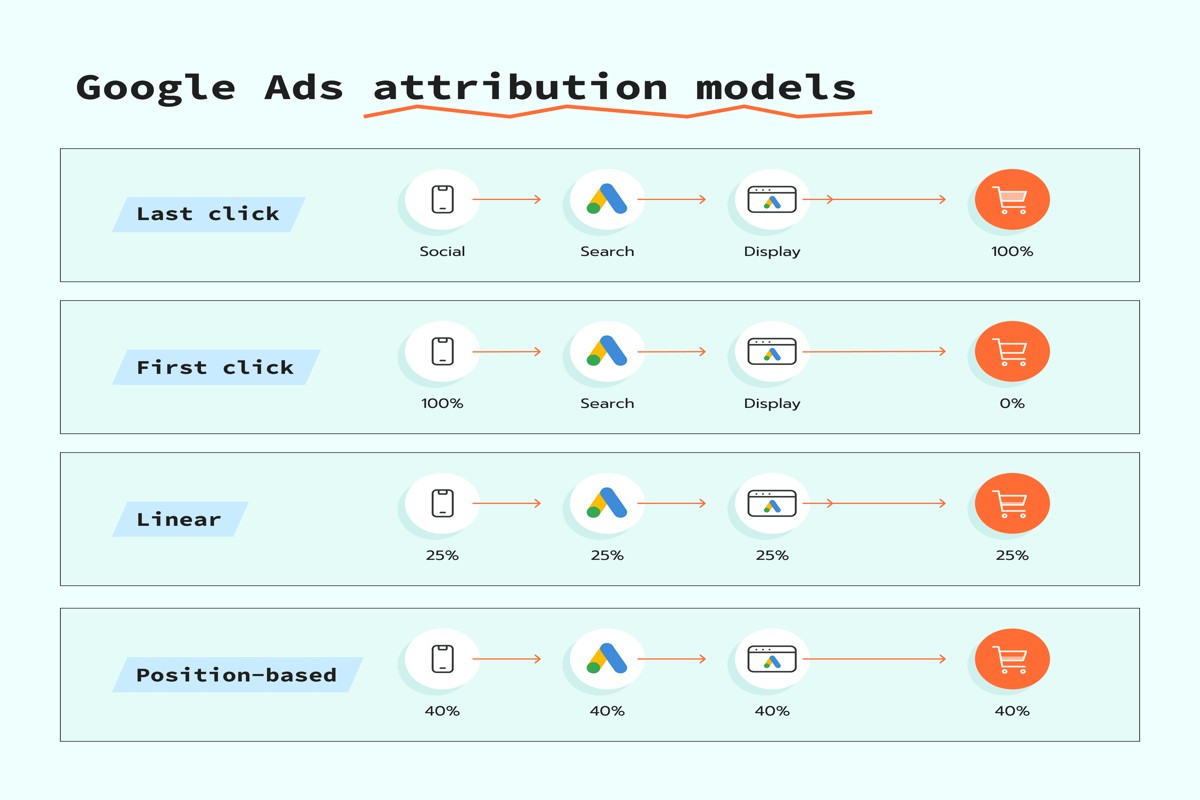
To set up Google Ads conversion tracking, first log into your Google Ads account. Then, navigate to the ‘Tools and Settings’ menu, select ‘Conversions’, and follow the prompts to define your conversion actions.
Understanding how to set up Google Ads conversion tracking is crucial for marketers and businesses aiming to measure the effectiveness of their advertising campaigns. Accurate tracking allows for better optimization of ad spend and ensures that marketing efforts are aligned with business goals. Failing to implement conversion tracking can result in wasted resources and missed opportunities for growth.
This guide details the step-by-step process for setting up conversion tracking in Google Ads, including how to identify and define conversion actions, configure tracking settings, and utilize the data to enhance campaign performance.
For How To Set Up Google Ads Conversion Tracking businesses looking to generate local leads through Google Ads or Local SEO, GMB Ranger LLC offers hands-on campaign management. Specialist Md Tangeer Mehedi personally handles campaign setup and ongoing optimization — with no payment required until the first lead comes in.
What is Google Ads conversion tracking?
Google Ads conversion tracking is a tool that helps advertisers measure the actions users take on their website after clicking an ad. This functionality allows businesses to determine the effectiveness of their advertising campaigns by tracking specific actions, such as purchases, sign-ups, or page views. By analyzing these conversions, advertisers can optimize their strategies for better return on investment (ROI).
Conversion tracking is essential for understanding the customer journey and assessing how well ads drive meaningful interactions. It works by placing a small piece of code, known as a conversion tracking tag, on the pages of a website where these actions are completed. When a user clicks on an ad and subsequently completes a desired action, the tag reports this information back to Google Ads, enabling advertisers to attribute conversions directly to their advertising efforts.
- Types of conversions: There are several types of conversions that can be tracked, including website purchases, leads generated through forms, app downloads, and phone calls initiated from ads.
- Conversion windows: Advertisers can set specific conversion windows, which refer to the time frame within which a conversion is tracked after an ad click, typically ranging from a few hours to 90 days.
- Cross-device tracking: Google Ads allows for cross-device tracking, meaning conversions can be tracked across multiple devices, providing a more comprehensive view of user behavior.
Incorporating Google Ads conversion tracking into marketing efforts enables advertisers to make data-driven decisions. By analyzing conversion data, businesses can refine their targeting, improve ad creative, and allocate budgets more effectively. This leads to a more efficient use of advertising resources and improved campaign performance.
Expert Tip: Regularly review and adjust your conversion tracking settings to align with changing business goals. This ensures that the data collected remains relevant and actionable over time.
How do I set up Google Ads conversion tracking?
To set up Google Ads conversion tracking, you need to define your conversion actions in the Google Ads interface and implement the tracking code on your website. This process allows you to measure the effectiveness of your ad campaigns by tracking user interactions that are valuable to your business, such as purchases or sign-ups.
Follow these steps to effectively set up conversion tracking:
- Sign in to Google Ads: Log into your Google Ads account and navigate to the “Tools & Settings” menu located in the upper right corner of the page.
- Select Conversions: Under the “Measurement” section, click on “Conversions.” This is where you will define the specific actions you want to track.
- Create a New Conversion Action: Click the blue “+” button to add a new conversion action. Choose the type of conversion you want to track, such as website purchases, sign-ups, or phone calls.
- Configure Conversion Settings: Fill in the details for your conversion action, including its name, value, and count method. Ensure you select the appropriate settings that align with your business goals.
- Implement the Tracking Code: After saving your conversion action, Google Ads will provide you with a tracking code. This code must be added to your website’s pages where the conversion action occurs, typically in the header or footer.
- Test Your Setup: Once the tracking code is implemented, use the Google Tag Assistant or the Google Ads interface to verify that the conversion tracking is working correctly.
Consider creating different conversion actions for various user interactions to gain more granular insights into your ad performance. This allows for better optimization strategies tailored to specific goals.
Expert Tip: Regularly review and analyze your conversion data to identify trends and areas for improvement. Adjust your ad campaigns based on these insights to enhance overall performance and return on investment.
What are the best practices for Google Ads conversion tracking?
Effective Google Ads conversion tracking is essential for measuring the success of advertising campaigns. Following best practices ensures accurate data collection and meaningful insights for optimization. This ultimately leads to improved return on investment (ROI) and campaign performance.
To maximize the effectiveness of conversion tracking, consider the following best practices:
- Define Clear Conversion Goals: Establish specific and measurable objectives for your campaigns, such as sales, sign-ups, or downloads. Clear goals help determine which actions qualify as conversions and guide tracking setup.
- Select the Right Tracking Method: Choose between using Google Tag Manager, the global site tag, or importing conversions from Google Analytics. The method should align with your website’s structure and technical capabilities for seamless implementation.
- Implement Conversion Value Tracking: Assign monetary values to conversions where applicable. This allows for a better understanding of the overall impact of campaigns on revenue and helps prioritize high-value conversions.
- Regularly Review Conversion Data: Consistently analyze conversion performance to identify trends and insights. Use this data to adjust bidding strategies, refine ad targeting, and enhance ad creatives for improved results.
- Test and Optimize: Continuously test different conversion tracking setups and refine them based on performance data. Experiment with various conversion actions to determine which yield the best results in alignment with your goals.
Expert insight: Utilizing a combination of first-party and third-party data can enhance tracking accuracy. This approach allows advertisers to gain a more comprehensive view of user interactions across different platforms.
How much does Google Ads conversion tracking cost?
Google Ads conversion tracking is free to set up and use. However, costs may be incurred through the advertising campaigns that leverage this tracking feature. Businesses pay for the ads themselves, not for the conversion tracking tool.
The actual costs associated with Google Ads are determined by several factors, including the bidding strategy, the competitiveness of the keywords selected, and the overall budget allocated to the campaigns. Each click or impression can vary in price based on these elements.
- Bidding Strategy: Different strategies (e.g., CPC, CPM) can affect costs significantly. Choosing a more aggressive bidding approach may lead to higher expenses.
- Keyword Competition: Highly sought-after keywords typically have higher costs per click (CPC). Analyzing competition can help manage spending effectively.
- Ad Quality and Relevance: Higher quality ads often receive better placements at lower costs. Utilizing conversion tracking helps enhance ad performance.
When implementing Google Ads conversion tracking, it is crucial to align your advertising goals with your budget. Setting clear conversion targets will help optimize spending and improve return on investment (ROI).
Expert Tip: Regularly analyze conversion data to adjust your campaigns. This approach ensures that you are not only tracking conversions but also optimizing your ad spend based on performance insights.
How long does it take to set up Google Ads conversion tracking?
Setting up Google Ads conversion tracking typically takes about 30 minutes to an hour. The time required can vary based on your familiarity with the Google Ads interface and your website’s structure.
Several factors influence the setup duration. For users who are experienced with Google Ads, the process may take less time, as they will navigate the platform more efficiently. Conversely, beginners may need additional time to familiarize themselves with the necessary steps, such as creating conversion actions and implementing tracking tags on their website.
Another variable is the type of conversion you wish to track. For instance, tracking purchases on an e-commerce site may involve more detailed configurations compared to tracking form submissions or phone calls. If your website uses a content management system (CMS) like WordPress, the integration with Google Ads might be streamlined, potentially reducing setup time. However, custom-built websites may require more extensive coding, thus extending the setup process.
Practical Implications
Time spent on setting up conversion tracking is an investment that pays off by providing valuable insights into campaign performance. Once tracking is in place, advertisers can measure the effectiveness of their ads and optimize their strategies based on real data. Therefore, allocating sufficient time to ensure a thorough setup is crucial for long-term success.
For optimal results, it is advisable to test the conversion tracking setup after implementation. This verification ensures that conversions are recorded accurately, which can save time and frustration in the future when analyzing campaign performance.
Expert Tip: Utilize Google Tag Manager for easier management of tracking codes and to streamline the setup process. This tool can simplify adjustments and help maintain organization within your tracking system.
Can I track conversions from multiple sources in Google Ads?
Yes, Google Ads allows you to track conversions from multiple sources, including website actions, phone calls, and app downloads. This capability enables businesses to gain comprehensive insights into customer interactions across various platforms.
Tracking conversions from multiple sources is essential for accurately measuring the effectiveness of marketing campaigns. Each source provides unique data that can help optimize advertising strategies. The three primary sources of conversions in Google Ads include:
- Website Actions: This involves tracking actions taken on your website, such as form submissions, purchases, or downloads. It requires adding a conversion tracking tag to specific pages or events on your site.
- Phone Calls: Google Ads can track conversions from phone calls generated by ads. This includes calls made directly from the ad or from a phone number on your website. Call tracking requires setting up a call conversion action in your Google Ads account.
- App Downloads: For businesses with mobile applications, Google Ads can track the number of downloads and in-app actions. This involves integrating conversion tracking with Google Analytics for Firebase or using the Google Ads SDK.
Each tracking method has its nuances and setup requirements. For instance, website actions necessitate code implementation on the site, while phone call tracking may require additional settings to capture call details accurately. App downloads can involve different configurations based on the platform (iOS or Android) and the type of app.
Expert Tip: Ensure that each conversion action is set up with clear naming conventions and parameters that align with your business goals. This practice facilitates easier analysis and reporting across different sources.
What common mistakes should I avoid when setting up Google Ads conversion tracking?
Common mistakes when setting up Google Ads conversion tracking include not defining clear conversion goals, improperly implementing tracking codes, and failing to test the setup. These oversights can lead to inaccurate data, which undermines campaign effectiveness.
For example, consider a retail business that wants to track purchases made through its website. If the company does not define a clear conversion goal—such as tracking completed sales rather than just adding items to the cart—it may end up measuring irrelevant actions. This lack of focus can skew data interpretation and hinder optimization efforts.
Another frequent mistake occurs during the implementation of tracking codes. Suppose the retail business adds the Google Ads conversion tracking code to the wrong page, such as the homepage instead of the order confirmation page. This misplacement means that the tracking will not register actual conversions, leading to a false sense of campaign performance. Lastly, neglecting to test the tracking setup can result in undetected errors. A simple test can validate whether conversions are being tracked correctly, ensuring reliable data collection.
Expert Tip: Regularly review and update conversion goals to align with changing business objectives and marketing strategies. This practice ensures that tracking remains relevant and actionable.
Advanced Techniques for Optimizing Conversion Tracking
This section explores advanced strategies to enhance the effectiveness of conversion tracking beyond a basic setup. These techniques enable marketers to capture a broader range of interactions and improve the accuracy of data collection.
Utilizing Google Tag Manager for Streamlined Tracking Implementation
Google Tag Manager (GTM) simplifies the process of managing and deploying marketing tags without extensive code modifications. By centralizing tag management, GTM allows for rapid implementation of conversion tracking. Follow these steps to set up conversion tracking using GTM:
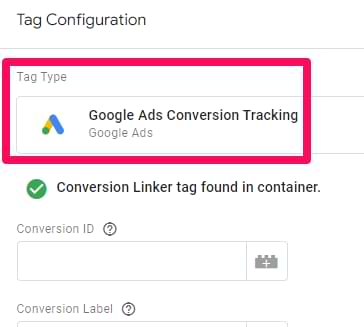
- Create a new tag in GTM and select “Google Ads Conversion Tracking” as the tag type.
- Input the conversion ID and conversion label obtained from your Google Ads account.
- Set the triggering conditions for when the conversion occurs, such as page views or specific button clicks.
- Test the tag using GTM’s preview mode to ensure it triggers correctly before publishing.
By utilizing GTM, marketers can manage multiple conversion actions efficiently and adapt to changing campaign requirements without deploying additional code.
Setting Up Conversion Tracking for Offline Interactions
Offline interactions, such as phone calls or in-store purchases, can significantly impact overall conversion metrics. Google Ads allows for the importation of offline conversion data to better reflect the full customer journey. To track offline conversions, follow these steps:
- Enable “Import” for offline conversions in your Google Ads account settings.
- Collect relevant data that links offline interactions to online clicks, including Google Click ID (GCLID).
- Format this data into a CSV file, including fields for the GCLID, conversion name, and conversion time.
- Upload the CSV file to Google Ads to integrate offline conversions into your reporting.
This integration provides a more comprehensive view of campaign performance, allowing for more strategic decision-making based on complete data.
Implementing Enhanced Conversions for Improved Accuracy
Enhanced conversions utilize first-party data collected on your website to improve the accuracy of conversion tracking. This method helps bridge gaps in tracking caused by browser restrictions or cookie limitations. To implement enhanced conversions, follow these steps:
- Enable enhanced conversions in your Google Ads account settings.
- Use GTM to set up a new tag that captures user data, such as email addresses or phone numbers, during the conversion process.
- Hash this data using SHA256 encryption for privacy compliance before sending it to Google Ads.
- Monitor the performance and accuracy of conversions in your Google Ads dashboard to assess impact.
Enhanced conversions can lead to better attribution and improved optimization of ad spend, enhancing overall campaign effectiveness.
Many resources overlook the importance of data privacy compliance when implementing enhanced conversions. Ensuring that all collected data is hashed and user consent is obtained is critical to maintaining trust and complying with regulations such as GDPR and CCPA. Failing to address these nuances can lead to significant legal repercussions and damage to brand reputation.
To optimize conversion tracking effectively, marketers should:
- Integrate Google Tag Manager for efficient management of tracking tags.
- Set up offline conversion tracking to account for all customer interactions.
- Implement enhanced conversions to improve data accuracy while adhering to privacy regulations.
By adopting these advanced techniques, marketers can ensure they are capturing the full scope of conversion data, leading to more informed strategic decisions and improved campaign performance.
Integrating Google Ads Conversion Tracking with Analytics
This section outlines the steps to link Google Ads with Google Analytics, enhancing your ability to analyze user behavior and conversion paths effectively. Establishing this integration provides deeper insights into cross-channel performance, allowing for more informed marketing decisions.
Steps to Link Google Ads and Google Analytics Accounts
- Sign in to your Google Analytics account and select the property you want to link.
- In the Admin panel, locate the “Property” column and click on “Google Ads Linking.”
- Click the “+ New Link Group” button.
- Select the Google Ads account you wish to link and click “Continue.”
- Turn on the toggle for “Enable Linking” and click “Link Accounts.”
- Confirm the settings and click “Done.” You will now see your Google Ads data in Google Analytics.
Benefits of Analyzing Cross-Channel Performance
Integrating Google Ads with Google Analytics offers several advantages:
- Comprehensive Data View: Gain insights into how users interact with your website after clicking on ads, enabling better attribution of conversions.
- Enhanced Audience Insights: Understand the demographics and behaviors of users who convert, facilitating more targeted advertising efforts.
- Improved Campaign Optimization: Analyze performance across different channels to adjust bids and budgets effectively, optimizing return on ad spend (ROAS).
Using UTM Parameters for Better Tracking
Incorporating UTM parameters into your URL allows for more granular tracking of campaign performance. Follow these guidelines:
- Identify the campaign source (e.g., Google Ads).
- Define the campaign medium (e.g., CPC, banner).
- Specify the campaign name to differentiate various ads or promotions.
When users click on links with UTM parameters, Google Analytics captures this data, providing detailed insights into traffic sources and user actions.
Expert Layer: Common Misconceptions
A prevalent misconception is that linking Google Ads and Google Analytics automatically tracks all conversions. While the integration is essential for tracking, it does not automatically set up conversion goals. Conversion tracking requires specific configurations within Google Analytics to define what constitutes a conversion, whether it’s a purchase, signup, or page view. Additionally, UTM parameters are not mandatory for tracking but significantly enhance the granularity of the data collected.
Practical Application
To leverage the integration effectively, first, ensure that Google Ads and Google Analytics accounts are linked as outlined above. Next, set up specific conversion goals in Google Analytics that align with your business objectives. Finally, utilize UTM parameters in your Google Ads campaigns to track and analyze performance accurately. This approach provides actionable insights that can drive strategic decision-making and improve overall marketing effectiveness.
Troubleshooting Common Issues in Conversion Tracking
Effective conversion tracking is critical for optimizing Google Ads campaigns. This section addresses common issues that can arise during setup and implementation, providing clear solutions to ensure accurate tracking of conversions.
Identifying Issues with Conversion Tracking Code Implementation
Improper installation of the conversion tracking code is a frequent source of issues. The following steps can help identify problems:
- Verify that the conversion tracking tag is present on the designated conversion page.
- Ensure the tag is correctly installed in the website’s HTML, placed before the closing
Leave a Reply