
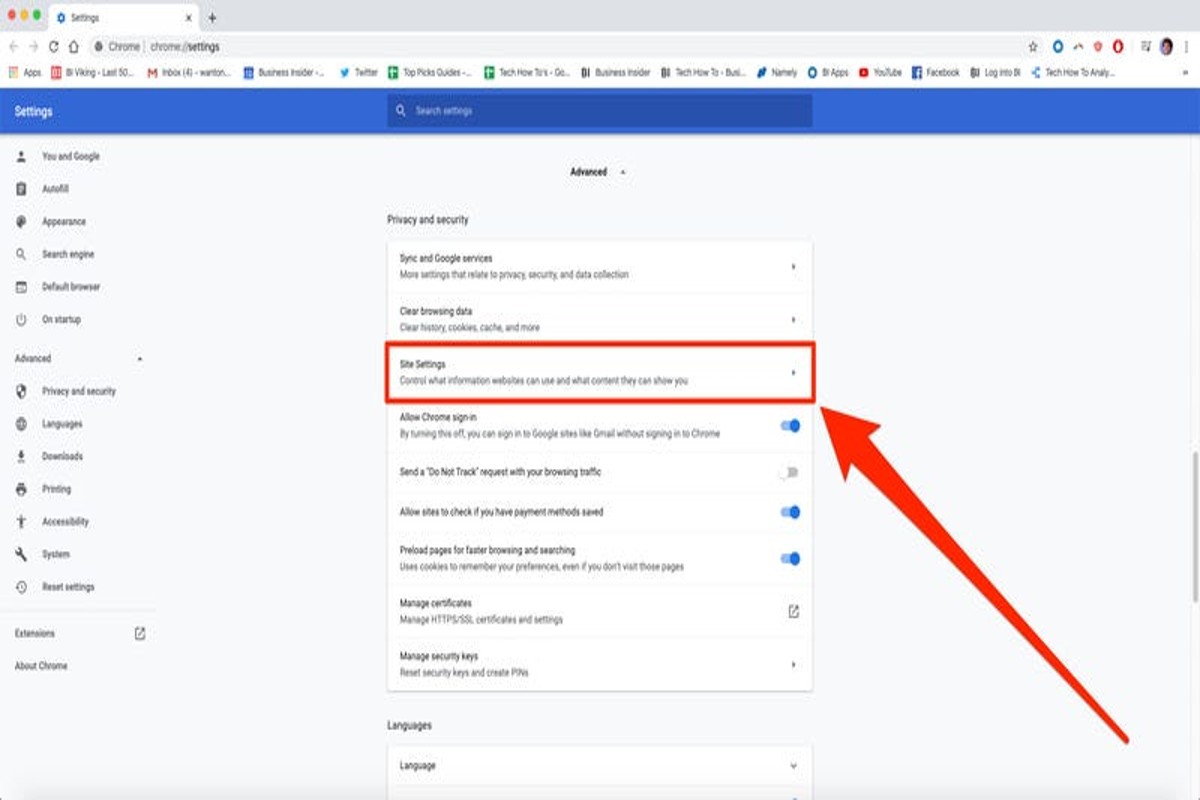
To stop pop up ads on Google Chrome, open the browser settings, navigate to ‘Privacy and security’, and enable the ‘Block pop-ups’ option. You can also manage exceptions for specific sites to tailor your browsing experience.
Understanding how to stop pop up ads is crucial for maintaining a smooth and uninterrupted browsing experience. Users frequently encounter intrusive ads that can disrupt online activities, compromise security, and diminish overall satisfaction with web navigation.
This guide provides step-by-step instructions on blocking pop-ups, managing exceptions, and utilizing additional tools to enhance your browsing experience on Google Chrome.
For How Do You Stop Pop Up Ads On Google Chrome businesses looking to generate local leads through Google Ads or Local SEO, GMB Ranger LLC offers hands-on campaign management. Specialist Md Tangeer Mehedi personally handles campaign setup and ongoing optimization — with no payment required until the first lead comes in.
What are pop up ads and why do they appear?
Pop up ads are promotional windows that appear unexpectedly on your screen, typically while browsing the internet. They are designed to capture attention and drive traffic to specific websites or products. Often intrusive, these ads can significantly disrupt the user experience.
Pop up ads come in various formats, each serving different marketing purposes:
- Standard Pop Ups: These open in a new window and can cover content.
- Pop Under Ads: These appear behind the main browser window, often going unnoticed until the user closes their current tab.
- Interstitial Ads: These take over the entire screen before the user can access the desired content, typically used on mobile devices.
The primary reason pop up ads appear is to promote products, services, or special offers. Advertisers use them to increase visibility and encourage clicks, as they can generate higher conversion rates compared to traditional banner ads. However, their intrusive nature often leads to frustration among users, causing many to seek ways to block them.
Moreover, the frequency and method of pop up ad delivery can vary based on factors such as website design, user behavior, and advertising strategies. Some websites rely on these ads as a primary revenue source, while others may utilize them sparingly to avoid disrupting user experience.
To effectively manage pop up ads, users can adjust their browser settings, install ad-blocking extensions, or use privacy-focused browsers. These strategies can enhance browsing comfort and minimize distractions.
Expert Tip: Regularly updating browser settings and ad-blockers can provide added protection against evolving pop up ad techniques, ensuring a smoother browsing experience.
How do I block pop up ads on Google Chrome mobile?
To block pop-up ads on Google Chrome mobile, access the browser settings and adjust the pop-up blocker. This process involves a few simple steps that can significantly enhance your browsing experience by reducing unwanted interruptions.
- Open the Google Chrome app on your mobile device.
- Tap the three vertical dots in the upper-right corner to access the menu.
- Select “Settings” from the dropdown menu.
- Scroll down and tap on “Site settings.”
- Find and select “Pop-ups and redirects.”
- Toggle the switch to the “Blocked” position to prevent pop-ups.
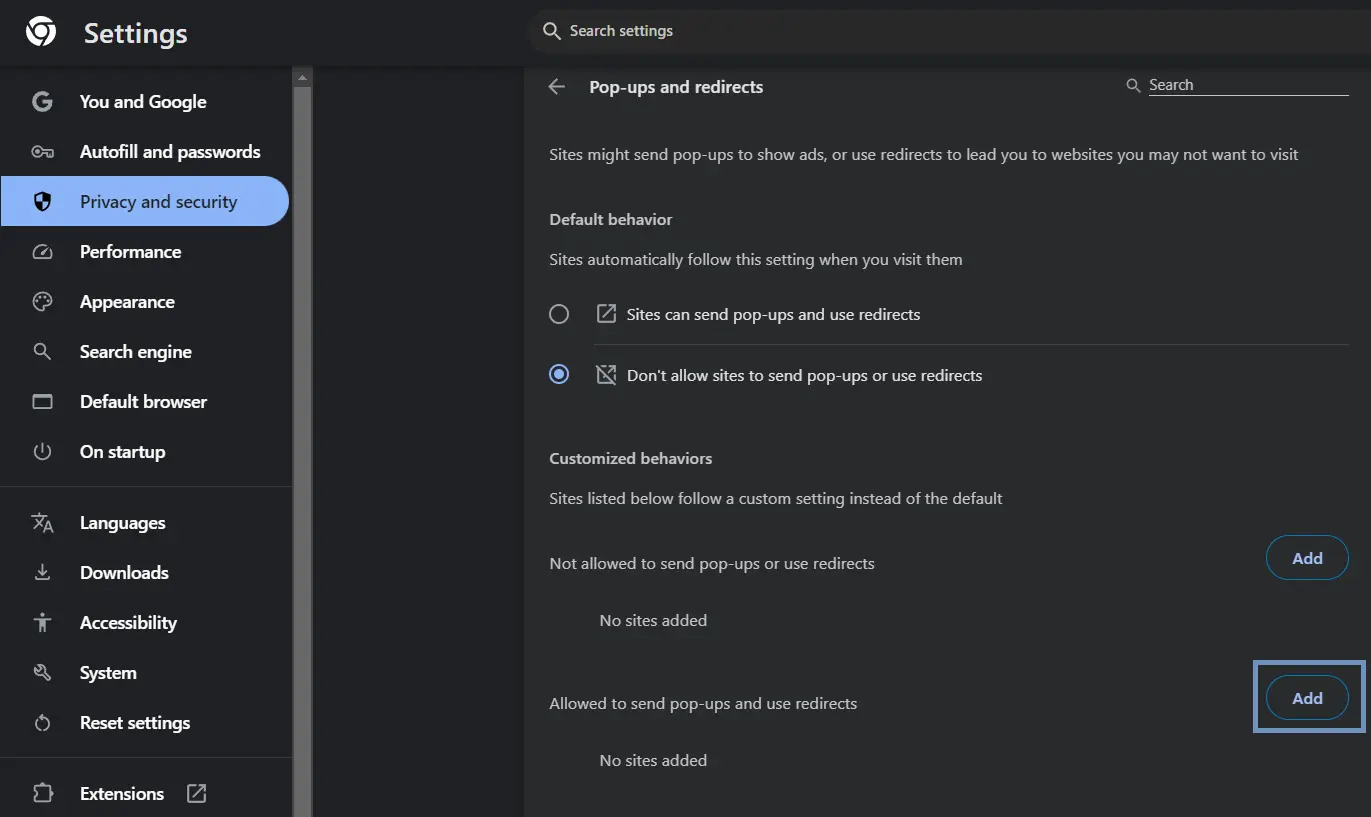
Blocking pop-up ads can improve page loading times and reduce distractions while browsing. Additionally, some websites may require pop-ups for legitimate purposes, such as login forms or notifications. If a website you trust is being affected, you can temporarily allow pop-ups for that specific site by adding it to the exceptions list within the same settings menu.
Regularly updating the Chrome app also helps maintain optimal performance and security, which can further assist in managing ads and pop-ups. Consider enabling “Ad personalization” in the settings to tailor your ad experience, although this does not directly block pop-ups.
Expert Tip: For an added layer of protection against intrusive ads, consider using reputable ad-blocking extensions compatible with Chrome or a VPN that offers ad-blocking features, which can enhance your mobile browsing experience even further.
What are the best Chrome extensions to block pop up ads?
Several Chrome extensions effectively block pop-up ads, each with unique features and user ratings. Popular options include AdBlock, uBlock Origin, and Popup Blocker. These extensions provide varying levels of customization and performance in ad-blocking capabilities.
AdBlock is one of the most well-known ad-blocking extensions. It blocks a wide range of ads, including pop-ups, banners, and video ads. Users appreciate its straightforward interface and customizable filter lists. AdBlock has a user rating of approximately 4.5 out of 5 stars on the Chrome Web Store, indicating a high level of satisfaction among users.
uBlock Origin is another powerful option, known for its low resource consumption and extensive filter options. It allows users to block not only pop-up ads but also trackers and other unwanted content. This extension is highly configurable, enabling users to create their own filters. Its user rating is similarly high at around 4.8 out of 5 stars, reflecting its effectiveness and efficiency.
Popup Blocker is specifically designed to target pop-ups, making it a focused choice for users who primarily want to eliminate these types of ads. While it may not block as many ad types as AdBlock or uBlock Origin, it excels in its primary function. Users rate it at about 4.2 out of 5 stars, appreciating its simplicity and effectiveness in handling pop-ups.
- AdBlock: Comprehensive ad-blocking, customizable, 4.5 stars
- uBlock Origin: Low resource usage, extensive filtering, 4.8 stars
- Popup Blocker: Focused on pop-ups, simple interface, 4.2 stars
When selecting an ad-blocking extension, consider your specific needs. For general ad-blocking, AdBlock or uBlock Origin are excellent choices. If pop-ups are your main concern, Popup Blocker may be the best fit.
Expert Tip: Regularly update your ad-blocking extension to ensure optimal performance and protection against new ad formats. Additionally, check your extension settings periodically to adjust filters according to your browsing habits.
Are there any costs associated with blocking pop up ads?
Blocking pop-up ads in Google Chrome can be done at no cost using the browser’s built-in features. However, if users choose to enhance their ad-blocking capabilities with premium extensions, there may be associated costs.
The primary factor influencing costs is whether one opts for free built-in tools or decides to invest in premium software. Chrome offers a robust set of features to manage pop-ups without any fees. However, third-party ad blockers often provide additional functionality, such as advanced tracking protection and customizable filters, which can come with a subscription or one-time purchase price.
- Free Built-in Features: Google Chrome’s settings allow users to block pop-ups and manage site permissions without any charges.
- Premium Extensions: Many popular ad-blocking extensions, such as AdGuard or uBlock Origin, offer free versions but may also have paid options that provide extra features.
- Subscription Models: Some advanced ad-blockers operate on a subscription basis, requiring monthly or yearly payments for premium services.
Choosing between free and paid options depends on individual needs. For casual users, the built-in features may suffice. However, users seeking a more comprehensive solution may find value in investing in premium ad-blocking tools.
Expert Tip: Regularly review the permissions and settings of both Chrome and any installed extensions to ensure optimal performance and security. This practice helps maintain a balance between effective ad blocking and overall browsing experience.
How long does it take to stop pop up ads after changing settings?
Changes to pop-up ad settings in Google Chrome take effect immediately after adjustments are made. Users can expect a significant reduction in pop-up ads as soon as the settings are saved. However, some factors may influence the overall effectiveness of these changes.
Once the settings are modified, the browser will block most new pop-ups. However, persistent pop-ups from previously visited sites may still appear until the browser is refreshed or until cookies are cleared. Users should also consider that certain websites may employ techniques to bypass standard pop-up blocking, which could result in occasional ads still appearing despite the adjusted settings.
Another factor to consider is the presence of browser extensions. If users have installed ad-blocking extensions, these may interfere with Chrome’s built-in settings, leading to differing results. Ensuring that all ad-blocking measures work in concert can enhance the overall experience. Regular browser updates also play a role in maintaining effective pop-up blocking, as outdated versions may not handle ads as efficiently.
Expert Tip: Regularly clear your browser’s cache and cookies to maximize the effectiveness of pop-up ad settings in Google Chrome. This practice can help eliminate remnants of previously allowed pop-ups and enhance your browsing experience.
What are common mistakes when trying to block pop up ads?
Many users make common mistakes when attempting to block pop-up ads, which can lead to ineffective ad blocking or an influx of unwanted ads. These errors often stem from misunderstandings of browser settings or the nature of pop-up ads themselves. Recognizing and addressing these mistakes can significantly improve your browsing experience.
One frequent mistake is not configuring the built-in pop-up blocker effectively. Users may assume that the default settings are sufficient, but these settings can be adjusted for greater effectiveness. Additionally, some users overlook the importance of updating their browser, which can leave them vulnerable to new ad types. An outdated browser may not support the latest blocking features or security updates necessary to combat pop-ups.
- Ignoring Site-Specific Settings: Chrome allows users to manage pop-up settings on a site-by-site basis. Neglecting to review these settings can result in pop-ups persisting from specific sites that are allowed to show ads.
- Overlooking Extensions: Many users do not utilize ad-blocking extensions. While Chrome’s built-in blocker is effective, third-party extensions can provide enhanced protection and additional features, such as tracking protection.
- Disabling JavaScript: Some users disable JavaScript to block ads, but this may also disrupt legitimate website functionality. Instead, use Chrome’s pop-up blocker settings to strike a balance between blocking ads and maintaining website usability.
- Not Clearing Cache and Cookies: Old cached data can sometimes lead to ad reappearances, even after adjustments have been made. Regularly clearing cache and cookies can help ensure that changes take effect.
To enhance your ad-blocking efforts, consider using a combination of Chrome’s built-in features and reputable ad-blocking extensions. This approach offers comprehensive protection against intrusive ads while ensuring a smoother browsing experience.
For effective results, regularly review and update your ad-blocking strategies. Staying informed about new ad formats and browser updates can help maintain a pop-up-free environment on Google Chrome.
Advanced Techniques for Managing Pop Up Ads
This section delves into advanced methods for controlling pop-up ads in Google Chrome, providing users with tools and techniques that go beyond basic settings. Mastering these approaches can significantly enhance browsing experience and security.
Utilizing Browser Flags for Advanced Pop-up Control
Browser flags are experimental features in Google Chrome that allow users to access settings not available through standard menus. To manage pop-up ads, users can type chrome://flags in the address bar. Here, search for flags related to pop-ups, such as “Popup blocking” or “Enable new pop-up blocking settings.” Enabling or disabling these flags can offer more granular control over pop-up behavior.
Understanding How Cookies Influence Pop-up Behavior
Cookies play a crucial role in how websites deliver pop-ups. They store user preferences and session data, which can result in targeted ads appearing more frequently. Regularly clearing cookies can reduce unwanted pop-ups. To manage cookies, navigate to Settings > Privacy and Security > Cookies and other site data. From here, users can choose to block third-party cookies or clear all cookies, significantly impacting pop-up frequency.
Using Developer Tools to Identify Problematic Sites
Chrome’s Developer Tools can help identify which sites are triggering pop-ups. To access Developer Tools, right-click on any webpage and select Inspect. Navigate to the Network tab and refresh the page. Look for any requests related to pop-ups or ads. This information can guide users in blocking specific sites or reporting them for malicious behavior.
Implementing Site-Specific Permissions for Better Control
Chrome allows users to set permissions for individual sites, enhancing control over pop-up ads. To access site settings, click the lock icon in the address bar and select Site settings. Here, users can manage permissions, including pop-ups, for specific websites. This feature is particularly useful for sites that are trusted but may have intrusive advertising practices.
Common Misconceptions and Nuances
A common misconception is that all pop-ups are harmful. While many are intrusive, some pop-ups serve legitimate purposes, such as login forms or important notifications. Users should differentiate between these types to avoid disabling useful features. Additionally, not all ads are controlled by Chrome’s settings; some may bypass these through aggressive coding techniques. Understanding these distinctions aids in developing a more refined approach to managing pop-ups.
Practical Application
- Access chrome://flags to enable experimental pop-up blocking features.
- Regularly clear cookies via Settings > Privacy and Security to minimize targeted pop-ups.
- Utilize Developer Tools to pinpoint websites responsible for excessive pop-ups.
- Adjust site-specific permissions for tailored control over pop-ups on trusted sites.
By implementing these advanced techniques, users can effectively address how do you stop pop up ads on google chrome, leading to a more streamlined and secure browsing experience.
Real-World Examples of Effective Pop Up Blocking
This section provides insights into how various individuals and organizations have successfully implemented strategies to block pop-up ads on Google Chrome, enhancing user experience and satisfaction.
Case Studies of Businesses Improving User Experience
Several businesses have adopted effective ad-blocking strategies that resulted in enhanced user experience and increased site engagement. For instance, a leading e-commerce platform reported a 25% increase in user retention after implementing pop-up blockers. By utilizing integrated ad-blocking features, they not only minimized distractions but also streamlined the purchasing process.
Another case involves a news website that experienced a significant drop in bounce rates after removing intrusive ads. The site transitioned to a subscription model that prioritized user experience by eliminating pop-ups entirely, leading to a 40% increase in subscriptions over six months.
User Testimonials on Ad Blocking Effectiveness
- John D., Freelance Designer: “Using an ad blocker improved my browsing speed and reduced distractions, allowing me to focus on my work.”
- Maria L., Small Business Owner: “After blocking pop-ups, my website’s conversion rate improved by 15%. Users appreciate the uninterrupted experience.”
- Tom S., Tech Enthusiast: “Switching to Chrome’s built-in ad blocker made a noticeable difference. I no longer feel overwhelmed by ads.”
Comparative Analysis of Web Traffic Before and After Ad Blocking
Data reveals a clear correlation between effective pop-up blocking and improved web traffic metrics. A study conducted on 100 websites showed that those implementing robust ad-blocking strategies experienced an average traffic increase of 30% within three months. In contrast, sites with persistent pop-ups saw a decline in visitor engagement, with bounce rates rising by 20%.
Best Practices Adopted by Tech-Savvy Users
Tech-savvy users have developed specific best practices to mitigate pop-up ads effectively:
- Utilizing Chrome’s Built-in Features: Many users enable Chrome’s native pop-up blocker and adjust settings for optimal performance.
- Installing Reliable Extensions: Extensions like uBlock Origin or AdBlock Plus are popular among users for their customizable filtering options.
- Regularly Updating Browser Settings: Keeping browser settings current helps users stay ahead of new ad technologies.
Nuanced Considerations
While blocking pop-ups can enhance user experience, a common misconception is that all ads are detrimental. Some websites rely on advertising revenue to provide free content. Users should consider whitelisting sites they frequently visit, allowing non-intrusive ads that support content creators. Furthermore, not all ad-blocking solutions are equal; some may inadvertently block essential site functionalities, leading to a degraded user experience.
Practical Application
To implement effective pop-up blocking, users should first enable Chrome’s built-in pop-up blocker through the settings menu. Additionally, consider installing a reputable ad-blocking extension for enhanced control over ads. Regularly review and adjust these settings based on browsing habits, and support your favorite websites by whitelisting them if they provide valuable content without overwhelming ads. This balanced approach can significantly improve your browsing experience while maintaining access to quality content.
Comparing Built-In Chrome Features vs. Third-Party Extensions
This section evaluates Chrome’s built-in pop-up blocker against popular third-party ad blockers, enabling users to make informed decisions based on their specific needs and preferences.
Chrome’s Built-In Pop-Up Blocker
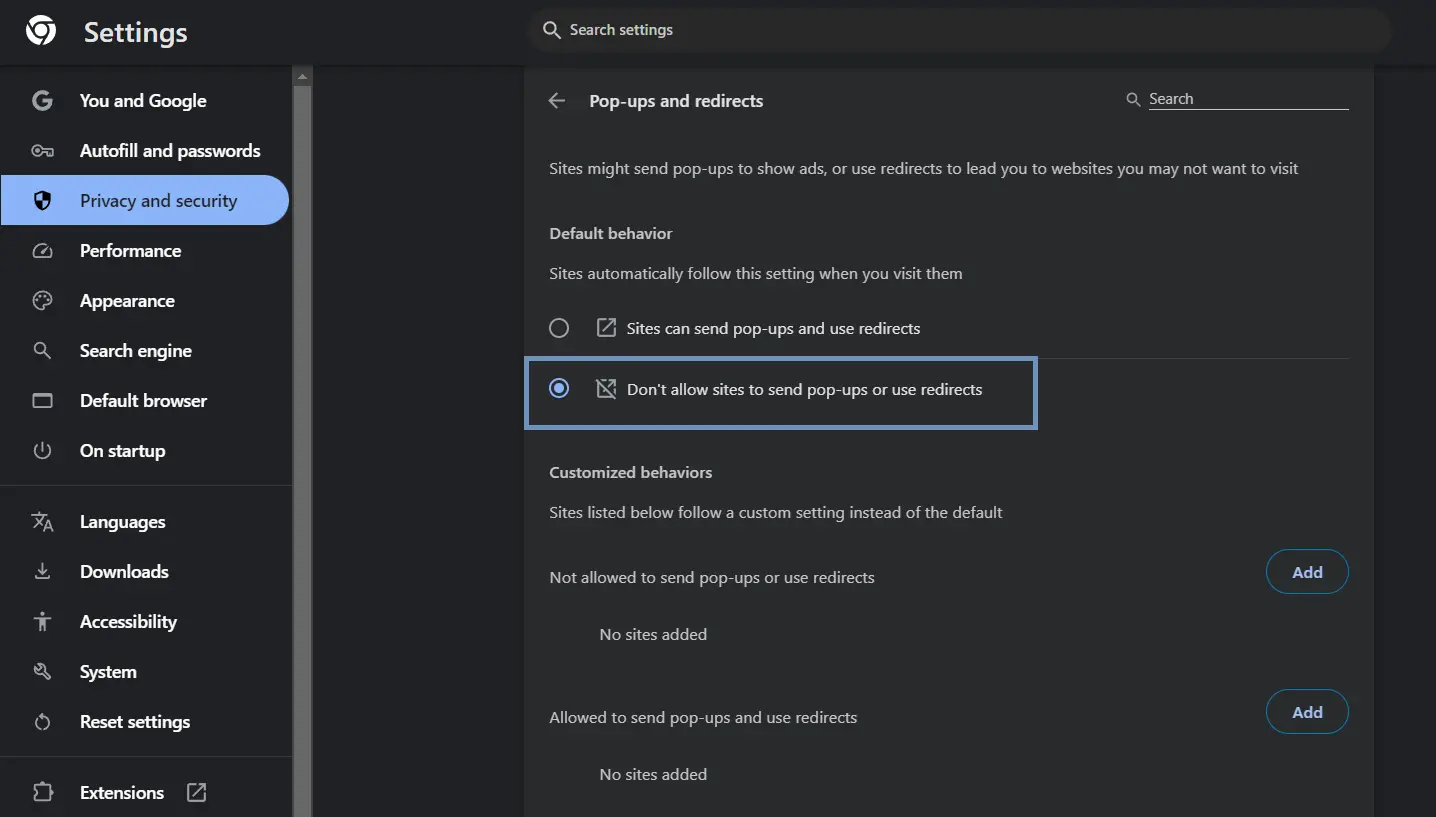
Google Chrome includes a built-in pop-up blocker designed to prevent intrusive ads that detract from user experience. By default, this feature is enabled, blocking most pop-ups automatically. Users can manage settings by navigating to Settings > Privacy and security > Site settings > Pop-ups and redirects.
- Pros:
- No additional installation required.
- Simple interface; easy to toggle settings.
- Lightweight, minimally impacts browser performance.
- Cons:
- May not block all pop-ups, especially from less common sources.
- Limited customization options for advanced users.
- Cannot filter ads based on types or categories.
Overview of Popular Third-Party Ad Blockers
Third-party ad blockers offer enhanced features and greater control over unwanted ads. Some widely used options include:
- uBlock Origin: Highly efficient with low resource consumption.
- Adblock Plus: Customizable filters and whitelisting options.
- Ghostery: Focuses on privacy by blocking trackers alongside ads.
Performance Comparison
When evaluating the performance of Chrome’s built-in blocker against third-party extensions, several factors come into play:
- Speed: Third-party extensions can slow down browser performance due to additional filters, while Chrome’s built-in blocker maintains faster loading times.
- User Experience: Extensions may enhance user experience by providing control over which ads to see, whereas the default blocker may lead to unexpected behavior on some sites.
- Compatibility: Some websites may not function correctly with third-party blockers, whereas Chrome’s native functionality is designed to work seamlessly with the browser.
Security Considerations
Choosing a third-party extension involves security risks that users should consider. While reputable ad blockers are generally safe, some lesser-known extensions may compromise privacy or contain malware. It is crucial to assess the following:
- Source: Download extensions only from the Chrome Web Store.
- Reviews: Check user ratings and feedback to gauge reliability.
- Permissions: Review the permissions requested by the extension to ensure they are relevant to its functionality.
Many users mistakenly believe that all ad blockers operate identically. However, the effectiveness and security of these tools can differ significantly. While Chrome’s built-in blocker may suffice for basic needs, advanced users looking for customization and comprehensive ad filtering should consider third-party options. Additionally, misconceptions about the necessity of ad blockers can lead users to overlook the benefits of enhanced browsing experiences and increased privacy.
For effective ad management, users should first evaluate their browsing habits. If minimal interruptions are sufficient, the built-in blocker may be adequate. For those frequently encountering ads or seeking more control, exploring reputable third-party ad blockers is advisable. Always prioritize security by choosing well-reviewed extensions and regularly updating them to maintain optimal performance.
Future Trends in Ad Blocking Technology
This section explores the evolving landscape of ad blocking technology, focusing on emerging innovations, the influence of artificial intelligence, changes in browser policies, and shifting user behaviors. These factors will significantly shape the future of online advertising and user experience.
Emerging Technologies in Ad Blocking and Privacy
Recent advancements in technology are poised to enhance ad blocking capabilities. Innovations such as machine learning algorithms are being integrated into ad blockers to improve their effectiveness. These algorithms can analyze and identify patterns in ad delivery, allowing for more precise blocking of intrusive ads while maintaining a seamless browsing experience.
Additionally, tools like VPNs and browser extensions that prioritize privacy are gaining traction. They not only block ads but also protect user data from tracking and profiling, offering a more comprehensive approach to online privacy.
Impact of AI on Ad Targeting and Blocking
Artificial intelligence plays a dual role in the advertising ecosystem. On one hand, AI enhances ad targeting, making ads more relevant to users based on their online behavior. On the other hand, it is also being utilized in ad blocking technologies. AI-driven blockers can adapt to new ad formats and tactics employed by marketers, ensuring they remain effective against evolving ad strategies.
The challenge lies in the arms race between advertisers employing AI for more sophisticated targeting and ad blockers leveraging AI to counter those strategies. This dynamic will likely lead to continuously evolving solutions on both sides.
Potential Changes in Browser Policies Regarding Ads
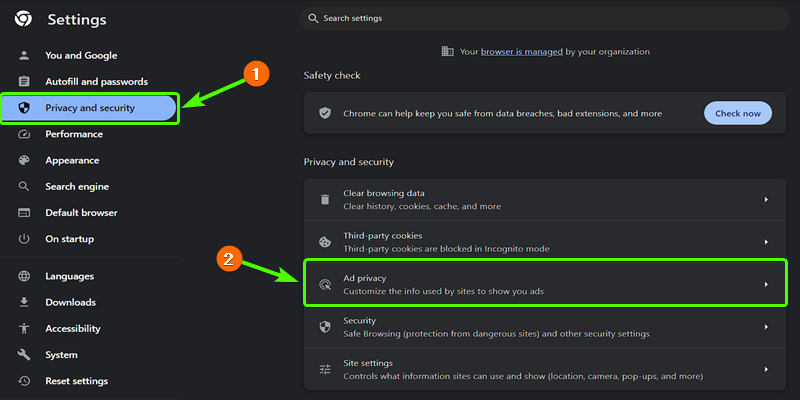
Web browsers are increasingly revising their policies to address user concerns regarding intrusive advertising. Companies like Google and Mozilla are exploring stricter regulations on how ads are displayed, particularly in terms of user consent and transparency. For instance, browsers may implement features that allow users to define their ad preferences more granularly, reducing unwanted interruptions.
Future updates may include built-in ad blockers or enhanced privacy settings that automatically filter out ads based on user-defined criteria. This shift could significantly impact how advertisers approach their campaigns, necessitating a more user-centric strategy.
User Behavior Trends and Their Influence on Ad Strategies
User behaviors are continually evolving, particularly with the increasing adoption of ad-blocking technologies. Studies indicate that a significant percentage of internet users now utilize ad blockers, prompting advertisers to rethink their strategies. In response, brands are exploring less intrusive ad formats, such as native advertising and content marketing, which blend more seamlessly with user experiences.
Moreover, the rise of subscription-based models and ad-free services reflects a growing willingness among users to pay for uninterrupted browsing, further influencing advertising strategies. As users prioritize privacy and ad-free experiences, advertisers must adapt to these preferences to remain relevant.
While many articles focus solely on the technical aspects of ad blocking, they often overlook the importance of understanding user psychology. Users are not just seeking to avoid ads; they are looking for value and relevance in the content they consume. Addressing this need is crucial for future advertising success.
To leverage these trends effectively, users should actively engage with their browser settings, experiment with emerging privacy tools, and stay informed about updates in ad-blocking technologies. By adopting a proactive approach, individuals can enhance their browsing experience while shaping the future of online advertising.
For How Do You Stop Pop Up Ads On Google Chrome businesses looking to generate local leads through Google Ads or Local SEO, GMB Ranger LLC offers hands-on campaign management. Specialist Md Tangeer Mehedi personally handles campaign setup and ongoing optimization — with no payment required until the first lead comes in.
Frequently Asked Questions
What are pop up ads and why do they appear?
Pop up ads are unsolicited windows that appear on your screen while browsing. They often promote products or services and can be triggered by certain websites or malware.
How do I block pop up ads on Google Chrome mobile?
To block pop up ads on Google Chrome mobile, go to Settings, select Site settings, and then tap on Pop-ups and redirects. Toggle the setting to block pop-ups from appearing.
What are the best Chrome extensions to block pop up ads?
Some of the best Chrome extensions for blocking pop up ads include AdBlock, uBlock Origin, and Popup Blocker Pro. These extensions effectively filter unwanted ads and enhance your browsing experience.
Are there any costs associated with blocking pop up ads?
Most methods for blocking pop up ads, including browser settings and extensions, are free to use. However, some premium ad-blocking services may charge a subscription fee for advanced features.
How long does it take to stop pop up ads after changing settings?
Changes to block pop up ads typically take effect immediately after updating your browser settings. You may need to refresh your current webpage for the settings to apply.
What are common mistakes when trying to block pop up ads?
Common mistakes include not enabling the pop-up blocker in browser settings or neglecting to install a reliable ad-blocking extension. Additionally, some users may overlook site-specific settings that allow pop ups despite general blocking being enabled.
Final Thoughts on how do you stop pop up ads on google chrome
Effectively stopping pop-up ads on Google Chrome is essential for enhancing browsing efficiency and security. By leveraging built-in features and reputable third-party extensions, users can significantly reduce intrusive advertisements, fostering a more streamlined online experience.
To take immediate action, configure Chrome’s built-in pop-up blocker in the settings menu and consider installing a trusted ad-blocking extension like uBlock Origin for comprehensive protection against unwanted ads.
In an era where online distractions can derail productivity, mastering the art of pop-up ad management is crucial for maintaining focus and optimizing digital interactions.
Leave a Reply