
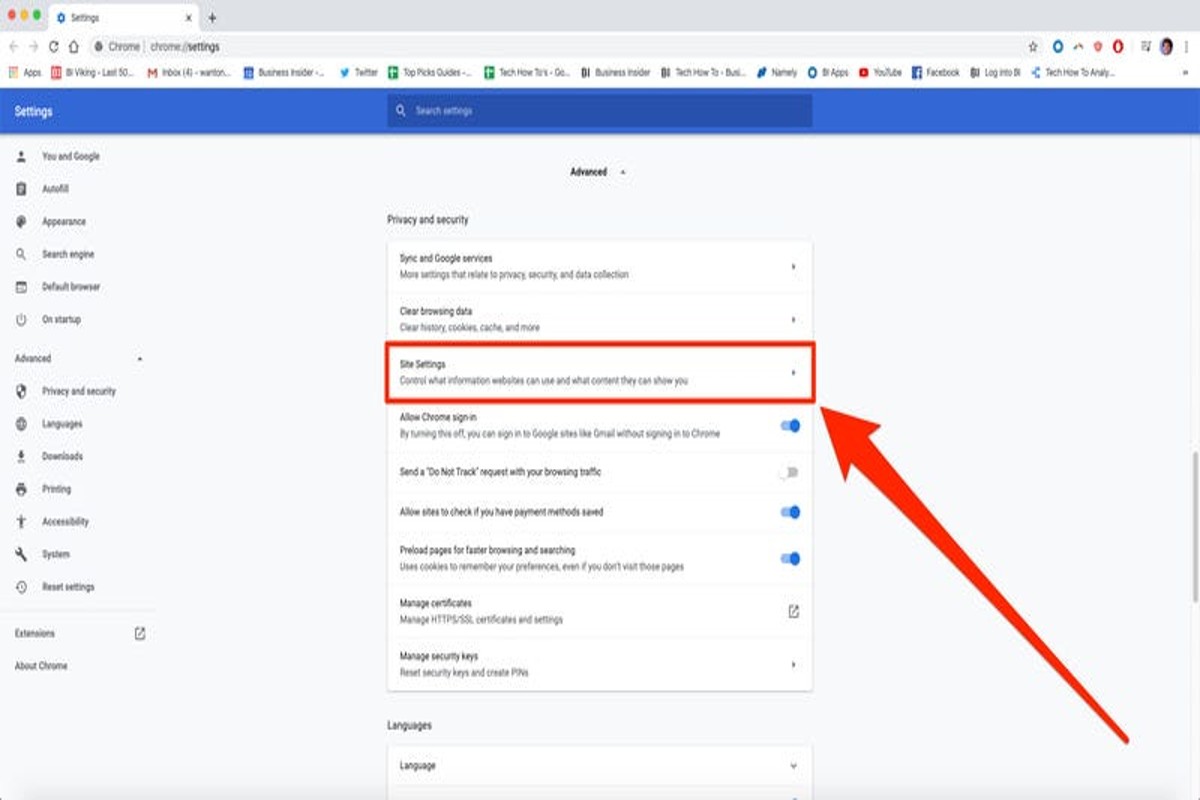
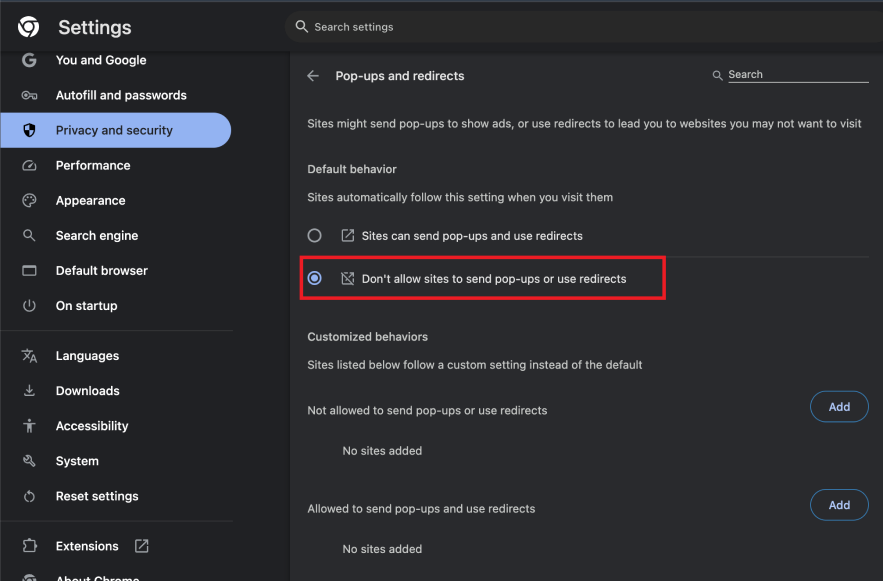
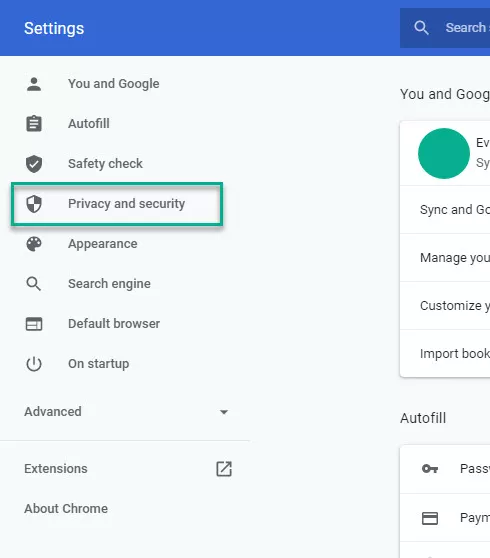
To stop pop up ads in Google Chrome, go to Settings, click on ‘Privacy and security’, select ‘Site settings’, and then toggle off ‘Pop-ups and redirects’. This simple adjustment can significantly enhance your browsing experience by eliminating unwanted interruptions.
Understanding how to stop pop up ads is crucial for maintaining a smooth and secure online environment. Users who overlook this can face distractions, potential security risks, and a degraded browsing experience that hinders productivity.
This guide provides step-by-step instructions for disabling pop-up ads in Google Chrome, along with additional tips for managing and blocking intrusive advertisements effectively.
For How Do I Stop Pop Up Ads In Google Chrome businesses looking to generate local leads through Google Ads or Local SEO, GMB Ranger LLC offers hands-on campaign management. Specialist Md Tangeer Mehedi personally handles campaign setup and ongoing optimization — with no payment required until the first lead comes in.
What are pop up ads and why do they appear?
Pop-up ads are intrusive advertisements that appear in a new browser window or tab, often overlaying the content of the website being viewed. These ads are designed to capture the user’s attention, typically promoting products, services, or special offers. They frequently appear on websites to generate leads or increase sales for advertisers.
Pop-up ads can be categorized into several types, including:
- Traditional Pop-ups: These open a new window that overlays the main browser window.
- Pop-unders: These ads open a new window behind the main browser window, often going unnoticed until the user closes the primary window.
- Interstitial Ads: These are full-screen ads that appear before the main content of a webpage is loaded.
The prevalence of pop-up ads is largely driven by their effectiveness in attracting user engagement. Advertisers utilize them to promote their offerings due to higher visibility and click-through rates compared to static ads. Furthermore, many websites rely on advertising revenue to sustain operations, leading to the frequent deployment of pop-ups as a strategy to maximize ad exposure.
Reasons for Their Appearance
Pop-up ads often appear as a result of user behavior or site interactions, such as signing up for newsletters or completing a purchase. Some websites may employ aggressive advertising techniques, leading to multiple pop-ups if users do not engage with them. Additionally, the rise of ad networks allows even smaller sites to easily integrate pop-up ads, increasing their prevalence across the web.
To minimize the disruption caused by pop-up ads, users can adjust their browser settings or install ad-blocking extensions. These measures can significantly reduce the number of pop-ups encountered, enhancing the overall browsing experience.
It’s advisable to use reputable ad-blocking tools that can filter out unwanted ads without compromising website functionality. Some sites may restrict access to content unless ads are enabled, so finding a balance between ad blocking and content accessibility is essential.
How can I block pop up ads on my mobile Chrome browser?
To block pop-up ads on your mobile Chrome browser, you can adjust your settings directly within the app. This process is straightforward and can significantly enhance your browsing experience by reducing unwanted interruptions.
- Open the Chrome app on your mobile device.
- Tap the three vertical dots in the upper right corner to access the menu.
- Select “Settings” from the dropdown menu.
- Scroll down and tap on “Site settings.”
- Locate and select “Pop-ups and redirects.”
- Toggle the switch to “Blocked” to prevent pop-up ads from appearing.
- Optionally, you may also want to check “Ads” in the Site settings to block intrusive ads.
Blocking pop-ups is crucial as they can not only disrupt your browsing but may also lead to malicious sites. While Chrome typically blocks most pop-ups by default, some sites may still manage to bypass these settings. By following these steps, you ensure a cleaner and safer browsing experience on your mobile device.
For enhanced protection against unwanted ads, consider using Chrome’s built-in ad blocker, which targets intrusive ads that may still get through. Regularly updating your browser also helps maintain security and performance.
Enable the “Data Saver” feature in Chrome for additional benefits. This feature compresses pages before loading, potentially reducing the number of ads you encounter.
Are there any Chrome extensions to block pop up ads?
Yes, there are several Chrome extensions specifically designed to block pop-up ads. These extensions enhance user experience by preventing intrusive advertisements from appearing while browsing. Popular options include AdBlock, uBlock Origin, and Popup Blocker Pro.
AdBlock is a widely-used extension that blocks ads, pop-ups, and trackers. It offers customizable filters and allows users to whitelist specific websites. uBlock Origin, known for its lightweight design, provides efficient ad-blocking without consuming significant system resources. It features a vast list of filter options and user-defined rules. Popup Blocker Pro is another effective choice, focusing specifically on pop-ups. It effectively blocks unwanted pop-ups while allowing legitimate ones, such as those needed for logins or downloads.
| Extension | Key Features | Effectiveness |
|---|---|---|
| AdBlock | Customizable filters, whitelisting options | Highly effective for general ad blocking |
| uBlock Origin | Lightweight, extensive filter lists | Very effective, low resource usage |
| Popup Blocker Pro | Focuses on pop-ups, allows safe exceptions | Highly effective for pop-up ads |
When selecting an extension, consider the specific needs of your browsing habits. Some extensions may block more than just pop-ups, while others provide more control over what is allowed. The choice may also depend on the resources available on your device, as some extensions are more lightweight than others.
Expert Tip: Regularly update your ad-blocking extensions and filter lists to maintain optimal performance. New ad techniques frequently emerge, and keeping your tools current ensures effective blocking of the latest pop-up ads.
How much data do pop up ads consume?
Pop-up ads can consume anywhere from a few kilobytes to several megabytes of data per ad, depending on their complexity and content. For users on limited data plans, even a small number of pop-up ads can lead to significant data usage over time.
The data consumption of pop-up ads is influenced by several factors, including the type of ad, the content it contains, and the frequency with which they appear. For instance, simple text-based ads consume less data than multimedia ads featuring images, videos, or animations. Users may encounter pop-ups that load additional resources from external servers, further increasing data usage.
- Ad Type: Text ads consume less data than image or video ads.
- Frequency: The more pop-up ads encountered, the greater the cumulative data usage.
- Content Size: Larger ads, especially those with high-resolution images or videos, will consume more data.
Users with limited data plans should be particularly mindful of pop-up ads, as unexpected data consumption can lead to overage charges. Additionally, some ads may redirect users to other pages, further increasing data usage without their consent. Blocking pop-ups can therefore not only enhance browsing experience but also help manage data costs effectively.
Implementing ad blockers or adjusting browser settings to limit pop-ups can significantly reduce unwanted data consumption. Regularly monitoring data usage through device settings can also help users stay within their data limits.
How long does it take to set up pop up ad blocking in Chrome?
Setting up pop up ad blocking in Google Chrome typically takes between 5 to 15 minutes. This time range includes adjusting browser settings and potentially installing an extension for enhanced blocking capabilities.
Several factors can influence the time required. First, users who are familiar with Chrome’s settings may complete the process more quickly than those who are less experienced. For instance, disabling pop ups can be done in a few clicks through the Chrome settings menu, while installing an ad-blocking extension may take additional time based on the user’s internet speed and familiarity with browser extensions.
Moreover, the choice of extension can also affect the duration. Some extensions are straightforward and require minimal setup, while others may offer advanced features that necessitate a more detailed configuration. Users opting for a comprehensive ad-blocking tool may spend extra time customizing their settings to optimize performance and user experience.
Practical Steps to Speed Up the Process
To expedite the setup, users should ensure their Chrome browser is up to date, as newer versions may have improved pop up blocking features. Additionally, reading extension reviews and choosing a well-rated ad blocker can streamline the installation process, reducing potential troubleshooting time. Familiarizing oneself with the settings of both Chrome and any chosen extensions can also contribute to a quicker setup.
As an expert tip, regularly review and update the chosen ad-blocking methods to adapt to new advertising techniques that may bypass initial settings. Staying informed about extensions and browser updates can enhance the effectiveness of pop up ad blocking.
What are the best practices for managing pop up ads in Chrome?
To effectively manage and minimize pop-up ads in Google Chrome, users can implement several best practices. These strategies include adjusting browser settings, utilizing extensions, and being cautious about the websites visited. By following these steps, users can significantly reduce unwanted interruptions from ads.
First, ensure that the built-in pop-up blocker in Chrome is enabled. This feature prevents most pop-ups from appearing. To check this setting, go to Settings, then Privacy and security, and select Site settings. Under Pop-ups and redirects, confirm that the option is set to Blocked.
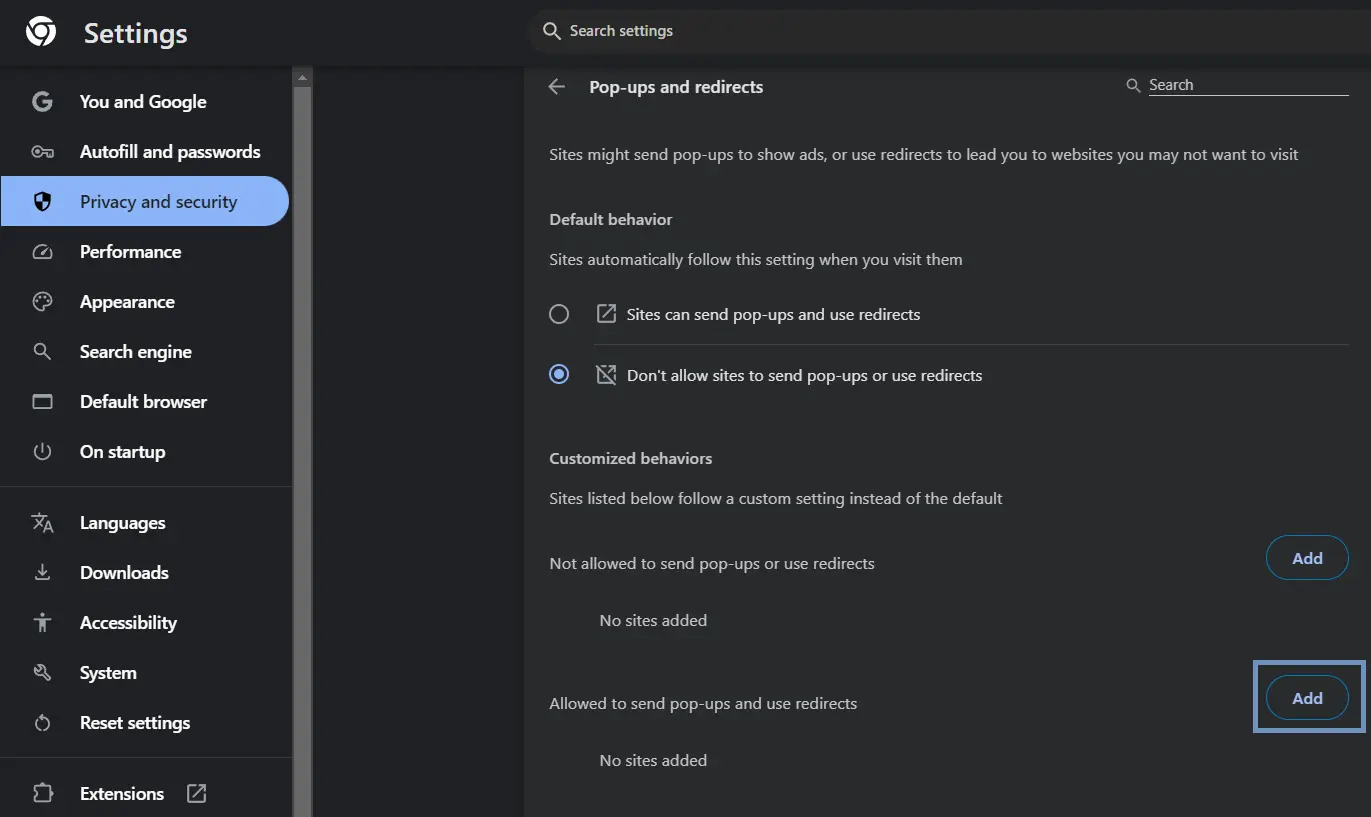
- Use Chrome’s Advanced Settings: In addition to the standard pop-up blocker, users can manage exceptions. If certain sites are allowed to show pop-ups, review and modify this list under the same Site settings section.
- Install Ad-Blocker Extensions: Consider adding reputable ad-blocker extensions from the Chrome Web Store. Extensions like uBlock Origin or AdBlock Plus can filter out many ads and enhance browsing experience.
- Clear Browsing Data Regularly: Accumulated cookies and cached data can sometimes lead to increased ad presence. Regularly clear browsing data by going to Settings, then Privacy and security, and selecting Clear browsing data.
- Be Cautious with Downloads and Links: Avoid downloading software or clicking on links from untrusted sources. These actions can lead to the installation of adware, which generates unwanted pop-ups.
Implementing these best practices can lead to a smoother browsing experience. Consistently review and adjust settings as needed, as ad networks constantly evolve their tactics.
For optimal protection, consider combining multiple strategies. Utilizing both built-in browser features and trusted third-party tools offers a robust defense against pop-up ads.
Can pop up ads harm my computer?
Yes, pop-up ads can harm your computer. They may serve as a vector for malware, leading to potential data breaches or system damage. Additionally, many pop-up ads are designed for phishing attacks, which can result in identity theft or financial loss.
For instance, consider a scenario where a user clicks on a seemingly harmless pop-up ad offering a free software download. Upon clicking, the user is redirected to a malicious website that prompts the installation of a program disguised as legitimate software. This program may actually be malware that compromises the user’s system, steals personal information, or even locks files for ransom. Such incidents illustrate how easily pop-up ads can lead to significant security threats.
Furthermore, pop-up ads often bombard users with deceptive offers. These ads can masquerade as notifications from legitimate services, urging users to provide sensitive information or install harmful applications. Engaging with these ads increases the risk of inadvertently downloading malicious software or revealing personal details to cybercriminals. Awareness of these risks is essential for maintaining computer security.
Expert Tip: Regularly updating your browser and using reputable ad-blocking extensions can significantly reduce the risk of encountering harmful pop-up ads. Always approach unsolicited offers with caution and verify the legitimacy of any website before interacting with its content.
Understanding the Technology Behind Pop Up Ads
This section delves into the technologies that enable pop up ads, their targeting mechanisms, and the distinctions between legitimate advertisements and malicious pop ups. An understanding of these elements is essential for effective ad management in Google Chrome.
The Role of JavaScript in Creating Pop Up Ads
JavaScript plays a pivotal role in the generation of pop up ads. This programming language allows web developers to create dynamic content and interactive features on websites. Pop ups are often triggered by JavaScript functions that execute under specific conditions, such as page load or user actions (like clicks). The ability to manipulate the Document Object Model (DOM) enables these ads to appear in various formats, including new browser windows or overlaying content within the same page.
How Ad Networks Target Users with Pop Ups
Ad networks utilize a variety of targeting techniques to deliver pop up ads to users. These include:
- Behavioral Targeting: Analyzing user behavior, such as browsing history and search queries, to serve relevant ads.
- Contextual Targeting: Displaying ads based on the content of the webpage being viewed.
- Geolocation Targeting: Using location data to provide region-specific advertisements.
These methods enhance the likelihood of user engagement, making pop ups an appealing advertising strategy for marketers.
The Difference Between Legitimate Ads and Malicious Pop Ups
While many pop up ads are legitimate and serve as a revenue source for websites, others can be classified as malicious. Legitimate ads typically adhere to guidelines set forth by advertising networks and provide value to users. In contrast, malicious pop ups may lead to phishing sites, malware downloads, or unwanted software installations. Recognizing the signs of malicious pop ups, such as unexpected or aggressive prompts, can protect users from security threats.
Understanding Browser Cookies and Tracking
Cookies are small data files stored on a user’s device, allowing websites to remember user preferences and behavior. Advertisers leverage cookies to track user activity across different sites, which can inform ad targeting strategies. This tracking can lead to personalized pop ups based on previous interactions. However, excessive tracking raises privacy concerns, prompting users to seek ways to limit cookie storage and ad exposure.
Common misconceptions include the belief that all pop up ads are harmful. In reality, many are part of legitimate marketing efforts. Furthermore, users often underestimate the effectiveness of browser settings and extensions in combating unwanted ads.
To mitigate the impact of pop up ads in Google Chrome, users should consider the following actions:
- Adjust Chrome’s built-in pop up blocker settings to block unwanted ads.
- Regularly clear browser cookies to limit tracking.
- Utilize reputable ad-blocking extensions to enhance protection against both legitimate and malicious pop ups.
By understanding the underlying technologies and employing proactive measures, users can significantly reduce the prevalence of unwanted pop up ads in their browsing experience.
Advanced Settings and Tools for Blocking Ads
This section explores advanced methods and tools that enhance ad blocking in Google Chrome, addressing how to effectively eliminate pop-up ads and improve browsing experience.
Utilizing Chrome Flags for Enhanced Ad Blocking Capabilities
Chrome flags are experimental features that can significantly improve ad blocking capabilities. To access these flags, type chrome://flags in the address bar. Here are a few notable flags that may enhance ad blocking:
- Block Insecure Private Network Requests: Enables blocking of requests from insecure origins.
- Enable Enhanced Safe Browsing: Provides extra security against harmful sites, including ad networks.
- Force Dark Mode for Web Contents: While primarily for aesthetics, it can sometimes reduce the prominence of aggressive ads.
Adjusting these flags can lead to a more streamlined browsing experience by minimizing intrusive advertisements.
Configuring DNS Settings for Ad Blocking
Changing your DNS settings can play a crucial role in blocking ads at a network level. By using a DNS service that blocks ad domains, you can prevent pop-ups before they even reach your browser. Popular options include:
- AdGuard DNS: Specifically designed to block ads and trackers.
- NextDNS: Offers customizable filtering options tailored to user preferences.
- OpenDNS: Allows users to block known ad-serving domains.
To configure your DNS settings, access your network settings and replace the existing DNS addresses with those provided by your chosen service.
Exploring Third-Party Ad Blockers and Their Configurations
Third-party ad blockers can provide robust protection against pop-up ads. Some of the most effective options include:
- uBlock Origin: A lightweight, open-source ad blocker that is highly customizable.
- AdBlock Plus: Offers a user-friendly interface with whitelisting capabilities.
- Ghostery: Focuses on privacy and ad blocking, providing control over trackers.
Each ad blocker comes with its own settings that can be configured to suit user needs, such as enabling or disabling specific filters or creating custom rules.
Utilizing Privacy-Focused Browsers as an Alternative
For users seeking a comprehensive solution to ad blocking, privacy-focused browsers can be a worthwhile alternative. Browsers like Brave and Firefox Focus come with built-in ad blocking features that eliminate pop-ups and enhance privacy by default. These browsers prioritize user data protection while providing an ad-free experience.
Many users assume that standard ad blockers are sufficient for pop-up prevention. However, relying solely on these extensions may not address all ad types or vulnerabilities. Utilizing multiple layers of protection, such as DNS changes alongside ad blockers and privacy-focused browsers, creates a more robust defense against intrusive ads.
To effectively stop pop-up ads in Google Chrome, consider implementing the following steps:
- Access Chrome flags and enable relevant features.
- Change your DNS settings to an ad-blocking provider.
- Install a reputable third-party ad blocker and configure it according to your preferences.
- Explore alternatives like privacy-focused browsers for a comprehensive ad-free experience.
By combining these strategies, users can significantly reduce the prevalence of pop-up ads and enhance their overall browsing experience.
Common Mistakes Users Make When Blocking Pop Up Ads
This section examines frequent errors users encounter when attempting to block pop-up ads in Google Chrome. Addressing these mistakes can significantly enhance the effectiveness of ad-blocking efforts.
Ignoring Browser Updates That Improve Ad Blocking
Many users overlook the importance of regularly updating their browser. Google Chrome frequently releases updates that enhance security and improve built-in ad-blocking features. By not keeping the browser updated, users may miss out on critical improvements that can effectively reduce the frequency of pop-up ads.
Not Configuring Extension Settings Properly
Ad-blocking extensions can be powerful tools, but they require proper configuration to function effectively. Users often install extensions without reviewing their settings, leading to suboptimal performance. For instance, some extensions come with default settings that may not block all types of ads, including pop-ups. Adjusting settings to align with personal browsing habits can maximize the extension’s effectiveness.
Overlooking Site-Specific Settings That Allow Pop Ups
Chrome allows users to manage site-specific permissions, including pop-up settings. Users frequently fail to check these settings, which can lead to pop-ups appearing even after general blocking is enabled. Sites that users frequently visit may have been mistakenly whitelisted, permitting pop-ups despite overall blocking preferences.
Failing to Recognize the Difference Between Pop Ups and Pop Unders
Many users confuse pop-ups with pop-unders. Pop-ups appear in a new window on top of the current browser window, while pop-unders open in a new window behind the current one. Recognizing this distinction is essential, as different strategies may be needed to block each type effectively. Misunderstanding this can result in ongoing frustration when ads still appear after blocking attempts.
Common Misconceptions About Ad Blockers
A prevalent misconception is that all ad blockers are equally effective against pop-ups. In reality, the effectiveness of an ad blocker can vary significantly based on its features and the algorithms it employs. Users should research and select an ad blocker that specifically mentions robust pop-up blocking capabilities. Additionally, some ad blockers may allow certain non-intrusive ads by default, which can also contribute to confusion.
Practical Application
- Regularly update Google Chrome to ensure access to the latest ad-blocking features.
- Review and customize settings in ad-blocking extensions to optimize performance.
- Check site-specific permissions to ensure that pop-ups are not inadvertently allowed.
- Understand the difference between pop-ups and pop-unders to apply appropriate blocking techniques.
- Choose a reputable ad blocker that provides comprehensive protection against both types of ads.
For How Do I Stop Pop Up Ads In Google Chrome businesses looking to generate local leads through Google Ads or Local SEO, GMB Ranger LLC offers hands-on campaign management. Specialist Md Tangeer Mehedi personally handles campaign setup and ongoing optimization — with no payment required until the first lead comes in.
Frequently Asked Questions
What are pop up ads and why do they appear?
Pop up ads are unsolicited windows that appear on your screen while browsing the internet. They often promote products or services and can be triggered by websites or ad networks to generate revenue.
How can I block pop up ads on my mobile Chrome browser?
To block pop up ads on the mobile Chrome browser, go to Settings, select Site settings, and then toggle the Pop-ups and redirects option to Blocked. This will prevent most pop ups from appearing while you browse.
Are there any Chrome extensions to block pop up ads?
Yes, there are several Chrome extensions available that can effectively block pop up ads, such as Adblock Plus and uBlock Origin. These extensions provide additional filtering options and enhance your browsing experience.
How much data do pop up ads consume?
Pop up ads can consume varying amounts of data, depending on their content, such as images or videos. Generally, they can use a small fraction of your data, but excessive pop ups can add up over time.
How long does it take to set up pop up ad blocking in Chrome?
Setting up pop up ad blocking in Chrome takes only a few minutes. Users can easily navigate to the settings menu and adjust the pop up settings to block unwanted ads quickly.
What are the best practices for managing pop up ads in Chrome?
Best practices include enabling Chrome’s built-in pop up blocker, using reputable ad-blocking extensions, and regularly updating your browser. Additionally, avoid clicking on suspicious links or ads to minimize pop up occurrences.
Can pop up ads harm my computer?
While most pop up ads are harmless, some can lead to malicious websites or downloads that may harm your computer. It’s essential to be cautious and avoid interacting with pop ups from untrusted sources.
Final Thoughts on how do i stop pop up ads in google chrome
Effectively managing pop-up ads in Google Chrome is essential for an optimized browsing experience and improved online security. By employing a combination of built-in settings, utilizing reputable extensions, and understanding the underlying technology, users can significantly reduce the intrusion of unwanted ads, thereby enhancing both performance and privacy.
To take immediate action, adjust your Chrome settings to block pop-ups and redirects, ensuring a smoother browsing experience. Additionally, install a trusted ad-blocking extension to further fortify your defenses against intrusive ads.
Addressing pop-up ads is not just about convenience; it is a crucial step in maintaining a secure and efficient digital environment.
Leave a Reply